Tag: wordpress wednesday

LiteSpeed’s WordPress Wednesday series shares tips, tutorials, and explorations of new features related to the LSCache for WordPress plugin. Even those not currently using LSCWP can learn something. What is caching? What types of caching can be used with WordPress? How else can you optimize WordPress?

LSCWP provides advanced cache-management tools and optimization features, designed to reduce page load times and give your site an edge. With LiteSpeed, your site can employ the best practices that make for a high PageSpeed score, and – more importantly – an exceptional user experience.

  • WpW: Optimizing Images with LSCache

    WpW: Optimizing Images with LSCache

    Welcome to another installment of WordPress Wednesday!

    Disclaimer: The information contained in this post is accurate for LSCWP v1.6.2.1 [release log]. If you are using a newer version of the plugin, some details may have changed. Please refer to our wiki for the latest!

    Have you ever wished that your site’s images didn’t take so long to transfer? Well, there may be something you can do about it. Many images can be optimized to take up less space, which in turn takes less time to transfer. Two and a half weeks ago, we introduced an Image Optimization feature, and in that time, we’ve already optimized around 640,000 images. That’s a lot of saved bytes!

    Intrigued? Today we’re going to talk a little bit about Image Optimization: what it is, and how to use it.

    Image Optimization

    One effective way to deal with the cost of transmitting images over the Internet is to reduce the size of those images.

    Smaller images = faster transmissions.

    The LiteSpeed Cache plugin provides access to image optimization services on a central web server. Here’s how it works:

    1. You press the Send Optimization Request button on the Image Optimization page.
    2. The central server denies or accepts the request after callback verification.
    3. The central server distributes the task to a child server.
    4. The child server fetches your images.
    5. The child server processes your images.
    6. The child server notifies WordPress that the images are ready.
    7. A cron job runs and pulls your images back into WordPress.

    You may be wondering about step 5. What is actually happening when the child server processes your images?

    Well, there are libraries for this sort of thing, so we don’t need to reinvent the wheel. We use Imagick functions to adjust your images to 85%-90% quality of the original. (This optimization is lossy.)

    During the process, three versions of each image file are generated:

    • yourimage.bk.jpg: the original version of your image.
    • yourimage.jpg: the optimized version of your image, which is what will be shown on your site from now on.
    • yourimage.jpg.webp: is a version of your image saved in a format that is about 25%-34% smaller than JPG (learn more).

    If yourimage.jpg was unable to be optimized for any reason (maybe it was already optimal) there will be no new version generated, and therefore no yourimage.bk.jpg. There will be a WebP format saved, though.

    Using multiple plugins

    Before we go any further, it’s important to point out that you should not use more than one Image Optimization plugin at the same time! Doing so can cause quirky behavior, and it often leads to errors in processing: errors that can only be cleared by creating a ticket and having us deal with it on our end.

    It’s extra hassle for everyone involved, so please just don’t do it 🙂

    Generally speaking, it’s never a good idea to have two plugins performing the same optimization functions anyway. To be clear, you can still use multiple optimization plugins, as long as you don’t duplicate any of the individual functions. I go into more detail on that here, if you want to know more.

    How do I use Image Optimization on my WordPress Site?

    Settings

    From the WordPress Dashboard, navigate to LiteSpeed Cache > Settings > Media. Scroll down, and you will see two settings related to optimization.
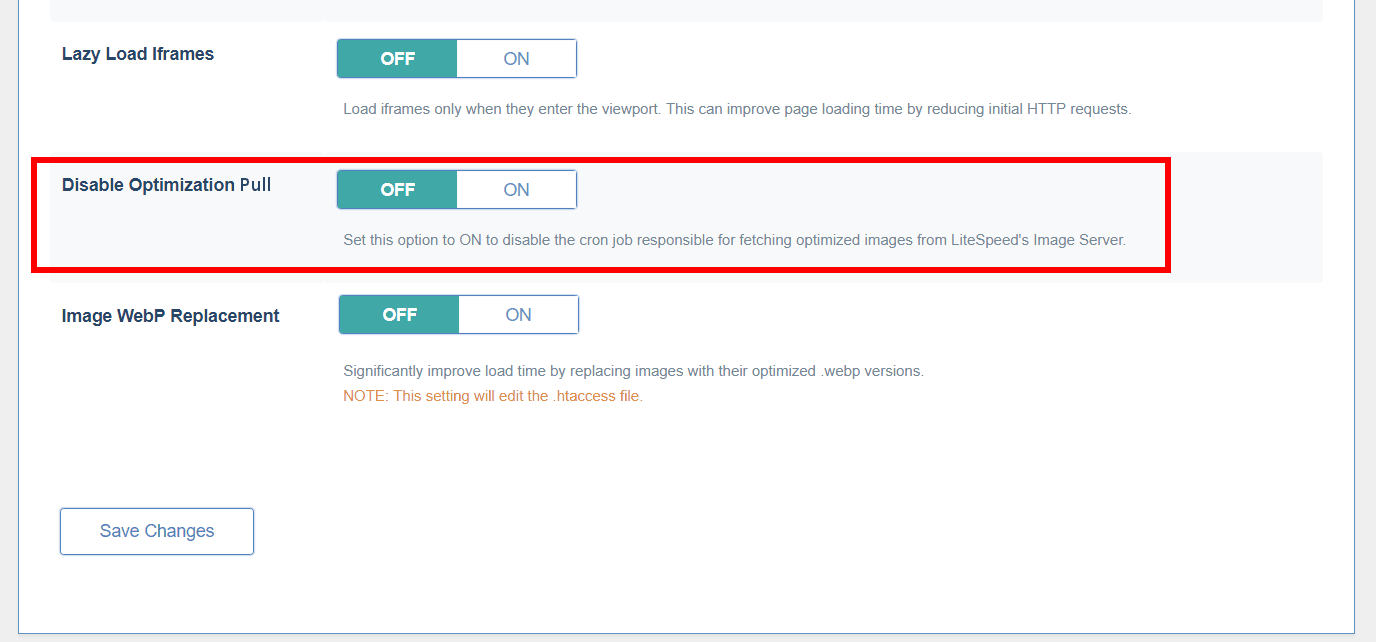
    Disable Optimization Pull, when ‘ON’, will disable the cron job that is used to pull optimized images from the central server into your WordPress media library. If you turn this on, you will be unable to retrieve your optimized images.

    Under normal circumstances, you will not need to touch this setting.
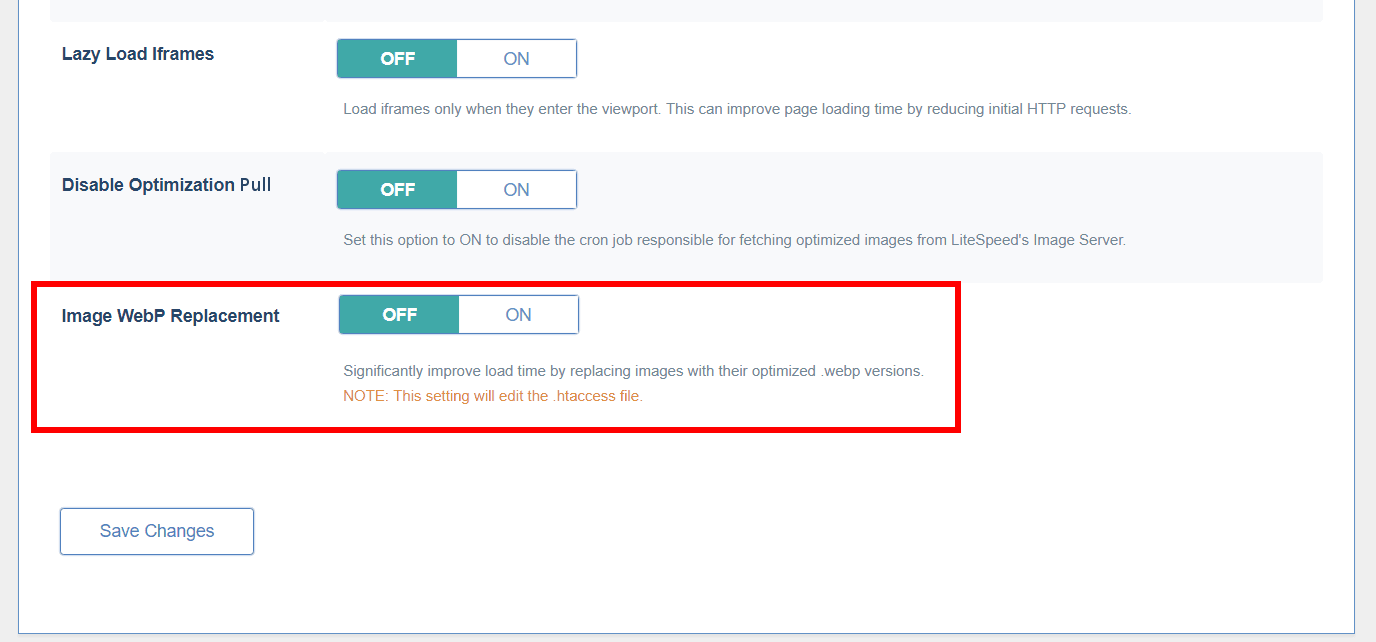
    Remember the .webp file format we mentioned earlier? If you would like to use WebP images in place of all of your JPGs and PNGs, turn the Image WebP Replacement option on.

    Not all browsers support WebP, so there will be two versions of your pages in cache: one with the WebP images and one with the other image formats, and the appropriate version will be served to your visitors. And since your other optimized image formats are still there, you can turn WebP off at any time, if you change your mind.

    Optimize

    Navigate to LiteSpeed Cache > Image Optimization.
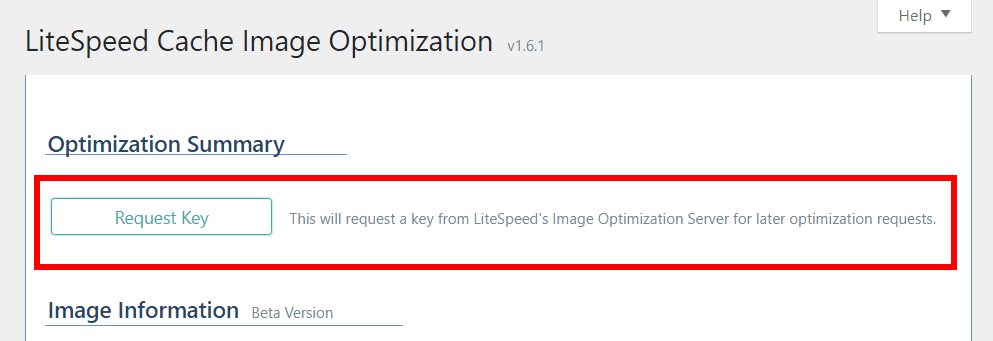
    The first time you visit this page, you will see a button that reads Request Key. Press the button to obtain a key from the central server that it will use to process all of your future image optimization requests. Once the key is obtained, your screen should look like the one shown below, and your API key will be listed (although most of it will be blocked out for security purposes).

    Below the key is Total Reduction. It shows you how much space the server has saved with image optimization to date. This number isn’t updated automatically, so to get the most recent status you will need to press the Update Reduction Status button.
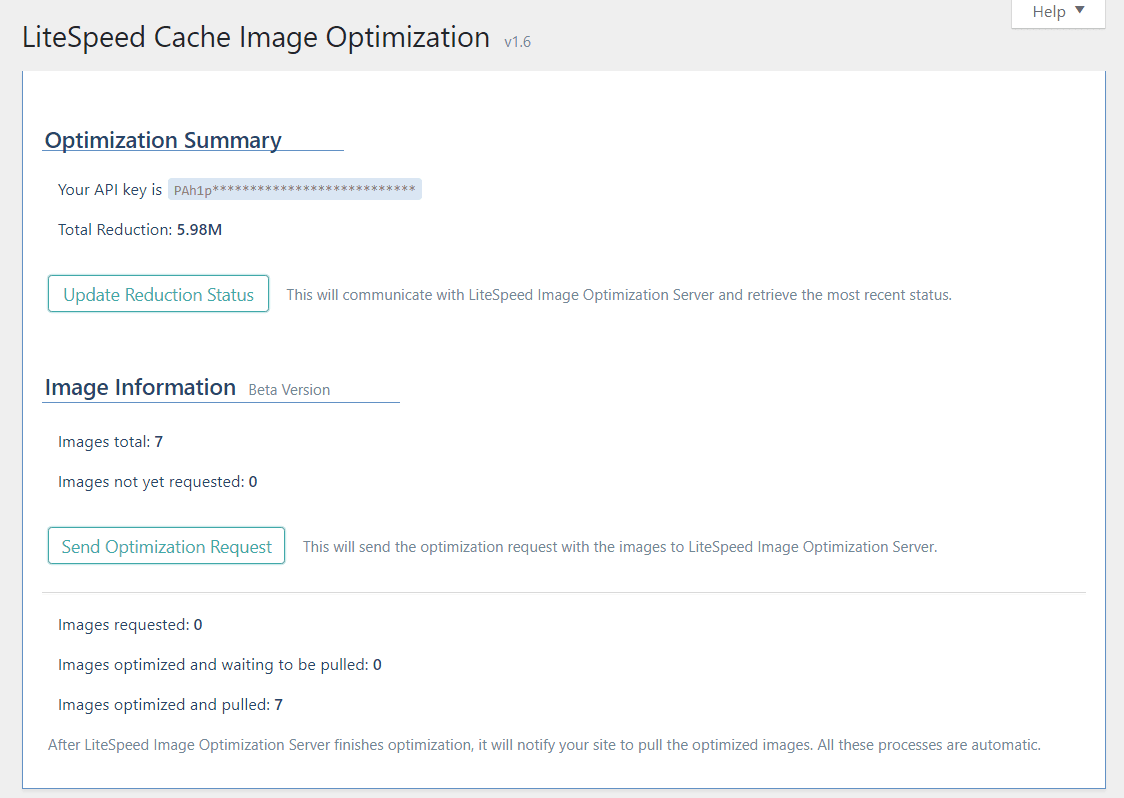
    Below Optimization Summary, you’ll see Image Information.

    The top section of Image Information is where you submit your request.

    • Images Total displays the number of images present on your site.
    • Images Not Yet Requested shows the number of images yet to be optimized.
    • Press Send Optimization Request and all of the unoptimized will be submitted to the central server for optimization.

    The bottom area of this section shows you what’s happening with your current request.

    • Images requested: how many images are waiting their turn to be optimized
    • Images optimized and waiting to be pulled: how many are complete and waiting to be pulled back into WordPress
    • Images optimized and pulled: how many have finished the process completely

    All of this happens behind the scenes after you’ve pressed the Send Optimization Request button. You can refresh the page to update these numbers, and you can leave the page while optimization is running, if you’ve got other things to do.

    Restore
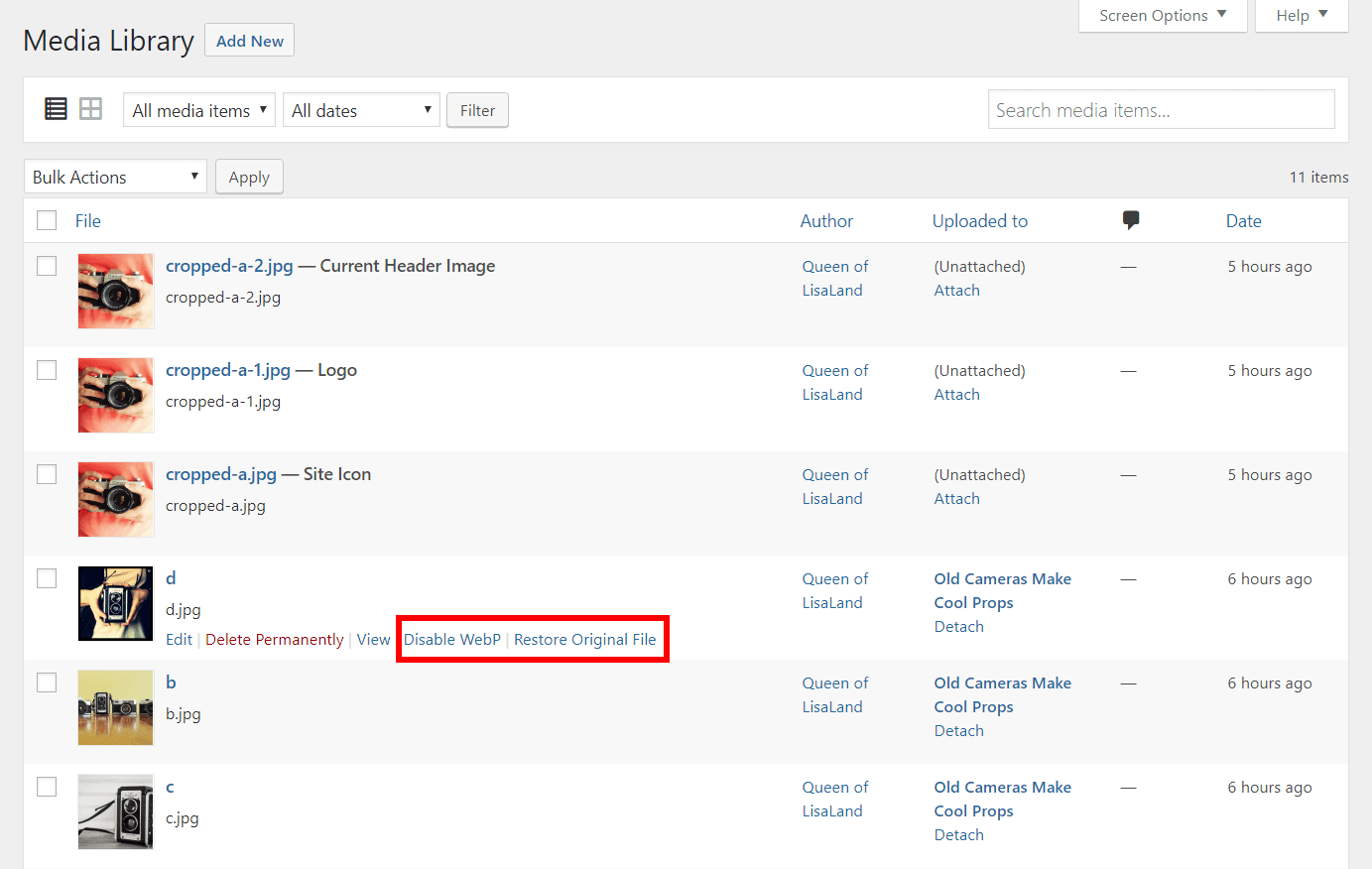
    If you are unhappy with the way an image was optimized, you have the ability to restore it back to the original version. From the WordPress Dashboard, navigate to Media > Library, choose the list view, and hover over the image you’d like to revert.

    Click Restore Original File and everything goes back to normal.

    If you have enabled WebP images globally, you can disable it for individual images using the Disable WebP link.

    Comparing Pages With and Without Optimization

    I created a few image-heavy blog posts, using differently-sized images for each.

    With no optimization whatsoever, my post with the largest images in it had to transfer 14,070,859 bytes of imagery. After optimization, it was 9,467,154 bytes. Nice! And when I enabled WebPs, it was even better at 7,249,465 bytes! Image optimization cut the image size nearly in half.

    Your mileage will vary based on how optimized your images already are when they’re uploaded. If you’re a photographer, and you take pains to export your images from Lightroom or Photoshop already nicely-optimized, you will see much less of an improvement (if any) than someone who doesn’t pay too much attention to their imagery before upload.

    I saw this in action on a post where the imagery transfer took 353,370 bytes before and after optimization. My images were clearly already optimized. However, when I enabled WebP, it went down to 250,520 bytes. So at the very least, you should be able to see some improvement by enabling WebP.

    Image Optimization has been a popular topic on our WordPress forum lately, and there have been a lot of questions about what, exactly, it is doing to your photos. I hope that this has lifted some of the mystery. And if you still have questions, please do ask!

    —
    Have some of your own ideas for future WordPress Wednesday topics? Leave us a comment!

    Don’t forget to meet us back here next week for the next installment. In the meantime, here are a few other things you can do:

  • WpW: When it’s Good to be Lazy

    WpW: When it’s Good to be Lazy

    Welcome to another installment of WordPress Wednesday!

    Disclaimer: The information contained in this post is accurate for LSCWP v6.0.0.1 [release log]. If you are using a newer version of the plugin, some details may have changed. Please refer to our documentation for the latest!

    At this point in the week are you ready to be a little lazy? To brew a cup of peppermint tea, kick up your feet in a cozy spot and just relax? That does sound nice… Well, while it may not be possible for you to drop everything today and get lazy, it is possible to give your blog images that opportunity.

    It’s called “Lazy Load” and it’s one of the ways you can speed up your website. Read on to see how!

    What does Lazy Load mean, and why is it a good idea?

    If you run an image-heavy site, you have probably felt frustration with your page load times. You may have even seen visitors lose patience and leave the site before all of the media was finished displaying.

    Photography and lush imagery can make for a beautiful site, but it comes at a price.

    Lazy Loading is a way of minimizing the impact of images on page load time.

    If you’ve ever visited an online store, and seen the product images fill up the empty spaces as you scroll down, you have seen Lazy Loading in action.

    When you enable Lazy Load on your site, you are configuring images and iframes to load asynchronously. That means, only the content that is currently visible in the viewport is loaded initially. The rest of the content is loaded on an as-needed basis, while you scroll down the page.

    As you can imagine, the impact that asynchronous loading has on media-heavy pages is impressive.

    Your mobile visitors will thank you for the bandwidth savings that Lazy Loading affords them. Not everyone has an unlimited data plan. (I personally don’t have one, and I very much appreciate sites that only load what I need to see when I need to see it!)

    Through LSCWP’s Page Optimization > Media Settings tab, you can configure your site to asynchronously load images and/or iframes.

    How to use Lazy Load on your WordPress site

    The Media Settings tab includes a lot of interesting optimizations but let’s keep it simple, and just go over a few basic settings. If you want to explore what the other options do, you can see the Media Settings Tab documentation.

    Enable Lazy Load

    From your WordPress Dashboard, navigate to Page Optimization > Media Settings.

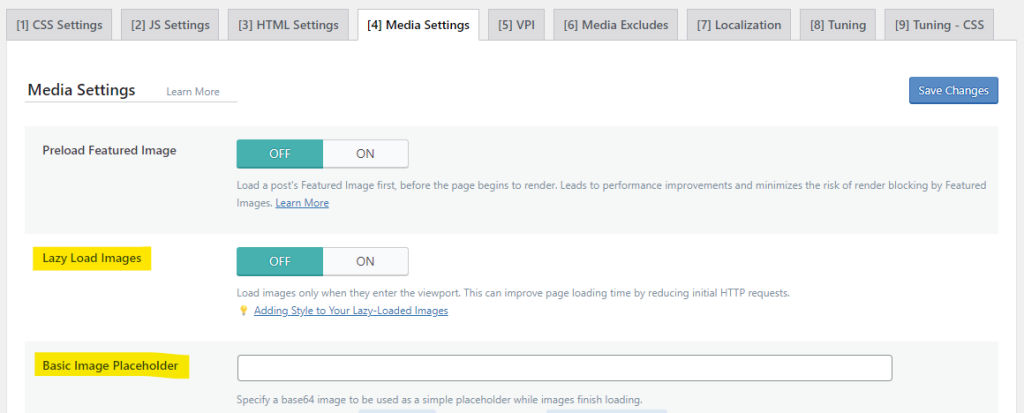
    To enable lazy loading of images, set Lazy Load Images to ON.
    To enable lazy loading of iframes, set Lazy Load Iframes to ON.

    Placeholder settings

    When Lazy Load Images is enabled, and a visitor scrolls down and pulls a new area into the viewport, that is when the next set of images begins to load. Until the images are fully loaded, gray placeholder boxes will appear. You may wish to style these boxes to coordinate better with the rest of your site. The Basic Image Placeholder allows you to do so.

    You will need a base64 image. Base64 is a way of converting binary to text. It allows you to easily embed an image into code. You can convert a PNG, JPG or other image format into base64 at a free site such as this one, and then paste the resulting string into the Basic Image Placeholder box.

    If you’d like a transparent placeholder, use data:image/gif;base64,R0lGODlhAQABAIAAAAAAAP///yH5BAEAAAAALAAAAAABAAEAAAIBRAA7.

    The Basic Image Placeholder is a fixed size. If you prefer, you can set up a Responsive Placeholder using an SVG file, or you can choose a solid Responsive Placeholder Color. Learn more about this option in our docs.

    Or, for placeholders that resemble the original images, you can try the LQIP QUIC.cloud service. LQIP stands for Low-Quality Image Placeholder. There is more information about that here.

    Exclude some images

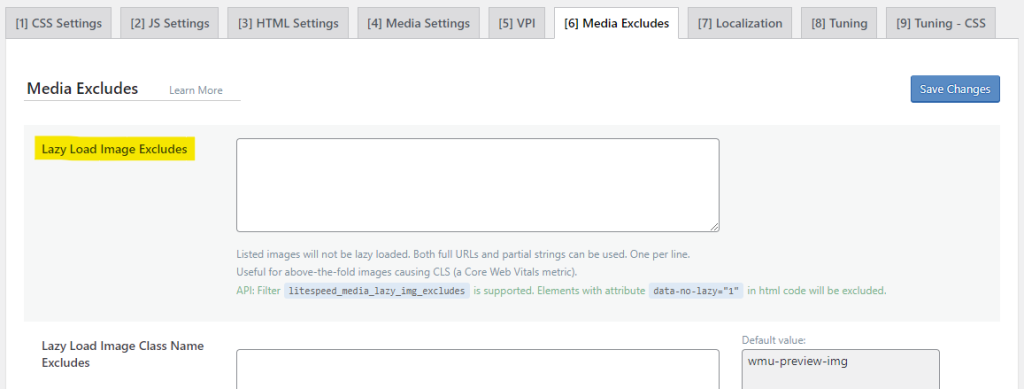
    Click the Media Excludes tab and use the Lazy Load Image Excludes setting to specify an image or group of images that should always be loaded right away, regardless of whether they are in the viewport or not. You can specify the image’s entire path here, or a partial string. If you use a partial string, you don’t need wildcards.

    Example:
    Let’s say you have images/storefront/logo.png, images/storefront/sale.png and images/products/pencils.jpg.

    If you enter images/storefront/logo.png in the box, it will only match that single image.
    If you enter images/storefront in the box, it will match all images that appear in the storefront directory, including logo.png and sale.png.
    Neither string will match the product image pencils.jpg.

    Well done!

    Now that you’ve got Lazy Load all set up, how about that cup of tea? It’s time to sit back and watch your site performance improve. Cheers!

    —
    Have some of your own ideas for future WordPress Wednesday topics? Leave us a comment!

    Don’t forget to meet us back here next week for the next installment. In the meantime, here are a few other things you can do:

    —
    This content was last verified and updated in January of 2024. If you find an inaccuracy, please let us know! In the meantime, see our documentation site for the most up-to-date information.

  • WpW: Friends Don’t Let Friends Microcache

    WpW: Friends Don’t Let Friends Microcache

    Why You Shouldn't Microcache

    Welcome to another installment of WordPress Wednesday!
    Today’s Topic: Why You Shouldn’t Microcache

    Disclaimer: The information contained in this post is accurate for LSCWP v1.6. If you are using a newer version of the plugin, some details may have changed. Please refer to our wiki for the latest!

    We’ve discussed before why caching your WordPress site is a good idea, as well as the different options you have when it comes to caching. You’ll want to take a look at that series, if you missed it. One approach to page caching that we didn’t discuss is known as “microcaching.” Today we’re going to talk about microcaching and why you can do better for your WordPress blog.

    What is microcaching?

    Microcaching is a variation of full-page caching where a static copy of dynamically-generated content is stored extremely short-term, often for as little as one second!

    There is only one scenario where microcaching should be considered: high-traffic sites that feature rapidly-changing public content. This includes sites that display real-time stock prices, breaking news, or sports scores.

    Let’s look at an example:
    A breaking news site gets 500 requests for one of its pages in 10 seconds. That is a lot of requests for WordPress to handle at one time. However, if the page is microcached for one second at a time, then only 1 request per second needs to get through to the backend. That’s 10 requests in a 10 second period. The other 490 requests can be served using slightly stale (1 second old) content from the cache. This extremely small TTL provides the illusion of dynamic content being served.

    Why You Shouldn’t Microcache

    Microcaching works, but only for a very specific site profile, like the one in our example. If your site has moderate traffic, content that changes less frequently than every few seconds, multiple views per page, or any personal content displaying at all, then you will be disappointed by microcaching.
    Why You Shouldn't Microcache

    Microcaching is overkill for moderate traffic.

    Ideally, microcaching kicks in when server load is high, it does its thing until the volume of requests goes back to a reasonable level, and then it goes dormant until it’s needed again. If you don’t have a high-traffic site, constant microcaching could actually degrade system performance, as unneeded cache pages are repeatedly generated.

    Microcaching wastes CPU for stable content.

    If your content changes less frequently than every second (and, let’s face it, most content on the web changes much less frequently than every second) then microcaching is not for you. it is a waste of valuable system resources to continually re-cache pages that have not changed.

    Microcaching can’t handle variable content.

    Microcaching is not intelligent. It takes a snapshot of a page, and serves that same snapshot to everyone for the duration of its short life. There is no ability to cache personalized content, nor is there any allowance for edge side includes (ESI). On a WordPress site, by default, microcaching doesn’t work at all for logged-in users.

    Microcaching makes no allowances for differing browser signatures or geographic location. Varying themes for mobile vs. desktop are ignored. Everyone gets the same content. No matter what.

    This can lead to incorrect views being served to certain customers – a problem which is extremely difficult to troubleshoot, given how quickly the cache turns over.

    Can LiteSpeed do better?

    You bet we can! Let’s explore those microcaching limitations we mentioned, so you can see just how much better our solution can be.

    Why You Shouldn't Microcache

    LSCache can handle both moderate and high traffic

    You might argue that there is a place for microcaching during a traffic spike, as we saw with our previous example of the breaking news site. That may be true, but what happens once the traffic spike is over? Microcaching doesn’t shine in that scenario, but LiteSpeed does. LSCache handles both the spike and the regular traffic beautifully.

    Let’s say that we were to cache a page with a TTL of one week. No matter the level of traffic – one request per hour or 500 requests in a 10-second period – a single hit to the back-end during that entire week is all that would be necessary.

    Microcaching is not acceptable as a permanent solution, because the load it would put on the server, re-caching every second, is excessive when the traffic doesn’t warrant it. LiteSpeed is designed for the long haul. It allows you to keep your site cached indefinitely for your regular visitors, and it effortlessly rises to the challenge of the occasional traffic spike.

    LSCache doesn’t waste CPU for stable content

    Devotees of microcaching would suggest that a TTL of one week, as in our previous example, would not be appropriate for a site with dynamic content. They would point to the risk of serving some very stale pages.

    With LiteSpeed there is no risk of stale content. LSCache is different than most WordPress cache plugins. It features an intelligent tag-based system that purges the relevant pages from the cache automatically whenever the content changes. Leaving TTL at one week (or longer!) is not a problem with LSCache. If a new post is published, the related pages are immediately purged. If a new post is not published, then the pages continue to be served quickly from the cache until the TTL expires.

    While a microcaching system might blindly re-cache content every second, LSCache is smart enough that you can set a long TTL and let the system determine when it needs to be re-cached. Don’t waste resources repeatedly re-caching content that hasn’t changed!

    LSCache is smart about variable content

    Like in microcaching, LSCache also takes a snapshot of a dynamically-generated page and serves that snapshot to site visitors. However, LSCache is smart enough to distinguish between public content (which is suitable for everyone) and private content (which is cached only for the particular user to whom it applies). LSCache has the ability to use ESI to serve private blocks of data within public pages, which means we can easily serve cached pages to logged-in users.

    LiteSpeed Cache can distinguish between mobile and desktop views, browser signature, geographic location, and any number of other variations that may exist for a page.

    When you employ microcaching, you are taking a one-size-fits-all approach to serving content, but one size definitely does not fit all! LiteSpeed Cache recognizes the diversity of your site’s visitors and responds appropriately with tailored content.

    To Review: Why You Shouldn’t Microcache

    Here are a few common scenarios that your cache solution may encounter. Can it handle them efficiently and correctly?

    Can your cache handle this? LiteSpeed Cache microcaching
    Only public content on the page ✔ ✔
    Page has some private content (a personalized greeting, items in a shopping cart, list of the visitor’s recently-viewed pages, etc.) ✔ X
    Page has different views for mobile and desktop ✔ X
    Page content varies based on geographic location ✔ X
    Page content varies for logged-in users ✔ X
    Traffic is heavy ✔ ✔
    Traffic is moderate or light ✔ X
    Content changes rapidly ✔ ✔
    Content changes rarely ✔ X

    Curious about all of this? If you want to go deeper into the details, check out our LSCaching 101 article – it explains everything about how our cache solution works.

    —
    Have some of your own ideas for future WordPress Wednesday topics? Leave us a comment!

    Don’t forget to meet us back here next week for the next installment. In the meantime, here are a few other things you can do:

  • WpW: How to Set Up a CDN with LSCache

    WpW: How to Set Up a CDN with LSCache

    Welcome to another installment of WordPress Wednesday!

    Disclaimer: The information contained in this post is accurate for LSCWP v5.0. If you are using a newer version of the plugin, some details may have changed. Please refer to our documentation for the latest!

    LiteSpeed Cache for WordPress has the ability to support your Content Delivery Network usage. This quick guide should explain how the different settings between your CDN and LiteSpeed relate to each other.

    Cloudflare

    Make sure you have set up your Cloudflare account on the Cloudflare website. Once that’s done, switch over to your WordPress Dashboard and navigate to LiteSpeed Cache > CDN > CDN Settings.

    To manage Cloudflare through the LSCache plugin, set the following:

    • QUIC Cloud CDN: OFF
    • Use CDN Mapping: OFF, and leave all settings under it alone
    • Cloudflare API: ON, and fill in your Email Address, Global API Key, and Domain

    NOTE: You can also use Cloudflare without managing it through LSCache. If that is what you choose, just set Cloudflare API to OFF, and leave all settings under it alone. Cloudflare will work either way. The advantage of setting this up in LSCache is that you may purge your Cloudflare cache or enable Cloudflare’s Development Mode from within LSCache. If that doesn’t matter to you, feel free to skip this setup.

    QUIC Cloud

    The QUIC.cloud onboarding process is documented in the QUIC.cloud Knowledge Base, and explains how to set up everything from the LSCache plugin to your QUIC.cloud Dashboard.

    Other Reverse-Proxy CDNs

    CNAME setup in the CDN

    For this guide, we’re going to assume you have already set up your CDN account, and added your site (let’s call it example.com) according to the CDN’s instructions.

    Make sure that your CDN is configured to cache static files only. Dynamic content will be handled by LiteSpeed.

    Your CDN configuration screen should have an area for adding a CNAME record. Look for it under DNS Editor or something along those lines.

    The goal here is to set up a custom domain to be used only by the CDN. For example, cdn.example.com. Follow the CDN’s instructions for adding the CNAME record.

    Once that is complete, and the domain is active, we’ll be ready to tell WordPress how to proceed.

    LiteSpeed Cache CDN Settings

    Now that your CDN is set up and your static content is ready to be served by the CDN, you will need to let WordPress know about it. You can do this through LiteSpeed Cache.

    In your WordPress Dashboard, navigate to LiteSpeed Cache > CDN > CDN Settings.

    Make sure both QUIC Cloud CDN and Cloudflare API are set to OFF.

    • Use CDN Mapping: ON.
    • CDN URL: http://cdn.example.com.
    • Original URLs: //example.com.

    The remaining settings can be left as-is, unless you have a specific reason to change them. If you do want to adjust them, this documentation should help.

    And that’s it! Once you save your changes, LiteSpeed Cache for WordPress will substitute the CDN URL for the Original URL in the static copies it saves of your dynamically-generated code, wherever appropriate.

    Want to learn more about how all of this works? We’ve written about our CDN support in some depth before. You can check that out here.

    —

    Have some of your own ideas for future WordPress Wednesday topics? Leave us a comment!

    Don’t forget to meet us back here next week for the next installment. In the meantime, here are a few other things you can do:

    —
    This content was last verified and updated in July of 2022. If you find an inaccuracy, please let us know! In the meantime, see our documentation site for the most up-to-date information.

  • WpW: LSCache and your plugin – perfect together

    WpW: LSCache and your plugin – perfect together

    Welcome to another installment of WordPress Wednesday!

    Disclaimer: The information contained in this post is accurate for LSCWP v1.4. If you are using a newer version of the plugin, some details may have changed. Please refer to our wiki for the latest!

    In most of our previous posts we’ve talked to site owners and hosting providers. Today, we’d like to address our fellow plugin developers. Let’s talk about how to ensure your plugin is compatible with LiteSpeed Cache for WordPress. And for those of you who are developers and would like to help make someone else’s plugin work well with LSCache, you’ll want to check out “What if it’s not your plugin?” below.

    To know if your plugin is compatible with LSCache, it helps to understand a bit about caching in general, as well as LiteSpeed Cache in particular. For that, we recommend you have a look at our Caching 101 series.

    Are we compatible?

    If your plugin doesn’t generate site content, or do anything out of the ordinary with existing front-end content, then chances are it is 100% compatible with LiteSpeed Cache for WordPress already. The vast majority of plugins will fall into this “already compatible” category. If, however, you have a plugin that makes changes to front-end-displayed content, and it does so in a non-traditional way, you’ll want to read on.

    LSCWP purges pages from the cache when certain events are triggered. If your plugin generates content that triggers those same events, then we’re already compatible in that area.

    LSCWP follows a set of rules to determine whether a page is cacheable. If your plugin generates content that also abides by those same rules, then we’re already compatible in that area as well.

    Even if your plugin generates cacheable content that doesn’t trigger the standard events, or it generates non-cacheable content that doesn’t abide by the same rules that we do, we can still get along. You may just need to invoke our API first.

    First, let’s look at purging rules and exclude rules to understand what is possible, and then we can look at the API functions that allow you to realize those possibilities.

    Purge rules

    LSCache will automatically purge a page from the cache if any of the following events are triggered:

    • edit_post
    • save_post
    • deleted_post
    • trashed_post
    • delete_attachment

    LSCache’s “smart purge” feature works by assigning tags to each cacheable page, and then using those tags to intelligently group together a collection of pages to be purged later.

    In its most basic form, each page is tagged with its Post ID, and then sent to the server to be cached. When one of the above events is triggered for the page, that request will notify the server to purge all of the cache’s items that are also tagged with that page’s Post ID. Depending on the purge rules that have been defined by the site owner, this could include related category pages, tag pages, and monthly archives, among other things.

    If your plugin makes modifications that trigger those same events, then you should be good. If, however, you have an application that changes what appears on a page without triggering any of those events, then you will need to inform LiteSpeed Cache that a purge is necessary.

    Our API gives you the ability to customize the notifications sent to the server. As the page is stored in the cache, you can assign your own tags to the page so that later, it may be purged as part of a custom group. Multiple tags can be set on a single page, and a single tag may be used on multiple pages. This many-to-many mapping provides a flexible system enabling you to group pages in a variety of useful ways.

    Example:

    • Page #1 is tagged with MTPP_F.1, MTPP_G.4, MTPP_S.wyoming (because the page is in forum 1, group 4, and related to the state of Wyoming).
    • Page #2 is tagged with MTPP_F.1, MTPP_G.2, MTPP_S.iowa (because the page is in forum 1, group 2, and related to the state of Iowa).

    If a change is made where all pages tagged MTPP_F.1 need to be purged, the tag system enables the server to easily purge both Page #1 and Page #2. If a request is sent to the server indicating that pages tagged MTPP_S.wyoming need to be purged, then the tagging system knows to only purge Page #1.

    For this functionality, you’ll want to pay special attention to the API functions tag_add and purge.

    TIP: When defining tags, it is a good idea to give them a prefix that is unique to your application, that way you avoid stepping on anyone else’s tags. In this example, we’ve used MTPP_ for “my third-party plugin.”

    Exclude rules

    As of v1.4, LSCache considers a page to be non-cacheable if

    • It is an Admin page
    • It is a post request
    • is_trackback() is true
    • is_search() is true
    • No theme is used
    • The URI is found in the Do Not Cache URIs List
    • The post URL has a query string found in the Do Not Cache Query Strings List
    • The post has a category found in the Do Not Cache Categories List
    • The post has a tag found in the Do Not Cache Tags List
    • The request has a cookie found in the Do Not Cache Cookies List
    • The request has a user agent found in the Do Not Cache User Agents List

    If your plugin generates content that is non-cacheable but doesn’t fall into one of the above categories, you will need to inform LiteSpeed Cache that the content cannot be cached. Our API gives you the ability to do so via the hook_control and set_nocache API hook and function.

    API

    LiteSpeed Cache for WordPress’ API provides functions and hooks that allow you to customize the aspects of cache management that we discussed above. Listed below are eight useful API functions and hooks. There is more to our API, though, and you can get all of the latest details and available functions on our wiki.

    These functions are defined in plugins/litespeed-cache/includes/litespeed-cache-api.class.php and may be used in any hook point prior to the shutdown hook point.

    Customized Purging

    Use these functions to implement your own purge rules, as in our forum/group/state example above.

    • LiteSpeed_Cache_API::tag_add($tag)
      When a page is created or edited, use this function to add a single cache tag (or group of cache tags) to the list of cache tags associated with the current page. These tags are appended the list of built-in tags generated by LSCWP.
    • LiteSpeed_Cache_API::purge($tag)
      When you need to purge a page and its related pages, use this function to add a single purge tag (or group of purge tags) to the list of tags to be purged with the request.

    Customized Exclusions

    If you plugin generates content that should not be cached, use these functions to implement your own exclude rules.

    • LiteSpeed_Cache_API::set_nocache()
      Use this function to mark the current page as non-cacheable.
    • LiteSpeed_Cache_API::hook_control($hook)
      Specify a hook for cache control with this filter. The hook will be triggered when the cache plugin is checking whether the current page is cacheable. This filter will not trigger on admin pages nor any page that has previously been marked as non-cacheable.

    Customized Admin Handling

    If your plugin makes adjustments to content through WordPress Admin (for example, you change a product description and then need to purge that product) these are the functions to use.

    • LiteSpeed_Cache_API::purge_post($id)
      Purge a single post by id with this function.
    • LiteSpeed_Cache_API::hook_purge($hook)
      This hook is called at the end of every cacheable request, and gives you the ability to add purge tags to the current request.

    ESI Blocks

    If you’d like to use ESI blocks in your plugin, you’ll want to employ the following functions:

    • LiteSpeed_Cache_API::esi_url($block_id, $wrapper, $params = array(), $control = 'private,no-vary')
      Creates a new ESI block. Use this if you wish to punch a hole for differently-cached content (i.e. a privately-cached individualized greeting on a publicly-cached page).
    • LiteSpeed_Cache_API::hook_tpl_esi($block, $hook)
      Use this hook to display an ESI block.

    For some detailed ESI examples, visit our wiki.

    What if it’s not your plugin?

    Not every plugin author is interested in modifying their plugin for LSCache compatibility, and that’s ok. You don’t have to be the author of the plugin to make sure it is compatible with LiteSpeed Cache. In fact, we’ve been adding support for well-known plugins ourselves since the beginning.

    If you are currently using an incompatible plugin, and you have some PHP skills, you can contribute to our project. Take a look at our plugin source code, and you’ll see a thirdparty directory where you’ll find our current integrations. Use these examples to help you write up some code that will make your own favorite plugin compatible with LSCache.

    And then get in touch! We’d love to integrate your working solution into our plugin so that everyone may benefit.

    Conclusion

    The majority of plugins get along just fine with LSCache, and those that don’t generally just need a line or two of code to make them compatible. If the advice we’ve shared today doesn’t help you with your particular application, or you’d like to discuss any of these ideas in more depth, feel free to get in touch with us! Visit the WordPress support forum for LSCache, or go through our ticket system. We’d be happy to help.

    —
    Have some of your own ideas for future WordPress Wednesday topics? Leave us a comment!

    Don’t forget to meet us back here next week for the next installment. In the meantime, here are a few other things you can do:

  • WpW: Content Delivery Network Support

    WpW: Content Delivery Network Support

    Welcome to another installment of WordPress Wednesday!

    If you use a content delivery network (or CDN) along with LiteSpeed Cache for WordPress, this week’s topic should appeal to you. You’ve always been able to use LSCWP and a CDN together, but you needed an additional plugin to do so. Now, as of LSCWP v.1.2.3, we’re officially supporting the use of CDNs, no additional plugin required!

    Please note: This article does not apply to Cloudflare. Cloudflare is not a typical CDN, in that it is a distributed proxy server, as opposed to a reverse-proxy. This article applies to reverse-proxy CDNs only.

    What is a CDN?

    Content delivery networks store static website content remotely in servers all around the world. The content may then be served to a site’s visitor from the server that is physically closest to that visitor’s location. The closer the server, the less time the data takes in transit. A CDN is a great complement to the page-caching functionality of LSCWP. LiteSpeed speeds up the serving of all of the dynamically-generated content, while the CDN speeds up the delivery of the static content (images, CSS, JavaScript, etc).

    How does LSCWP support CDN use?

    When you start using a CDN for static content, those files stop being served from your site’s file system, and instead are pulled directly from the CDN. WordPress requires a plugin to change all of the appropriate links to be CDN links. Without a plugin, you would have to manually change all of your static file links to point to the CDN’s URL. Not only is that a nuisance, but it’s not always possible to do.

    For all practical purposes, a plugin is required if you are going to use a CDN with WordPress.

    If you’re already using a CDN alongside LSCWP, you’ll know that they complement each other well. It’s a nice bonus, then, that you can now configure both in a single plugin!

    If you’re new to CDNs, you’ll appreciate the ability to get yours up and running in a familiar plugin environment.

    Setting it up

    These settings link LSCWP to your existing CDN. If you don’t currently use a CDN service, you’ll have to obtain one before these settings will be of any use to you.

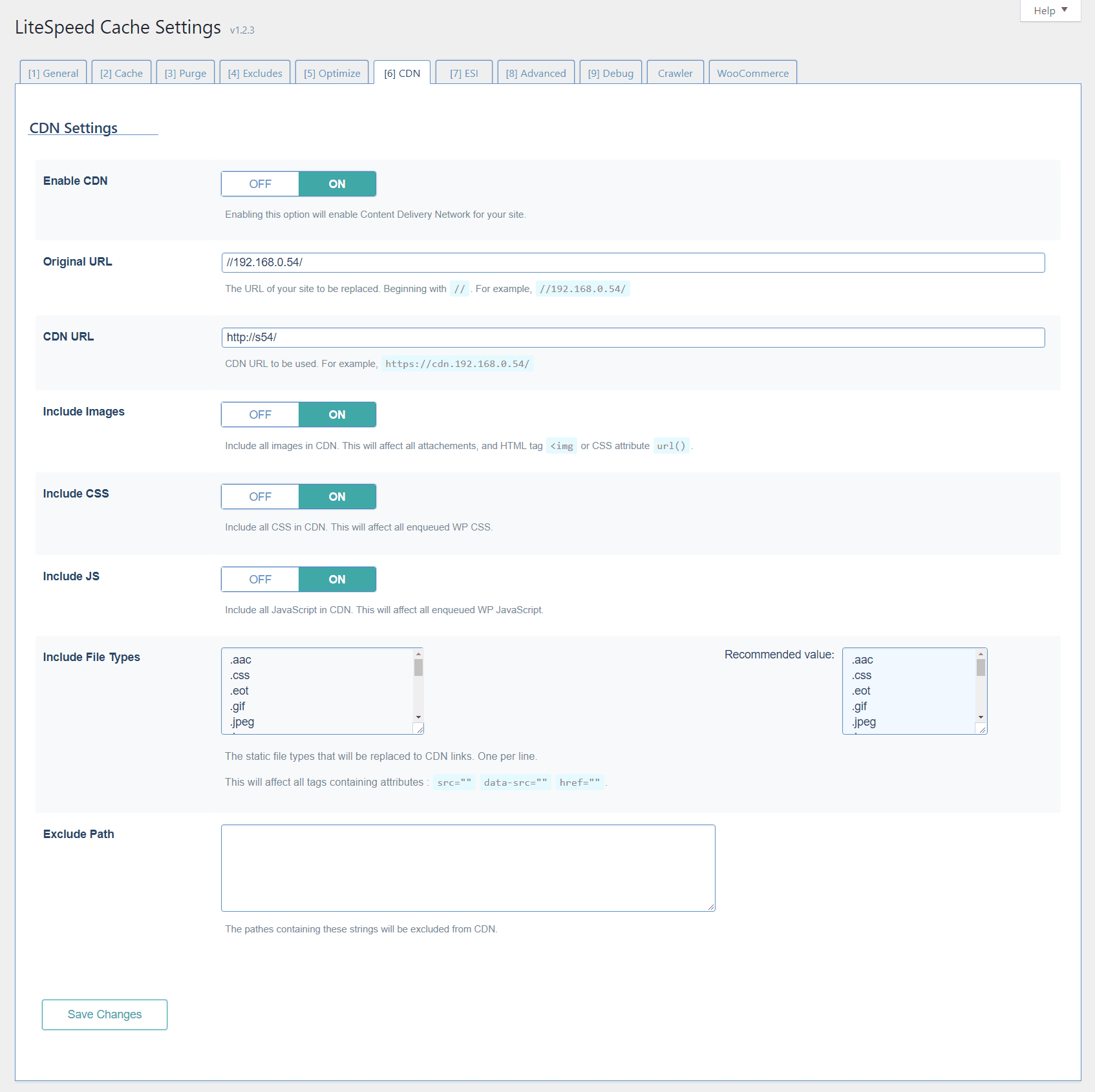
    LSCWP’s CDN support works by substituting the CDN URL for your site’s URL on the relevant static files. The settings below allow you to define the parameters for these substitutions. First specify the two URLs, and then choose the static files to be included or excluded.

    Enable CDN

    This is the button that enables the functionality. If this is not turned ON then none of the other options matter. CDN support is turned OFF by default.

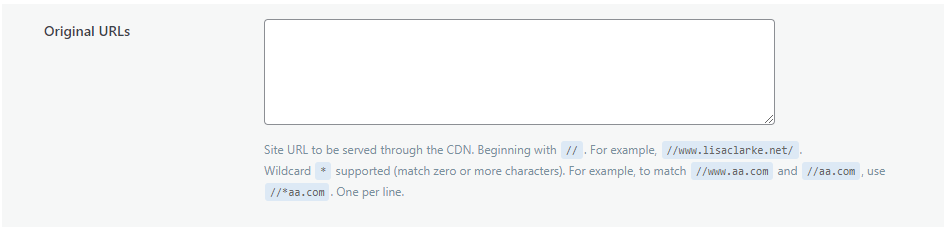
    Original URL and CDN URL

    Original URL defaults to your site’s root URI. It shouldn’t be necessary to change this. If you do change it, be sure that the URI begins with // as in //yoursite.com.

    CDN URL is the root URL for content that is served from the CDN. It should be a full URL beginning with http.

    When LSCWP generates the cached static version of a dynamic page, these two settings work together to allow the CDN URL to be substituted for the Original URL where appropriate.

    Includes

    These settings allow you to specify which types of static content are being handled by your CDN. They are all turned off by default, but you may turn on whichever file types are appropriate for your application. The Include Images setting refers to images that are accessed via img tags and CSS url() attributes. Images accessed in any other manner can be included through the Include File Types setting.

    Include File Types

    This setting is for files that are accessed via src, data-src, and href tags.

    Exclude Path

    If there are sections of your site that are not served from the CDN, specify the paths here (one per line) so that LiteSpeed will not go to the CDN for those. You may enter partial paths here, no wildcards required.

    If you’ve been running a site for any length of time, you know that WordPress offers many opportunities for optimization. (This is just a more positive way of saying “WordPress can be really slow.”) Page caching, browser caching, database optimization, minification, combination, HTTP/2 Push, and Content Delivery Networks are all excellent ways to speed up your site, and they are all supported in the LiteSpeed Cache for WordPress plugin!

    We hope you’ll try some of these new features soon, if you haven’t already, and let us know what you think. We love getting your feedback!

    —

    Have some of your own ideas for future WordPress Wednesday topics? Leave us a comment!

    Don’t forget to meet us back here next week for the next installment. In the meantime, here are a few other things you can do:

  • WpW: Using Browser Cache in LSCache

    WpW: Using Browser Cache in LSCache

    Welcome to another installment of WordPress Wednesday!

    Today we are going to talk about another enhancement to the LSCache plugin for WordPress: Browser Caching! We’ll talk a little bit about how browser caching is different than page caching (LSCWP’s specialty), but if you’d like a more in-depth exploration of the topic, you should take a look at our Caching 101 series.

    Why Browser Caching?

    LiteSpeed Cache is a full-page cache. It takes expensive-to-generate dynamic content and stores it as easy-to-serve static files. While it handles dynamically-generated content well, it only handles dynamically-generated content. Static content such as images, video, or fonts is not included in a page cache. And yet, this content may be requested from the server repeatedly. Take, for instance, your site’s logo. That image is likely to be displayed on every page that the user visits, which means the server has to transfer that same image to that same user, over and over and over again.

    This is where browser caching comes in handy. With browser caching enabled, your logo (along with other static content) is stored locally on the user’s device the first time it is requested. After that, the content is pulled from the device’s local storage until the browser cache expires. Displaying a local image will always use fewer resources than transferring an image across the internet, no matter how fast your connection may be.

    How to Set it Up

    Normally, browser caching is enabled at the LiteSpeed Web Server level. However, if you do not have access to your server’s admin, you can still enable browser caching through the LSCWP plugin settings. You can choose to set this up at whichever level makes the most sense for your site(s).

    If browser caching is turned on at any level (server, plugin, or both) then it will be enabled.

    At the Plugin Level

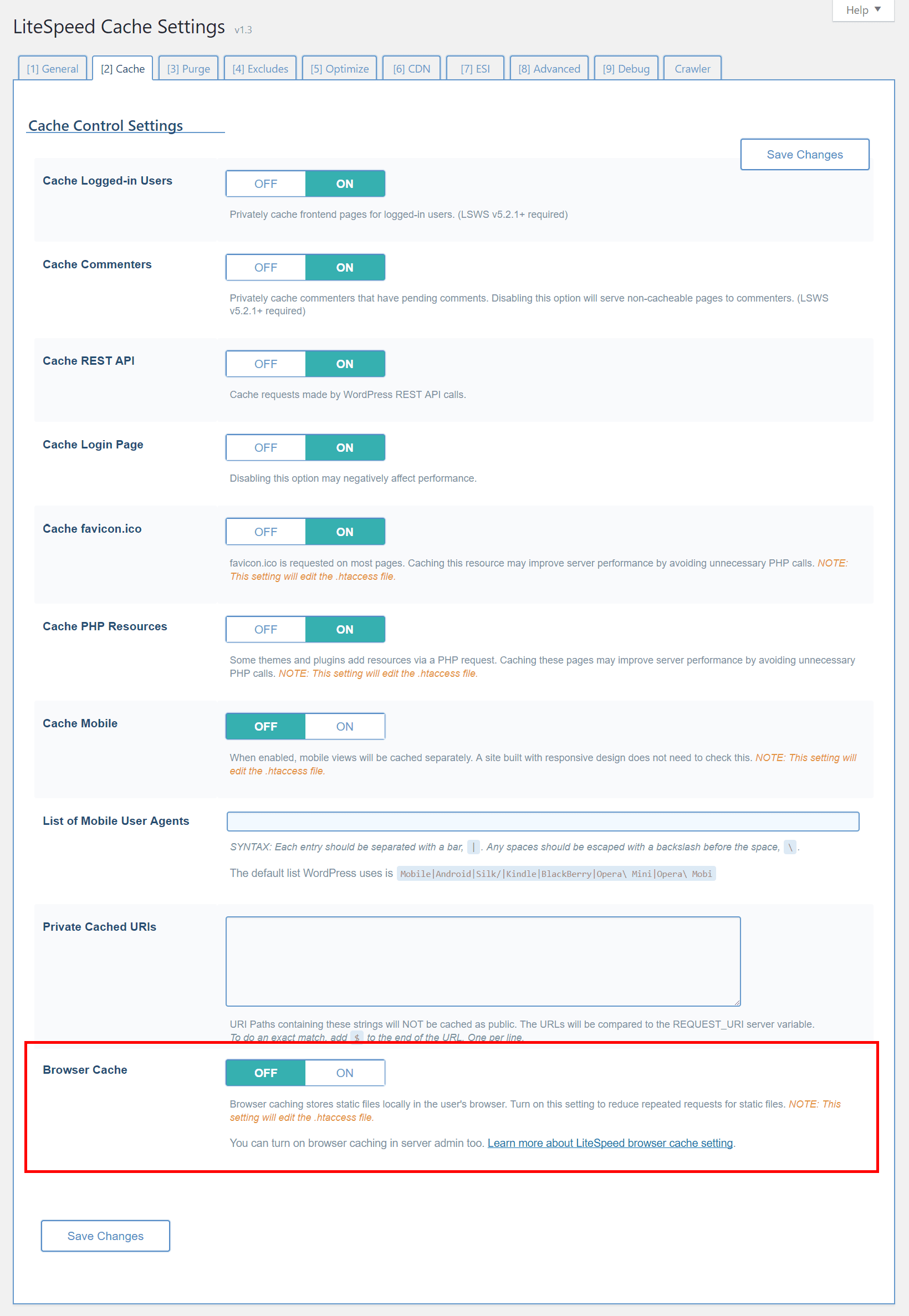
    From the WordPress Dashboard, navigate to LiteSpeed Cache → Settings → Advanced and scroll down to Browser Cache.

    Set Browser Cache to ON.

    That’s it! Browser caching will now be enabled for your site. Most static files will be cached locally on the user’s device, and will expire after one month.

    At the Server Level

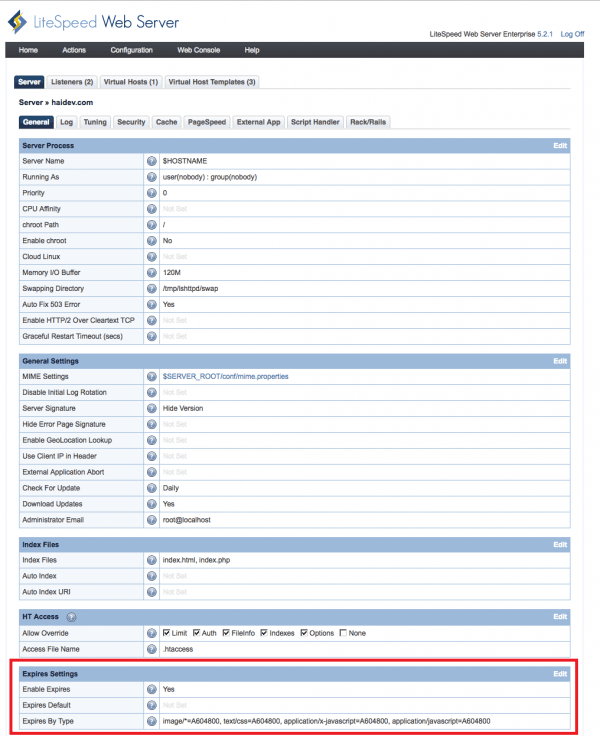
    If you are a server admin, you have somewhat more control. In the LiteSpeed Web Server Admin, navigate to Server > General and scroll down to Expires Settings.

    Set Enable Expires to Yes.

    Expires Default may be set to a number of seconds or left blank if you don’t wish to provide a catch-all expiration.

    Set Expires by Type to a string similar to the example shown, changing any file types or expiration times as desired. The example enables browser caching for all images, css, and javascript, and it sets all of their expirations to 604800 seconds (or one week). If you leave Expires Default blank, then you must specifically include every file type you want cached by the browser in Expires by Type.

    NOTE: Do not set a text/html Expires by Type, because that will interfere with LSCWP’s page cache.

    Once you have enabled browser caching using one of the above methods, your visitors should experience a performance boost, particularly if your site is image-heavy, or contains a large amount of other static files. Just remember, a browser cache operates like every other cache does: it needs to be populated before your users will see any benefit. So, the first time a visitor requests a page on your site, all of the static assets will still need to be transferred over the internet. For subsequent visits, any static files that have already been requested will now be available locally on the visitor’s device until they expire.

    If you have any questions or suggestions regarding this new feature, let us know in the comments section!

    —

    Have some of your own ideas for future WordPress Wednesday topics? Leave us a comment!

    Don’t forget to meet us back here next week for the next installment. In the meantime, here are a few other things you can do:

  • WpW: Minification, Combination, and HTTP/2 Push

    WpW: Minification, Combination, and HTTP/2 Push

    Welcome to another installment of WordPress Wednesday!

    We’ve got more new features to talk about, so fasten your seatbelt and let’s get right to it: Minification, Combination, and HTTP/2 Push!

    Presumably, you are already enjoying the benefits of caching with LiteSpeed Cache for WordPress. These three new optimization functions are designed to give your website an additional performance boost beyond that!
    It’s generally accepted that the fewer plugins you have running the better, both in terms of performance, and in terms of just being able to manage everything efficiently. So, if you can replace two plugins with one that does everything, shouldn’t you?

    These three new optimization functions (along with other new additions: database optimization, content delivery network support, and more coming soon) will allow you to retire your other optimization plugins and let LiteSpeed handle all of it.

    For those of you who maybe have never minified or combined files before, let’s talk about what each of the new functions does. And then, we’ll show you how to set it all up.

    What is Minification?

    JavaScript, CSS, and HTML can all be put through the minification process.

    When code is minified, all unnecessary whitespace characters, newline characters, and comments are removed. Minification, as its name implies, shrinks the size of the source code, and the resulting new code is more efficient to transmit over networks.

    Minified code is distinctly difficult for a human to read, because all of those non-essential characters that were removed are precisely what made the original code readable in the first place. Despite any readability issues, minification is still popular because it’s generally considered more important to have a fast site than it is to have code your visitors can read. In fact, some might consider it a benefit to have their code be obfuscated to outsiders in this way.
    Here’s an example of CSS before and after minification:

    .sample {
    
    border: 1px solid;
    
    color: #123456;
    
    /* this is a comment */
    
    }
    
    
    .sample{border:1px solid;color:#123456}


    As you can see, the first block of code is easier on the eyes, but the second block of code takes up much less space, and still has the exact same functionality. This is just a tiny example. Imagine the space savings on a CSS file with thousands of styles defined!

    With LSCWP minification, your source JS or CSS is not changed. We place the minified source into a new file, and the generated HTML includes that new file in the header instead of the original.

    Minified CSS and JS will be placed in the code with a line that looks similar to:

    <script data-minified='1' src='http://yoursite.com/min/3fb36.js'></script>

    Please be aware, if you do not have pretty permalinks enabled (i.e., your site has URLs that look like http://yoursite.com/?p=123) then your minified code will have a ? in the URL like so:

    <script data-minified='1' src='http://yoursite.com/?/min/3fb36.js'></script>

    When HTML minification is enabled, your source HTML is also not changed. In fact, it can’t be changed because there is no source HTML. HTML is generated on-the-spot by WordPress and PHP, so if minification is enabled, the HTML will be generated already in the minified form.

    What is Combination?

    When a web app includes several JavaScript files, those files may be combined into one. The same goes for CSS files. This reduces the number of requests made by the browser and potentially removes duplicate code, both of which translate to improvements in speed.

    With LSCWP combination, your source JS and CSS is not changed. We create a new file, the generated HTML includes that new file in the header, and the original files are not referenced.

    One thing to note when combining JavaScript files: If you have JS code within the HTML itself, we cannot combine all of the JS without running the risk of introducing conflicts. If there is JS within your HTML, that JS will not be combined. All other JS will be combined, but it will not be placed in the header in this case. It will be placed in the footer instead.

    What is HTTP/2 Push?

    In an effort to reduce the number of requests necessary when loading a web page, HTTP/2 Push may be used to anticipate the browser’s needs and act upon them.

    For instance, if the browser requests index.html, HTTP/2 can reasonably assume that the browser also wants the included CSS and JS files, and will push them along with index.html. The browser doesn’t need to ask for those files, and the transaction is completed more quickly as a result.

    Some things you should know about HTTP/2 Push:

    • Due to the fact that we’re using HTTP/2, the only URLs that are eligible to be pushed must be HTTPS URLs.
    • The main site and the files to be pushed all need to be part of the same site URL. For example, if your site is served by LiteSpeed Web Server from https://example.com but the CSS is served by a content delivery network from https://cdn.com/example, HTTP/2 Push will not work. The main site and all of the files to be pushed will need to be served from the same place.

    As far as that second point goes, we’ve recently introduced CDN support, and will explore it further in a future issue of WordPress Wednesday!

    How do I enable these features?

    The Optimize options are all turned off by default because they may have unexpected results. None of these methods should impact your code’s ability to function, but like we said, it can be unpredictable, so please test thoroughly before enabling minification or combination on your production site!

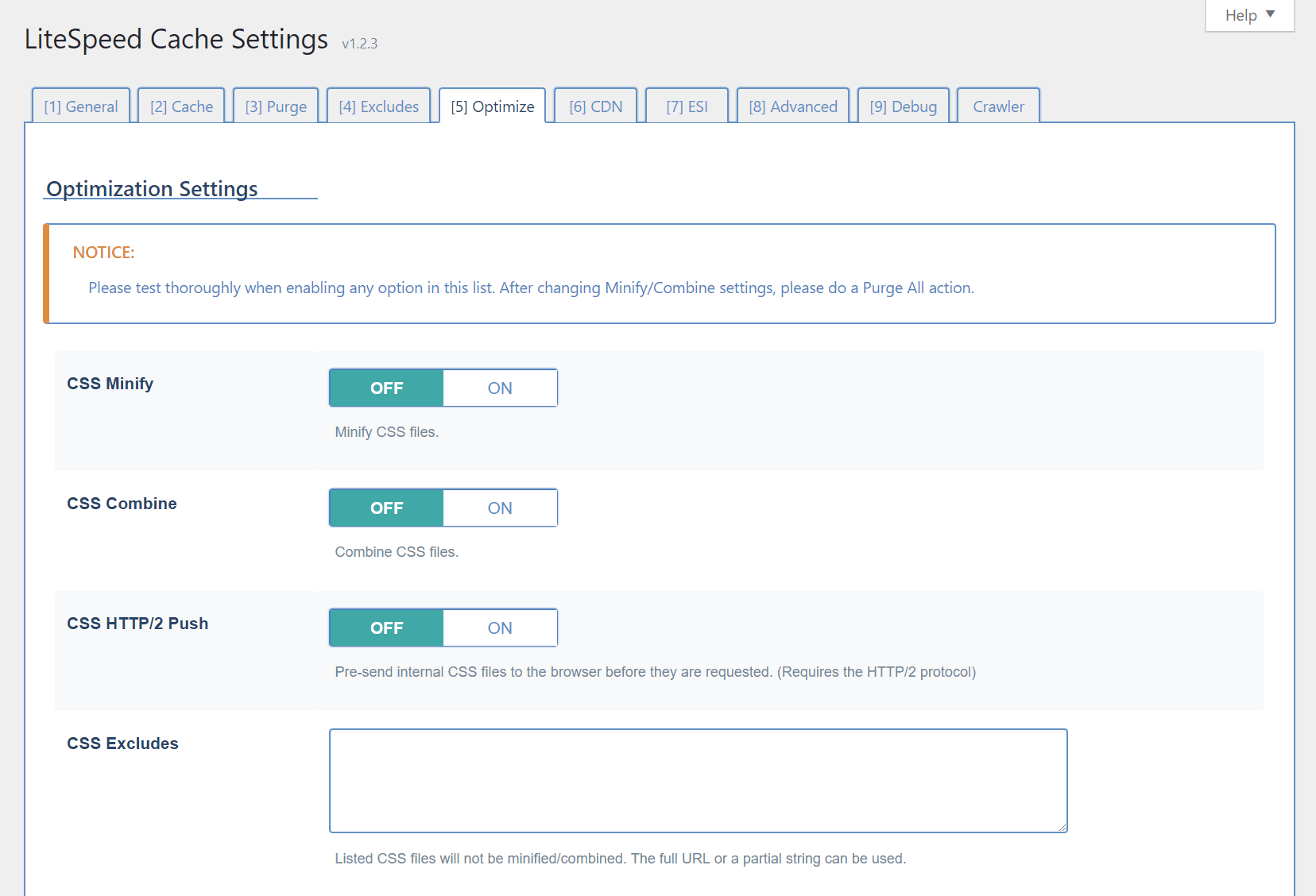
    From your WordPress Dashboard, navigate to LiteSpeed Cache > Settings and select the Optimize tab (or press 5).

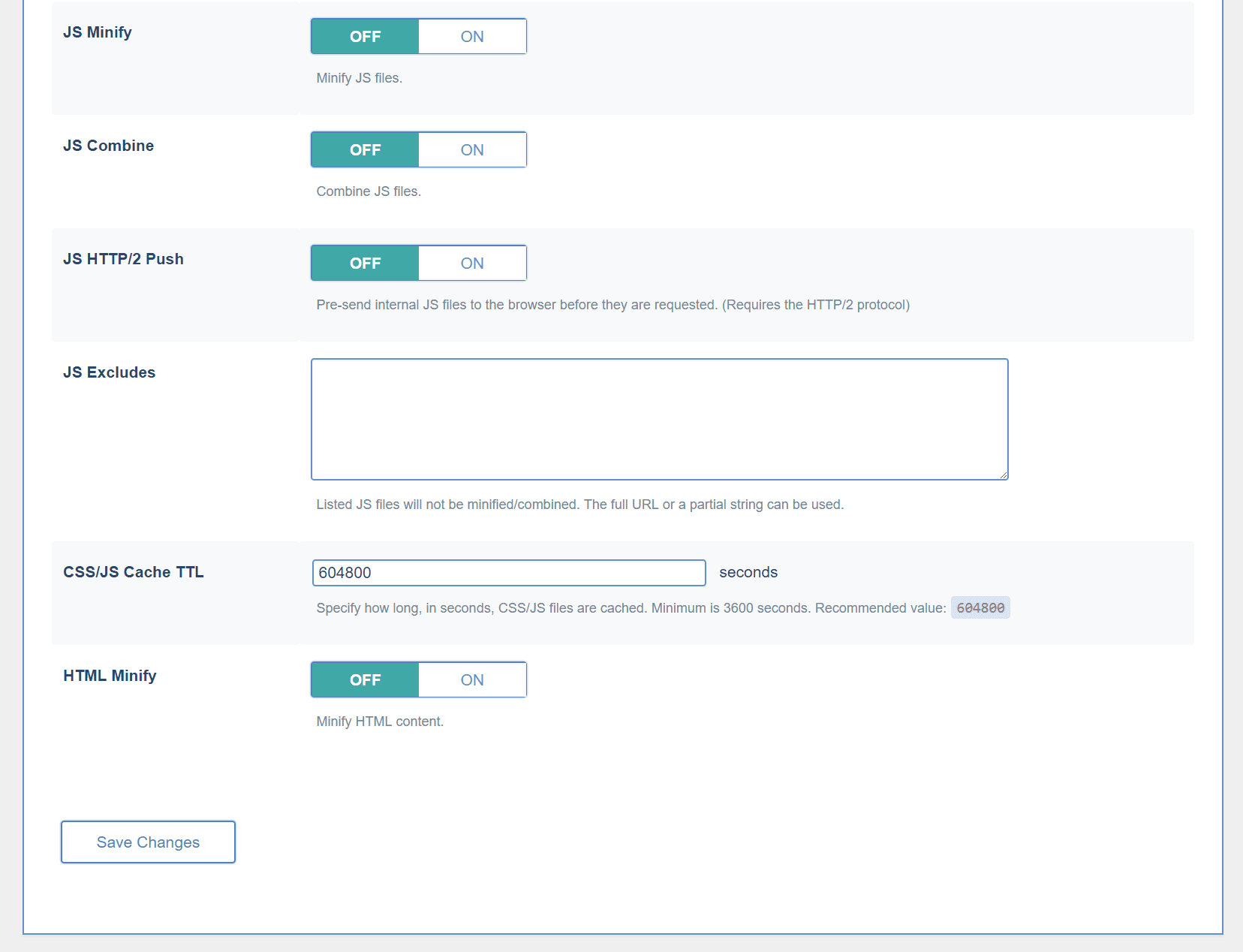
    CSS Minify

    Extra white space characters, new line characters, and comments will be stripped from all CSS, if this option is turned on.

    CSS Combine

    All individual CSS files will be combined into a single CSS file.

    CSS HTTP/2 Push

    CSS will be sent to the browser before it is requested.

    CSS Excludes

    Use this space to list any CSS files (one per line) that should be excluded from the above three functions. You may enter full URLs or a partial string. There’s no need to use wildcards in partial strings.

    JS Minify

    Extra white space characters, new line characters, and comments will be stripped from all JS, if this option is turned on.

    JS Combine

    All individual JS files will be combined into a single JS file.

    JS HTTP/2 Push

    JS will be sent to the browser before it is requested.

    JS Excludes

    Use this space to list any JS files (one per line) that should be excluded from the above three functions. You may enter full URLs or a partial string. There’s no need to use wildcards in partial strings.

    CSS/JS Cache TTL

    The minified and combined files are cached. This setting specifies for how long. The minimum is 3600 seconds, but we recommend 604800. When a Purge All command is issued, the minified and combined CSS/JS are included in that purge.

    HTML Minify

    Extra white space characters, new line characters, and comments will be stripped from all HTML, if this option is turned on.

    What if I’m using other plugins that include some of these services?

    There are many optimization plugins in the WordPress Plugin Directory, and they all have their own unique sets of features. Many of the individual options of any one plugin, however, may overlap with the individual options of the others.

    As long as the plugins you are using allow you to enable and disable features at will, then they may be used at the same time. Just be sure not to use the same features in more than one plugin at a time.

    Besides the fact that it just doesn’t make sense to have two plugins running the exact same optimization steps, it also has the potential to introduce buggy behavior.

    Pick a plugin to do a particular optimization technique and then disable that technique in all others.

    We’ve talked a little bit about this before, if you want to read up. At the time of that writing, we didn’t have some of the great extra features that we do now. Today we are better equipped to be your one-stop optimization shop than we’ve ever been! And we’re not finished yet, so stay tuned!

    —

    Have some of your own ideas for future WordPress Wednesday topics? Leave us a comment!

    Don’t forget to meet us back here next week for the next installment. In the meantime, here are a few other things you can do:

  • WpW: Database Optimization

    WpW: Database Optimization

    Welcome to another installment of WordPress Wednesday!

    We’re on quite a roll lately, with all of the new functionality being introduced into our cache plugin. But don’t worry if you haven’t had a chance to figure it all out yet. That’s why I’m here! Today, allow me to be your guide through Database Optimization.

    Disclaimer: The information contained in this post is accurate for LSCWP v7.2 [release log]. If you are using a newer version of the plugin, some details may have changed. Please refer to our documentation for the latest!

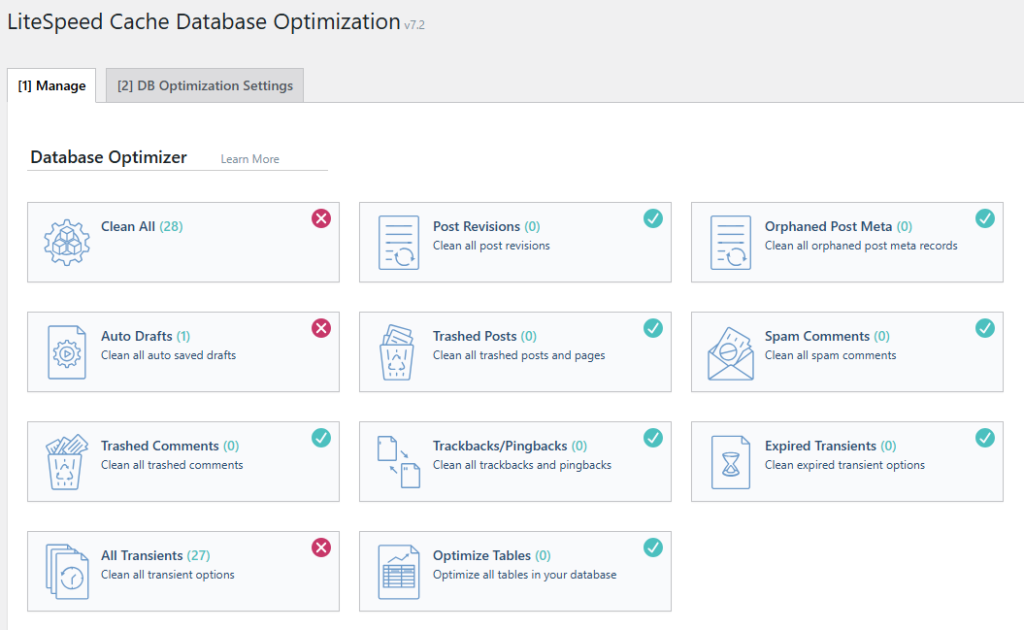
    From your WordPress Dashboard, navigate to LiteSpeed Cache > Database. You’ll notice some icons and buttons, and you may also notice that the page has been split up into two tabs: Manage and DB Optimization Settings.

    Manage

    Database optimization is a useful tool when it comes to speeding up your site. We’ve included it here because there’s nothing we love more than an accelerated internet! This is one of many such “extras” we’ve adding to the plugin.

    Our DB Optimizer gives you an easy way to keep your WordPress database slim, trim, and as efficient as possible.

    Database Optimization in LSCWP
    You’ll notice that some of the buttons have green check-marks while others have red X’s. The check marks indicate that the area has already been cleaned-up. If you see a red X, it is an indication that you have an opportunity to do some optimization.

    A word of caution: as with most tools of this nature, it is a good idea to have a current backup of your database before you begin pressing buttons!

    So let’s take a look at each of those buttons and see what they do.

    Clean All

    This button is for the site admin in a rush. It allows you to clean up everything at once by executing all of the other cleanup buttons with a single click.

    NOTE: Optimize Tables is different than the other buttons, so it’s not included in Clean All. Its functionality is explained in more detail below.

    Post Revisions

    When you edit an existing post, WordPress saves a copy of the original version, just in case you make a mistake and need to revert back. If you edit the post 8 times, you will have 8 revisions saved. That’s 8 full copies of the post, each just a little bit different than the others. This button removes all but the most recent revision from the database.

    The Post Revisions button has the potential to free up a considerable amount of space, if you are prone to frequent edits. Just be aware that you will sacrifice your ability to ever restore old versions of posts. This is a sacrifice that most site owners can easily live with, though.

    Orphaned Post Meta

    If you’ve deleted posts in the past, there is a chance that some metadata records from those posts remain. This button cleans them up.

    Auto Drafts

    When you create or edit a post, WordPress automatically saves drafts now and then. This is to protect you in case you unexpectedly lose your connection, or your computer crashes. If you know that all of your posts are either published or saved correctly as drafts, then it is safe to press this button and remove the automatic drafts.

    Trashed Posts

    If you’ve put a post or page into the trash, then that’s a pretty good sign that you don’t need it anymore. Press this button to permanently empty that garbage can.

    Spam Comments

    There should be no need to keep comments that have been marked as spam. Press this button to erase them once and for all.

    Trashed Comments

    Trashed comments, too, take up space. Press this button to permanently delete them.

    Trackbacks & Pingbacks

    When other blogs link to you (or when you link back to other posts on your own blog), it can create trackbacks or pingbacks. These are stored as comments and can be seen in the Comments section of your WordPress Admin. Additionally, some themes display trackbacks and pingbacks in among the comments on a post. If keeping a record of these external (and internal) links is not important to you, press this button to clear them from the database.

    Expired Transients

    Transients are the result of a form of caching that can happen in the WordPress database with the results of remote API calls. This option clears all of the expired transients from the database.

    All Transients

    This option clears all of the transients in the database, whether expired or not.

    Optimize Tables

    This button is different than the others. It’s the cleanup after the cleanup, if you will. When you delete large amounts of information from your database, it leaves gaps. The Optimize Tables button reclaims that disk space and reorganizes the table indexes for better efficiency. It’s a useful last step once you’ve done all you care to with the other buttons.

    Keeping your database clean and free of trash is a great way to keep your WordPress site running efficiently. We hope you’ll give the new DB Optimizer tab a try! Be sure to let us know if you have any questions, or any suggestions for future enhancements. We’d love to hear from you!

    Be sure to meet us back here next week to talk about more LSCWP features!

    —
    Have some of your own ideas for future WordPress Wednesday topics? Leave us a comment!

    Don’t forget to meet us back here next week for the next installment. In the meantime, here are a few other things you can do:

    —
    This content was last verified and updated in July of 2025. If you find an inaccuracy, please let us know! In the meantime, see our documentation site for the most up-to-date information.

  • WpW: Vary Groups

    WpW: Vary Groups

    Welcome to another installment of WordPress Wednesday!

    It’s been a busy few weeks for LiteSpeed Cache for WordPress! We’ve released updates that have enabled private cache and ESI, both of which have been high on our customers’ wish lists. Today we’re going to talk about another feature that was enabled recently: Vary Groups.

    The Vary Group functionality combines the concepts of “cache varies” and “user roles.” Let’s explore each of those ideas and then see what happens when you put them together.

    Cache Varies

    Sometimes you need to have multiple publicly-cached versions of a single page. We call this “varying,” and it can be used on many types of criteria. One popular vary built into the plugin allows you to specify a list of mobile user agents so that we can cache one view for mobile users and a different view for those on desktop.

    User Roles

    WordPress comes with a handful of built-in user roles: administrator, author, editor, contributor, and subscriber. Various plugins may create other roles as necessary.

    Each of these roles gives a user certain permissions. Editors, for instance, can publish and manage the posts on a site, but they don’t have access to all of the site-management features that an Administrator does.

    Vary Groups

    With Vary Groups you can have multiple publicly-cached versions of a single page, based on the permissions of the users who view the page.


    For example:

    An Administrator has all kinds of abilities that the other users do not. They can edit and delete posts. They can manage categories, remove users, switch themes, and so on. In some themes, administrator functions will appear right on the public pages (like an “edit” link at the end of a post). If you create a Vary Group for administrators, then LSCache will save two public copies of the page: one with all of the editing permissions displayed on it for anyone in the administrator group, and the default copy of the page with none of the editing links for everyone else.

    Here’s a more complicated example:

    You have a shop running on your site, and through the shop admin, you’ve defined two user roles: retail_customer and wholesale_customer. You have two sets of prices, and three different ways that your site can be viewed: users in the group retail_customers will see your highest prices. Users in the group wholesale_customers will see your lowest prices. Users who are not yet customers will see the default page with no pricing whatsoever. To ensure that the three different views would be saved separately in the public cache, you would create two Vary Groups, one for each customer role.

    An important distinction:

    With Vary Groups, we’re not changing the behavior of your application at all. We are simply allowing you to have separate cached copies for each of the public views that are already being generated. Before we had Vary Group functionality, you would only have been able to cache the default view, which usually meant that you couldn’t cache pages at all for logged-in users. This new ability to cache all of your user-role-based content is a nice perk!

    Setting it up

    From your WordPress Admin, navigate to LiteSpeed Cache > Settings > ESI. Scroll down to the Vary Group setting.

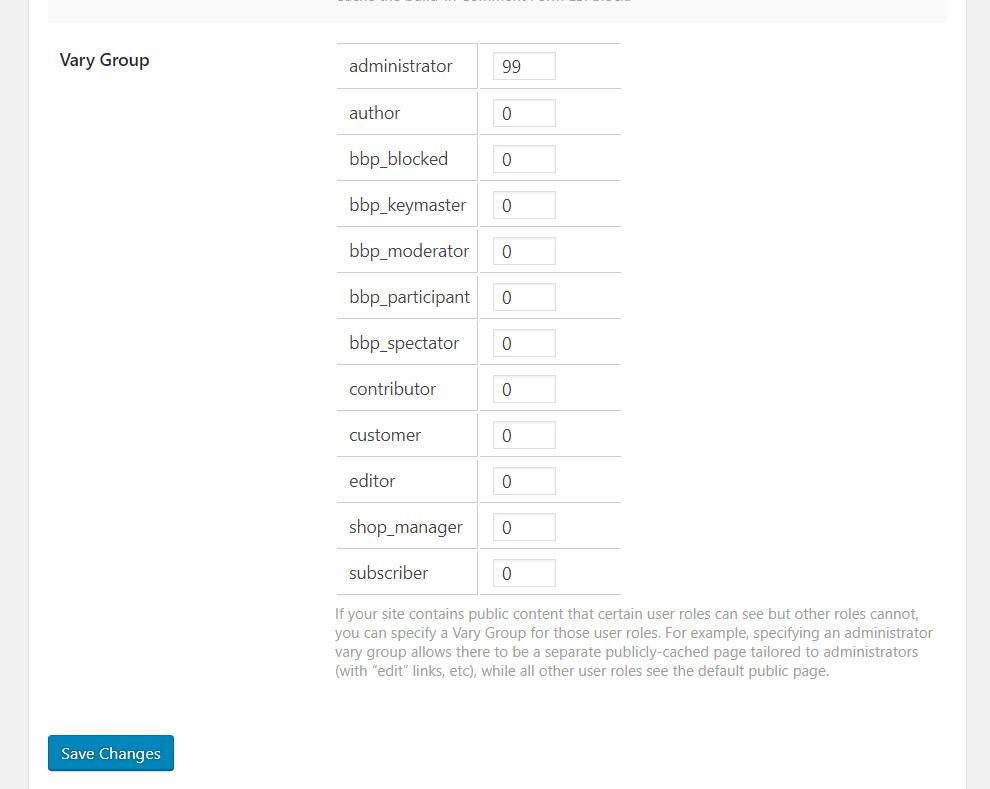
    You should see a list of the user roles that are defined on your site. Your list of user roles may be different than our example site’s list above, but don’t let that confuse you. It’s normal.

    To create a vary group for any user role shown, enter a non-zero value into the box next to that user role. If a user role has a 0 next to it, then it will be served the default cached copy.

    There is no significance to the numbers other than the fact that unique views should have unique values.

    If two user roles share the same view, put them in the same group by using the same number. In other words, if author and editor both have the same view, but it’s different from everyone else’s view, author and editor could both be given the number 22, while everyone else remained at 0.

    Why?

    You may be wondering, why do this when you can just use ESI to adjust what displays on different people’s pages? Or cache the whole page in private cache?

    While ESI is handy for situations where you want to insert a little bit of private content onto a mostly-public page, it can be resource-intensive, particularly if several blocks are required on the page.

    Additionally, the situations that call for Vary Groups are not quite the same as those that benefit from ESI or private caching.

    Use Vary Groups when your pages have multiple public versions that have been generated based on user permissions. The differences might be subtle, like on a shop page where the design is the same but the prices vary per user group. Or the differences might be drastic, going so far as to not show some content at all for certain user roles.

    With Vary Groups, we cache one copy of the page per group. This is different than privately-cached content, which is stored as one copy of the page for each user that requests it. When you privately cache a page, you can potentially be caching thousands of copies of the same page! Reserve private cache for pages that truly serve up individualized content that varies from user to user.

    Vary Groups are a useful tool in your cache toolbox. They use far fewer resources than private caches do, and are easier on the server than ESI is. If you have situations where different public content is being generated based on user roles, Vary Group functionality is your most efficient caching option.

    If you have any questions about this, or are wondering what type of caching would benefit your unique situation, leave a comment and ask us!

    —

    Have some of your own ideas for future WordPress Wednesday topics? Leave us a comment!

    Don’t forget to meet us back here next week for the next installment. In the meantime, here are a few other things you can do: