
Tag: wordpress wednesday

LiteSpeed’s WordPress Wednesday series shares tips, tutorials, and explorations of new features related to the LSCache for WordPress plugin. Even those not currently using LSCWP can learn something. What is caching? What types of caching can be used with WordPress? How else can you optimize WordPress?

LSCWP provides advanced cache-management tools and optimization features, designed to reduce page load times and give your site an edge. With LiteSpeed, your site can employ the best practices that make for a high PageSpeed score, and – more importantly – an exceptional user experience.

  • WpW: More About Crawling

    WpW: More About Crawling

    Welcome to another installment of WordPress Wednesday!

    Last week we talked about the new crawler functionality in our LiteSpeed Cache for WordPress plugin, and since then there have been some questions about enabling the crawler, and a couple of new fields added to the Settings page. Today, we thought it would be a good idea to talk about these things and get everyone up to speed and on the same page.

    Enabling the Crawler

    This has been the area where we’ve had the most requests for help, so let’s see if we can clear up some of the confusion.

    The first thing to know is that the crawler must be enabled at the server or virtual host level. If you don’t have access to these areas, you will need to ask your web host to do it for you.

    Additionally, this functionality requires the latest build of our server software, so if you’re running 5.1.16 and you are still having difficulty getting the crawler enabled, chances are you are not running the latest build (as of this writing, that is LSWS version 5.1.16 build 3). Force a reinstall, and it should work.

    Enabling the crawler requires you to add a few lines to a server config file or a virtual host include file. These are those lines:

    <IfModule Litespeed>
     CacheEngine on crawler
    </IfModule>
    

    Due to the fact that every control panel stores its config files in its own directory structure, we can’t just say, “update filexyz.” We have, however, written up a detailed wiki article that explains where you need to look for your particular control panel (or for no control panel at all). We recommend that you refer to the wiki to be sure you’re putting the code in the proper location.

    New Fields

    There are two new fields on the WP-Admin > LiteSpeed Cache > Settings > Crawler tab. Site IP allows the crawler to go directly to your server to retrieve content, without having to get the DNS involved. Custom Sitemap allows the crawler to use a sitemap you already have, rather than building its own.

    Site IP

    As of the plugin’s version 1.1.1, you can enter your Site’s IP address to simplify the crawling process and eliminate the overhead involved in Domain Name Server (DNS) and Content Delivery Network (CDN) lookups.

    Note: a server may have multiple IPs. Use the IP address that was set for your domain in the server’s configuration.

    Conventionally, the crawler retrieves a URL to crawl from the sitemap, and looks to the DNS to get the URL’s IP address. If you’re using a CDN, the IP that the DNS returns is actually that of the CDN. The CDN only caches static content, so when the crawler asks the CDN for the dynamically-generated content it needs, the CDN must go back to your server to retrieve it and then return it to the crawler. This is so inefficient! The crawler, which lives on the same server as your content, needs to travel all over the internet before it can get that content!

    On the other hand, if you tell LiteSpeed’s crawler ahead of time what your domain’s IP address is, it doesn’t need to involve the DNS or CDN at all. The content can be retrieved directly from the server. Nice!

    To understand this better, let’s look at this diagram:
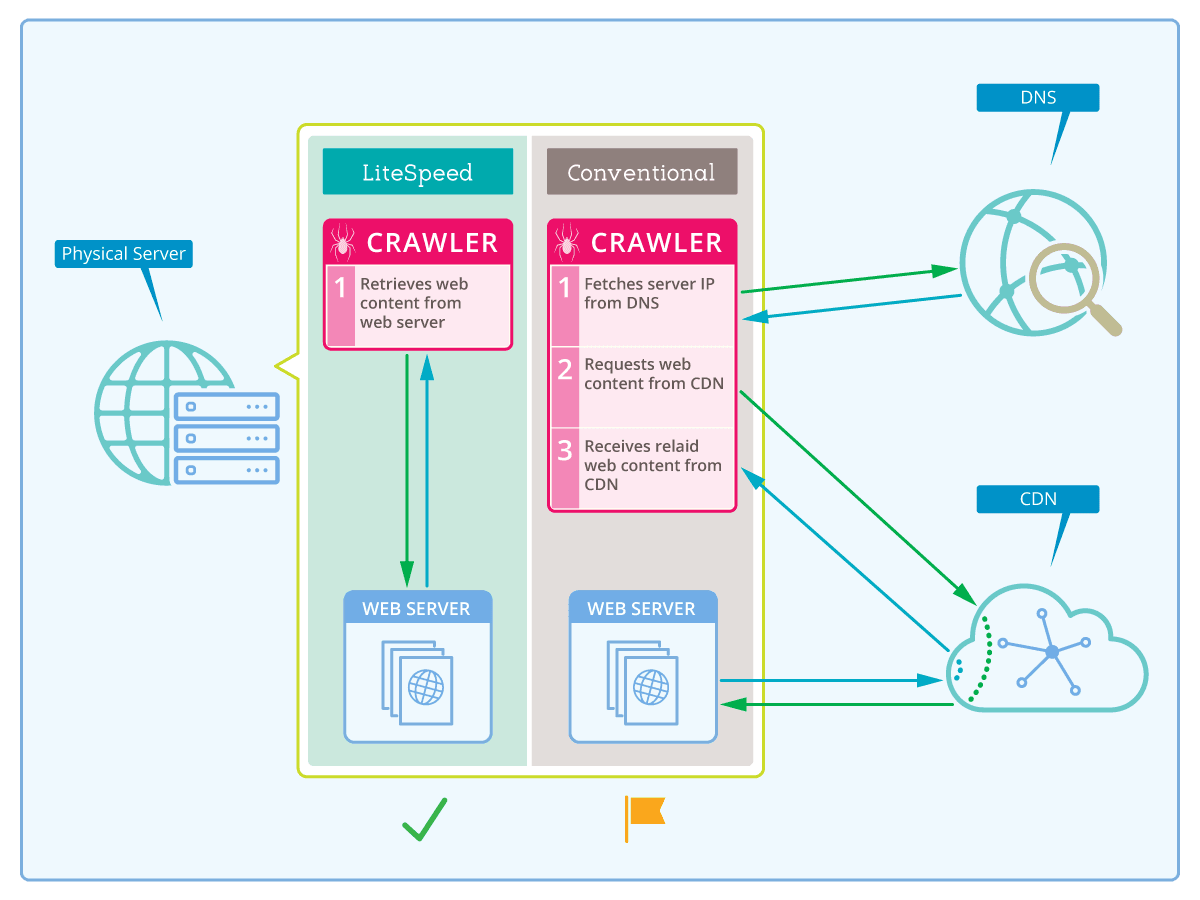
    In other words…

    If you are using a CDN

    • The crawler retrieves http://yourserver.com/path from the sitemap
    • The crawler requests yourserver.com‘s IP address from the DNS
    • The DNS returns the CDN’s IP address to the crawler
    • The crawler requests dynamic content from the CDN
    • The CDN must retrieve the page from yourserver.com
    • The CDN returns the page to the crawler

    If you are not using a CDN

    • The crawler retrieves http://yourserver.com/path from the sitemap
    • The crawler requests yourserver.com’s IP address from the DNS
    • The DNS returns your server’s IP address to the crawler
    • The crawler retrieves the page from yourserver.com

    In both scenarios, there are lookups that occur, expending time and resources. These lookups can be eliminated by entering your domain’s IP in this field.

    If Site IP has been specified

    • The crawler retrieves http://yourserver.com/path from the sitemap
    • The crawler retrieves the page directly from yourserver.com because it already knows the IP address

    So, you can see that by entering your site’s IP address, the middlemen are eliminated, along with all of their overhead. That’s pretty useful. Honestly, is there any reason why you would not want to use this option?

    Custom Sitemap

    A sitemap tells the crawler which pages on your site should be crawled. By default, LSCache for WordPress generates its own sitemap. If, however, you already have a sitemap in standard XML Sitemap format, and you’d like to use that, it’s an option as of v1.1.1.

    Be sure to enter the full URL to the sitemap.

    Any questions?

    This covers the bulk of the issues we’ve been addressing over the last week, but if there’s something else you want to know, please do reach out to us! You are welcome to post a comment here, leave a question on the plugin forum, or open a ticket. How can we help?

    —

    Have some of your own ideas for future WordPress Wednesday topics? Leave us a comment!

    Don’t forget to meet us back here next week for the next installment. In the meantime, here are a few other things you can do:

  • WpW: Crawl Your Site; Make it Fly!

    WpW: Crawl Your Site; Make it Fly!

    WordPress Cache Crawler

    Welcome to another installment of WordPress Wednesday!
    Today’s Topic: LiteSpeed’s WordPress Cache Crawler

    We’re going to talk about the concept of “crawling” and why it has the potential to make your WordPress site even faster.

    What does a crawler do?

    Our LiteSpeed Cache for WordPress plugin includes crawler functionality. What does this mean?

    LSCache’s crawler, travels its way throughout the backend, refreshing pages that have expired in the cache. The purpose is to keep the cache as fresh as possible while minimizing visitor exposure to uncached content.

    IMPORTANT NOTE: Crawler functionality is enabled or disabled at the server level, and its availability is controlled by your hosting provider. We’ll talk about that more below, or you can see our docs on how to enable the crawler.

    WordPress Cache Crawler

    Why would we want to do this?

    Well, first let’s look at how pages are cached without a crawler. The whole process is initiated by user request. The cache is empty until users start sending requests to the backend. The first time a page is visited, the request hits the backend, WordPress’s PHP code is invoked to generate the page, the page is served to the user, and then stored in cache for next time.

    That’s a fairly time-consuming (and bandwidth-consuming!) process for the server.

    Now, let’s look at what happens when the cache is built by a crawler. When the crawler requests a page, the request hits the backend, WordPress’s PHP code is invoked to generate the page, but because of the special header that lets LSWS know that this is a crawler that initiated the request, the full page doesn’t need to be served. It is simply stored in cache.

    This saves significant bandwidth.

    Additionally, with the crawler refreshing expired pages at regular intervals, the chances that a user will encounter an uncached page is significantly diminished. This makes for a faster site.

    Let’s look at some settings

    You want the crawler to be effective in its mission, but not at the expense of your system’s performance. It’s helpful to know what some of the settings mean, so you can control just how many resources you want to give to the crawling process.

    Note: We’ve selected default settings that should be reasonable for most sites, so if you don’t want to be messing around with these settings, it’s fine to leave them as-is.

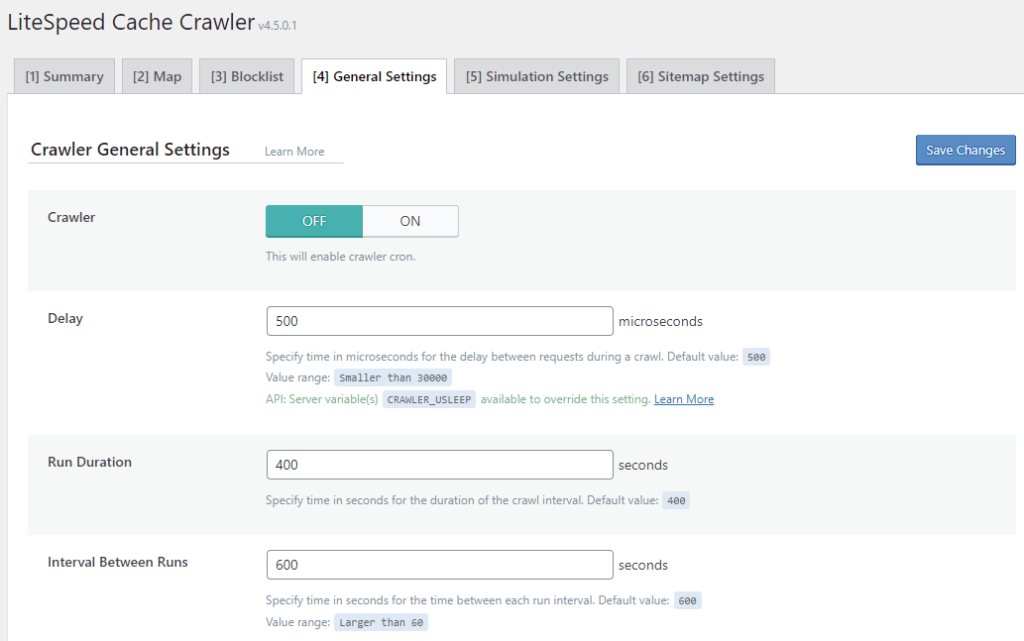
    Navigate to WP-Admin > LiteSpeed Cache > Crawler > General Settings and take a look at the following settings:

    LSCache for WordPress Crawler General Settings

    Crawler

    This setting allows you to enable (ON) or disable (OFF) the crawler. It defaults to OFF.

    Delay

    The crawler sends requests to the backend, one page after another, as it traverses your site. This can put a heavy load on your server if there is no pause between requests. Set the Delay to let LSCache know how often to send a new request to the server. The default is 500 microseconds (or 0.0005 seconds). You can increase this amount to lessen the load on the server, just be aware that will make the entire crawling process take longer.

    Run Duration

    In order to keep your server from getting bogged-down with behind-the-scenes crawling, you can put limits on the crawling duration. For example, if we set Run Duration to 400 seconds, then the crawler will run for 6.66667 minutes before taking a break. After the break is over, the crawler will start back up exactly where it left off and run for another 400 seconds. This will continue until LiteSpeed crawls the entire site.

    Interval Between Runs

    This setting determines the length of the break mentioned above. In that same example, if we set Interval Between Runs to 600 seconds, then the crawler would pause for 10 minutes after every 1-minute run.

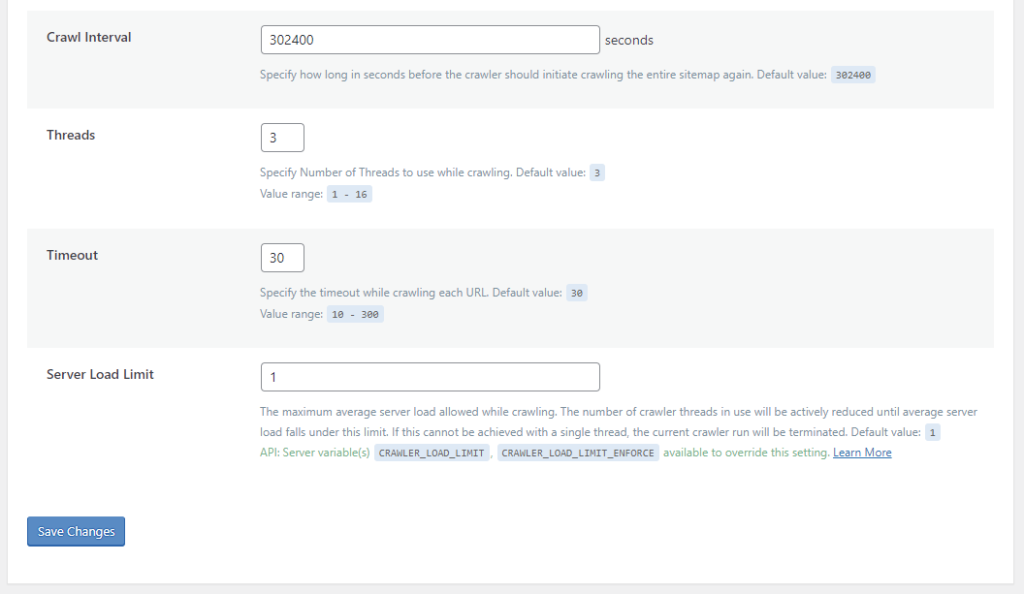
    LSCache for WordPress Crawler General Settings

    Crawl Interval

    How often do you want to re-initiate the crawling process? This depends on how long it takes to crawl your site. The best way to figure this out is to run the crawler a couple of times and keep track of the elapsed time. Once you’ve got that amount, set the interval to slightly more than that. For example, if your crawler routinely takes 4 hours to complete a run, you could set the interval to 5 hours (or 18000 seconds).

    Threads

    When Threads is set to 3, then there are 3 separate crawling processes happening concurrently. The higher the number, the faster LiteSpeed crawls your site, but also the more load that the crawler puts on your server.

    Timeout

    Use this setting to specify how long you are willing to take processing a single URL. The crawler has this many seconds to crawl a page before moving on to the next page. The default is 30, but you can adjust that up or down according to your needs.

    Server Load Limit

    This setting is a way to keep the crawler from monopolizing system resources. Once the server’s load average reaches this limit, the crawler will be terminated, rather than allowing it to compromise server performance.

    For example, to terminate the crawler once half of your server resources are being consumed, set Server Load Limit to 0.5 for a one-core server, 1 for a two-core server, 2 for a four-core server, and so on.

    Protecting your server from overload

    We designed all of the settings above to work together to protect your server from overload. The first four parameters (Delay, Run Duration, Interval Between Runs, and Crawl Interval) control how often and for how long to allow the crawler to run. You can set these values to give your crawler as many or as few resources as your system can afford.

    Timeout keeps the crawler from getting stuck for too long on any one page.

    Threads and Server Load Limit are two settings that work together to automatically terminate the crawler if it tries to get too greedy with system resources. Here’s an example:

    Let’s say we have the following values set before the crawler starts:

    Server Load Limit = 5
    Threads = 4

    The current server load is at 2, and the crawler begins. It’s crawling 4 urls at a time (due to the Threads setting), but this has caused the server load to jump up above our limit of 5. In response, the crawler drops the number of threads to 3 and keeps going.

    If the server load hits our limit of 5 again, the crawler will drop the number of threads to 2 and go on. This process repeats until we are down to a single thread.

    If the server load is still too high with only one crawler thread, the crawling process terminates.

    On the other hand, if the server is doing just fine with one thread, the crawler will increase the number of threads one at a time, until it has either reached the Thread Limit we set (4 in this case) or our Server Load Limit.

    Watching the crawler do its thing

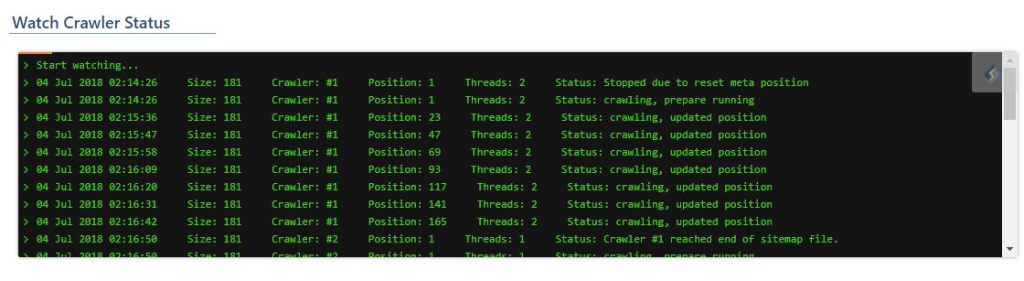
    If you’re the kind of person who likes to sit in front of a terminal and watch a process making progress (and, really, who isn’t?) you’ll enjoy the Watch Crawler Status section.

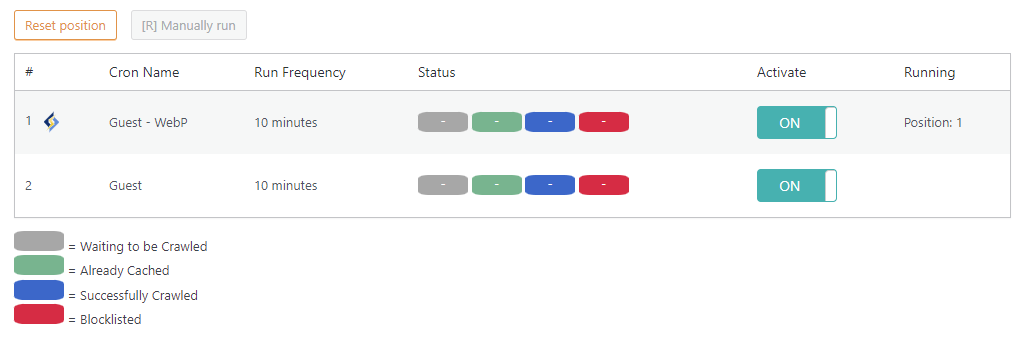
    Navigate to WP-Admin > LiteSpeed Cache > Crawler > Summary.

    LSCache Crawler Cron

    If the crawler isn’t actually running right now, make sure you set Crawler to ON on the previous screen, and that one or more of the crawlers listed on this page have Activate set to ON. If a crawler is not currently running, you can press the Manually run button.

    LSCWP Watch the Crawler

    Look at it go!

    Impacts on Shared Hosting

    Site owners love the crawler functionality, but if you are a shared hosting provider, chances are your first thought goes to the impact all of this crawling could have on your servers. Despite the fact that we’ve provided several features designed to minimize a crawler’s impact on the server, it’s a valid concern when you are hosting thousands of installations. This is why we have ultimately put crawler control into the hands of the hosts.

    LiteSpeed Web Server disables crawling by default. This will keep usage restricted to those who truly want to use it. As host, it is your choice whether to enable crawler functionality at all. You can keep it permanently-disabled on a server-wide basis, if you do not want crawling on your system.

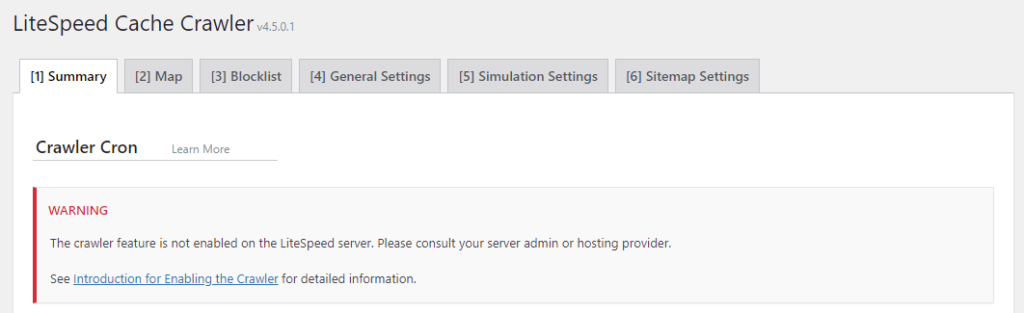
    When crawling is disabled, site administrators will see the following message in WP Admin > LiteSpeed Cache -> Crawler

    Warning: The crawler feature is not enabled on the LiteSpeed server. Please consult your server admin or hosting provider.

    LSCWP Crawler Disabled

    How to Enable the Crawler

    NOTE: we do not recommend crawler usage for shared hosting setups unless the server has enough capacity to handle it!

    There are a few different approaches you can take to crawling on your LiteSpeed Web Server:

    • Disable it for the entire server
    • Enable it for the entire server
    • Selectively enable it for particular clients, while leaving it disabled for everyone else

    Disable Crawling for the Entire Server

    Do nothing. LiteSpeed Web Server disables crawling by default.

    Enable Crawling for the Entire Server

    You need to update the appropriate configuration file, like you did when you originally set up your cache root. Add the following:

    <IfModule LiteSpeed>
      CacheEngine on crawler
    </IfModule>

    Selectively Enable Crawling

    To enable crawling for select clients, you would not update the server’s config file. Instead, locate (or create) the virtual host include files for those clients and add the above lines to that.

    The exact location of the relevant configuration or include file varies, depending on the control panel you use (or if you use no control panel at all), and which of the above options you are looking to enact. For detailed instructions, please see our documentation on the subject.

    If you don’t have access to the appropriate files, you will need to ask your server administrator to enable the crawler for you.

    Update It!

    LiteSpeed Cache for WordPress’s crawler functionality is pretty handy, don’t you think? By regularly renewing the cache, you minimize the number of times your users have to wait for WordPress to process dynamic pages, and you speed up your whole site!

    After you’ve experienced your first crawl, come back here and let us know what you think. We’d love to get your feedback.

    P.S. There is more to this topic! If you want to get the most out of your crawler, take a look at these blog posts: Limiting the Cache Crawler and Managing Multiple Cache Crawlers.

    —
    Have some of your own ideas for future WordPress Wednesday topics? Leave us a comment!

    Don’t forget to meet us back here next week for the next installment. In the meantime, here are a few other things you can do:

    —
    This content was last verified and updated in March of 2022. If you find an inaccuracy, please let us know! In the meantime, see our documentation site for the most up-to-date information.

  • WpW: Conflict-free Cookies and Tags on Multi-app Sites

    WpW: Conflict-free Cookies and Tags on Multi-app Sites

    Welcome to another installment of WordPress Wednesday!

    Today we’re going to discuss the conflicts that arise on multi-app sites, specifically login vary cookie conflicts, and cache tag conflicts. These issues can pop up when you have multiple-WordPress installations with the LSCache plugin enabled on the same root (as in www.example.com/ and www.example.com/store).

    We’re going to be focusing on WordPress for this article, but you can sometimes see these types of conflicts with other apps that have LSCache enabled (Magento and XenForo, for example). If you want to know more about cookie and tag conflicts involving multiple types of applications, this wiki will point you in the right direction.

    Let’s look at a WordPress blog installed at www.example.com and a separate WordPress storefront installed at www.example.com/store. This is our current example, but be aware that the same concepts will apply to any situation where one (or more) WP sites is installed in a subdirectory of any other WP site.

    Here are two possible problems you can have:

    1. Login Vary Cookie Conflict: A page may be served from cache when it shouldn’t be.
    2. Purge Tag Conflict: Pages may be purged from cache when they shouldn’t be.

    Let’s chat about both of these scenarios, what causes them, and how to fix them.

    Mmmmm. Login Vary Cookies.

    Before we explain how to fix this problem, it’s handy to understand how this is all supposed to work.

    As of this writing, LSCache for WordPress will only cache and serve pages for non-logged in users. (Remember this. It’s important.) This behavior is controlled by a vary cookie called _lscache_vary.  Once users have logged in, the cookie is set, and their page requests will always be processed by WordPress. The pages they visit will not be cached, nor will cached pages be served to them.

    You can see why it’s important, then, for the _lscache_vary cookie to be set correctly. It’s the key to determining which users get pages served from cache, and which users get pages through WordPress.

    Ok, so let’s say your domain serves Example Blog at www.example.com/ and Example Store at www.example.com/store/, which is a subdirectory of Example Blog. If you log into Example Blog, the _lscache_vary cookie will be set to indicate that you are logged in, and your requests will not be cached. They will always be sent to the WordPress backend. This is normal behavior.

    You then visit Example Store without logging in. Since you are a non-logged in user, LSCache steps up and caches the page you requested. This is also normal behavior. However, the logged in _lscache_vary cookie is still set from your visit to Example Blog, and so this page is cached for logged-in users . Uh oh. This causes future logged-in Example Store users to get a “cache hit” on this page and be served the non-logged in version of the page. This is decidedly not normal behavior.

    Besides the fact that logged-in users are now being served cached pages (which they should not be), they are being served the non-logged-in versions of those pages (which is also wrong).

    Why does this happen?

    Think about it from the browser’s point of view. As far as the browser is concerned, Example Blog (www.example.com/) and Example Store (www.example.com/store/) are the same website because the store is actually a subdirectory of the blog. When the browser visits either one of those addresses, it will use the cookies for www.example.com.  Even though the store is an entirely separate WordPress application, to the browser it looks simply like a part of the blog.

    How can we fix it?

    We need to tell the browser to use distinct cookies for Example Blog and Example Store. This requires a simple change within the LSCache plugin settings.

    By default, the cache will use _lscache_vary as the login cookie in any WordPress installation. We can avoid conflicts by renaming some of the cookies. Any place where we have one WordPress installation in a subdirectory of another WordPress installation, we will need to set unique cookie names.

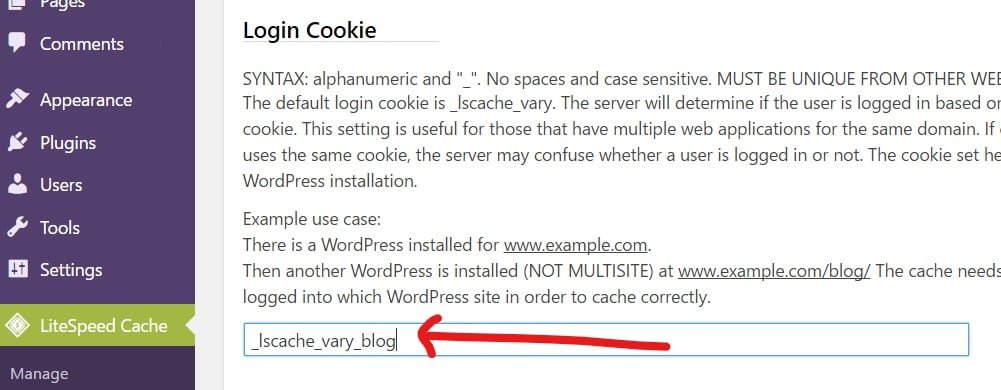
    So for our two-app scenario, you could log in to the WP-Admin panel of Example Blog, navigate to LiteSpeed Cache > Settings > Advanced Settings, and set Login Cookie to _lscache_vary_blog (or whatever you would like it to be).

    You could then do the same in Example Store’s WP-Admin panel and set Login Cookie to something different, like _lscache_vary_store.  (Technically, you don’t need to change both cookie names, because the act of changing just one of them has already given you two unique cookie names. For example, if you only change the cookie on Example Store, you’d have _lscache_vary and _lscache_vary_store.)

    If you had more installations running off of this same root, you’d want to repeat this process for all of them.

    Achievement unlocked: eliminate login vary cookie conflicts!

    Cache Tag Prefix

    —

    September 2017 UPDATE: in the latest versions of LSCache, this is no longer an issue. Cache Tax Prefixes are automatically generated and given a unique string for each installation, thereby eliminating the possibility of conflicts. We’re keeping the information in this section for historical reference, but this is not an issue you should encounter anymore. 

    —

    Here is another problem you may run into when you have Example Blog and Example Store running together on www.example.com: excessive purging of the cache.

    Note: This is not relevant for a single multi-site WordPress install. This issue only occurs in two (or more) distinct WordPress installations that happen to use the same cache root.

    So here’s the issue: LSCache for WordPress has a default cache tag prefix of b1_, and this is the same on every WordPress instance you install. In addition to being a prefix, every page is also cached with the tag b1_ to denote that it belongs to that blog. The cache tag is used to inform LSCache which pages to purge from cache. So, for instance, in a situation where you might want to purge your entire Example Blog from cache, and you press that button, LSCache interprets the command as “purge everything with the cache tag  b1_” and out goes your entire Example Blog cache (which you wanted) and your Example Store cache as well (which you did not want), because it also has the b1_ tag.

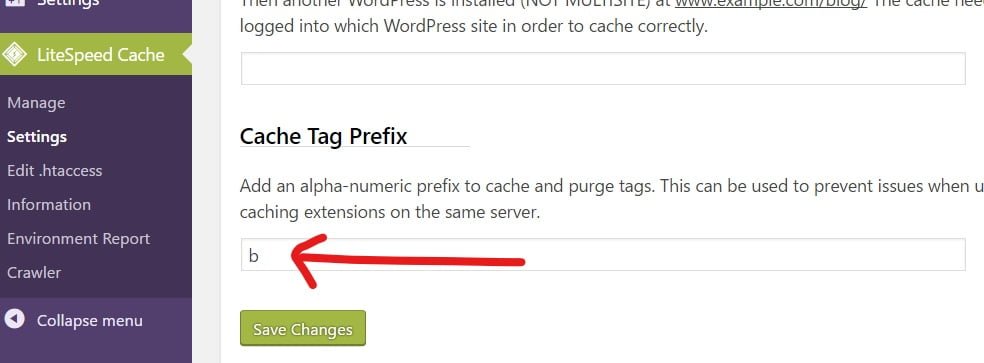
    To solve this, you need to give all of your sites unique custom Cache Tag Prefixes in the same Advanced settings screen as before.

    For Example Blog, you could set it to b, and for Example Store, set it to s. Those strings would then be added to the beginning of the relevant app’s cache and purge tags. A command to purge Example Blog would then be interpreted as “purge everything with the cache tag b_b1_. ”  Example Store would be left alone, because its purge tags begin with s_b1_ .

    Achievement unlocked: eliminate cache purge conflicts!

    In a nutshell…

    Using LiteSpeed Cache on your WordPress (and other) sites can lead to dramatic improvements in performance, so it pays to spend a minute or two working out little kinks like these! For more information on how to deal with cookie and tag issues as they relate to apps other than WordPress, take a look at our wiki articles .

    —

    Have some of your own ideas for future WordPress Wednesday topics? Leave us a comment!

    Don’t forget to meet us back here next week for the next installment. In the meantime, here are a few other things you can do:

  • WpW: Fixing LSCache+WooCommerce Conflicts

    WpW: Fixing LSCache+WooCommerce Conflicts

    Welcome to another installment of WordPress Wednesday!

    Do you use WooCommerce? Have you tried to use LiteSpeed Cache only to find that your cart was not updating correctly? Today we’re going to explore a configuration tweak that fixes an incompatibility between LiteSpeed Cache and some WooCommerce themes.

    A quick note before we begin: We went in-depth discussing the benefits of adding LSCache to your WooCommerce setup last week. You can check that out here, if you missed it.

    WooCommerce and LiteSpeed work together quite well right out of the box in most cases, however there are some situations where the addition of LSCache causes the shopping cart to be updated incorrectly. This is easily fixable.

    LiteSpeed Cache can give your shop a considerable performance boost, and as such is a useful addition to your WordPress arsenal. It’s well worth investing a few minutes to fix this little hiccup, if your site is affected by it.

    Some WooCommerce themes (Storefront, Shop Isle and other themes with an ajax cart, for example) are fully-compatible with LSCache and there is no need for any special consideration. However, for other themes (like E-Commerce), LiteSpeed will need a quick and easy configuration tweak.

    First, let’s find out if your theme has an issue.

    1. On a non-logged-in browser, with the cache active, enable your browser’s code inspector, and visit your shop’s home page. Then, visit a product page. Both of these pages should be newly-cached now.
    2. To verify that a page is cached, using the inspector, navigate to the Network tab, click on the page’s URL in the list (reload the page, if you don’t see it), and then look at the response headers. If you see X-LiteSpeed-Cache: hit, then the currently-loaded page was served from cache.
    3. Perform this check on both pages.
    4. Add the product from the product page to your cart.
    5. Visit the shop home page again, but do so by clicking a link to it from the product page (in other words, don’t use the Back button).
    6. Check to see if the home page is still cached (it should be) and that the cart contains the product you just added to it (it should).
    7. If you’re seeing something different, then you’ll need to update your do-not-cache cookie list.

    Here’s how to update your do-not-cache cookie list:

    In your WordPress Admin, go to LiteSpeed Cache > Settings > Do Not Cache Rules.

    Under Cookie List, enter woocommerce_items_in_cart, scroll down and press Save Changes.

    If you’d like to verify that this is working, repeat steps 1-6 above.  Unlike before, we should now see that the home page is still cached and the cart is properly updated.

    Congratulations!

    You can see that WooCommerce and LiteSpeed Cache are usually a great team right from Day One, but if you’re observing quirky behavior, it’s quite simple to configure LSCache to make an allowance for it.

    If your WooCommerce store isn’t taking advantage of LiteSpeed Cache’s performance-boosting power, why not? Online shoppers have a notorious lack of patience, and slow sites lose customers. LiteSpeed can keep your load times low and your customers smiling. Don’t take our word for it, though. Check out these awesome user reviews!

    —

    Have any questions about this? Have some of your own ideas for future WordPress Wednesday topics? Leave us a comment!

    Don’t forget to meet us back here next week for the next installment. In the meantime, here are a few other things you can do:

  • WpW: LSCache + WooCommerce For a Super Speedy Shop!

    WpW: LSCache + WooCommerce For a Super Speedy Shop!

    Welcome to another installment of WordPress Wednesday!

    Today we’re going to discuss the benefits of using LiteSpeed Cache for WordPress and WooCommerce together in your WordPress-based store.

    Did you know that LiteSpeed Cache is compatible with WooCommerce? LSCache has built-in logic to handle everything WooCommerce determines to be cacheable, which makes a separate WooCommerce caching plugin unnecessary!

    Here are some of the features of LSCache that make a pairing with WooCommerce so sweet:

    For starters, if WooCommerce says something is cacheable, then LSCache will cache it. Alternately, if WooCommerce doesn’t want something cached (like, for instance, the Cart, My Account, and Checkout), LiteSpeed will automatically respect that, and will not cache those pages. There’s no extra configuration required.

    If your stock is managed by WooCommerce, then product pages can be purged from the cache whenever the stock changes (whether this is at checkout or by an administrator at the wp-admin Dashboard).

    Additionally, with our “smart purge” technology, when a product page is purged (for whatever reason), the related category and tag pages can also be purged from the cache, this way you never have outdated product information showing anywhere on your site. This is a big advantage of LiteSpeed Cache. Other plugins struggle with purging related category pages, because they don’t have a cache tagging system like ours.

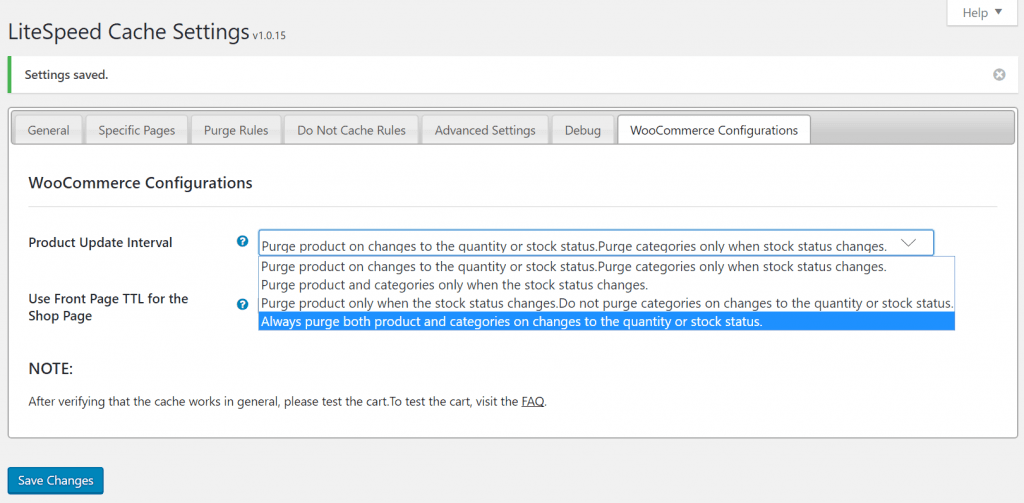
    For more control, you can set your caching preferences, in LSCache’s WooCommerce Configurations tab.

    Set your preferred caching interval based on your store’s configuration. For instance, if you display your stock figures on the product or category pages, you will probably want to purge the product and the related categories any time someone buys one of those products, like in the example below. On the other hand, maybe you don’t display your stock anywhere. In that case, you may want to keep your store mostly-cached with a long TTL, and only purge the relevant pages when a product becomes completely unavailable. It’s your choice.

    Example:

    Let’s say there’s a product in your shop called Rainbow Crayons. You have 10 boxes of them in stock, and your product page displays this.  Now you’ve sold a box. When the customer checked-out, that Rainbow Crayons page was purged from your cache, because the quantity in stock changed from 10 to 9. The next visitor to Rainbow Crayons would get a fresh copy of the page, and it would display 9 boxes in stock.

    If your category and tag pages also show stock information, presumably you’d want fresh copies of the Crayons category page, and the Rainbow tag page as well. To make this happen, you’d configure LSCache to purge relevant categories and tags whenever a product page is purged. The next customer to visit those pages would see that you now have 9 boxes of Rainbow Crayons in stock.

    So, this is all pretty cool, don’t you think? With LiteSpeed, your WooCommerce shop cache will be kept as fresh as possible, and your customers will always see the most up-to-date information in your product, category, and tag pages.

    LSCache does all of this, and is still fully functional on the rest of your WordPress site, too

    Coming Soon: We’re working on a new version of LSCache for WordPress that will support Edge Side Includes (aka ESI). This means that you’ll be able to cache a whole page publicly, while punching holes in that page for private data (like shopping cart information, for instance, or a personalized welcome message). Keep an eye out for that exciting development soon!

    [UPDATE: ESI is available now. So is the ability to cache pages for logged-in users.]

    As you can see, LSCache and WooCommerce make a nice pair. In most cases, they are compatible right out of the box. And for the few cases where they are not? Well that’s what WordPress Wednesday is for! Join us back here next week where we’ll give you an easy fix for a LSCache/WooCommerce cart conflict that occurs in some WooCommerce themes.

    —

    Have some of your own ideas for future WordPress Wednesday topics? Leave us a comment!

    Don’t forget to meet us back here next week for the next installment. In the meantime, here are a few other things you can do:

  • WpW: Using LSCache for WP with Scheduled Posts

    WpW: Using LSCache for WP with Scheduled Posts

    Welcome to the first installment of WordPress Wednesday!

    Today we’re going to be talking about Scheduled Posts. In particular, we’ll be discussing why your scheduled posts may not appear on time if you have LiteSpeed Cache (or another caching solution) installed.

    So you’ve installed LiteSpeed Cache, and your WordPress site is zipping along beautifully. But there is a problem: the cache is interfering with the cron, and your scheduled posts are being published late.

    Some WordPress features, including post scheduling, rely on WP-Cron to work properly. When your site is fully-cached (whether through our plugin or some other means), WP-Cron can be prevented from running. Read on to learn why this is, and how to configure your system so that Wp-Cron, Scheduled Posts, and LiteSpeed Cache can all live together in harmony.

    There are many reasons why you might want to schedule a post. Maybe you are going on vacation, but you want there to be a steady stream of new content published to your blog while you are gone. Maybe you like to have all of your content posted on a Monday, but you like to do the actual writing on Fridays. Maybe your audience expects a daily post at a consistent 6am on weekdays, but you enjoy sleeping in until 9 some mornings.

    Whatever the reason, when you schedule your posts for a particular time, you would like them to actually post at that time!

    Sometimes, though, scheduled posts and caching don’t get along.

    The key to understanding why, is in the WordPress cron.

    You might expect that a cron job, scheduled to run at 6am, would fire as soon as the system clock hits 6am. WP-Cron, though, isn’t tied to the system clock. It is triggered by visitor requests. If your small blog sits there quietly attracting no visitors for four hours, then your WP-Cron job is not going to be triggered until your first visitor shows up, four hours later.

    On the other hand, if you have a reasonable amount of traffic, and no cache enabled, your cron jobs will be triggered pretty close to their specified times, and you’re not likely to notice if they’re delayed by a minute or so.

    Now think about how LiteSpeed and other caches work. When your blog pages are cached, there is no reason to invoke WordPress to do any work. No matter how busy your blog may be, WP remains idle while the cache serves pages to your visitors. And with LiteSpeed Cache, which can do accurate purging by triggered events, public TTL may be set to a really long time. Even a busy site could appear idle for 24 hours or even a week! This is excellent, desired behavior from a site-performance perspective (It’s true – check it out), but it can be a problem when your publishing schedule relies on WP-Cron.

    If WordPress doesn’t wake up, neither does its cron. This is what causes scheduled posts to publish late.

    So what can we do to make the cache and the cron play nice?

    In order to make sure that WP-Cron runs regularly on cached sites, you can manually schedule a server-level cron job to invoke wp-cron.php at your ideal interval. Here’s how:

    To force WP-Cron to check itself every 15 minutes, enter crontab -e at the command-line prompt, and add the following line to the file:

    */15 * * * * wget http://your_wp_site/wp-cron.php
    

    This is literally read as “execute wget http://your_wp_site/wp-cron.php at 15-minute intervals every hour, every day of the month, every month, every day of the week.” It means your site will no longer be dependent on visitors and non-cached content to trigger your scheduled posts. WP-Cron will be guaranteed to run every 15 minutes.

    Another example: Let’s go back to that idea of having all of your posts scheduled for weekdays at 6:00 am. If this is the only truly critical time for you and your cron, add this line via the crontab -e command:

    01 6 * * 1,2,3,4,5 wget http://your_wp_site/wp-cron.php
    

    This is read as “execute wget http://your_wp_site/wp-cron.php the first minute of the 6th hour every day of the month, every month, on the 1st, 2nd, 3rd, 4th, and 5th days of the week.” It lets WordPress handle the cron most of the time, but also has your system manually trigger wp-cron.php once a day at 6:01am. Just in case.

    To choose your own interval, you can modify the line above according to this pattern:

    minute hour day-of-month month day-of-week wget http://your_wp_site/wp-cron.php
    

    For minute, hour, day-of-month, month, and day-of-week, you can use the following:

    • A number: 10 just means 10 (10th minute, 10th hour, 10th day of the month, etc.)
    • An interval: */10 represents an interval of 10 (so for minutes, it would be :00, :10, :20, :30, and so on)
    • A list: 10,20,30 represents a list with 3 values (so for minutes, it would be :10, :20, and :30)
    • A wildcard: * represents all of them (every minute, every hour, every day, etc.)

    (Please note that for day-of-week, 0=Sunday, 1=Monday, 2=Tuesday, and so on.)

    Now that we’ve ensured the cron will run on an appropriate schedule, let’s go back to our 15-minute example.

    At this point, WP-Cron is being triggered every quarter of an hour by the system cron, but it is also still triggered by visitor requests. We could leave it this way, but if the 15 minute thing is sufficient for your purposes, and you want to avoid extra load on your server, you can disable the default visitor-triggered behavior.

    Simply add this line to your wp-config.php file:

    define('DISABLE_WP_CRON', true);
    

    (If your config file already has a line that reads define('DISABLE_WP_CRON', false); then don’t add a new line. Simply change false to true.)

    And there you have it. WP-Cron now triggers 4 times an hour, every 15 minutes, no matter how many visitors you have or how many pages are being cached. Schedule your posts around the 15-minute mark of any hour (:00, :15, :30, :45) and they will never be posted late again!

    By the way, if you’ve read this far and you’re not using LiteSpeed Cache with your WordPress blog, why the heck not? You can download it here, or get more information in the links below.

    P.S. As of this writing, we’ve got more than 80,000 active installs – that’s 10,000 up since our post last week!

    —

    Have any questions about this? Have some of your own ideas for future WordPress Wednesday topics? Leave us a comment!

    Don’t forget to meet us back here next week for the next installment. In the meantime, here are a few other things you can do:

  • WordPress Wednesday

    WordPress Wednesday

    We here at LiteSpeed are thrilled that, as of this writing, there are currently more than 70,000 active installs of our WordPress plugin. That’s a lot of super speedy blogs! And that number is growing.

    With so many of you out there using LiteSpeed Cache, we thought it might be fun to start a weekly blog series full of tips and tricks for getting the most out of our plugin.

    From troubleshooting and fine-tuning your configuration, to playing nicely with other plugins, we’ve already got a great little list of topic ideas assembled.

    That said, we invite you to suggest some of your own ideas for WordPress Wednesday. What would you like to know? Leave us a comment!

    Don’t forget to meet us back here next week for the first installment, or subscribe to the WordPress Wednesday RSS feed.