Tag: wordpress wednesday

LiteSpeed’s WordPress Wednesday series shares tips, tutorials, and explorations of new features related to the LSCache for WordPress plugin. Even those not currently using LSCWP can learn something. What is caching? What types of caching can be used with WordPress? How else can you optimize WordPress?

LSCWP provides advanced cache-management tools and optimization features, designed to reduce page load times and give your site an edge. With LiteSpeed, your site can employ the best practices that make for a high PageSpeed score, and – more importantly – an exceptional user experience.

  • WpW: The Beginner’s Guide to LiteSpeed Cache for WordPress

    WpW: The Beginner’s Guide to LiteSpeed Cache for WordPress

    WordPress Wednesday: Beginner's Guide to LiteSpeed Cache for WordPress

    Welcome to another installment of WordPress Wednesday!
    Today’s Topic: Beginner’s Guide to LiteSpeed Cache for WordPress

    Disclaimer: The information contained in this post is accurate for LSCWP v5.5 [release log]. If you are using a newer version of the plugin, some details may have changed. Please refer to our documentation for the latest!

    So you’ve downloaded the LiteSpeed Cache for WordPress plugin, installed it, and activated it. Now what?

    Some people are invigorated by the site of all of those settings tabs and are eager to jump right in, while others find all of the options overwhelming, and are paralyzed with indecision.

    Well, if you are part of the latter camp, you’ve come to the right place. Today we are going to talk about setting up LSCWP simply and easily. We’ll go over the things you must know in order to successfully use the plugin, and tell you which settings you can safely ignore.

    I’ve installed and activated LSCache for WordPress. Now what?
    Beginner's Guide to LiteSpeed Cache for WordPress

    LSCWP essentially has two purposes: that of a full-page cache for your site’s dynamically-generated pages, and that of a site-optimization plugin. Most people who install LSCache do so for the caching functions, and the rest is just the icing on the cake.

    You are free to enable the caching functions and ignore everything else.

    Upon activation, you’ll find that caching is enabled, but everything else is disabled. If you navigate to LiteSpeed Cache > Cache > Cache you will see that Enable Cache is set to ON.

    You could stop right there, never configure another setting, and the plugin would probably cache your site very nicely. We specifically chose the default settings to work with the majority of sites right out of the box.

    TL;DR: This is a very long post, but that’s only because I set out to explain every single basic setting for you. In the event that you want to tweak things a bit, it doesn’t hurt to have a rudimentary understanding of these things. There’s no need to read it now, though! Use the default settings, bookmark the version of this post that exists in the documentation (which we will keep updated through each plugin version), and check it when you need the reference.

    Still reading? Ok! Let’s look at the first four tabs in the Cache section, and see what they do. These are the most basic settings for your cache.

    Beginner’s Guide to LiteSpeed Cache for WordPress
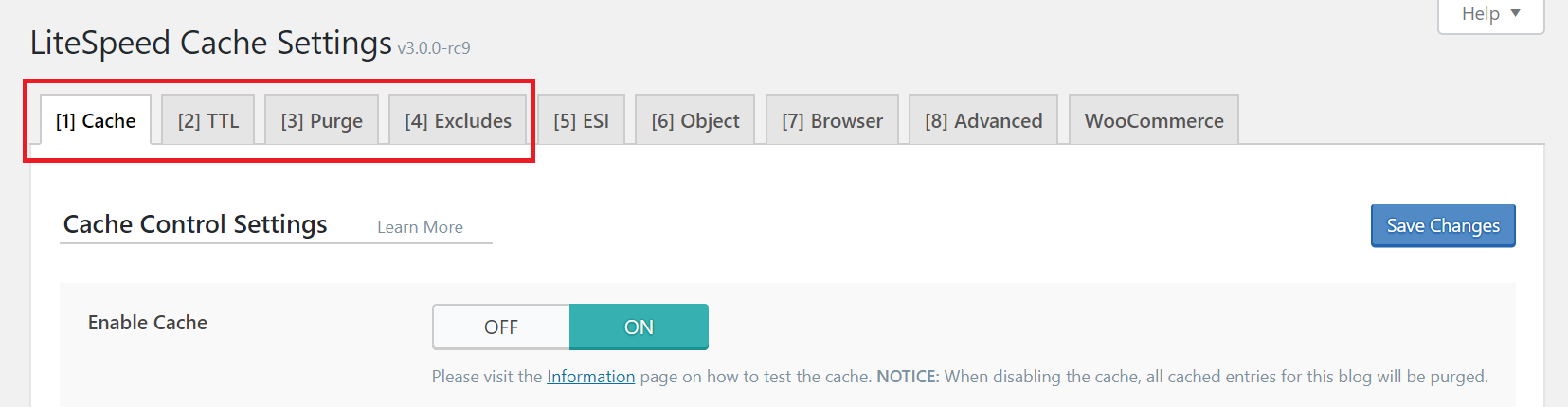
    LiteSpeed Cache for WordPress Basic Cache Tabs

    Tip: This is a high-level overview. For a detailed explanations of each setting on each tab of the Cache section, please see the Screen-by-Screen documentation.

    Cache Tab

    The first option on the Cache tab turns the caching functionality on and off. The remaining settings allow you to decide what types of content will be cached. By default, everything is enabled. If you don’t know what these settings do, it’s best to leave them set to their defaults.

    TTL Tab

    TTL stands for “Time to Live” and it refers to the number of seconds a page can remain in cache before it is considered stale. Once a page reaches its TTL, it is purged from cache. We’ve chosen default TTLs that should work for most sites, but you are free to change them.

    If you would like a deeper understanding of how content is cached and purged, take a look at this blog post. It’s written at a high-level, so you can get the gist without knowing a lot of jargon.

    Purge Tab

    There are sometimes situations where pages should be purged before their natural expiration. This section allows you to define the rules for that behavior. The default selections should work for most sites, but you can change them if you need to.

    Example

    If you write a new post, tag it “brownies,” and publish it in the “recipes” category, several pages will change: the home page, the recipes category archive page, the brownies tag archive page, your author archive page, and probably some other pages, depending on your theme.

    All of the affected pages will need to be purged in order to avoid serving stale content. These settings give you an opportunity to adjust the rules to fit what is needed by your site.

    Excludes Tab

    You may have pages that you don’t want cached at all. These options allow you to exclude specific parts of your site from being cached. Again, for most sites, there will be no need to change these settings. They are provided to allow you to make custom exceptions to the cache rules.

    The Other Cache Tabs

    The rest of the Cache tabs (four or five, depending on whether you have WooCommerce enabled) cover more advanced types of caching. We cover these in-depth in the Screen-by-Screen Cache section documentation.
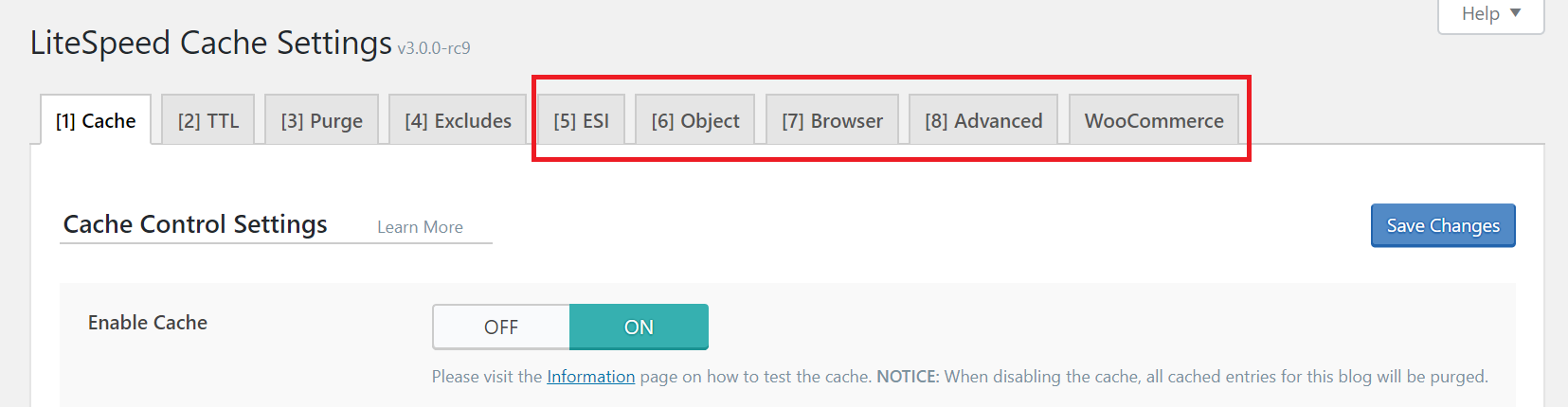
    LiteSpeed Cache for WordPress Other Cache Tabs

    ESI

    “Edge Side Includes” (ESI) is a method through which you can “punch holes” in public content, and fill them with private or uncached content. ESI is useful for things like shopping cart widgets and personalized greetings, but we’ve left it disabled by default. Go in-depth here.

    Object

    The settings on this tab allow you to control an external object cache (Memcached, LSMCD, or Redis). The server admin needs to have previously enabled and configured this external cache.

    Browser

    Browser cache is a client-level cache for static files. With browser caching enabled, static files (like images) are stored locally on the user’s device the first time they are requested. After that, the content is pulled from their local storage until the browser cache expires. The settings on this tab control the browser cache.

    Advanced

    As you might guess from the name of this tab, it’s aimed at more experienced users. You are not likely to need this tab, unless you have some kind of conflict with another cache plugin.

    WooCommerce

    LSCache is compatible with WooCommerce. If you have WooCommerce enabled, this tab will appear, and will allow you to configure settings related to caching shop content.

    Other Plugin Sections

    There are many more sections to explore in the LSCache plugin. Each of these is documented in much greater detail in the docs Screen-by-Screen section. I’ve provided links to each section in the descriptions below.
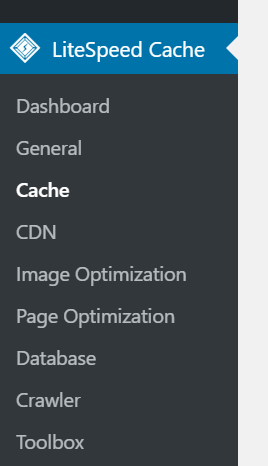
    LiteSpeed Cache for WordPress Menu

    Dashboard

    The LiteSpeed Cache Dashboard allows you to see the status of all of your LSCache and QUIC.cloud services (Image Optimization, Critical CSS Generation, Low-Quality Image Placeholders, Cache Crawler, etc.) at a glance. You can also check your page load time and your page speed score. Learn more.

    General

    The settings in this section control your usage of QUIC.cloud services, the ability to auto upgrade the plugin, and which messages you want to have displayed on the dashboard. Learn more.

    CDN

    This section allows you to configure your Content Delivery Network for use with WordPress. If you don’t use a CDN, don’t worry about it. We’ve left CDN support disabled by default. Learn more.

    Image Optimization

    LiteSpeed Cache for WordPress provides the ability to optimize your images, making them smaller, and faster to transmit. This is done through a QUIC.cloud service and can be controlled in this section of the plugin. Learn more.

    Page Optimization

    There are several non-cache measures you can take to speed up your WordPress site, and many of them are supported in this tab. CSS and Javascript minification and combination, HTTP/2 push, asynchronous and deferred load… if you don’t know what these things mean, don’t worry. We’ve left them disabled by default. Learn more.

    Database

    This section allows you to optimize your WordPress database. Database optimization is a useful tool when it comes to speeding up your site. LSCWP’s DB Optimizer gives you an easy way to execute some of these tasks in your WordPress database. Learn more.

    Crawler

    We’ve disabled the crawler by default. When it’s active, it travels your site, refreshing any pages that may have expired from the cache. Crawling can be a resource-intensive process, and not all hosting providers will allow its use. If your hosting provider does allow crawling, it’s a nice way to keep your cache fresh. Learn more.

    Toolbox

    When you need to manually purge the cache, export your site settings, or debug an issue, you’ll find the means in the Toolbox section. Probably the most useful thing you will find here is the Environment Report. If you are having a problem and LiteSpeed support asks for your Report Number, this is where you would go to get it. Learn more.

    Watch the Video

    What now?

    Now, you sit back and watch your site load more quickly 😀

    If you’re feeling adventurous, you can start looking at some of those other features we glossed over. Or, maybe you’d like to try a preset. They’re a great way to kick start your configuration, and they’re available for every comfort level.

    We have documentation that provides explanations of every setting (specific sections are linked to above), and you can explore previous WordPress Wednesday topics for more in-depth discussions of some of them.

    If anything we covered was not clear enough, or you feel the need for additional help, please don’t hesitate to leave a comment here or post on our WordPress support forum. We enthusiastically support this plugin and are happy to answer any of your questions!

    —
    Have some of your own ideas for future WordPress Wednesday topics? Leave us a comment!

    Don’t forget to meet us back here next week for the next installment. In the meantime, here are a few other things you can do:

    —
    This content was last verified and updated in June of 2023. If you find an inaccuracy, please let us know! In the meantime, see our documentation site for the most up-to-date information.
  • WpW: LSCache for WordPress 2018 Milestones

    WpW: LSCache for WordPress 2018 Milestones

    WordPress Wednesday: LiteSpeed Cache for WordPress 2018 Milestones

    Welcome to another installment of WordPress Wednesday!
    Today’s topic is: LiteSpeed Cache for WordPress 2018 Milestones

    Another year has come to a close, and we thought we would take a look back and see just what we’ve accomplished with our WordPress Plugin.

    Many of the new features and improvements we’ve implemented are thanks to your suggestions. We always appreciate your feedback and ideas, so please keep them coming. Our Slack community is a great place to do that.

    Notable Updates

    We introduced a game-changer in 2018: support for non-LiteSpeed users! Of course, you get the most out of the LiteSpeed Cache plugin, if you have LiteSpeed Web Server and can take advantage of the actual caching functions. But if that’s not in the cards for you for whatever reason, you can still take advantage of all of LiteSpeed’s non-caching functions, including our Image Optimization and Critical CSS services. These are premium features that most other WP optimization plugins make you pay for. But they’re free with LiteSpeed Cache.

    Speaking of Critical CSS, this was another big feature released last year. CCSS solves the “Flash of Unstyled Content” issue that plagues just about every site that follows Google’s recommendation to load CSS asynchronously. Our CCSS Generation service provides critical CSS for every type of post on your site, in both mobile and desktop variations, if necessary.

    Our fellow plugin developers will be pleased to know there have been several additions to our API. Among other things, we now have a way to address WP nonce issues. Check the API out.

    GUI

    We put some effort into making the plugin easier to use. To that end, we introduced Basic View, which allows you to hide the advanced settings, if you know you will never use them.

    Additionally, we added more “Learn More” links to the Settings tabs. These links bring you to our wiki, where the settings are explained in detail.

    LSCache New Purge Options

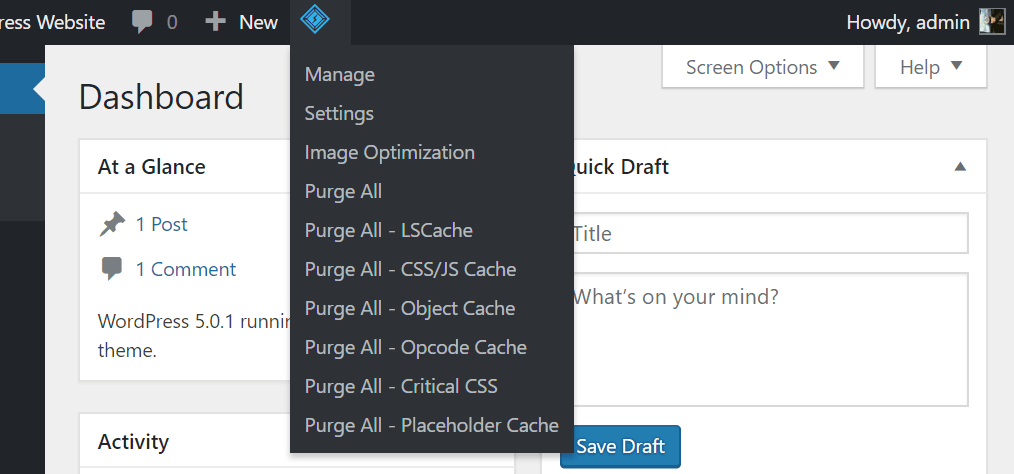
    We also added more varieties of Purge to the WP Dashboard Admin Bar. Because sometimes you just want to purge the optimized CSS/JS, or the Critical CSS. And sometimes you want to purge everything in sight.

    Supported Technologies

    Last year, LiteSpeed introduced support for several external technologies including the CloudFlare API, object cache, and opcode cache. These technologies are not implemented directly by LSCWP, but if you are already using them, LSCWP provides interfaces to allow you some degree of control.

    New Features

    Configuration

    For those of you who are always playing around with settings, changing things up, and trying something new, we added some useful features. Now you can Import and Export your settings, or press the Reset All Options button if you want to start from scratch. You can choose to have the plugin Auto Update when there’s a new version, and if you’re a hosting provider, you can now define a default configuration for all of the WP installations on your servers.

    Also new is a Disable All Features setting, which is useful when you are debugging.

    Image Optimization and Media

    Image Optimization and media handling was a big focus for us last year.

    In our Image Optimization service, we simplified the user experience, added more options for taking control of your media library, automated much of the process, introduced lossless compression and CLI support, and made several improvements to stability behind the scenes.

    In the Media Settings tab, new options were added for WebP image handling, using responsive Lazy Load placeholders, and inlining Lazy Load JavaScript.

    Cache Crawler

    Our cache crawler allows you to keep your cache warmed up. It periodically travels through your sitemap, looking for pages that have expired in the cache, and re-caches them. When we first introduced the crawler, it only had the ability to crawl from the point of view of a non-logged-in guest.

    This year, we added the ability to simulate different logged-in user roles, visits with and without WebP images, mobile device visits, and cache varies based on cookie values. You may now have several different crawlers running and warming up your cache for a variety of situations.

    Other New Settings

    Some of LSCWP’s updates last year didn’t get as much fanfare as others, but they’re still helpful in your quest to make your WordPress site the fastest it can be! Things like inline CSS/JS minification, support for randomizing multiple CDNs and for setting specific directories to include in CDNs, a setting to force particular URLs to be cacheable, and Instant Click.

    Additionally, we made it easier for you to be compliant with the GDPR, and we introduced a Purge All Hooks setting that helps you assume even more control of cache purges on your site.

    Third Party Compatibility

    We know how important it is that all of your favorite plugins play nicely with each other, so to that end, we improved compatibility with some of them. We are now fully compatible with WMPL. We’ve added WebP support for Avada Fusion Sliders, PageSpeed Insights, and WooCommerce, and we now have ESI Shortcode support for Elementor. Plus, we made miscellaneous updates that improved compatibility with Ajax Login, Ninja Forms, Hide My WP, Universal Star Rating, Aelia Currency Switcher, NextGen Gallery, and Postman App, among others.

    For the full list of tested plugins, see our wiki.

    Future Plans / Reviews

    LiteSpeed Cache for WordPress 2018 Milestones: Ocean City NJ Boardwalk Mile Marker

    We’ve come a long way with this plugin in the past few years, and we’re not finished yet! 2019 will find us implementing a few more of your suggestions, and focusing on the speed and stability of our services.

    We appreciate your enthusiasm and support! Just look at some of these glowing testimonials we’ve received recently:

    Huge improvement in speed !!! Easy to install and configure and for someone like me who isn’t technical. Get their great support. Highly recommended.
    – @ionas

    I have found this plugin to be absolutely brilliant when used in conjunction with the Litespeed web server.
    – @johnclarkeau

    The Silver Bullet of Cache Plugins !!! My website went from having an ‘F’ in GTMetrix to having a ‘B.’ WOW !!!
    – @pigo3934blog

    LSCache is the only plugin that gave me over 90% on GTmetrix, and boosted my website’s speed without breaking any of my site’s elements.
    –@dimath99

    Clear documentation on how to fix an issue caused by my setup. Nice!! No searching support forums hoping to find an answer. Everything is working much better than expected!!
    – @hutchm12

    There’s a lot more where that came from, and you can leave a review of your own there, if you would like to. Your kind words warm our hearts, so thank you! ❤

    —

    Disclaimer: The information contained in this post is accurate for LSCWP v2.9 [release log]. If you are using a newer version of the plugin, some details may have changed. Please refer to our wiki for the latest!

    Have some of your own ideas for future WordPress Wednesday topics? Leave us a comment!

    We’ll be back soon with another installment. In the meantime, here are a few other things you can do:

  • WpW: WordPress Shortcodes as ESI Blocks

    WpW: WordPress Shortcodes as ESI Blocks

    WordPress Wednesday: Shortcodes as ESI Blocks

    Welcome to another installment of WordPress Wednesday!
    Today’s topic is: Turning WordPress Shortcodes into ESI Blocks

    If you’ve ever used ESI blocks before on your WordPress site, you know that they allow you to cache your content in an incredibly flexible way. We’ve talked before about ESI, and as part of that conversation we showed you how you could use ESI to cache widgets separately from the pages on which they appear.

    For example, you can set your entire site to be cached for a week, but set your ESI widgets to expire after only 12 hours, if they have time-sensitive content. Or you can set your widgets to contain privately cached content, even when the rest of the page is cached publicly. This latter scenario is especially useful in WooCommerce and other shopping sites. Be sure to read that blog post for the whole story about how ESI and ESI widgets work.

    Using ESI Shortcodes

    This ability to define a different set of parameters for caching widget content is so useful. It’s only natural to consider other WP constructs that could be made better with ESI. The “shortcode” is one such construct.

    As of LSCWP v2.8, ESI shortcodes are now supported. This allows you to cache the contents of the shortcode in a different way than you’ve cached the rest of the page.

    If you have a myeventlist shortcode, for example, and it inserts a list of upcoming events into your page, you might use it like this:

    [myeventlist month="December" year="2018"]

    In its most basic form, an ESI shortcode is written exactly like the original shortcode with an esi in front of it. So, to turn the myeventlist shortcode into an ESI block, you would instead write this:

    [esi myeventlist month="December" year="2018"]

    By default, shortcode contents are stored in public cache, and the TTL defaults to whatever value you have stored in LiteSpeed Cache > Settings > General > Default Public Cache TTL, but you can change that with a few parameters.

    To store the shortcode contents in private cache for five minutes (or 300 seconds), you can say this:

    [esi myeventlist month="December" year="2018" cache="private" ttl="300"]

    TL;DR: To turn a shortcode into an ESI shortcode, write it this way:

    [esi + original shortcode and its parameters + optional esi parameters + ]

    If You Deactivate LSCache…

    Turning WordPress Shortcodes into ESI Blocks: Apple Picking Sign

    If, for some reason, you decide in the future to deactivate the LiteSpeed Cache plugin, please be aware that your ESI shortcodes will no longer work. You will need to manually replace all ESI shortcodes with their original versions.

    In other words, you’d need to change

    [esi myeventlist month="December" year="2018" cache="private" ttl="300"]

    back to

    [myeventlist month="December" year="2018"]

    everywhere it appears.

    Limitations

    ESI shortcodes have one important limitation: while LiteSpeed Cache can easily cache your shortcode contents, it is not possible for LSCache to purge the shortcode contents on demand.

    Shortcode ESI blocks will naturally expire when the TTL is reached, but a purge cannot be triggered by particular events. This makes sense, because LiteSpeed can’t know which occurrences should trigger a purge. Different shortcodes all have different events that render them out-of-date, and there’s no way for LiteSpeed to know what they are.

    Using the example of the event listing plugin above, let’s say you use the following shortcode:

    [esi myeventlist month="December" year="2018"]

    This will cache the myeventlist block for the same length of time as your site’s default TTL. If someone edits an event before the TTL is reached, then the ESI block will, unfortunately, be out-of-date until it expires naturally.

    There are two ways to handle this issue:

    • Have the shortcode’s plugin author use our API to trigger a purge when block content changes.
    • Use a very short TTL, and live with the possibility that contents may be briefly out-of-date.

    Let’s look at these two options.

    Get the Plugin Author Involved

    If it’s important that the shortcode contents be purged by specific events, you can share this API call with the author of the shortcode’s plugin (just be sure to replace myeventlist with the actual name of the shortcode you want to purge:

    method_exists( 'LiteSpeed_Cache_API', 'purge' ) && LiteSpeed_Cache_API::purge( 'esi.myeventlist' ) ;

    LSCache uses a powerful tagging system, and all cached content is organized by one or more tags. Content that belongs to an ESI shortcode is tagged with esi.+shortcode-name. (In this example, that’s esi.myeventlist.)

    The plugin author should use this method any time the contents of the shortcode change. This is the most precise way to keep the content in the shortcode up-to-date and accurately cached according to the shortcode’s own requirements.

    Learn more about the LiteSpeed API on our wiki.

    Do it Yourself

    If it is not critical for the contents of the shortcode to have up-to-the-minute accuracy, then you can use the ttl parameter to cache the content for a short time. For example, if you can live with content that is an hour old, set ttl="3600". If you are thinking more along the lines of five minutes, set it to ttl="300".

    While it is possible to set the content to not be cached at all ( ttl="0"), it is not recommended. Any time there is uncached content on a page, PHP must be invoked in order to generate that content. PHP uses valuable resources, and significantly slows down a page. It’s far better to cache your content for a small amount of time than not at all.

    Do You Need ESI Shortcodes?

    Shortcodes are used for a wide variety of functions, and ESI will not be necessary for every one. If the shortcode contains private content on a public page, it might benefit from ESI. If it contains quickly-changing content on an otherwise mostly-static page, then ESI might be a useful way to cache more flexibly.

    —
    Disclaimer: The information contained in this post is accurate for LSCWP v2.8.1 [release log]. If you are using a newer version of the plugin, some details may have changed. Please refer to our wiki for the latest!

    Have some of your own ideas for future WordPress Wednesday topics? Leave us a comment!

    We’ll be back soon with another installment. In the meantime, here are a few other things you can do:

  • WpW: Managing Multiple Cache Crawlers

    WpW: Managing Multiple Cache Crawlers

    Welcome to another installment of WordPress Wednesday!
    Today’s topic is: Managing Multiple Cache Crawlers

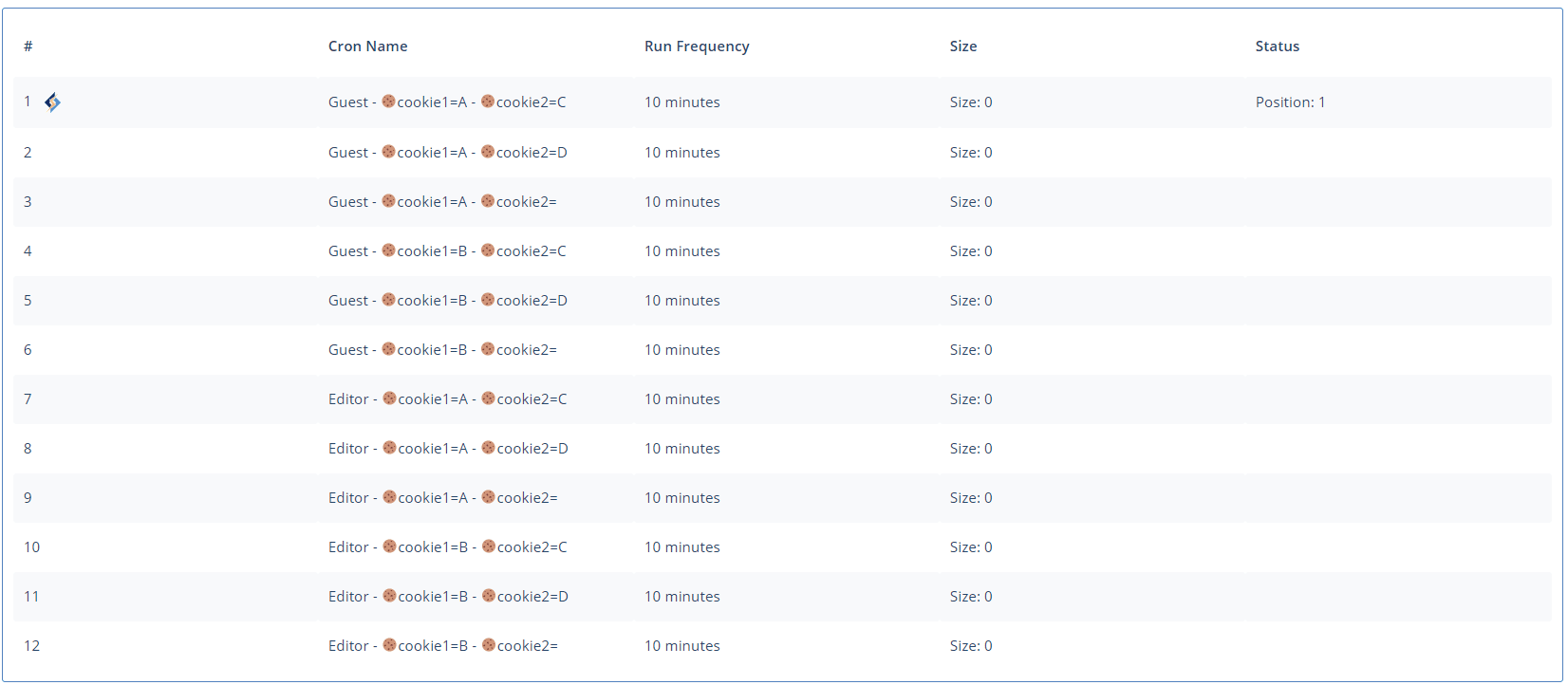
    LiteSpeed’s WordPress Cache Crawler travels your sitemap and re-caches any pages that have expired. By default, the crawler is run from the point of view of a non-logged-in guest. This is what that might look like on the LiteSpeed Cache > Crawler page:

    This is sufficient for a simple site, but some sites display different content in particular situations (for example, special content for logged-in users, specifically mobile content, or content that relies on the value of a cookie). What if you are in that situation? How do you configure the crawler to keep multiple views warm?

    The LSCache crawler can be configured to simulate traffic based on three different criteria:

    1. User roles
    2. Cookies (new!)
    3. Mobile view (new!)

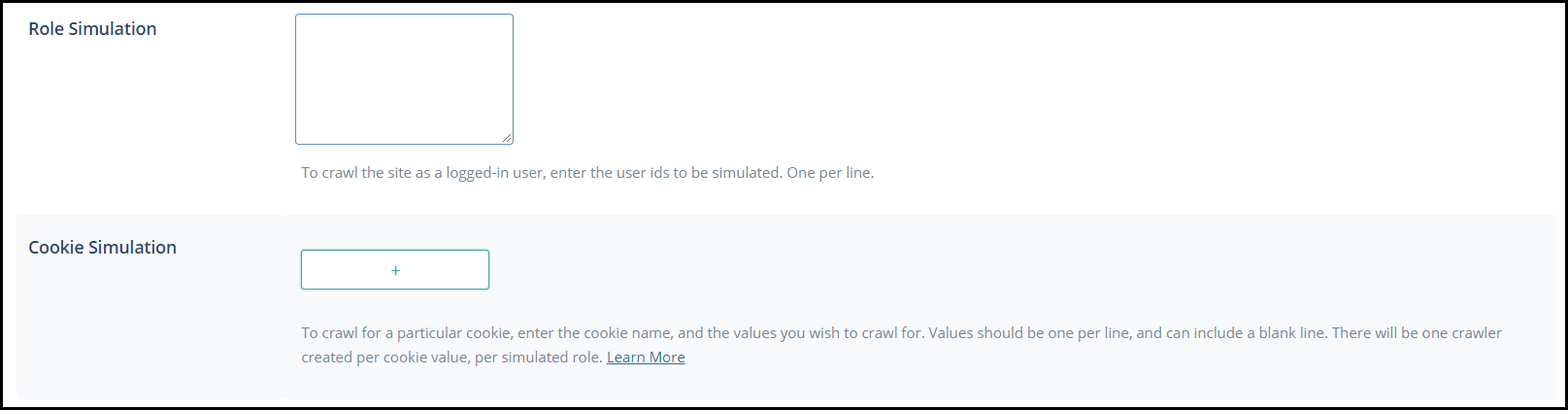
    The first two options are controlled by settings on the LiteSpeed Cache > Settings > Crawler tab: Role Simulation and Cookie Simulation.

    Mobile view is controlled via the Cache Mobile setting on the LiteSpeed Cache > Settings > Cache tab. Let’s look at each of these configurations.

    User Role Simulation

    The main advantage of a crawler is that it minimizes the chances that your visitors will encounter uncached content. This is a nice perk for your guests. But what if you have the kind of site where many of your visitors log in? Maybe you have a particular user role that you would like to see warmed up with a crawler?

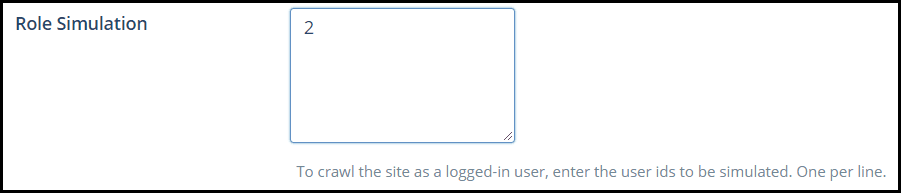
    Navigate to LiteSpeed Cache > Settings > Crawler and add a user ID to the Role Simulation box.

    In this example, we entered the ID 2. User number 2 has the role of Editor, so now we have two crawlers:

    Now, in addition to crawling the sitemap from the point of view of a non-logged-in user, LSCache will crawl the sitemap from the point of view of a user with the Editor role.

    Of course, with more crawlers comes more server load. So you should consider the benefits of a warm cache in the context of how many resources you have available.

    Cookie Simulation

    What if you have implemented a cache vary based on a cookie value. Wouldn’t it be nice to crawl that view, too? There aren’t many situations where you would need to simulate a cookie crawler, but it can be useful for sites that use a cookie to control multiple languages or currencies.

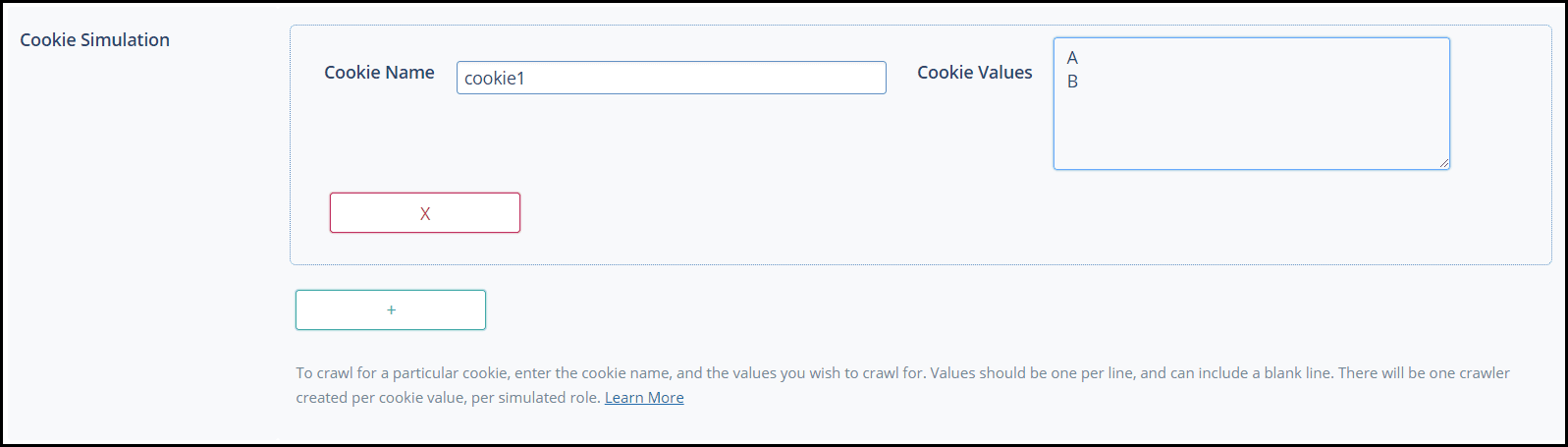
    To create a new crawler for a particular cookie, press the + button. Enter the cookie name, and the values you wish to crawl for. Values should be one per line, and can include a blank line.

    There will be one crawler created per cookie value, per simulated role. In other words, this:

    Press the + button to add additional cookies, but be aware the number of crawlers grows quickly with each new cookie, and can be a drain on system resources. Let’s add cookie2 with the values C, D, and .

    One cookie, eight additional crawlers!

    This is a cool feature, but be careful with it, or your server will never get a break from all of the crawling!

    Mobile View

    One last type of crawler is the Mobile Crawler. This one is automatically created if you have LiteSpeed Cache > Settings > Cache > Cache Mobile set to ON.

    Just for fun, let’s see what happens to your crawler list when you crawl a mobile view:

    As you have probably guessed, it doubles the number of crawlers you will run.

    In Conclusion

    You can create crawlers for many different cache vary situations. It’s a handy tool, just remember to crawl responsibly.

    —
    Disclaimer: The information contained in this post is accurate for LSCWP v2.8 [release log]. If you are using a newer version of the plugin, some details may have changed. Please refer to our wiki for the latest!

    Have some of your own ideas for future WordPress Wednesday topics? Leave us a comment!

    We’ll be back soon with another installment. In the meantime, here are a few other things you can do:

  • WpW: Critical CSS and LiteSpeed Cache

    WpW: Critical CSS and LiteSpeed Cache

    WordPress Wednesday: Critical CSS and LiteSpeed Cache

    Welcome to another installment of WordPress Wednesday!
    Today’s topic is: Critical CSS and LiteSpeed Cache

    Chances are, if you’ve played around with LiteSpeed Cache for WordPress’ optimization features in the past, you may have encountered the dreaded FOUC, or “Flash of Unstyled Content.” This is caused when the browser loads a page’s content before it loads the styles defined for that content. The browser doesn’t know yet how the content should look, and momentarily displays the content without any formatting at all. This behavior is a side-effect of loading CSS and HTML asynchronously. It’s a common problem, but it has a solution, and that is what we’re going to explore today.

    Disclaimer: The information contained in this post is accurate for LSCWP v4.5.0.1 [release log]. If you are using a newer version of the plugin, some details may have changed. Please refer to our documentation for the latest!

    What is Critical CSS?

    Your web browser needs two things in order to properly display a page:

    • HTML, which includes the content, function and structure of the elements on the page
    • CSS, which determines how those elements look when they are displayed

    In an unoptimized site, all of the CSS that is linked to in the HTML header is loaded before the HTML body. This approach, however, can lead to a lot of waiting. And so site scoring services (like PageSpeed) recommend that you load CSS asynchronously. Essentially, what this does, is to load the content and the styling separately, without making one wait for the other before continuing.

    Critical CSS and LiteSpeed Cache: FOUC and Normal Display

    But this can cause a problem. When page content is loaded before the CSS that styles it, you get FOUC. Basically, you see the text and maybe the images, too, but instead of displaying in the format you expect, the site momentarily looks like something straight out of 1994.

    So, how can you load CSS asynchronously and avoid the unstyled content? Critical CSS.

    Stylesheets can be large and complex, which is why it takes so long to wait for them to load. However, only a fraction of the styles is necessary for displaying above-the-fold content. It’s that fraction which is called “Critical CSS.” We can quickly load the Critical CSS first, and then, when the rest of the CSS and HTML are loaded together asynchronously, the browser already knows how to display the content that is initially visible.

    LSCache has three settings that define how Critical CSS is handled in WordPress.

    How LSCache Handles Critical CSS

    From the WordPress Dashboard, navigate to LiteSpeed Cache > Page Optimization > CSS Settings. You’ll find the relevant settings about halfway down the page.

    LSCache Critical CSS

    Load CSS Asynchronously

    This option defaults to OFF. When it is OFF, web pages load the normal way, where the browser loads the CSS from the HTML header before continuing on to display the content in the HTML body.

    When you turn this option ON, CSS and HTML will be loaded at the same time. The page should load more quickly this way. In order to avoid the FOUC problem, the LSCache plugin automatically connects with QUIC.cloud to generate Critical CSS in the background via a cron job.

    The QUIC.cloud Connection

    Critical CSS is one of QUIC.cloud’s Online Services, and a certain number of CCSS calculations are provided for free to LSCache users every month. You can learn more about QUIC.cloud’s role in this process in our documentation, and you can learn more about possible costs on the QUIC.cloud website.

    CCSS Per URL

    This option defaults to OFF, which means that all Critical CSS files are generated by Post Type. In other words, there is one CCSS file for all posts, one for all pages, one for all products, and whatever kind of posts you may have on your blog.

    If you turn this option ON, then a Critical CSS file will be generated for every single post. This option generates many more files, so only use it if the styling for individual posts within a single type varies dramatically.

    Inline CSS Async Lib

    Use this setting to speed things up a bit and avoid render blocking by the CSS Asynchronous Library. It defaults to OFF.

    A Few More Details

    Critical CSS and LiteSpeed Cache: Computer on a Desk

    A Purge All command will not delete any generated Critical CSS.

    It’s not always necessary to Purge All anyway. It’s better to target your purges to what actually needs to go. Purge All doesn’t take Critical CSS, but it does take optimized CSS and Javascript along with it. Consider using Purge All – LSCache, if all you need is to clear the cache. That option leaves everything else, including CCSS, intact.

    If you intend to regenerate CCSS, then you can use the Purge All – Critical CSS button. Just be aware that regeneration will cost you QUIC.cloud credits.

    Please note, you may need to add QUIC.cloud’s Online Service IPs to your firewall’s allowlist.

    If you have any questions about this, please leave a comment, visit our forum, or drop by our Slack community.

    —
    Have some of your own ideas for future WordPress Wednesday topics? Leave us a comment!

    Don’t forget to meet us back here next week for the next installment. In the meantime, here are a few other things you can do:

    —
    This content was last verified and updated in March of 2022. If you find an inaccuracy, please let us know! In the meantime, see our documentation site for the most up-to-date information.
  • WpW: LiteSpeed Cache and the GDPR

    WpW: LiteSpeed Cache and the GDPR

    WordPress Wednesday: LiteSpeed Cache and the GDPR

    Welcome to another installment of WordPress Wednesday!
    Today’s topic is: LiteSpeed Cache for WordPress and the GDPR

    We discussed this in general terms a few days ago, but today we’re going to talk specifically about the WordPress plugin, and give you a few more details.

    As site owners, no doubt you are aware of the EU’s new GDPR. And if you are not, you should probably read this. And soon, because it becomes enforceable in 2 days.

    The GDPR applies to companies that collect data, and companies that process data. In the context of our cache plugins, YOU would be the data collector for your site, and LiteSpeed would be one of your data processors.

    LiteSpeed Technologies values your users’ privacy, and we want you to know that the use of our plugin should not have any effect on your ability to comply with the GDPR.

    Our software does not directly process any personally identifiable information from visitors to your site. However, LiteSpeed Cache for WordPress does brush up against personal data in a few ways, and we’re going to talk about those today.

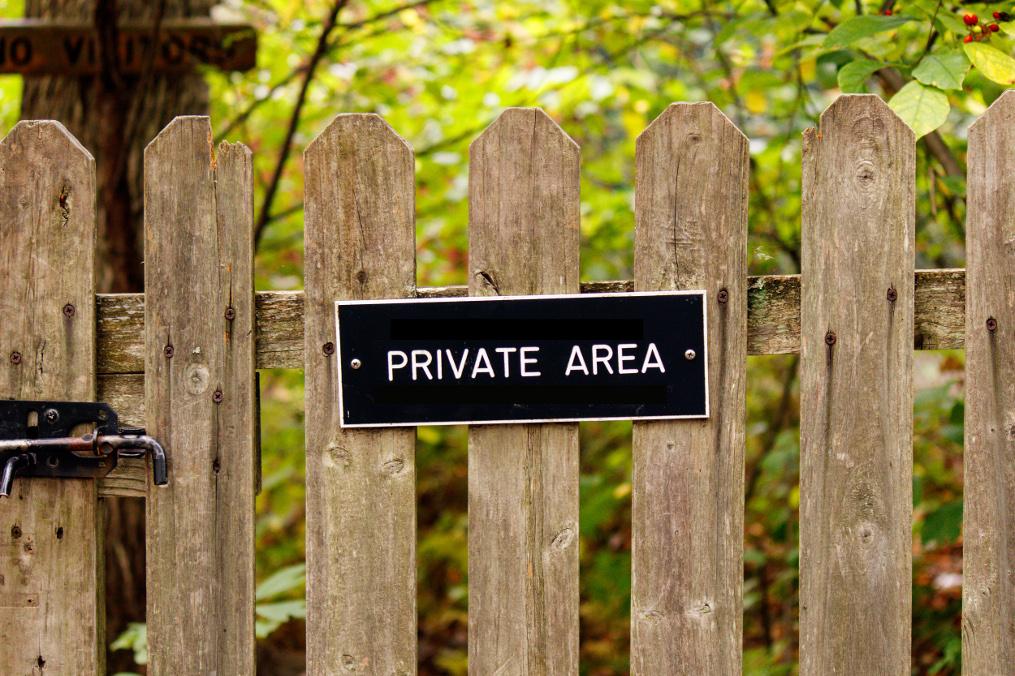
    LiteSpeed Cache for WordPress and the GDPR: Private area sign on a fence

    Caching

    Each of our cache plugins potentially stores a duplicate copy of every web page on display on your site. The pages are stored locally on the system where LiteSpeed server software is installed and are not transferred to or accessed by LiteSpeed employees in any way, except as necessary in providing routine technical support if you request it. All cache files are temporary, and may easily be purged before their natural expiration, if necessary, via a Purge All command.

    In other words, LSCache software has access to whatever personally-identifiable data is already visible on your site, but it has no need to actually look at that data. LiteSpeed stores a copy on your server for fast access, and you may delete that copy whenever you like.

    Image Optimization and Reports

    In addition to caching, our WordPress plugin has an Image Optimization feature. When optimization is requested, images are transmitted to a remote LiteSpeed server, processed, and then transmitted back for use on your site. LiteSpeed keeps copies of optimized images for 7 days (in case of network stability issues) and then permanently deletes them.

    Similarly, LSCWP has a Reporting feature whereby a site owner can transmit an environment report to our server so that we may better provide technical support. We don’t currently have a deletion schedule for this data, but we probably will in the future. In the meantime, we’d be happy to remove your report data upon request.

    It’s important to realize that neither of these features actually collects any visitor data. Only information about your own site and server setup is included. I mention them here because we’ve had questions about them before. But really, image optimization and reporting shouldn’t have any impact on your ability to comply with the GDPR.


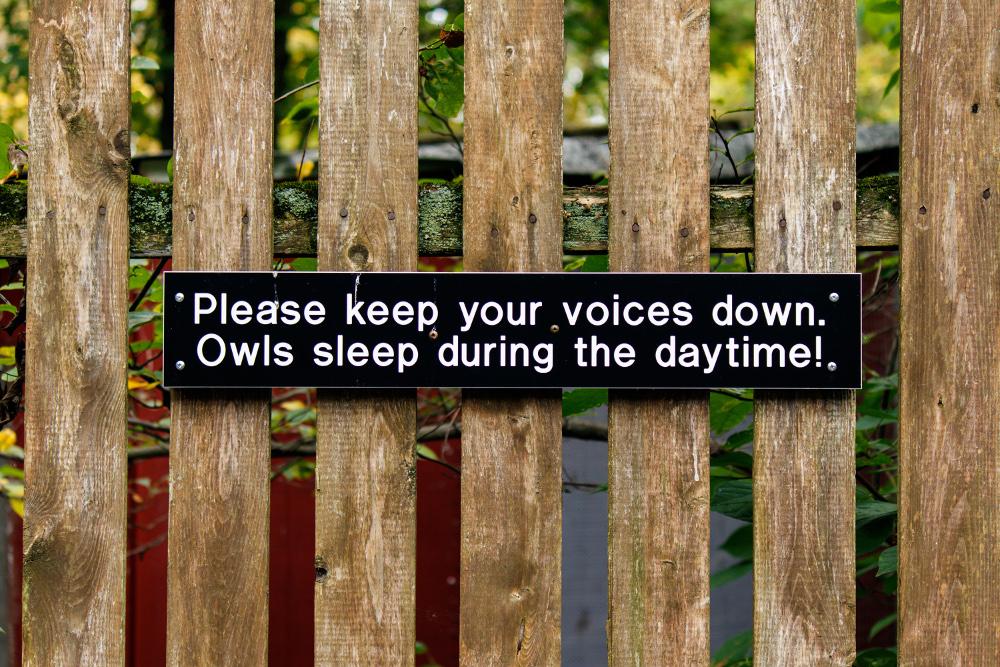
    LiteSpeed Cache for WordPress and the GDPR: Sign about owl sleeping habits on a fence

    Your Privacy Policy

    WordPress has a new Privacy menu in the Admin area that allows you to easily generate a Privacy Policy for your site. If you choose to use that tool, you will see that some plugins include their own paragraphs that you may insert into your policy. LiteSpeed provides the following small blurb that you may use, if you like:

    This site utilizes caching in order to facilitate a faster response time and better user experience. Caching potentially stores a duplicate copy of every web page that is on display on this site. All cache files are temporary, and are never accessed by any third party, except as necessary to obtain technical support from the cache plugin vendor. Cache files expire on a schedule set by the site administrator, but may easily be purged by the admin before their natural expiration, if necessary.


    NOTE: The LiteSpeed privacy blurb will be available in the Privacy Policy tool starting with LSCWP v2.2.6. The update should be available later this week. Until then, you can add the above text manually, if you wish.

    Keep up to Date!

    You can find our full GDPR Statement and Privacy Policy on our site. That document will always be the most up-to-date source for privacy information. Be sure to refer to it for the official word.

    If you have further privacy questions or concerns, please leave a comment, or contact us!

    —

    Have some of your own ideas for future WordPress Wednesday topics? Leave us a comment!

    Don’t forget to meet us back here next week for the next installment. In the meantime, here are a few other things you can do:

  • WpW: Happy Anniversary!

    WpW: Happy Anniversary!

    WordPress Wednesday: Anniversary

    I’ve had a lot of writing on my schedule recently, and I’m afraid that I was unable to finish today’s WordPress Wednesday topic on time. I didn’t want to let this week go by, though, without acknowledging our anniversary!

    Yep, it’s been one year since we started sharing tips and tricks related to our WordPress plugin. That’s roughly fifty tutorials and informational posts! Whew. Thanks for coming along with us on this ride. We always appreciate your feedback, comments, and questions, so keep them coming.

    I’ll be back next week with some new content, but in the meantime, how about I share a few previous posts that are particular favorites of mine?

    • The Beginner’s Guide to LiteSpeed Cache for WordPress: New to the plugin and not sure where to start? If you’re the type that finds eight tabs worth of settings a bit overwhelming, you’ll appreciate this primer. Spoiler alert: it’s entirely possible to use LSCache without knowing what any of those settings even do!
    • Caching 101 and LiteSpeed Caching 101: If you’ve ever wondered how WordPress caching works, and how LiteSpeed Caching in particular works, then you’ll like these informational posts.
    • Choosing Between Public Cache, Private Cache, and ESI: I like this one a lot, and not just because I got to use my pretty papers and hole punches to illustrate it 🙂 No, the beauty of this post is that it differentiates between some concepts that people often find confusing.

    I link to those four articles a lot when I’m providing customer support, so maybe some of you who haven’t seen them yet will also find them helpful!

    I’ll be back next week with a brand new topic.

    Happy Caching!

    —

    Have some of your own ideas for future WordPress Wednesday topics? Leave us a comment!

    Don’t forget to meet us back here next week for the next installment. In the meantime, here are a few other things you can do:

  • WpW: Dropping Query Strings in LSCache

    WpW: Dropping Query Strings in LSCache

    WordPress Wednesday: Query Strings You Can Ignore

    Welcome to another installment of WordPress Wednesday!
    Today’s topic is: Query Strings You Can Ignore

    As you may know, LSCache is a server-level cache, meaning the basic cache functions are actually carried out by LiteSpeed Web Server. Sometimes certain cache settings are configured at the server level. This allows the settings to apply to all of the server’s web apps that use LSCache.

    I mention this because even though this discussion is taking place in the context of WordPress, it applies to everywhere you use LSCache on your server! So, even if you are not a WordPress user, if you have LSCache installed in any of your other web apps (like PrestaShop and MediaWiki, to name a few) these instructions can still apply to you.

    Query Strings You Can Ignore: bowl full of coffee beans

    Query Strings and Caching

    As far as LiteSpeed Cache is concerned, these two URLs are different, and are cached separately:

    http://www.example.com/coffee.html?grind=wholebean&roast=light
    http://www.example.com/coffee.html?grind=drip&roast=dark
    

    Technically, both refer to the same coffee page, but the output is different depending on the values of the query strings. One URL displays a whole bean light roast, and the other displays a drip grind dark roast. To coffee shoppers, these are very different items.

    In this case (indeed, in most cases), saving separate copies is exactly what you want LSCache to do. Query strings are usually important to the content of the page, and so they are also important to caching that content.

    Ignorable Query Strings

    But not all query strings are relevant when it comes to generating dynamic content. For instance, the “utm” queries that are popular in Google Analytics:

    http://www.example.com/coffee.html?utm_source=google&utm_medium=email&utm_campaign=buymorebeans
    http://www.example.com/coffee.html?utm_source=google&utm_medium=banner&utm_campaign=coffeeiscool
    http://www.example.com/coffee.html?utm_source=twitter&utm_medium=tweet&utm_campaign=tweetabrew
    

    Just like in the previous example, these three URLs refer to the same page. But unlike before, the query strings do not influence the content that is displayed to the user. Their only function is to facilitate tracking for a variety of ad campaigns.

    Why does this matter?

    Why can’t you just let the cache fill up with these extra entries?

    Remember how caching works: the first user to visit a URL has to wait a while for the page to be generated, as it has not yet been cached. Subsequent visitors then get the cached copy served quickly to them.

    Now, imagine visitors are coming to your store from a each of the different ad campaigns you have set up:

    • Visitor #1 arrives at the coffee page after seeing the “Buy More Beans” campaign in his email.
    • Visitor #2 lands on the coffee page after being tempted by a “Coffee is Cool” banner.
    • And Visitor #3 finds the coffee page through a “Tweet a Brew” link on Twitter.

    All three visitors arrive at the exact same coffee page through three different URLs.

    If the URLs have all been cached separately, each visitor will be the first to request their particular URL, and as such, each will have to wait for that first page to be dynamically generated. None of them will get a cached copy of the page.

    On the other hand, if the ad campaign information has been dropped, and only one copy of the page is saved in the cache (i.e. http://www.example.com/coffee.html), then it’s only Visitor #1 who must wait for the first page load. Visitors #2 and #3, and everyone else who comes after them, will reap the rewards of caching.

    And it’s safe to simply ignore the query strings because they have already served their purpose by the time the server gets involved.

    Caching the URLs individually, with query strings intact, causes more of your visitors to be exposed to slow page loads, and results in more work for the WordPress backend.

    That is why it matters.

    Other query strings you can ignore

    Of course, ignorable query strings are not limited to the “utm” variety. There are other known queries that can be ignored, such as Google AdWords’ Google Click Identifier, aka “gclid.” And there’s nothing stopping you from doing your own kind of tracking with a made up query like ?mysitenav=sidebar, which could (for example) help you gain insights about your visitors’ clicking habits within your site.

    Any of these query strings can be dropped from the URL without changing the content that is displayed. Therefore, they can also be dropped when saving and retrieving the page from the cache.

    Query Strings You Can Ignore: pourover coffee grounds

    Configuring Query String Cache Rules

    So, how do you instruct LiteSpeed Web Server to ignore certain query strings? You have two options:

    • Configure it for WordPress only, from within the plugin.
    • Configure it server-wide to apply to all of your LSCache-enabled web apps.

    WordPress Plugin Level

    From the WordPress Dashboard, navigate to Litespeed Cache > Settings > Cache and scroll down to the Drop Query String setting.

    In this box, you can list the strings you want to ignore, one per line, using wildcards if desired.

    So, to ignore all of the “utm” query strings, the Google Click ID “gclid” query, and your own custom “mysitenav” query, you could enter the following in the box:

    utm*
    gclid
    mysitenav
    

    Press the Save Changes button, and you’re done.

    LiteSpeed Web Server Level

    If you’d like to configure LSWS to drop certain query strings on a server-wide (or virtual-host-wide, or even site-wide) basis, you can use the Apache-style CacheKeyModify configuration directive.

    You’ll need LiteSpeed Enterprise v5.2.3 or higher, and you’ll need access to modify its configuration. If you don’t have the ability to configure LSWS, please ask your hosting provider to add the directive for you. More environment-specific directions are available on our wiki.

    As mentioned, you can use this directive in the server level configuration, at the virtual host level, or in a site’s .htaccess, and it looks like this:

    <IfModule Litespeed>
    CacheKeyModify -qs:utm*
    </IfModule>
    

    Upper level configurations are inherited by lower levels. If a lower level adds more rules, they are in addition to those of the upper level. If a lower level doesn’t want to use the upper level’s configuration, the “clear” parameter should be used before adding the new rules.

    The CacheKeyModify directive can be used multiple times, but it does not support more than one parameter at a time. Each parameter gets its own line, like so:

    <IfModule Litespeed>
    CacheKeyModify clear
    CacheKeyModify -qs:utm*
    CacheKeyModify -qs:gclid
    CacheKeyModify -qs:mysitenav
    </IfModule>
    

    Place a snippet like that in the appropriate configuration file, and you’re good to go!

    Query Strings You Can Ignore: pourover coffee grounds closeup

    Conclusion

    You can save yourself a real cache-induced headache by dropping certain query strings. Think about all of the situations where people are directed to your site with tracking code attached to the URL: mailing lists, ad campaigns, social media… Caching separate copies of such pages is unnecessary. Plus, it’s a waste of precious resources, and a potential speed bump for your visitors.

    Take advantage of LiteSpeed’s ability to drop query strings, and streamline your cache!

    —

    Have some of your own ideas for future WordPress Wednesday topics? Leave us a comment!

    Don’t forget to meet us back here next week for the next installment. In the meantime, here are a few other things you can do:

  • WpW: Understanding Cache Storage

    WpW: Understanding Cache Storage

    WordPress Wednesday: Managing LiteSpeed Cache Storage

    Welcome to another installment of WordPress Wednesday!
    Today’s topic is: Managing LiteSpeed Cache Storage

    Today, we’re going behind-the-scenes of the LiteSpeed Cache for WordPress plugin, and we’re going to discuss the physical storage of your cached content. That is, where it lives in your file system, how LiteSpeed Web Server manages it, and how you can manage it yourself, if you wish.

    How Caching Works

    When a page is cached through the LSCache plugin, a static copy of that dynamically-generated page is saved in the cache root directory. The location of the cache root directory varies from hosting environment to hosting environment, and it may be overridden at setup time. For instance, a cPanel user’s default cache root is /home/username/lscache/. This gives that user control over it, and keeps it out of reach of others.

    If you don’t know the location of your cache root, and you’d like to, you should contact your hosting provider.

    As your site is cached, either through visitor request or through the crawler, LiteSpeed Web Server fills up the cache root directory with static copies of all of those requested pages, until all of the site’s cacheable pages are stored.

    When using LSCache, you don’t have to worry about your cache storage maintenance. LiteSpeed Web Server does all of this for you in a light and efficient way. Once your cache is fully warmed up, the cache directory size will not grow any further.

    When Cache is no Longer Valid

    Managing LiteSpeed Cache Storage: A cache of buttons in three mason jars

    Eventually, every cached page will become invalid. This happens when a page reaches its given TTL (Time to Live), or sooner if it has been purged from the cache by hand or by an LSCache purge rule.

    When LSWS receives a purge request, it will simply mark the related cached objects as invalid. In order to avoid heavy disk operation, it does not delete the actual cache files on disk.

    Instead, cached pages are only deleted from the directory when they reach their natural TTL. This means that there may sometimes be expired or invalid items stored in the cache directory. This is ok, because LSWS is keeping track of which entries are still good and will only serve those. Invalid pages are never served, even if they are still physically stored in the directory.

    How LSWS Maintains Cache Storage

    To understand how LiteSpeed Web Server keeps the cache directory cleaned up, it’s helpful to first define some terms:

    • Cached Object: A cache entry stored in LSCache. A cached object maps to a URL plus an optional variation. For example, if one URL has a desktop view and a mobile view, there will be two cached objects for that URL: one for desktop, and one for mobile. A cached object can be full page content or content from an ESI block.
    • Cache Manager SHM: Shared memory that the cache manager uses to store all of the information about the cache entries. It is a memory-mapped file persistent to disk. The default location is /dev/shm/lsws, but you can point it to a RAM disk for faster access. Just keep in mind that the data on a RAM disk will be lost if your physical server reboots. (LSWS restart will not affect RAM disk storage.)
    • LRU: Least Recently Used cache replacement.

    Each cached object has a corresponding entry in the cache manager SHM. LSWS will check periodically (triggered by a timer) for expired cache entries based on the entries’ defined TTLs. LSWS will select a list of entries based on LRU, and delete the related cache files on disk. Each time this happens, the batch size is small enough that it will not affect the whole server performance.

    The clean-up process is based on TTL only, it does not check for purge events. Cached objects that were purged, will eventually be deleted when their natural TTL occurs, if they are not re-cached in the meantime.

    Do It Yourself

    Managing LiteSpeed Cache Storage: A cache of buttons in an open mason jar

    So, now you know that when you press the Purge All button, you will not see the cache storage folder get emptied. This is ok! You don’t have to worry about the actual files on disk. LSWS takes care that for you constantly and quietly behind the scenes.

    Even so, sometimes this cache directory maintenance can miss an entry or two. For this reason, LiteSpeed Web Server periodically runs a cron job to delete outdated cache files in server-level storage.

    This cron job does not, however, apply to virtual-host-level storage. If your virtual host has a custom storage location (meaning, it is not using server-level storage), then you might want to consider running your own periodic cleanup.

    You can simply delete your cache storage folder, or better yet, use our utility command:

    lsws/admin/misc/cleancache.sh
    

    Never try to re-create the cache storage folder manually. If it’s missing, LSWS will create it for you, in the path you have defined, and assign it the proper permissions.

    Please don’t delete the cache manager SHM file. If you delete that, you will have to restart LiteSpeed Web Server.

    —

    Have some of your own ideas for future WordPress Wednesday topics? Leave us a comment!

    Don’t forget to meet us back here next week for the next installment. In the meantime, here are a few other things you can do:

  • WpW: Setting up Cloudfront in LSCache

    WpW: Setting up Cloudfront in LSCache

    WordPress Wednesday: CloudFront CDN and LiteSpeed Cache

    Welcome to another installment of WordPress Wednesday!
    Today’s topic is: Using Cloudfront with LiteSpeed Cache for WordPress

    Disclaimer: The information contained in this post is accurate for LSCWP v2.2.2 [release log]. If you are using a newer version of the plugin, some details may have changed. Please refer to our wiki for the latest!

    You can configure the LiteSpeed Cache plugin to work with almost any content delivery network. Today, we’ll show you how to set up CDN support, if you are using CloudFront.

    Set Up in CloudFront

    CloudFront CDN and LiteSpeed Cache: Setting up CloudFront

    Set up your CloudFront CDN according to the AWS instructions.

    Make a note of the Domain Name they give to you (i.e. d111111abcdef8.cloudfront.net).

    Enter that domain name directly into your browser and make sure that your site comes up. If it does, then everything is in working order, and you are ready to move on to the next step.

    Set Up in LSCache Plugin

    CloudFront CDN and LiteSpeed Cache: Setting up CDN Support in LSCache

    From the WordPress Dashboard, navigate to LiteSpeed Cache > Settings > CDN, and do the following:

    1. Set Enable CDN to ON
    2. Enter CDN URL. This is the Domain Name you received earlier from CloudFront.
    3. If CloudFront will be handling your image, CSS, or JS files, set the appropriate Include buttons to ON.
    4. If you set any of the above buttons to OFF, check the Include File Types box and make sure the relevant file extensions are not listed. For the example outlined in red above, Include JS is set to OFF and so we also need to remove .js from Include File Types
    5. Set Original URL to your site’s domain name (i.e. //example.com/wordpress).
    6. Save your changes.

    Verify

    In our example, Include CSS was set to ON and Include JS was set to OFF. To verify that everything is working as expected, we need to take a look at the Request URL in the headers and see from where both CSS and Javascript are being served.

    To do so, navigate to your site, and press F12 to bring up the developer tools in the Network tab. Reload the page.

    CloudFront CDN and LiteSpeed Cache: Verifying CSS

    First, check for CSS. Select the CSS tab, and then choose the first file listed to the left. Make note of the Request URL header. Is it coming from the CloudFront domain? If so, then CSS is being served correctly.

    CloudFront CDN and LiteSpeed Cache: Verifying JS

    Now, check for JS. Select the JS tab, and then choose the first file listed to the left. Make note of the Request URL header. Is it coming from your original domain? If so, then JS is being served correctly.

    —

    Have some of your own ideas for future WordPress Wednesday topics? Leave us a comment!

    Don’t forget to meet us back here next week for the next installment. In the meantime, here are a few other things you can do: