Tag: wordpress wednesday

LiteSpeed’s WordPress Wednesday series shares tips, tutorials, and explorations of new features related to the LSCache for WordPress plugin. Even those not currently using LSCWP can learn something. What is caching? What types of caching can be used with WordPress? How else can you optimize WordPress?

LSCWP provides advanced cache-management tools and optimization features, designed to reduce page load times and give your site an edge. With LiteSpeed, your site can employ the best practices that make for a high PageSpeed score, and – more importantly – an exceptional user experience.

  • WpW: The Purge All Hooks Setting

    WpW: The Purge All Hooks Setting

    WordPress Wednesday: Purging LiteSpeed Cache via WordPress Hooks

    Welcome to another installment of WordPress Wednesday!
    Today’s topic is: Purging LiteSpeed Cache via WordPress Hooks

    Disclaimer: The information contained in this post is accurate for LSCWP v2.2.2 [release log]. If you are using a newer version of the plugin, some details may have changed. Please refer to our wiki for the latest!

    —
    Today we’re going to talk about a more advanced topic than usual. If you are unfamiliar with the concept of WordPress hooks and actions, then this may not be for you. If you want to learn more and then come back, that’s great, too. Here’s a really nice primer on the subject. You might also want to brush up on LiteSpeed Cache and how purging works.
    —

    Purging LiteSpeed Cache via WordPress Hooks

    LiteSpeed Cache for WordPress is configured to automatically purge everything from the cache when certain WordPress hooks are run. For example: every time you change your theme (the switch_theme hook), or every time you create a new category or tag (the create_term hook), a purge_all action is triggered.

    By default, LiteSpeed runs a purge_all action any time any of the following WordPress hooks occur:

    switch_theme
    wp_create_nav_menu
    wp_update_nav_menu
    wp_delete_nav_menu
    create_term
    edit_terms
    delete_term
    add_link
    edit_link
    delete_link
    

    For most installations, this list of hooks is sufficient. Owners of highly-customized sites, however, may have reason to make changes to the list. We recently added a new setting that will allow you to do just that.

    Purge All Hooks

    Purging LiteSpeed Cache via WordPress Hooks: Polka Dot Cottage Crochet Hooks in a Row

    From the WordPress Dashboard, navigate to LiteSpeed Cache > Settings > Advanced. Scroll down to Purge All Hooks, and you will see the list of hooks that currently trigger purge_all actions for your site, entered one per line.

    You are free to edit this list. Remove hooks if you don’t want the cache purged, and add hooks if you want to automate more purges.

    Removing a Hook

    Let’s say you don’t want to purge the cache every time you create a new category.

    Remove the create_term hook from the list, and press the Save Changes button.

    (That was easy.)

    Adding a WordPress Hook

    This one is slightly more complicated, but only because you need to know the name of the hook you want to add.

    For example, if you want to purge the cache any time a new comment is posted, then you need to know that the WordPress hook for posting a comment is comment_post.

    Once you are aware of the name of the correct hook, you can insert it into the list on its own line.

    The WordPress Code Reference provides a list of available hooks. There’s a handy search function on the page, too, in case you don’t want to go through the list alphabetically.

    Adding a Plugin Hook

    Plugins can provide hooks, too, and there may be a situation where you want to hang a purge_all onto a plugin hook. Again, you’ll need to do a little research to find the name of the hook, but once you do, it’s a simple matter of adding it to the Purge All Hooks list.

    Let’s look at an example from our own plugin. You may have noticed that there are some tabs in the LiteSpeed Settings pages that suggest you should run a Purge All after you’ve changed those settings. Well, if changing the configuration is something you do frequently, why not automate that Purge All?

    For example, LiteSpeed Cache > Settings > Optimize warns “After changing Minify/Combine settings, please do a Purge All action.” All we need to do is find the hook that runs when you Save Changes on the Optimization page, and add that hook to the Purge All Hooks list.

    There is no hook specific to the Optimize page, but there is one that relates to nearly all of the ON/OFF switches on any of the Settings tabs: update_option_litespeed-cache-conf.

    Add that hook to the list, and a Purge All will occur any time you enable or disable a setting.

    Purging LiteSpeed Cache via WordPress Hooks: Polka Dot Cottage Crochet Hooks in a Jar

    Finding a plugin’s hooks may not be easy. You can hope that they’ve provided a complete list as part of their documentation (which is rare), you can ask in their support forum (if they have one), or you can pore through their source code and try to find them (if it’s open source).

    Here are some handy LiteSpeed plugin hooks. Most of these occur when individual settings (those not included in update_option_litespeed-cache-conf) are changed:

    update_option_litespeed-cache-vary-group
    update_option_litespeed-cache-exclude-optimization-roles
    update_option_litespeed-cache-exclude-cache-roles
    update_option_litespeed-optm-css
    update_option_litespeed-optm-js-defer-excludes
    update_option_litespeed-media-lazy-img-excludes
    update_option_litespeed-media-need-pull
    update_option_litespeed-env-ref
    update_option_litespeed-cache-drop_qs
    update_option_litespeed-cache-cdn_mapping
    update_option_litespeed-cache-dns_prefetch
    update_option_litespeed-cache-cloudflare_status
    update_option_litespeed-log_ignore_filters
    update_option_litespeed-log_ignore_part_filters
    update_option_litespeed-object_global_groups
    update_option_litespeed-object_non_persistent_groups
    update_option_litespeed-crawler-as-uids
    update_option_litespeed-adv-purge_all_hooks
    update_option_litespeed-cdn-ori_dir
    update_option_litespeed-media-webp_attribute
    

    Please be sure that you understand fully what any hook means before adding it to Purge All Hooks. After all, purge_all is a drastic step. It wipes out the entire cache. You don’t want to automate that task unless the hook truly warrants it!

    Changing Your Mind

    If you’ve added some hooks, and you don’t like the results, you can go back to the default configuration. Copy the list of hooks from the “Recommended Value” box into the Purge All Hooks setting and press the Save Changes. Everything should go back to normal.

    —

    Have some of your own ideas for future WordPress Wednesday topics? Leave us a comment!

    Don’t forget to meet us back here next week for the next installment. In the meantime, here are a few other things you can do:

  • WpW: Testing for Compatibility with LSCache

    WpW: Testing for Compatibility with LSCache


    WordPress Wednesday: Is My Plugin Compatible With LiteSpeed Cache for WordPress?

    Welcome to another installment of WordPress Wednesday!
    Today’s topic is: Is My Plugin Compatible With LiteSpeed Cache for WordPress?

    Disclaimer: The information contained in this post is accurate for LSCWP v2.2.0.1 [release log]. If you are using a newer version of the plugin, some details may have changed. Please refer to our wiki for the latest!

    If you are wondering if a particular plugin is compatible with LiteSpeed Cache for WordPress, this guide can help you figure it out. We’ve tried to make these instructions as easy to understand as possible. You don’t need to be a developer in order to test for compatibility between two plugins. (Although, if you are a developer, you might find our article about the LSCache API to be more your speed.)

    NOTE: While you could perform these tests on a production site, we recommend using a test WordPress installation if you have one. This allows you to really take your time, and follow the steps carefully. Testing compatibility is not hard, per se, but it can be time-consuming. If you have to effectively take your production environment offline for the duration of the test, that can add pressure you don’t need!

    Before You Begin

    You may not have to do a test at all!

    1. Check our compatibility list. If the plugin appears there, then we’ve already tested it and we know it works.
    2. Check with the plugin author. They may already have tested for LSCWP compatibility.

    If you didn’t find any answers with the previous two ideas, not to worry. The vast majority of plugins is compatible with LiteSpeed Cache for WordPress.Here are a few rules-of-thumb. The plugin you want to test is probably compatible if:

    1. it doesn’t generate site content
    2. it doesn’t manipulate existing front-end content

    If the plugin generates or manipulates site content, it still may be compatible if:

    1. it generates or manipulates content that triggers the same purge events that are monitored by LSCWP
    2. it generates or manipulates content that follows the same caching rules that are followed by LSCWP

    If you’re still not sure, you’ll need to test for compatibility.

    Testing for Compatibility

    Since it’s cumbersome to keep saying “the plugin you want to test,” let’s call it “MyPlugin” for this example.


    Is My Plugin Compatible With LiteSpeed Cache for WordPress?

    In order to test for compatibility, we’ll first deactivate all plugins with the exception of LiteSpeed Cache. Then we’ll verify the LiteSpeed Cache is working. Once we’ve determined that it is, we’ll activate MyPlugin, and run through some basic scenarios, checking that the site looks and works as expected all along the way.

    NOTE: If you suspect that your theme may be conflicting with LiteSpeed Cache, it’s best to temporarily switch to a different theme for testing purposes. Try the WordPress Twenty Seventeen theme, which we know to be 100% compatible: Navigate to Appearance > Themes, hover over the Twenty Seventeen card, and press the Activate button.

    Deactivate

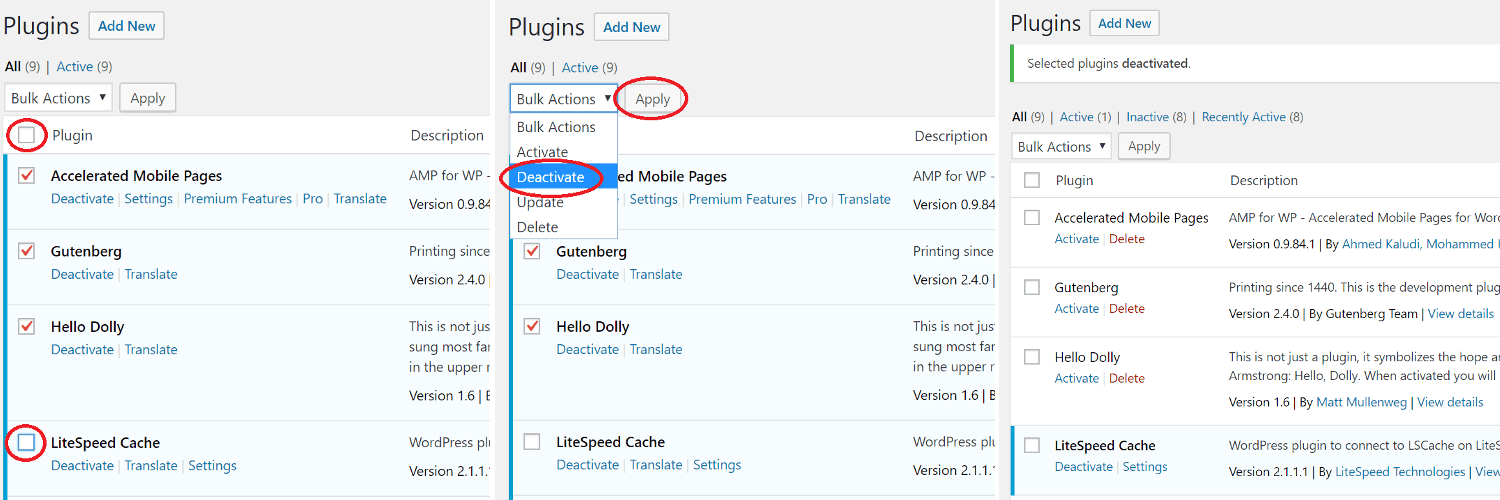
    Deactivate all plugins except for LSCache. Here’s how:

    Is My Plugin Compatible With LiteSpeed Cache for WordPress? Deactivate all plugins except LSCache

    From the WordPress Dashboard, navigate to Plugins, and click the checkbox next to the Plugins column as shown. All of the plugins will be checked. Un-check the box next to LiteSpeed Cache. Select Deactivate from the dropdown Bulk Actions box, and click the Apply button. All plugins, aside from LSCache will be disabled.

    Verify

    In whichever environment you are using (test or production), before activating MyPlugin, you should verify that LSCache for WordPress is working as desired. Here’s how:

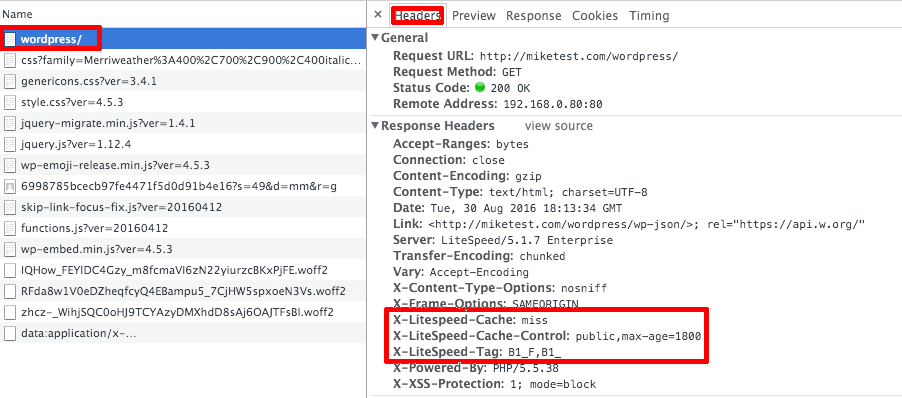
    Is My Plugin Compatible With LiteSpeed Cache for WordPress? Verify LSCache is working

    1. Open an incognito window in your browser, and press F12 to bring up the developer tools.
    2. Navigate to your site.
    3. Refresh the page.
    4. Click the first resource under the Name column in the developer tool window. This should be an HTML file and the resource’s headers should appear alongside it, as in the image above. For example, if your page is http://example.com/wordpress/, your first resource should either be something like example.com/wordpress/ or wordpress/.
    5. In a different, logged-in browser, visit your WordPress Dashboard, navigate to LiteSpeed Cache > Manage and click the Purge All button.
    6. Reload the page in the first (incognito) browser and select the same resource again. You should see headings similar to:
      X-LiteSpeed-Cache: miss
      X-LiteSpeed-Cache-Control:public,max-age=1800
      X-LiteSpeed-Tag:B1_F,B1_
      

      These headings mean that the page has not yet been cached, but that LiteSpeed has now stored it for future use.

    7. Reload the page a second time in the incognito window, and you should see X-LiteSpeed-Cache: hit in the response header. This means the page is being served by the cache and LSCWP is configured correctly.

    Now that you know that LSCWP works for you on its own, it’s time to try it with MyPlugin.

    Activate

    Activate MyPlugin: Navigate to Plugins, locate MyPlugin in the list, and click the Activate link below the plugin name.

    Purge

    Purge the cache: Navigate to LiteSpeed Cache > Manage > Purge and press the Purge All button.

    TEST!

    This step varies, depending on how you use MyPlugin, and what it needs to be able to do. Run through your most common scenarios, and after each step, verify that MyPlugin is working as expected.

    If MyPlugin deals with any private information, run the through the steps twice: once logged-in, and once in incognito mode. When you visit the site incognito, be sure that you are not seeing any private information from your previous logged-in session.

    Questions to Ask Yourself:

    • Do the pages look like they should look?
    • Are cacheable pages being cached?
    • Are non-cacheable pages not being cached?
    • If there’s supposed to be private data on the page, are you seeing the correct private data?

    Some Examples

    • If MyPlugin is a forum plugin, run through the steps of creating an account, updating your profile, publishing a post, and submitting a comment. Check the cache and the display of private information at every step.
    • If MyPlugin is a social sharing plugin that counts shares, use it to share a post or a page to social media and then verify that the share count has increased.
    • If MyPlugin is a contact form plugin, use it to send yourself some feedback. Visit the form page again in an incognito window, and verify that you are not seeing any of your previous logged-in information.

    Document + Report

    If you encounter an issue that indicates the plugins are not working well together, document it. Take a screenshot, or copy the text of any error messages you may get. Visit the LiteSpeed Cache for WordPress support forum and share as many details as possible, including the above screenshots.

    Is My Plugin Compatible With LiteSpeed Cache for WordPress? Submit an environment report

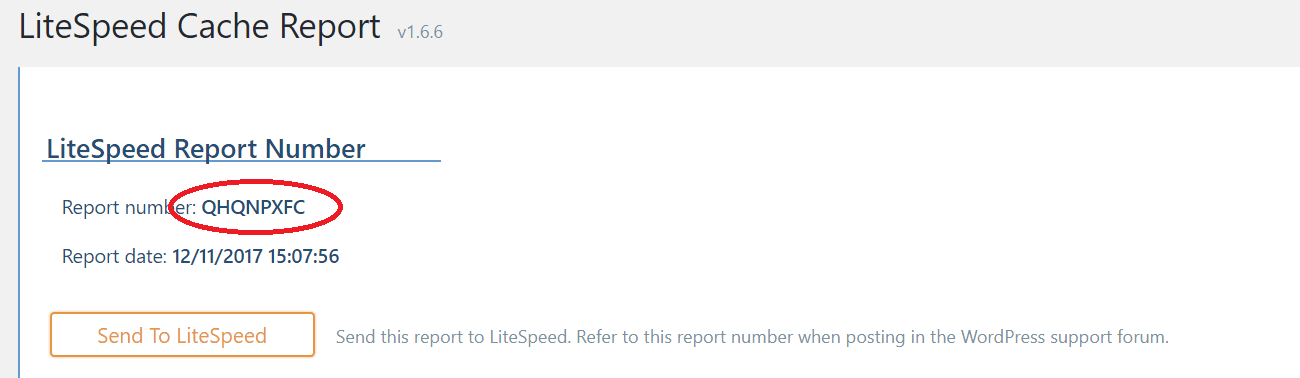
    It’s always helpful to include a copy of your Environment Report so that the support team can see your system settings. To do so, navigate to LiteSpeed Cache > Report and click the Send to LiteSpeed button. Then make note of the Report Number and include it with your forum post.

    Reactivate

    Once you are satisfied that everything works well, or you have documented and reported anything that doesn’t, you may re-activate all of the plugins, and restore your preferred theme.

    Testing Themes

    Sometimes the plugins all get along well, but there is something unexpected happening in the theme.

    To test theme compatibility, follow the same steps as above, with the following differences:

    • LiteSpeed Cache should be the only active plugin
    • The theme you want to test should be activated

    —

    Have some of your own ideas for future WordPress Wednesday topics? Leave us a comment!

    Don’t forget to meet us back here next week for the next installment. In the meantime, here are a few other things you can do:

  • WpW: Using Jetpack’s Photon CDN With LSCache

    WpW: Using Jetpack’s Photon CDN With LSCache


    WordPress Wednesday: Jetpack’s Photon CDN and LiteSpeed Cache

    Welcome to another installment of WordPress Wednesday!
    Today’s topic is: Jetpack Photon CDN and LiteSpeed Cache

    Disclaimer: The information contained in this post is accurate for LSCWP v2.1.1.1 [release log]. If you are using a newer version of the plugin, some details may have changed. Please refer to our wiki for the latest!

    What is Photon?

    Automattic’s Jetpack plugin allows self-hosted WordPress blogs to use some of the functionality that is natively available to WordPress.com blogs. One of the available functions is a content delivery network (CDN) for images. Originally, this service went by the name “Photon,” but now it they simply call it “Jetpack Image CDN.” (Many people still refer to it as Photon, which is why I mention it.)

    Use of the image CDN is contingent upon your site being Jetpack-connected. If you disconnect Jetpack from your site, you are no longer allowed to use the image CDN.

    Using Jetpack Image CDN with LSCWP

    Jetpack’s Image CDN and LiteSpeed Cache for WordPress are 100% compatible and may be used together right out of the box.

    Normally we recommend enabling CDN support in the LiteSpeed plugin, and then uninstalling any CDN-specific plugin you may have had. That is not the case here.

    Because of Jetpack’s rule that Jetpack must remain connected to your site, you are not allowed to uninstall their plugin if you want to continue to use their image CDN.


    Jetpack’s Photon CDN and LiteSpeed Cache: Three Airplanes in Formation at an Air Show

    So, how do you make all of this work when you have both Jetpack and LiteSpeed plugins installed? It’s simple. You let Jetpack do its thing, and set up LiteSpeed to stay out of the way:

    1. Turn on the image CDN feature in Jetpack.
    2. Leave Enable CDN set to OFF in LiteSpeed Cache > Settings > CDN.

    LSCache for WordPress respects the settings of other CDN plugins, when LiteSpeed’s CDN support is turned off.

    A Note about Image Optimization

    LiteSpeed Cache has an Image Optimization service, but we don’t recommend you use it, if you have Jetpack’s Image CDN enabled. Jetpack’s CDN automatically does its own optimization, and will ignore the LiteSpeed-optimized images.

    Additionally, Jetpack has its own WebP replacement functionality, so do not enable LiteSpeed’s Image WebP Replacement setting in the Media tab.

    To Summarize

    If you want to use Photon, then LiteSpeed will respect that, as long as you leave LiteSpeed’s CDN and Image Optimization features turned off.

    One exception: if you have multiple CDNs in use (i.e., Jetpack for the images and, say, MaxCDN for other static content), you may enable LiteSpeed’s CDN support, but be sure to configure it only for the file types not served by Jetpack.

    —

    Have some of your own ideas for future WordPress Wednesday topics? Leave us a comment!

    Don’t forget to meet us back here next week for the next installment. In the meantime, here are a few other things you can do:

  • WpW: LSCache for WordPress for Everybody!

    WpW: LSCache for WordPress for Everybody!

    Using the LSCache plugin without a LiteSpeed Server

    Welcome to another installment of WordPress Wednesday!
    Today’s topic is: Using the LSCache plugin without LiteSpeed Web Server

    Disclaimer: The information contained in this post is accurate for LSCWP v2.1 [release log]. If you are using a newer version of the plugin, some details may have changed. Please refer to our wiki for the latest!

    Did you know that this is our 45th WordPress Wednesday article? Yep! We’ve been at it for nearly a year now. Often during that time, we’ve explored LSCWP’s inner workings. We’ve frequently repeated how closely-connected the plugin is to LiteSpeed’s web server products, and how the plugin just does not work without the server!

    Well, surprise, surprise! This week marks a significant departure from that message…

    The Big News

    You no longer need a LiteSpeed Web Server to use LSCache for WordPress.

    Wait, what?

    Really. It’s true. We have taken some of the optimization features that are not related to caching, and made them available for use by anyone. No LiteSpeed server required.

    You will still, of course, need a LiteSpeed server with the LSCache module enabled in order to use the page-caching features of the plugin. This goes back to what we have talked about many times before: LSCache is a server-level cache, and the plugin provides an interface which you can use to control that cache. This is still true.

    But now we are welcoming users from all web server backgrounds to give LSCWP’s optimization features a try!

    Welcome to LSCache for WordPress

    Using the LSCache plugin without a LiteSpeed Server: Welcome to LiteSpeed

    If you’re new here, Welcome! Here’s a handy guide to the LSCWP optimization features as of this writing.

    The General Features may be used by anyone using any web server.

    The LiteSpeed Exclusive Features continue to require a LiteSpeed server with the LSCache module enabled. (If you want to try these features, why not get a 15-day LiteSpeed Web Server trial license?)

    General Features

    • Object Cache (Memcached/LSMCD/Redis)
    • Image Optimization (Lossless/Lossy)
    • Minify CSS, JavaScript, and HTML
    • Minify inline CSS/JS
    • Combine CSS/JS
    • Automatically generate Critical CSS
    • Lazyload images/iframes
    • Multiple CDN support
    • Load CSS/JS Asynchronously
    • Browser Cache
    • Smart preload crawler with support for SEO-friendly sitemap
    • Database Cleaner and Optimizer
    • PageSpeed score optimization
    • OPcode Cache
    • HTTP/2 Push for CSS/JS (on web servers that support it)
    • DNS Prefetch
    • Cloudflare API
    • Single Site and Multi Site (Network) support
    • Import/Export settings
    • Basic/Advanced setting view
    • Attractive, easy-to-understand interface
    • WebP image format support
    • Heartbeat control

    LiteSpeed Exclusive Features

    • Automatic page caching to greatly improve site performance
    • Automatic purge of related pages based on certain events
    • Private cache for logged-in users
    • Caching of WordPress REST API calls
    • Separate caching of desktop and mobile views
    • Ability to schedule purge for specified URLs
    • WooCommerce and bbPress support
    • WordPress CLI commands
    • Simple API system for each cache integration
    • Exclude from cache by URI, Category, Tag, Cookie, User Agent
    • HTTP/2 & QUIC support (QUIC not available in OpenLiteSpeed)
    • ESI (Edge Side Includes) support (Not available in OpenLiteSpeed)

    This list is subject to change in the future, so keep an eye on our wiki for the most current configuration. (All of these features, by the way, are documented in that wiki, too.)

    Remember, the LiteSpeed Cache plugin for WordPress is free and open source. Download it and give it a try today!

    —

    Have some of your own ideas for future WordPress Wednesday topics? Leave us a comment!

    Don’t forget to meet us back here next week for the next installment. In the meantime, here are a few other things you can do:

  • WpW: Using LSCache with the WordPress CLI

    WpW: Using LSCache with the WordPress CLI

    Using LSCache with the WordPress CLI

    Welcome to another installment of WordPress Wednesday!
    Today’s topic is: Using LSCache with the WordPress CLI

    Disclaimer: The information contained in this post is accurate as of LSCWP v3.5.2 [release log]. If you are using a later version, the commands may have changed. Please refer to our documentation.

    WP-CLI is the command-line interface for WordPress. It allows you to perform many actions that would normally require you to visit the WordPress Dashboard in a browser. LiteSpeed’s WP-CLI commands that allow you to manage your cache simply from the command line, and with version 3.0 of our plugin, we have expanded these options considerably.

    This is just a taste of the commands available. For the full list, including CLI commands for QUIC Cloud services and debugging purposes, please see our documentation.

    Option Commands

    Use litespeed-option plus these commands to view and change LSCache’s configuration.

    • all allows you to see what options are available:
      wp litespeed-option all
    • export sends all of the options to a file:
      wp litespeed-option export
    • set allows you to change a particular option to a particular value. (It might be handy to export the options first, so that you know what each option is named, and what type of value is expected.):
      wp litespeed-option set cache-priv false
    • import configures LSCache according to the options in a specified file:
      wp litespeed-option import options.txt

    Purge Commands

    Use litespeed-purge plus these commands to purge specific entries from the cache.

    • network_list displays all of the site domains and IDs in a table:
      wp litespeed-purge network_list
    • all purges all cache entries associated with the WordPress installation. For networks, purges all cache entries for every site in the network:
      wp litespeed-purge all
    • blog purges all cache entries for a particular blog ID. For example, in a multisite install, purge only the shop.example.com cache (stored as blog id 2):
      wp litespeed-purge blog 2
    • tag purges the listed WordPress tags by ID. For example, purge the tag IDs 1, 3, and 5:
    • wp litespeed-purge tag 1 3 5
    • category purges the listed WordPress categories by ID. For example, purge the category ids 1, 3, and 5:
      wp litespeed-purge category 1 3 5
    • post_id purges all cache tags related to the listed WordPress Posts or Products by ID. For example, purge the post ids 1, 3, and 5:
      wp litespeed-purge post_id 1 3 5

    —

    Have some of your own ideas for future WordPress Wednesday topics? Leave us a comment!

    Don’t forget to meet us back here next week for the next installment. In the meantime, here are a few other things you can do:

  • WpW: Where to Go for LiteSpeed Cache Help

    WpW: Where to Go for LiteSpeed Cache Help

    WordPress Wednesday: Where to go for LiteSpeed Cache Help

    Welcome to another installment of WordPress Wednesday!
    Today’s topic is: Where to go for LiteSpeed Cache Help

    Someday you may need assistance with your LSCache for WordPress installation. Don’t worry, we are here to help!

    Where to go

    We have a few different support channels available, so it can be hard to know which one is appropriate.

    Wiki

    The first thing you should do when you have a problem is drop by our wiki. In the LSCWP section, we have defined every setting, described every function, and covered some common troubleshooting questions as well. There’s a lot of information there, and it’s likely you will find what you need, especially if your issue is a common one.

    Forums

    Although we do have LiteSpeed forums, we prefer to handle the WordPress cache support on the WordPress site. visit the official WordPress LSCache plugin forum to ask any questions you can’t solve from the wiki.

    Where to go for LiteSpeed Cache Help: Park Here sign

    While on the forum, take a look at other users’ questions. Maybe one of them has had your issue and was able to solve it. If you don’t find the answer on the forum, you can post a question yourself. It may be answered by a community member or by LiteSpeed staff.

    Ticket

    We strongly suggest that you try the wiki and the WP forum before you open a ticket.

    If you’ve exhausted the other options, or your question requires you to share information that you consider sensitive, our secure Ticket System is at your service. LiteSpeed customers may access the WHMCS ticket system directly through their customer login. If it’s your hosting provider that is our customer, you won’t have an account. You can send a message to bug at litespeedtech.com instead. Both methods end up in the same place for us.

    Premium Support

    We now offer a few paid support options for the more complicated issues. You can get all of the details about the tiers and conditions of premium support on our wiki. As a general rule of thumb, if we have to log in to your system to troubleshoot and diagnose the problem, then it’s a candidate for paid support.

    Don’t worry. If we find a bug in our code while investigating your issue, the fee is refunded.

    What to send us

    If you take the time to include a few of the following things in your support inquiry, we can assist you faster:

    • Link to your site: it’s helpful for us to try and see the reported behavior for ourselves.
    • Screenshots, if applicable
    • Report Number: This can give us a lot of very useful information. Navigate to LiteSpeed Cache > Report, press the Send to LiteSpeed button, make note of the “Report Number”, and then include the number with your inquiry so we can look it up.

    If your problem is tricky, it might be helpful to have a look at your debug log:

    1. If there is no Debug Log option in the LiteSpeed Cache menu, then you will need to enable logging. Navigate to LiteSpeed Cache > Settings > Debug and set Debug Log to ON, or Admin IP Only.
    2. Do what you must to reproduce the error.
    3. Navigate to LiteSpeed Cache > Debug Log
    4. Copy the most recent or relevant lines from the log and include them with your inquiry.
    5. Turn the debug log off, if you no longer need it.

    We enthusiastically support all of our software, so if you are struggling with LiteSpeed Cache for WordPress, please give us an opportunity to help you!

    —

    Have some of your own ideas for future WordPress Wednesday topics? Leave us a comment!

    Don’t forget to meet us back here next week for the next installment. In the meantime, here are a few other things you can do:

  • WpW: Translating LSCache for WordPress

    WpW: Translating LSCache for WordPress


    WordPress Wednesday: Translating LSCache for WordPress

    Welcome to another installment of WordPress Wednesday!
    Today’s topic is: Translating LSCache for WordPress

    Hello, world travelers, jet setters, and polyglots! Today’s post is for you.

    You’ve probably noticed that LiteSpeed Cache for WordPress is written in English. We rely on our international users to help us translate the plugin for worldwide use. If you are fluent in a language other than English, and you’ve ever wanted to contribute your linguistic talents to an open-source project, we hope you’ll consider translating a few phrases for us.

    Only know English? If you’re one of our friends from the UK, Australia, New Zealand, South Africa, or Canada, we hope you, too, can help us to localize/localise our plugin with your own flavor/flavour of English 😉

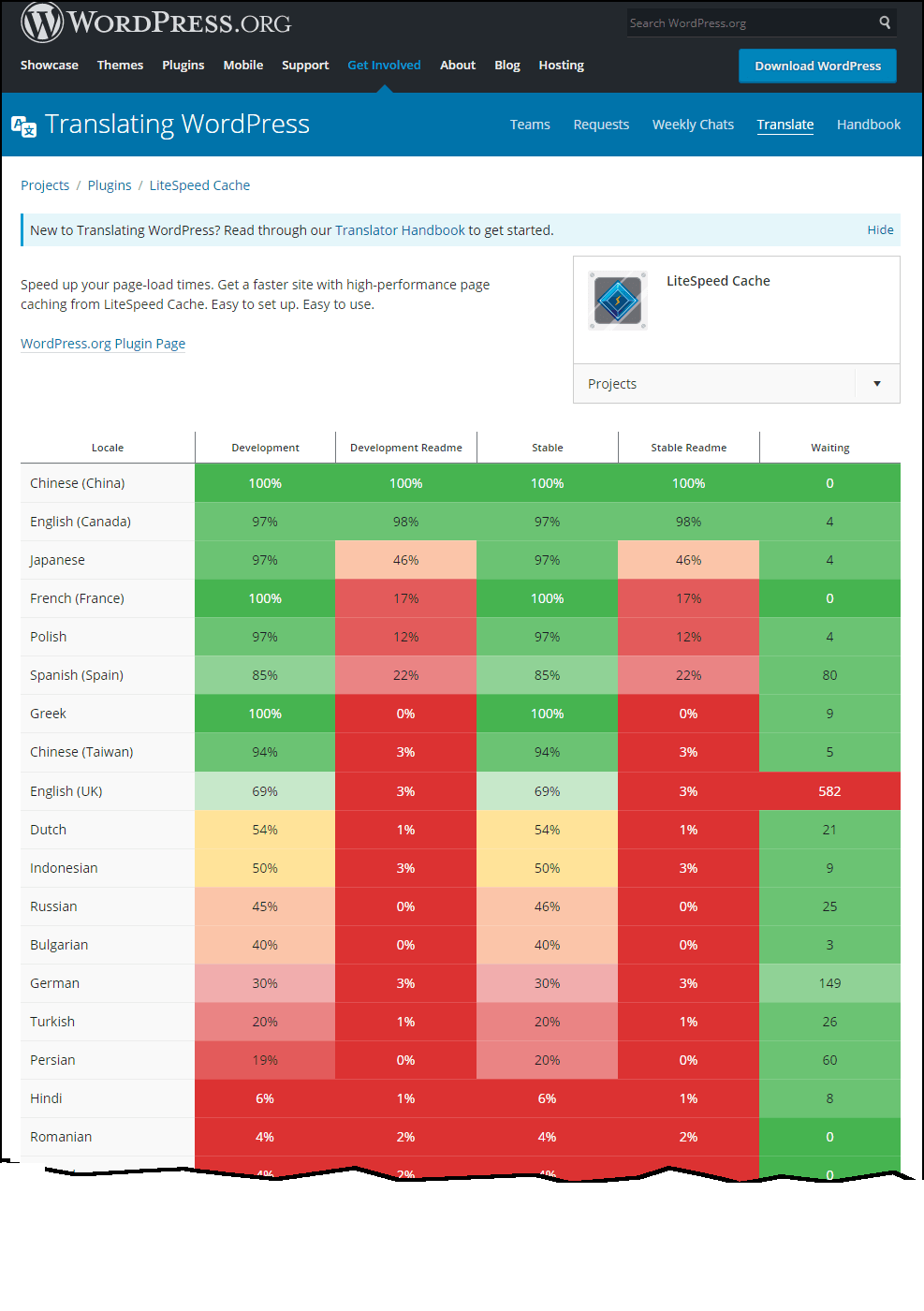
    Translating LSCache for WordPress: Languages We NeedIs Your Language Needed?

    We have a few languages very well covered, so you’ll want to check the Translating WordPress page for LiteSpeed Cache and look for your language (and geographic location if applicable). If there are red or yellow boxes next to the language, then your expertise is needed.

    As you can see, we have quite a few red boxes as of this writing (and several pages more of them past where the screenshot ends). The most important column is the “Stable” column. Languages with shades of red in the stable column have less than a third of the plugin translated.

    How to Submit a Translation

    All you need is a wordpress.org login. Once you are logged in, you can click the link and start translating at your own pace.

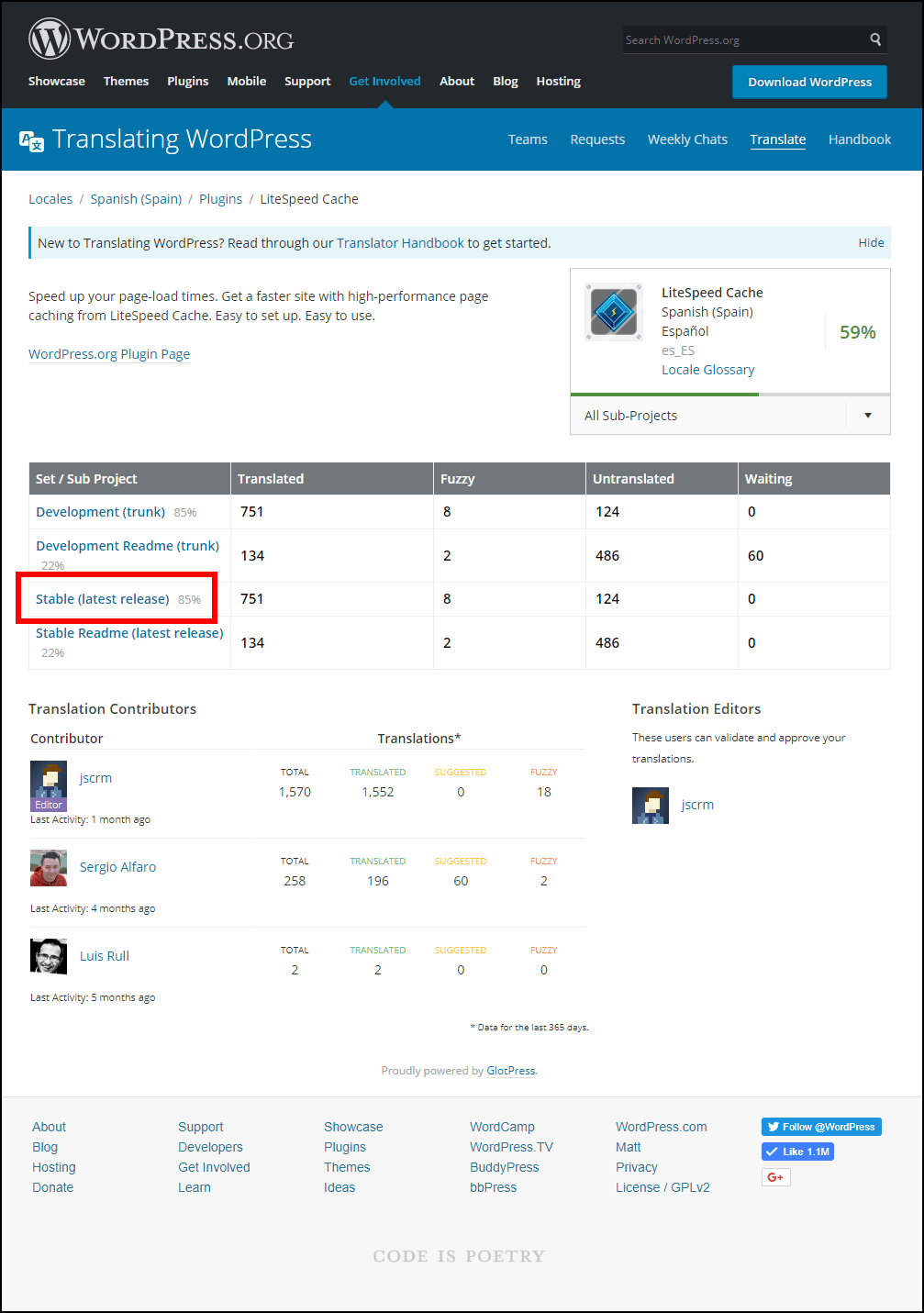
    The instructions will be the same for whichever language and geographic location you choose, but for simplicity’s sake, let’s say you’re from Spain and would like to contribute to the Spanish-as-spoken-in-Spain translation. Click Spanish (Spain) to be brought to the es_ES translation page.

    Translating LSCache for WordPress: Edit the Stable Release

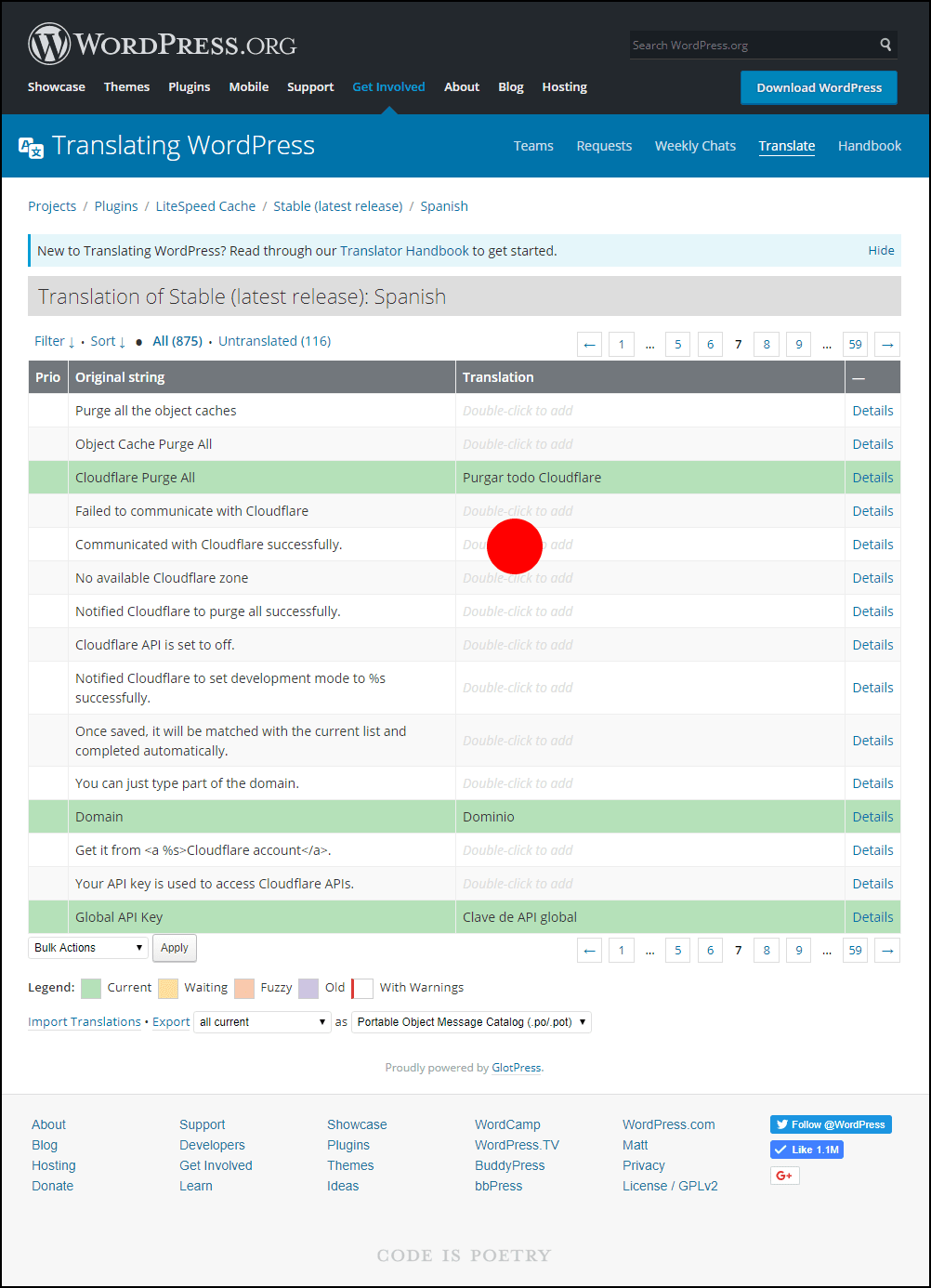
    The most important section to work on first is Stable (latest release), so click on that to see what strings are still missing translation.

    Translating LSCache for WordPress: Entering a Translation

    You’ll be brought to a list of strings and their current translations (if any).

    This list, if it’s not well-populated, may look overwhelming. However, it is not required for you to translate every single string. You could spend half an hour and do thirty of them. Or ten. Or even just one. Every contribution, even a small one, gets us closer to full translation for your locale.

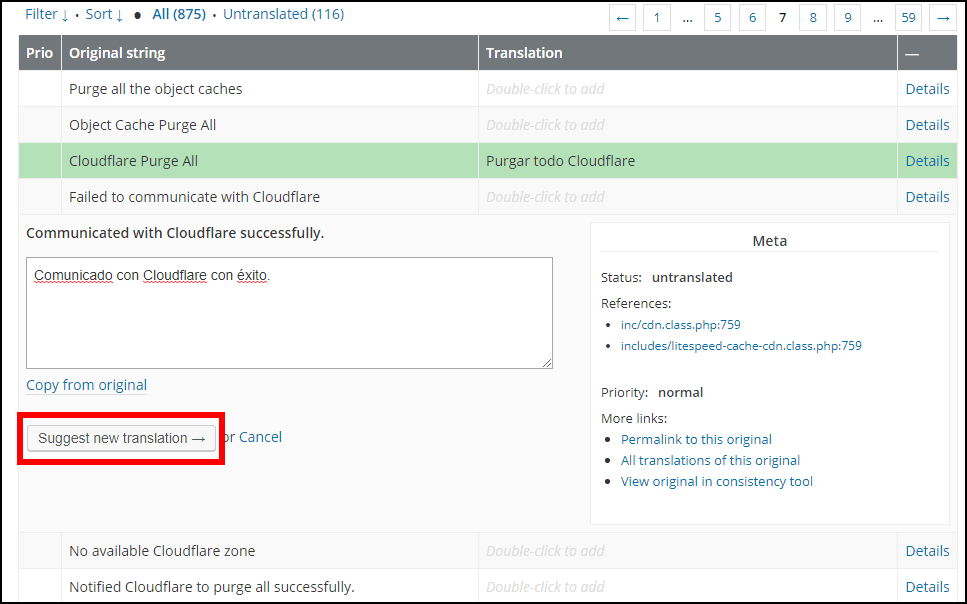
    When you see a string you’d like to translate (for example, Communicated with Cloudflare successfully), double click on the Translation column for that string, and enter your translation in the box.

    Translating LSCache for WordPress: Submitting a Suggestion

    Click the Suggest new translation → button. Congratulations, you have successfully translated your first string.

    Now What?

    All translations must be approved by an editor for your language before they are incorporated into the plugin.

    If you would like to be a translation editor for LSCache, just keep translating! We will notice you, and apply to wordpress.org to give you editor access. Additionally, we’ll add you to our Slack team, where you can communicate with our other editors, and be kept in the loop for new plugin updates and needed translations.

    Thank you for helping us make LSCWP accessible for a global audience!

    —

    Have some of your own ideas for future WordPress Wednesday topics? Leave us a comment!

    Don’t forget to meet us back here next week for the next installment. In the meantime, here are a few other things you can do:

  • WpW: Simplifying the View in LSCache

    WpW: Simplifying the View in LSCache

    Simple LiteSpeed Cache Settings

    Welcome to another installment of WordPress Wednesday!
    Today’s topic is: Simple LiteSpeed Cache Settings

    Disclaimer: The information contained in this post was accurate for LSCWP v1.9 [release log], but is now out of date. We’re sorry, but LSCache no longer has this Basic/Advanced mechanism. If you are overwhelmed by all of the options, try Presets. Here is an article on how to use Presets. A good place to start is the “Essentials” preset, which enables some simple, low-risk caching settings. 

    Generally speaking, the more features you add to a piece of software, the more complicated the interface gets. Well, this week I’m going to tell you about a recent feature in LSCache for WordPress that actually makes the interface less complicated!

    The Non-Power User

    We get a lot of feature requests from power users, and it’s these requests that have helped drive so much of the innovation of the last several months.

    But there’s another type of user; one that we don’t often hear from. It’s the site owner who doesn’t want (or understand) all of those new bells and whistles. This type of user often will install the plugin, see twelve or thirteen overwhelming tabs of settings, and change his or her mind on the spot. Uninstall!

    We think it’s kind of a shame to lose people who might actually love our plugin, if they didn’t find it so overwhelming! So, it’s in that spirit that we share this new feature.

    If you’re one of those not-so-intrepid users, this one’s for you!

    Introducing Basic View

    Simple LiteSpeed Cache Settings

    Basic View is ideal for those who simply wish to enable the cache and not fiddle with any of the other optimization options. When you install and activate LSCWP, it starts in Basic View by default.

    Advanced View reveals eight more tabs, some with advanced cache settings, some with non-cache-related optimization features. If you will find the presence of these options to be overwhelming, you can click Basic View and forget all about them.

    Simple LiteSpeed Cache Settings

    You are free to switch between Basic and Advanced views as often as you like. You are in complete control.

    And that’s all there is to it! It’s a short-and-sweet WordPress Wednesday this week. If you want to know more, you can visit our Beginner’s Guide and get all of the up-to-date details about what is included in each view.

    And please don’t be a stranger! We like to hear ideas from all of our users, not just the ones who understand what “load CSS asynchronously” means 😁

    —
    Have some of your own ideas for future WordPress Wednesday topics? Leave us a comment!

    Don’t forget to meet us back here next week for the next installment. In the meantime, here are a few other things you can do:

  • WpW: Limiting the LSCache Crawler

    WpW: Limiting the LSCache Crawler

    WordPress Wednesday: Limiting the LiteSpeed Cache Crawler

    Welcome to another installment of WordPress Wednesday!
    Today’s topic is: Limiting the LiteSpeed Cache Crawler

    Disclaimer: The information contained in this post is accurate for LSCWP v1.9 [release log]. If you are using a newer version of the plugin, some details may have changed. Please refer to our wiki for the latest!

    When we introduced the LiteSpeed Cache Crawler in our WordPress plugin last May, we told you that the crawler has the potential to consume significant system resources, if not configured with efficiency in mind. It was for this reason that we put the on/off switch in the hands of the hosting providers.

    Some hosts wanted the ability to allow their clients the use of a LSCWP crawler, but only if the providers had the ability to set some limits.

    We thought that was a great idea, and so today we’re going to talk about the new crawler-specific server variables that we created in response to this request.

    Why Limit the Crawler?


    Limiting the LSCache Crawler: Forest Tent Caterpillar Moth

    The settings in LSCWP’s Crawler tab have always been designed to minimize server impact. Site admins are encouraged to configure their crawler to be conservative in its usage of resources. That said, users are free to configure it however they like. Site admins on shared hosting could conceivably use crawler settings that bring a server to its knees if they wanted to, negatively impacting every other site on that server.

    With no safeguards in place to protect against the rogue site owner in the second scenario, many shared hosting providers have decided not to take a chance on enabling the crawler.

    But now, with these new server variables, we are giving hosting providers the ability to set some boundaries for the site owners. The idea being, if they can guarantee that no client can hog all of the resources, then there should be enough to go around.

    Exactly What Do These New Variables Limit?

    Currently hosting providers can potentially limit two of the crawler settings that are found in LiteSpeed Cache > Settings > Crawler.

    Delay

    This setting lets LSCache know how often to send a new request to the server. The longer the delay, the less load there is on the server, but the longer it takes to crawl. LSCache defaults Delay to 500 microseconds, but site admins may change the number to whatever they like.

    The CRAWLER_USLEEP variable puts a minimum allowed value on the Delay field. You can specify a large number, if you want to slow down all of the crawlers on your server and minimize their impact.

    For example, if you set CRAWLER_USLEEP to 1000 microseconds, then your site admins may set their own crawler delays to any number greater than or equal to 1000. All site crawlers across the server will never be allowed to run faster than 1000 microseconds between requests.

    Server Load Limit

    Server Load Limit keeps the crawler from monopolizing system resources. Once the load reaches this limit, the crawler will be terminated rather than allowing it to compromise server performance. LSCache defaults Server Load Limit to 1, which is fairly conservative, but site admins have the ability to crank it up as high as they like.

    With the following server variables, hosting providers can prevent site owners from setting the limit too high.

    • CRAWLER_LOAD_LIMIT sets a default value for the Server Load Limit field.
    • CRAWLER_LOAD_LIMIT_ENFORCE sets a maximum allowed value on the Server Load Limit field. While the previous variable is more of a suggestion, this is an enforced maximum.

    For example, if you set CRAWLER_LOAD_LIMIT to 3, then 3 will override the LSCache default of 1. If a site admin enables crawling without changing any of the settings, that site’s Server Load Limit will be 3.

    If you use CRAWLER_LOAD_LIMIT by itself, site admins are still free to change it to whatever they like. To prevent this behavior, and set a maximum Server Load Limit, you would use CRAWLER_LOAD_LIMIT_ENFORCE. Set it to 6, for example, and the site owners will not be allowed to exceed a Server Load Limit value of 6.

    How to Limit the Crawler

    Limiting the LSCache Crawler: Forest Tent Caterpillar Moth

    To use the server variables, add them one-per-line to the appropriate configuration file. For example:

    CacheEngine on crawler
    
    SetEnv CRAWLER_USLEEP 1000
    SetEnv CRAWLER_LOAD_LIMIT_ENFORCE 6


    The variables can be used server-wide or on a virtual-host basis, and are completely optional. We’ve incorporated the server variable instructions into our Enabling the Crawler instructions. Check that out to get specific directions for your control panel, for LiteSpeed native WebAdmin, or for no control panel at all.

    Hosting providers, we hope that these new variables will allow some of you to open up crawler usage to more of your clients!

    Site owners, if you’ve been unable to persuade your hosting provider to enable crawling, maybe this new ability to limit crawler impact will change their minds! Feel free to share this blog post with your host, or share a link to the crawler setup page on our wiki.

    —

    Have some of your own ideas for future WordPress Wednesday topics? Leave us a comment!

    Don’t forget to meet us back here next week for the next installment. In the meantime, here are a few other things you can do:

  • WpW: Object Cache Support in LSCache

    WpW: Object Cache Support in LSCache

    WordPress Wednesday: Object Cache Support in LSCache

    Welcome to another installment of WordPress Wednesday!

    Today’s topic is: Object Cache Support in LSCache

    Disclaimer: The information contained in this post is accurate for LSCWP v4.5.0.1 [release log]. If you are using a newer version of the plugin, some details may have changed. Please refer to our documentation for the latest!

    You asked for it, and we delivered. LiteSpeed Cache for WordPress supports Object Cache!

    What is an Object Cache?

    An object cache stores the results of expensive and/or frequent database queries in a way that makes them easy to retrieve, and eliminates the need for repeated access to the database. Object caching greatly reduces the time it takes to retrieve query results.

    For example, WordPress stores your site’s options in the database. Site options include things like the site’s name and URL. Every time WP assembles a page for a visitor, it is necessary to access the database to read the site options. As you can imagine, these repeated queries for the same information represent wasted resources. With an object cache, you can query the database once, and save the results for a set period of time. During that time, whenever a page must be assembled, WordPress can get the site information from the object cache. Accessing object cache is a much less resource-intensive prospect than accessing a database.

    Some queries are time-consuming, and other queries are repeated frequently. Both of these scenarios can be improved by storing the query results in object cache.

    Note: If you have a site that is fully-cached by LSCWP, object cache won’t be invoked very often. Object cache is only necessary when WordPress is building a page through PHP. If PHP is not being called (and minimizing PHP usage is the goal with LSCache, after all) then there are no queries to process and therefore nothing to look up in object cache.

    How to set up Object Cache Support

    LSCWP doesn’t provide object caching directly. Rather, it supports your use of an external object cache such as Redis, Memcached or LiteSpeed’s drop-in Memcached replacement, LSMCD. Setting up object cache systems is outside of the scope of this tutorial, but you can find some useful information via the product links above or by visiting our documentation site.

    So, assuming you are already using one of these object caching methods, you can set up LSCWP support in the Cache Settings tab.

    Navigate to LiteSpeed Cache > Cache > Object. You will need to give LSCWP some parameters, including where your Redis, Memcached or LSMCD lives, which objects you’d like to have cached, and how long you want objects to remain in cache, among other things.

    LSCache Object Cache Settings

    Object Cache

    This entire integration is disabled by default. Select ON to enable it and then configure it via the settings, as described below.

    Status

    This is an informational area to let you know the status of your external object cache. If you are getting errors here, please see How to Debug your Object Cache Setup.

    Method

    Choose Memcached if using Memcached or LSMCD. Choose Redis if using Redis.

    Host and Port

    These settings refer to the hostname (or IP address) and port number used by your object cache. The default values of localhost and 11211 should work fine for you, if your cache is set up via a TCP connection. If you are using a UNIX socket, Host should be set to /path/to/memcached.sock (substitute the actual path used for your installation) and Port should be set to 0.

    Default Object Lifetime

    Choose a TTL for items stored in the object cache. We recommend using a relatively short time in order to avoid stale results. Default is 360 seconds.

    Username, Password, and Redis Database ID

    These settings may or may not be applicable, depending on your object cache setup. If you have SASL installed, fill in the appropriate credentials. If you are using Redis, enter your database ID. These measures will prevent cross-contamination in situations where multiple sites share one object cache.

    LSCache Object Cache Settings

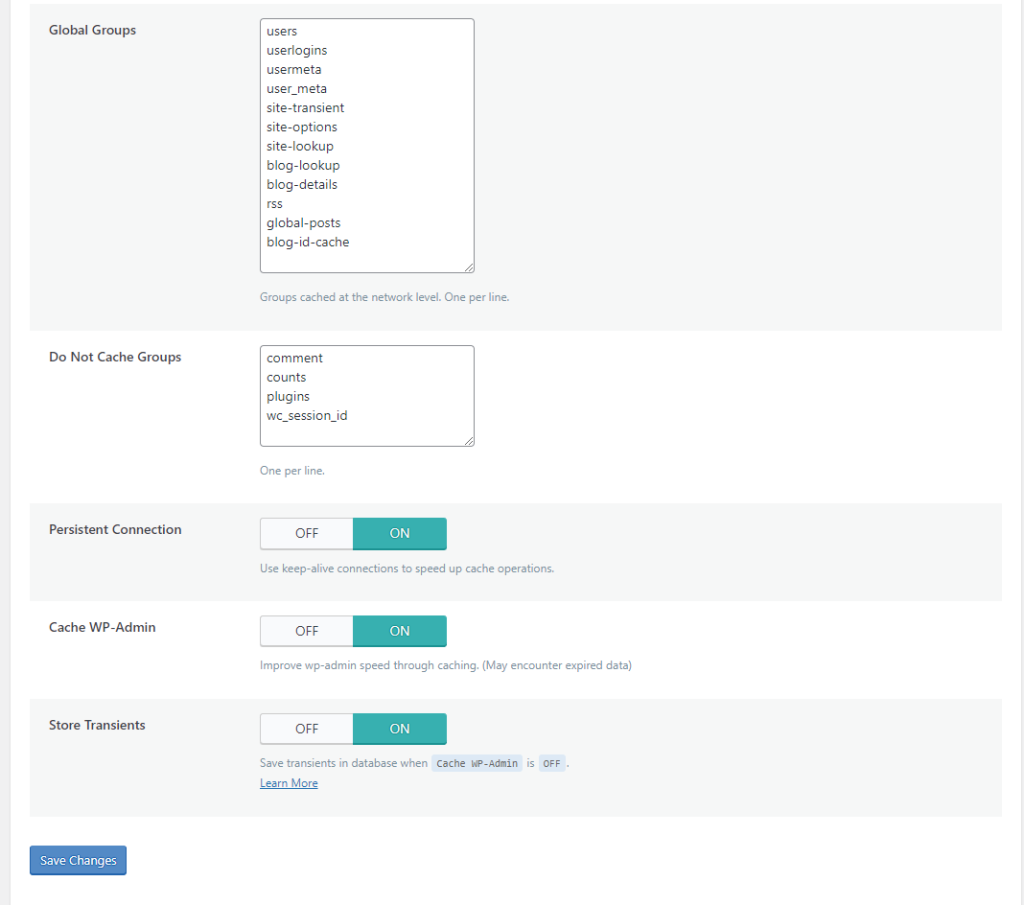
    Global Groups

    This is a list of groups that you want to cache at the network level. By default:

    users
    userlogins
    usermeta
    user_meta
    site-transient
    site-options
    site-lookup
    blog-lookup
    blog-details
    rss
    global-posts
    blog-id-cache
    

    Do Not Cache Groups

    These are groups that you do not want to include in object cache. By default:

    comment
    counts
    plugins
    

    Persistent Connection

    If enabled, the connection is kept alive in order to make Memcached faster. This is set to ON by default.

    Cache WP Admin

    If enabled, WordPress admin will be sped up, but at the risk of occasionally retrieving stale data from the object cache. This is set to ON by default.

    Store Transients

    When Cache WP Admin is set to OFF, transients have nowhere to go. Without transients, you don’t receive server status notices (such as XXXX has been completed successfully.). If you have disabled Cache WP Admin, then you can use Store Transients to get server notices. This is set to ON by default.

    Why do You Need LSCache for This?

    You may be wondering: what is the point of setting up object cache support in the LSCache plugin?

    So here’s the thing: you can’t use object cache without telling WordPress how to handle it. You need a plugin for that. You can install a single-purpose object cache plugin, or you can let LSCache facilitate the relationship between your object cache and WordPress.

    It comes down to this: would you rather install several plugins with many different interfaces to handle all of your optimization needs? Or would you rather have one optimization plugin that can handle it all? If you like the second option, then LSCache is your solution!

    —

    Have some of your own ideas for future WordPress Wednesday topics? Leave us a comment!

    Don’t forget to meet us back here next week for the next installment. In the meantime, here are a few other things you can do:

    —
    This content was last verified and updated in April of 2023. If you find an inaccuracy, please let us know! In the meantime, see our documentation site for the most up-to-date information.