Tag: wordpress wednesday

LiteSpeed’s WordPress Wednesday series shares tips, tutorials, and explorations of new features related to the LSCache for WordPress plugin. Even those not currently using LSCWP can learn something. What is caching? What types of caching can be used with WordPress? How else can you optimize WordPress?

LSCWP provides advanced cache-management tools and optimization features, designed to reduce page load times and give your site an edge. With LiteSpeed, your site can employ the best practices that make for a high PageSpeed score, and – more importantly – an exceptional user experience.

  • WpW: Troubleshooting LSCache Optimization

    WpW: Troubleshooting LSCache Optimization

    WordPress Wednesday: Troubleshooting LSCache Optimization

    Welcome to another installment of WordPress Wednesday!
    Today’s topic is: Troubleshooting LSCache Optimization

    Disclaimer: The information contained in this post is accurate for LSCWP v1.8.1 [release log]. If you are using a newer version of the plugin, some details may have changed. Please refer to our wiki for the latest!

    So, you enabled optimization features in LiteSpeed Cache for WordPress, and your site display turned wonky. It’s a common problem, but it’s probably not, strictly speaking, an issue with the LSCache plugin. Instead, it’s more likely to be an issue with a single CSS or JavaScript file that doesn’t want to play nicely with Minification or Combination.

    Because these file anomalies are outside of the scope of LSCache’s free support, we would like to share this troubleshooting guide today to help you find that problematic file yourself and exclude it from optimization.

    (NOTE: If you really don’t want to do the detective work yourself you can hire us to do it for you.)

    Verify it’s an Optimization Issue

    Verify it's an optimization issue

    Before getting into the nitty gritty, let’s make sure that it really is an optimization issue. Turn off all optimization features, purge the cache, and check your site, like so:

    1. Turn off optimization. From the WordPress Dashboard, navigate to LiteSpeed Cache > Settings > Optimize and set all of the following to OFF: CSS Minify, CSS Combine, CSS HTTP/2 Push, JS Minify, JS Combine, JS HTTP/2 Push.
    2. Purge the cache. Navigate to LiteSpeed Cache > Manage > Purge and press the Purge All button.
    3. Check your site. Reload the page. Does it still look bad?

    It still looks bad

    If it’s still not displaying correctly, then the problem is not with LSCache’s optimization features.

    What happens if you turn of LSCache completely? Does the site look fine? If so, then some other feature of LSCache is interfering with your site. Visit our forum, and let us know what’s happening.

    If the site is still messed-up even after turning off LSCache, then the issue is related to something else on your site and we, unfortunately, can’t help. It’s probably a good time to contact your hosting provider.

    It looks good now

    Congratulations, you have confirmed that the issue lies somewhere in the optimization features. Now you have two options:

    1. Leave those optimization options turned off for good. This is an easy solution, and if you choose to do this, your site can still benefit greatly from caching even without optimization enabled. Remember, you don’t have to use combine and minify to use LSCache!
    2. Turn those options back on, do some troubleshooting to find the problematic file, and exclude that file from optimization. If you want to go this route, grab a cup of coffee, make yourself comfortable, and let’s get started!

    Troubleshooting LSCache Optimization

    Identify Whether it’s a CSS or JavaScript Issue

    The first step in finding the problematic file is determining whether we are looking at a JavaScript issue or a CSS issue.

    Let’s check JavaScript first:

    1. Re-enable the JS-related optimization functions, and leave the CSS functions disabled.
    2. Purge the cache again.
    3. View the page. How does it look?
    4. If it’s messy, then one of your JS files is problematic. Jump ahead to the next section.
    5. If it’s fine, then your JS files are also fine.

    If JavaScript wasn’t the culprit, then it’s probably CSS. Let’s make sure.

    1. Disable the JS-related optimization functions, and re-enable the CSS functions.
    2. Purge the cache again.
    3. View the page. How does it look?
    4. It should be messy, indicating one of your CSS files is problematic.

    Now that you know whether it’s CSS or JS, you’ll need to find the specific file that is causing the problem.

    Find and Exclude the Problematic File(s)

    For the purposes of these instructions, let’s assume you have a CSS file causing trouble. If, in fact, your issue is with JavaScript, you can still follow these same steps. Just imagine that the instructions say “JS” everywhere that they say “CSS.”

    In order to find the file that is at fault, first we need to get a list of all possible CSS (or JS) files. Once that is done, we will exclude the entire list of files from optimization, and then reintroduce them one-by-one until we’ve found our culprit.

    Get a List

    Get a List of CSS Files

    Using the browser’s Developer Tool, visit the Network tab, and click CSS to view only the CSS files. Reload the page. You should see a list of all of the CSS files in use by that page, listed in the Name column. Exclude everything on this list from optimization.

    You can exclude files by full URL or by partial path.

    If you need to see the full path of any one CSS file, click on the name of that file, and click Headers. You will find the full location of the selected file listed as Request URL.

    Test the List
    Test the List of CSS Files

    1. Enable all of the optimization functions you wish to use.
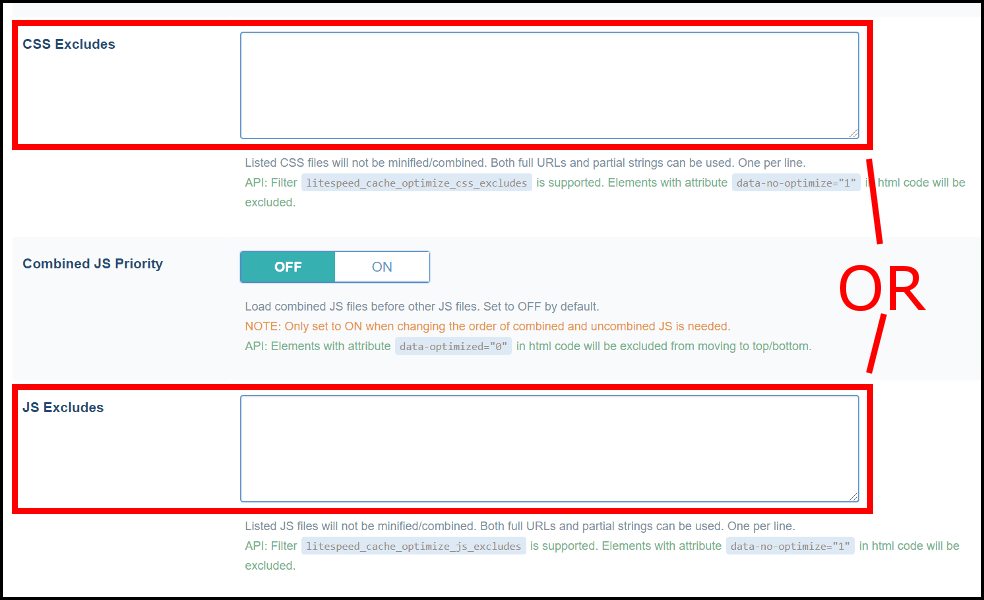
    2. Exclude all of the CSS files from optimization: Navigate to LiteSpeed Cache > Settings > Tuning and enter the files from your list, one-per-line, in the CSS Excludes box.
    3. Purge the cache and check the site. It should be displaying correctly.
    4. Remove one of the CSS files from the exclude list, and purge the cache.
    5. Check the site.
      1. If it still looks ok, then that file you just removed was not the problematic file.
      2. If the site looks broken, then you know you have found a problematic CSS file. Put it back in the box and leave it there.
    6. If there are more unchecked files, repeat from Step 4.

    At the end of this process your work should be done! Your site should look good, all of the optimization functions you wish to use should be enabled, and you should have one or more problematic CSS or JS files sitting the in the CSS Excludes or JS Excludes box and eliminated from future optimization. Success!

    Are any of these steps unclear? Have something you’d like to add? Leave a comment! If you’d like to see another example for how to troubleshoot optimization issues, see our wiki.

    —

    Have some of your own ideas for future WordPress Wednesday topics? Leave us a comment!

    Don’t forget to meet us back here next week for the next installment. In the meantime, here are a few other things you can do:

  • WpW: Using Admin IP Commands with LSCache

    WpW: Using Admin IP Commands with LSCache

    WordPress Wednesday: Using Admin IP Commands with LSCache

    Welcome to another installment of WordPress Wednesday!
    Today’s topic is: Using Admin IP Commands with LSCache

    Disclaimer: The information contained in this post is accurate for LSCWP v1.8 [release log]. If you are using a newer version of the plugin, some details may have changed. Please refer to our wiki for the latest!

    What are Admin IP Commands?

    There is a spot in the LSCache for WordPress plugin settings where you can specify any IP address(es) belonging to your blog’s administrators. Then, if you visit your WP site from one of those listed IPs, LSCache will allow you to execute certain admin commands right from the site’s front-end using a special query string.

    These query strings are only executed when they come from a listed Admin IP. Otherwise, they are ignored.

    Specifying Your Admin IP(s)

    Specifying your Admin IP

    From the WordPress Dashboard, navigate to LiteSpeed Cache > Settings > Debug. Enter each Admin IP address, one per line, in the Admin IPs box. Once you save your changes, LSCache will allow visitors from any IP listed here to manage the cache from the browser’s URL bar.

    Using Admin IP Commands with LSCache

    WordPress Wednesday: Using Admin IP Commands with LSCache

    Once your Admin IPs are specified, you may use the ?LSCWP_CTRL= query string from the browser in order to trigger one of several actions. Please note that this query string and its parameters are case-sensitive, so they must be in ALL CAPS as seen here. The following parameters are available:

    NOCACHE

    NOCACHE – This is used to display the uncached version of a page. It does not purge the page from cache, or disable the cache for that page. It simply generates the dynamic version of the page as if it were not cached.

    Why would you want to use this? Perhaps you are running a test, and would like to verify that the cached version of a page is up-to-date. In separate tabs, you can open http://example.com/page/ and http://example.com/page/?LSCWP_CTRL=NOCACHE and compare the results.

    PURGE

    PURGE – This is used to purge all cache tags associated with a page, with the lone exception of the blog ID tag. (You would effectively purge the entire site, if you were to purge the blog ID cache tag.)

    A page can have several tags associated with it: the post id tag, category tags, tag tags, author tags, etc. Using the PURGE parameter will purge the page, and any other pages that contain the same cache tags. So, for example, imagine a page that describes a cold brew coffee method. It has the following categories: tutorials, coffee. It has the following tag: cold brew. If you enter the following URL:

    http://howtobeverage.com/coffee/making-cold-brew/?LSCWP_CTRL=PURGE


    LSCache will purge the making-cold-brew page, along with the tutorials category, the coffee category, and the cold brew tag.

    PURGESINGLE

    PURGESINGLE – This is used to purge the first cache tag associated with the page, presumably the post id tag. Using the above example, if we substituted PURGESINGLE for PURGE, LSCache would only purge the making-cold-brew cache tag. The related categories and tags would remain in cache.

    SHOWHEADERS

    SHOWHEADERS – This is used to show all the cache headers associated with a page. This may be useful for debugging purposes.

    And that’s it for this week! Isn’t it nice when a topic is short and sweet? Feel free to leave a comment if you would like clarification on anything we covered today!

    —

    Have some of your own ideas for future WordPress Wednesday topics? Leave us a comment!

    Don’t forget to meet us back here next week for the next installment. In the meantime, here are a few other things you can do:

  • WpW: Cloudflare Management in LSCache

    WpW: Cloudflare Management in LSCache

    CloudFlare Management in LSCache for WordPress

    Welcome to another installment of WordPress Wednesday! Today’s topic: Cloudflare Management in LSCache.

    Disclaimer: The information contained in this post is accurate for LSCWP v1.7.2 [release log]. If you are using a newer version of the plugin, some details may have changed. Please refer to our wiki for the latest!

    As of v1.7.2, you have the ability to manage certain aspects of your Cloudflare cache from within the LiteSpeed Cache for WordPress plugin.

    This topic looks familiar

    If you are getting sense of déjà vu right about now, it’s because we have talked about Content Delivery Networks before. We introduced CDN support in October of last year, but at the same time, we told you not to use it if you were getting your CDN service through Cloudflare.

    Why? Cloudflare is actually a distributed proxy server. Most other CDNs are reverse proxies, which are not the same thing. As a result, the two types of CDN require entirely different configuration options.

    CloudFlare Management in LSCache for WordPress

    If you are perfectly happy with the way you currently manage your Cloudflare cache, you may continue to do what you have always done and leave LSCache’s Cloudflare API setting disabled. They will continue to work together just fine.

    For the rest of you, enabling the Cloudflare API allows you to do all of your optimization and cache management from the dashboard of one handy and familiar plugin: LSCache!

    Setting it up

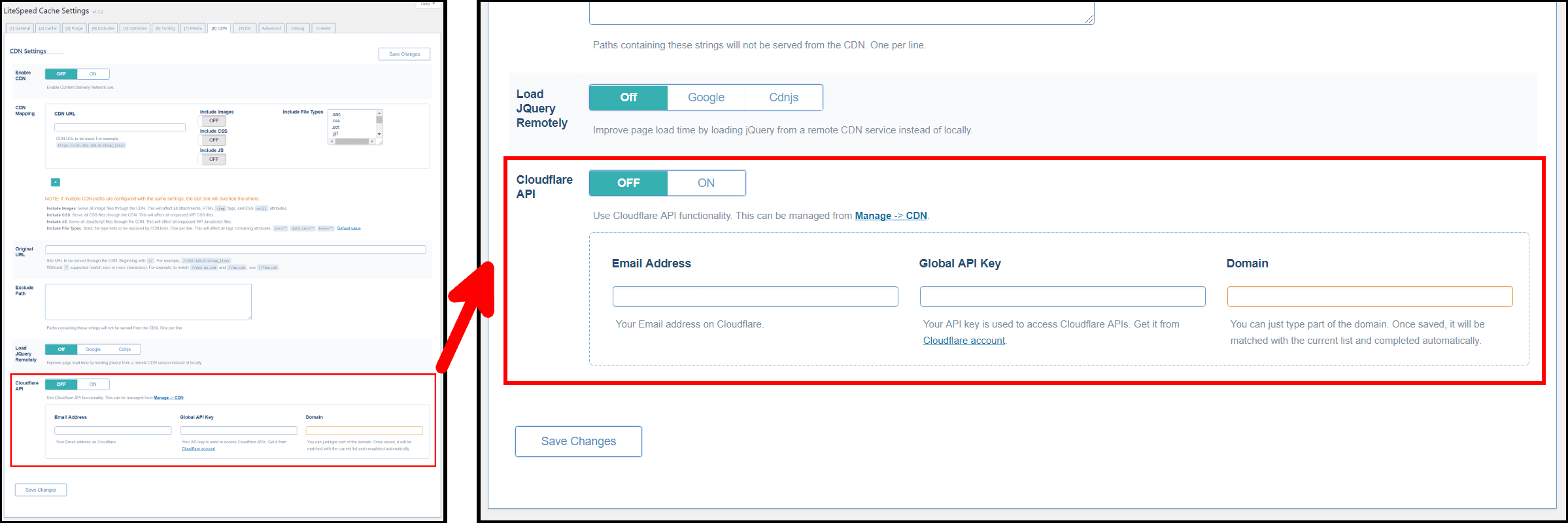
    LSCache for WordPress CDN Settings Tab

    Cloudflare isn’t like other CDNs, therefore you should not set Enable CDN to ON for Cloudflare.

    You can, however, manage your Cloudflare cache through this plugin in another way: simply navigate to LiteSpeed Cache > Settings > CDN, scroll down, set Cloudflare API to ON and then fill in the three fields below. Save the settings. From now on you may manage your Cloudflare cache through the LiteSpeed Cache > Manage > CDN area!

    Email Address

    Enter the email address you use with your Cloudflare account.

    Global API Key

    Enter the API key you were given by Cloudflare. You can find it on your Cloudflare profile.

    Domain

    Enter the domain name served by Cloudflare. You needn’t enter the entire domain here. If you enter only part of it, LSCache will discover and fill in the remainder of the domain automatically after save.

    Managing Cloudflare via LSCache

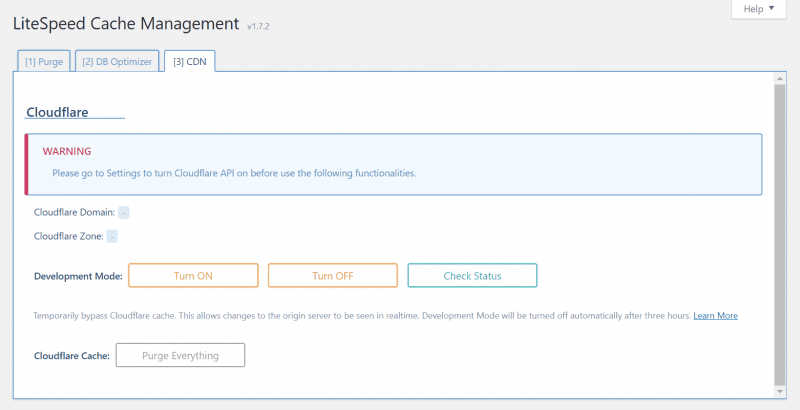
    LSCache for WordPress CDN Management

    Cloudflare Domain

    This is the domain that you have configured to be served by Cloudflare. It is informational only and cannot be changed here. If it doesn’t match your actual Cloudflare domain, you will need to fix it in your Cloudflare account.

    Cloudflare Zone

    This is the unique id that was assigned to your domain by Cloudflare. It is informational only and cannot be changed here. You can see it on your Cloudflare profile.

    Development Mode

    These buttons allow you to turn on Development Mode, turn it off, and check to see whether it is running. If you are making updates to your site, and want to verify that they are working as planned, Development Mode allows you to temporarily disable Cloudflare so that you may see your updates in realtime.

    After three hours, Development Mode will turn itself off, or you can turn it off manually via the button provided.

    Purge

    Press this button to purge your Cloudflare cache on demand. This is helpful if you have made changes that result in an LSCache purge, and you want to make sure Cloudflare is purged as well.

    And that’s it! We hope you enjoy this enhancement. If you have any questions, as always, we are here to answer them!

    —
    Have some of your own ideas for future WordPress Wednesday topics? Leave us a comment!

    Don’t forget to meet us back here next week for the next installment. In the meantime, here are a few other things you can do:

  • WpW: DNS Prefetch with LiteSpeed Cache

    WpW: DNS Prefetch with LiteSpeed Cache

    Welcome to another installment of WordPress Wednesday!

    Disclaimer: The information contained in this post is accurate for LSCWP v7.5.0.1 [release log]. If you are using a newer version of the plugin, some details may have changed. Please refer to our documentation for the latest!

    You may have noticed the DNS Prefetch option in the LiteSpeed Cache for WordPress settings. Today, we’ll talk a little bit about what that feature does and how to use it.

    What Problem Does DNS Prefetch Solve?

    There are all kinds of metrics to measure the actual page load time of your site, but what about the perceived speed? If a visitor feels like interacting with your site is slow, then it doesn’t matter what your PageSpeed score tells you!

    One area in which you have the power to reduce user-perceived latency is DNS resolution.

    If a visitor clicks an external link on your site, and then sits there for several seconds while the browser looks up the site’s IP address, it can feel like it’s your site that’s sluggish, even if your site has nothing at all to do with it! DNS Prefetch can eliminate the wait by doing the lookup before the visitor even clicks the link.

    While your visitor is looking over your page and reading your engaging content, their browser can be quietly looking up IP addresses in anticipation of the visitor’s next click.

    Example

    Obviously, if you link to a lot of outside sources on your site, it’s not going to be practical to prefetch every one. There are a few situations, though, where this ability comes in especially handy.

    Say you have a WordPress blog at https://www.mybirdsite.com and you regularly publish posts discussing bird-related books and gifts that are for sale in your online shop. The book and gift store is located at https://shop.mybirdsite.com. Now, wouldn’t it be nice if a visitor to your blog could click to buy that book about hawks without having to wait for DNS resolution?

    If you want navigation from the blog to the shop to be seamless and to behave like it’s one big site, then it is helpful to enable DNS Prefetch for //shop.mybirdsite.com. With DNS Prefetch enabled, a visitor can shop without delay.

    Which Browsers Support DNS Prefetch?

    Most modern browsers support DNS Prefetch for HTTP, as seen in this chart. Both Chrome and Firefox have DNS prefetching over HTTPS disabled by default, but it may be enabled by savvy users. (I did not find anything to suggest that the other browsers differentiate between HTTP and HTTPS in this way.)

    How to set up DNS Prefetch with LiteSpeed Cache

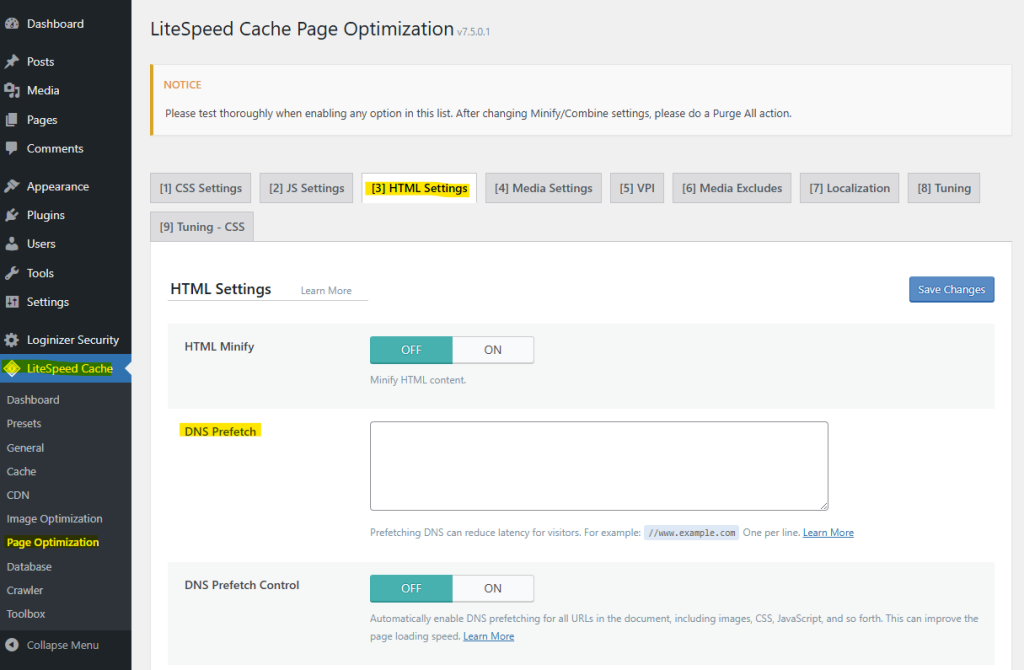
    DNS Prefetch with LiteSpeed

    From the WordPress Dashboard, navigate to LiteSpeed Cache > Page Optimization > HTML Settings. Scroll down the DNS Prefetch. Enter the domain names to prefetch, one per line, using the format //www.example.com.

    And that’s it. Setup couldn’t be easier!

    Want more information about DNS Prefetch? The Chromium Projects has a detailed Design Document writeup, and Mozilla describes how the response header works.

    If you have any questions about how DNS Prefetch could benefit your site, let us know in the comments!

    —

    Have some of your own ideas for future WordPress Wednesday topics? Leave us a comment!

    Don’t forget to meet us back here next week for the next installment. In the meantime, here are a few other things you can do:

    —
    This content was last verified and updated in September of 2025. If you find an inaccuracy, please let us know! In the meantime, see our documentation site for the most up-to-date information.

  • WpW: Password Protection and Caching

    WpW: Password Protection and Caching

    WordPress Wednesday Password Protection and Caching

    Happy New Year, and welcome to another installment of WordPress Wednesday!

    Disclaimer: The information contained in this post is accurate for LSCWP v1.6.6.1 [release log]. If you are using a newer version of the plugin, some details may have changed. Please refer to our wiki for the latest!

    Let’s talk about the relationship between password protection and caching. If you have ever had reason to hide one of your posts from the public view, you may have chosen to protect it with a password. Password-protected posts are a useful way to ensure that your content is visible only to a specific audience. WordPress cache plugins that use rewrite rules to define their caching behavior can handle password-protected posts, but are you aware that they may also be having an impact on other areas of your site that are not hidden behind a password?

    Today we’re going to explore password-protected posts: How do you make one? How are they cached? How do special rules for password protection affect the rest of your site? And how does LiteSpeed Cache do it differently?

    What is a password-protected post?

    Just like it sounds, a password-protected post is a blog post that a visitor cannot access without a password. When a visitor (let’s call him Fred) accesses http://www.example.com/password-protected-post for the first time, he is shown a prompt. Fred must enter the correct password before he is shown the post’s content.

    The password is hashed and stored as a cookie in Fred’s browser, which means he only has to enter the password correctly once. From that point, and for the life of the cookie, any time Fred visits http://www.example.com/password-protected-post, he will be taken directly to the post content, and not be prompted for the password.

    It’s worth noting, by the way, that Fred could also enter an incorrect password, and it would be hashed and stored as a cookie in his browser. The contents of the post would, of course, not be shown to him in that case, but the cookie would still be saved in his browser.

    How do you password-protect a post?

    WordPress Wednesday Password Protection and Caching

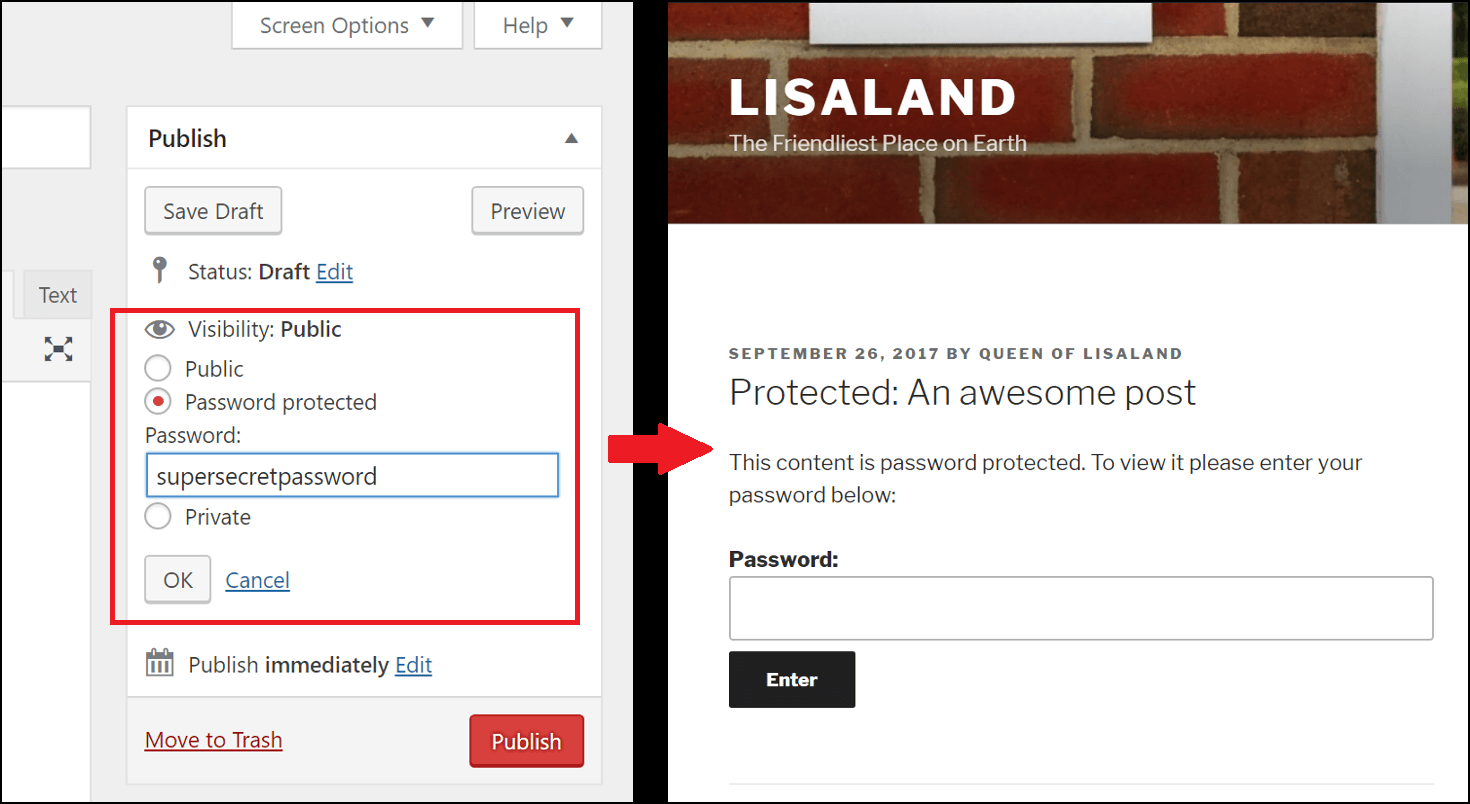
    To create a password-protected post, first create a post, or edit an existing one. In the Edit Post screen, click Edit next to Visibility: Public. Select Password Protected and enter the password you wish to use. Here we’ve chosen supersecretpassword but you may want to be more clever than that 😉

    Press OK to save your choice. Make any additional edits that you wish to the post, and press Publish (or Update if you’re editing a post that has previously been published.)

    Password Protection and Caching

    What happens when a password-protected post is cached?

    First, it’s important to point out that we’re talking about the kind of caching that is accomplished through rewrite rules. We talk more about this in our LSCaching 101 post, if you want to know more, but essentially, the most effective WordPress caching plugins use rewrite rules to manage the cache.

    LiteSpeed Cache for WordPress is no exception. We, too, use rewrite rules, but they are not the only tools in our cache toolbox.

    WordPress Wednesday Password Protection and Caching

    If you remember our example with Fred, you’ll notice that password-protected posts require special handling because the posts exist in two forms: the form that is just a prompt for the user to enter the password, and the form that is the full content of the post. We want the latter to show only if the user has entered the correct password, otherwise we will display the former.

    When you have a rewrite-rule-based cache, generally the version with the password prompt is cached, and the full content version is NOT, and which one gets displayed depends on the existence of the password cookie.

    Most cache plugins will use a rewrite rule to detect the password cookie. If it exists (meaning the user has entered a password) then the page is not served from cache. So far so good; this is exactly what we want to happen. Remember the cached version of the page is the one that only displays the password prompt. Once the valid password is entered, we want the uncached version so that the full content is shown.

    Where does this go wrong?

    Rewrite rules for caching purposes do not single out individual WordPress posts. This means that when you are using a rewrite rule to determine if the password cookie exists, that rewrite rule applies to all of the pages on the site.

    Let that sink in for a minute.

    Put another way: Using rewrite rules, if one page is password-protected and the cookie is detected, the entire site will be treated like that password-protected page (i.e. not cached) for that viewer for the entire life of the cookie. Ouch.

    For example: Fred visits your one password-protected post, and enters a password (maybe even an incorrect one). The cookie is stored in his browser, the rewrite rule detects the cookie, and serves the uncached contents of the password-protected post to him. After that, Fred moves on to explore the other parts of your site, but he still has that password cookie stored, and the rewrite rule detects it no matter what pages he visits. As such, none of the pages of your site will ever be served to Fred from the cache until he manually clears that cookie from his browser.

    This is clearly not ideal.

    How is LiteSpeed better?

    LiteSpeed avoids this problem altogether. If you recall, LiteSpeed Cache for WordPress has a special relationship with your LiteSpeed Web Server. Because of this relationship, we can use HTML request headers to look for the password cookie, and we can do it on an as-needed basis. This means, LSCWP is not bound by rewrite rules like other plugins.

    If the password cookie exists, we only care about it in reference to the password-protected pages. Instead of relying on rewrite rules to detect the password cookie, LSCache relies on response headers to let it know when it is appropriate to even look for a password cookie. If the plugin doesn’t request a password cookie for that particular post, then LSCache doesn’t bother to detect one. Because of this, all of the non-password-protected posts in the site can be served to that visitor from the cache, as they should be.

    In conclusion

    You can see how setting a password on a post can have surprising and unintended consequences for the rest of your site! If you’re using a plugin that relies entirely on rewrite rules to define its caching behavior, then your only recourse is to instruct your visitors to erase their cookies once in a while.

    Or, you can switch to LiteSpeed Cache. (Come on over to our side! We’d love to have you!)

    —

    Have some of your own ideas for future WordPress Wednesday topics? Leave us a comment!

    Don’t forget to meet us back here next week for the next installment. In the meantime, here are a few other things you can do:

  • WpW: LSCache New Feature Roundup!

    WpW: LSCache New Feature Roundup!

    WordPress Wednesday LSCache New Features

    Welcome to another installment of WordPress Wednesday!

    Disclaimer: The information contained in this post is accurate for LSCWP v1.6.6 [release log]. If you are using a newer version of the plugin, some details may have changed. Please refer to our wiki for the latest!

    Throughout the last several months, you may have gotten whiplash watching us release new feature after new feature in our LSCache plugin for WordPress! It’s been a whirlwind, we know. We’re at a point now where most of the big stuff been implemented, so I thought it might be a good time to give you a quick guided tour.

    First, I’ll share links to the blog posts we’ve written about the major new features, so you can read up on them in depth, and then I’ll show you some of the smaller things that didn’t get their own posts but are worth a mention just the same.

    Big Feature Roundup

    Check out the linked blog posts to learn all about the following new cache functionality and optimization features:

    Other Features You Might Like

    There are a handful of other new features that didn’t get their own blog posts. We’ve got an interface enhancement, a private cache feature, a new type of URL to exclude, and a collection of new optimization options.

    Tab Switch Shortcut

    WordPress Wednesday LSCache New Feature Tab Switch Shortcut

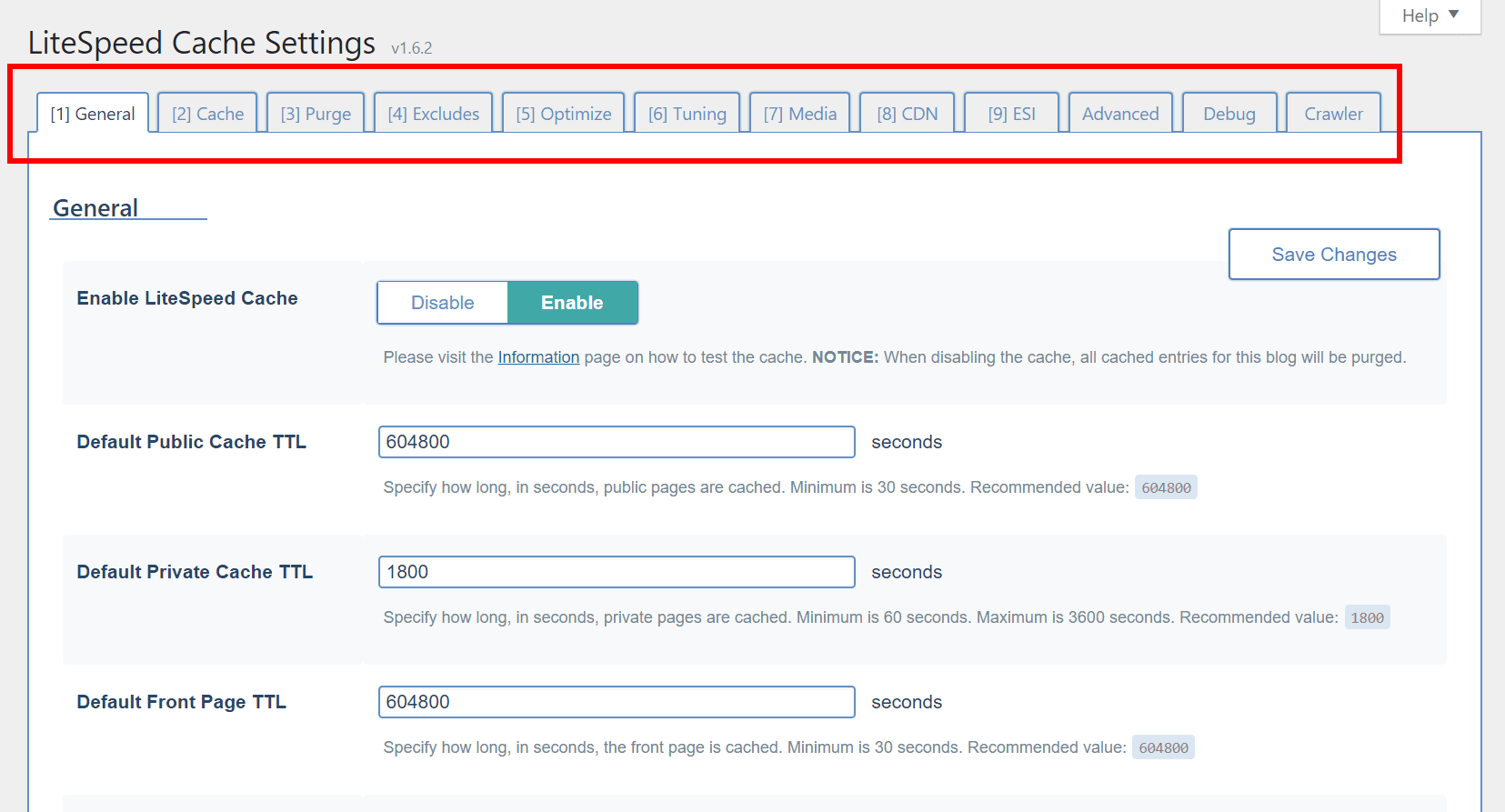
    We’ve got a lot of tabs in our settings at this point, so you might appreciate the ability to easily switch between tabs, if you’re more of a keyboard-user than a mouse-user.

    As long as your cursor is not focused on an input element, you can type a number, and be brought directly to the corresponding tab. For example, if you’re looking at the General tab, but want to change something in the ESI tab, simply press 9 and you will be brought to the ESI tab.

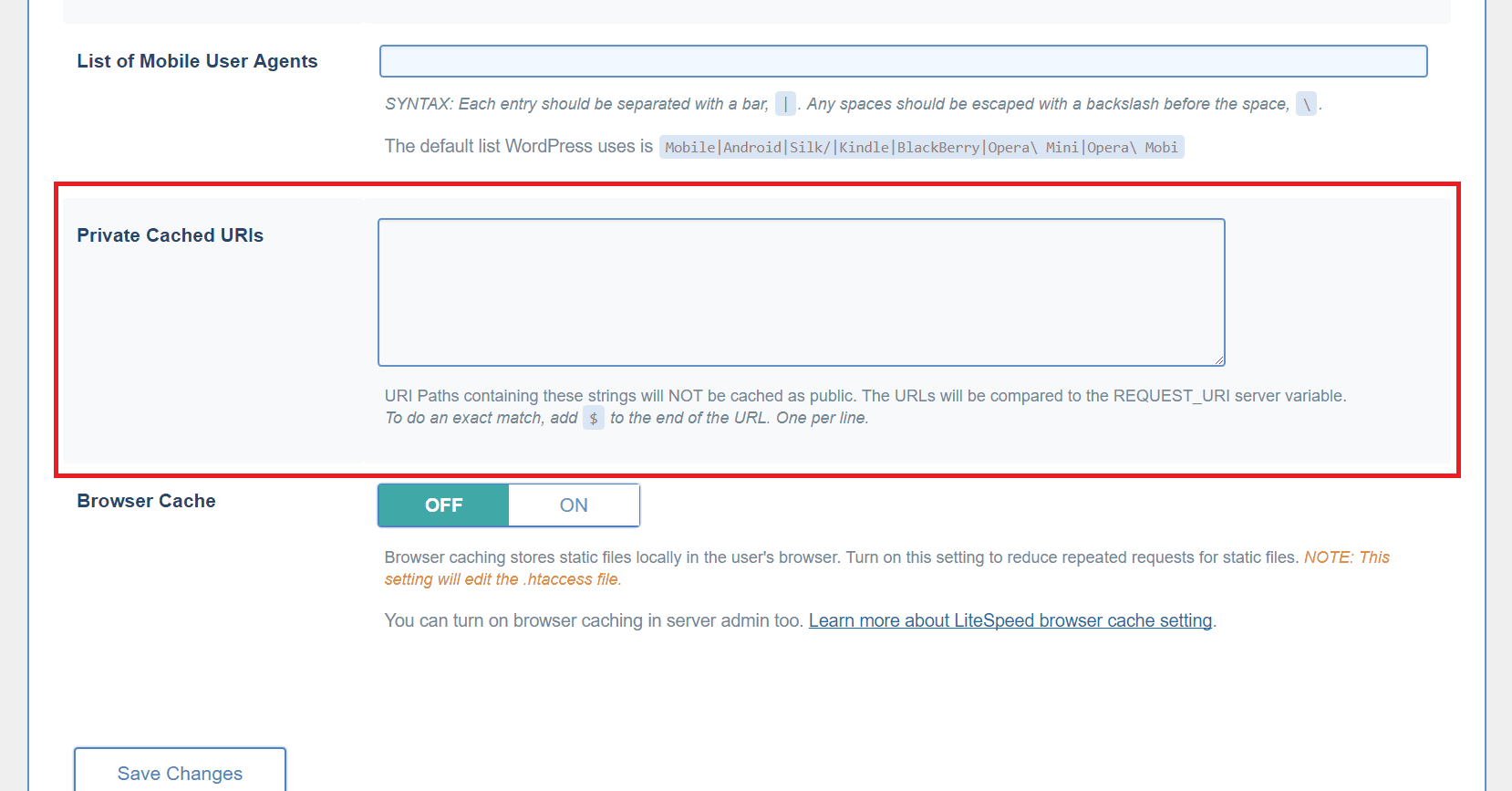
    Private Cached URIs

    From the WordPress dashboard, navigate to LiteSpeed Cache > Settings > Cache and scroll to the bottom of the page.

    WordPress Wednesday LSCache New Feature Private Cached URIs

    You may have pages on your site that would default to public cache under normal circumstances, but which you think should be cached privately (i.e. a separate copy cached for each individual user).

    Use this box to list such URI’s, one per line. You can list an entire path and place a $ after it so that it is interpreted as an exact URI. Otherwise, any URI that includes the path you enter will be privately cached.

    For example:

    reviews/canon/$ will only match reviews/canon/.

    reviews/canon/ will match reviews/canon/ and reviews/canon/eos80d/.

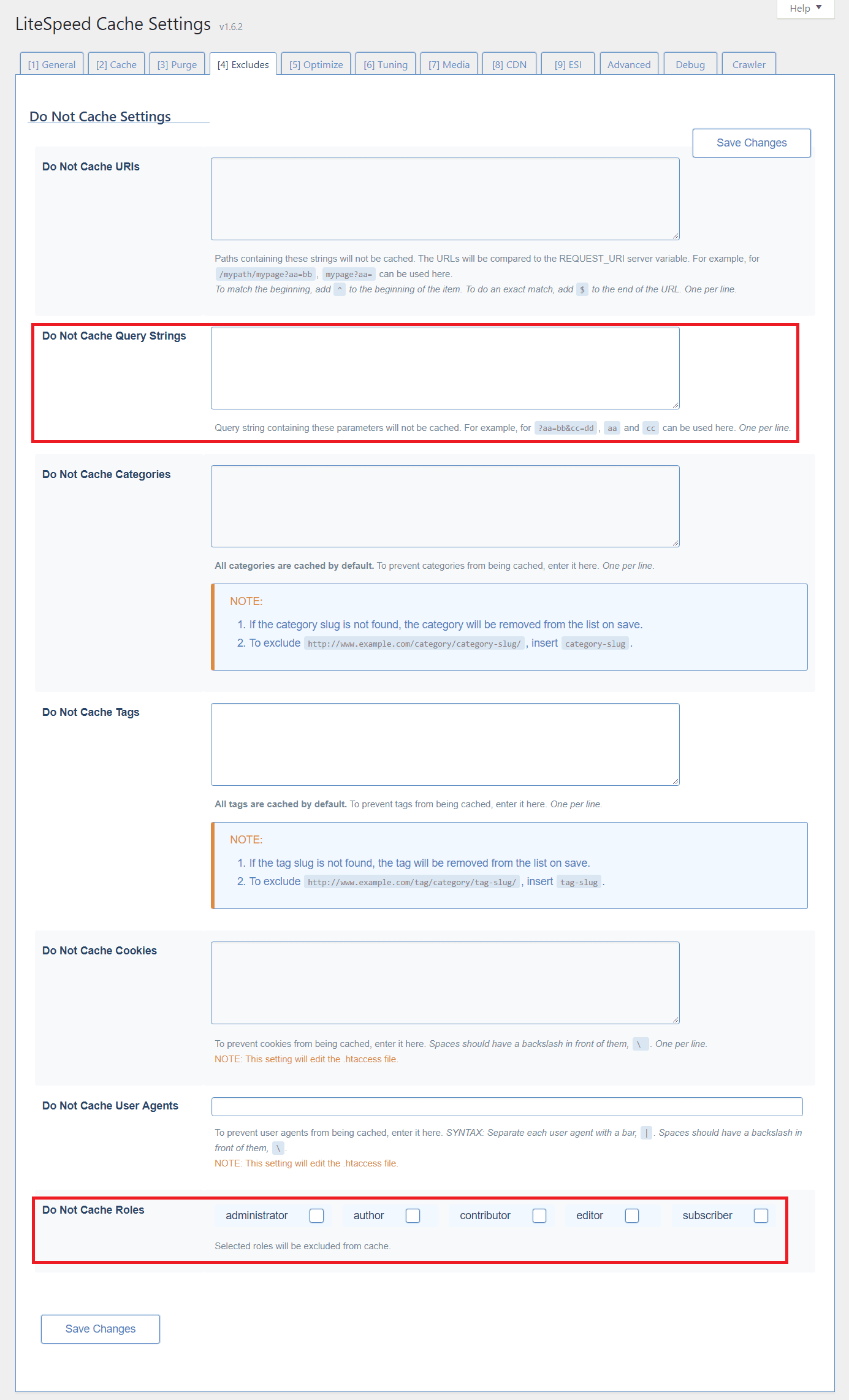
    Additional Excludes

    From the WordPress dashboard, navigate to LiteSpeed Cache > Settings > Excludes.

    WordPress Wednesday LSCache New Feature Additional Excludes

    Query Strings

    You can eliminate URLs with certain query strings from being cached.

    For example, let’s say you have a mechanism that allows you to colorize your site in a purple color scheme like so: http://example.com/page?color=purple.

    if you don’t want to cache any page that is rendered in a colorized way, you could enter color in that list. That would match http://example.com/page?color=purple as well as http://example.com/page?color=red, or any other specified color, and those pages would be excluded from caching.

    From the WordPress dashboard, navigate to LiteSpeed Cache > Settings > Excludes and scroll to the bottom of the page.

    Roles

    There may be user roles that you wish to exclude from caching. For example, if you are an admin testing new functionality, you may want to exclude your administrator role from being served from cache until your testing is through.

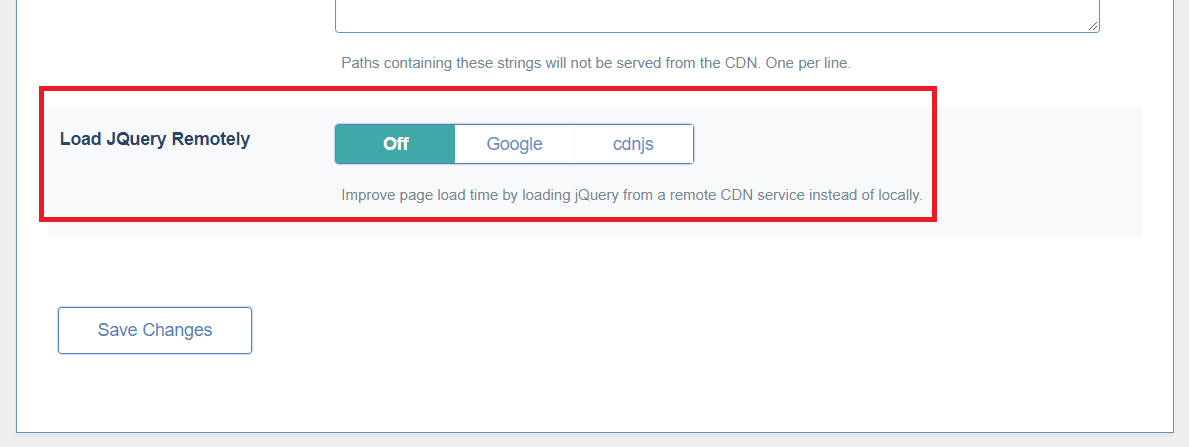
    Load JQuery Remotely

    From the WordPress dashboard, navigate to LiteSpeed Cache > Settings > CDN and scroll to the bottom of the page.

    WordPress Wednesday LSCache New Feature Load JQuery Remotely

    It can be faster to load JQuery from a remote CDN service. You may choose one here.

    Optimization and Tuning

    When we first released the Optimize tab, we wrote up a full blog post on all of the options. After that we added some new settings to the page. And then we added some more. And then, because that page was getting a bit unruly, we split Optimize into Optimize and Tuning.

    So, if the last time you saw Optimize was while reading that blog post, you’ll need to know that two of those settings we discussed (CSS Excludes and JS Excludes) now live on the Tuning page. The other functions remain on Optimize, along with several new ones.

    We recommend checking out both of those pages in our wiki’s Settings section, where every plugin setting is described in detail.

    Image Optimization

    Our image optimization feature is our newest one, and we’re still making adjustments here and there, based on what’s working well, what could use improvement, and the feedback we’ve received. Take a look at the Image Optimization page on our wiki to see how the most up-to-date features work.

    WordPress Wednesday LSCache New Features

    Thus ends our tour of the new features. Keep an eye on WordPress Wednesday in the future for more detailed exploration of various aspects of our plugin!

    For the most up-to-date configuration reference, you’ll want to keep the URL for our wiki handy. We make an effort to publish updates to the wiki as soon as anything changes in the plugin. While it might take us a few weeks to write an in-depth blog post, the wiki gets updated immediately.

    —

    Have some of your own ideas for future WordPress Wednesday topics? Leave us a comment!

    Don’t forget to meet us back here next week for the next installment. In the meantime, here are a few other things you can do:

  • WpW: Brute Force Attack Protection

    WpW: Brute Force Attack Protection

    Welcome to another installment of WordPress Wednesday!
    Today’s Topic: Brute Force Attack Protection for WordPress

    Disclaimer: The information contained in this post is accurate for LSWS v5.2.3 [release log]. If you are using a newer version of LiteSpeed Enterprise, some details may have changed. Please refer to our wiki for the latest!

    This week we are going to talk about brute force login attacks, and what you, as a site admin or hosting provider, can do to protect your WordPress site(s). Usually our WPW posts involve our popular cache plugin, but this week it’s all about the web server. You don’t need to be running LSCache for WordPress in order to benefit from LiteSpeed’s WordPress Protection. You only need a LiteSpeed Enterprise server or LiteSpeed Web ADC.

    What is a Brute Force Login Attack?

    During a brute force login attack, the attacker attempts to gain access to a website by repeatedly trying to guess a valid username and password. WordPress, being the most popular CMS, often finds itself the target of such shenanigans, and without any built-in protection, a third-party solution is needed.
    Enter LiteSpeed.

    Starting with version 5.2.3, LSWS has a built-in WordPress protection system. It covers shared hosting WordPress environments against large-scale brute force attacks. Such attacks usually target the wp-login.php and xmlrpc.php pages via POST, and have the potential to bring down entire servers!

    How Brute Force Protection Works

    So how, exactly, does LiteSpeed protect your WordPress sites? We’ve got you covered through a new directive known as WordPressProtect.

    The directive

    This directive may be used at the server level, the virtual host level, or the individual site level via .htaccess.

    Usage: WordPressProtect [off|on|drop|deny|throttle, ] <limit>

    Examples:

    • WordPressProtect drop, 10 – drop the connection after 10 login attempts.
    • WordPressProtect throttle, 20 – throttle the connection after 20 login attempts.
    • WordPressProtect 12 – after 12 login attempts, take the preferred action.

    The drop, deny, and throttle parameters configure how the server is to react when the login limit is reached. By default, the connection will be throttled, however you may choose to drop the connection directly without any reply, or to deny the connection with a 403 response.

    The login <limit> is the maximum number of wp-login.php and xmlrpc.php login attempts allowed within 5 minutes before the desired action is taken. Possible values are integers between 5 and 1000.

    Values higher than 1000 will be treated as 1000, and values lower than 5 will be treated as 5, with two exceptions:

    • 0 is the same as off. It disables WordPress Protection.
    • 1 is used at the virtual-host level to indicate that the server-level setting should be honored.

    The quota system

    The login limit is used to drive a quota system as follows:

    • The quota starts at the specified login limit.
    • Each POST attempt decreases the quota by 1
    • Once the quota reaches half of the limit, the IP will be throttled, slowing more as the quota drops further.
    • When the quota reaches 0, the IP is either throttled, denied, or dropped according to the settings.

    A blocked IP, given time or a restart, may be redeemed:

    • Over the course of 5 minutes without further POST attempts, the quota gradually increases back to the set limit.
    • Restarting LiteSpeed Web Server will reset the quota back to the specified login limit.

    Examples

    • Assume the limit is set to 10, and the preferred action is to drop.
    • After the first POST attempt, the quota is decreased to 9.
    • When there are more than 5 attempts within a short period of time, the IP will be throttled.
    • Once the quota reaches 0, the client will be dropped.
    • Every 30 seconds, if there are no further POST attempts, the quota will increase by 1. (Why 30 seconds? 5 minutes divided by 10 [the limit] = 30 seconds)


    • Assume the limit is set to 300, and the preferred action is to deny.
    • After the first POST attempt, the quota is decreased to 299.
    • When there are more than 150 attempts within a short period of time, the IP will be throttled.
    • Once the quota reaches 0, the client will be denied with a 403 response from the server.
    • Every second, if there are no further POST attempts, the quota will increase by 1. (Why every second? 5 minutes divided by 300 [the limit] = 1 second)

    Why Use LiteSpeed’s WordPressProtect?

    Security-conscious site admins have been protecting themselves with various WordPress plugins since the first time somebody got hacked. And while plugins have their place, nothing beats the speed and efficiency of stopping attackers at the server level.

    To that end, some use the mod_security WAF, but it can be slow. LiteSpeed’s WordPressProtect feature is fast.

    There are a few scenarios where WordPressProtect will not activate:

    • If you are using deny from all in .htaccess for your WP login page, a 403 is immediately returned when access to that page is attempted. WordPressProtect is not necessary when all visitors are denied an opportunity for login.
    • Some security plugins employ a tactic of renaming the login page to something that is less easily guessed by potential attackers. If your login page is named something other than wp-login.php, WordPressProtect will not know about it, and the feature will not activate.
    • If the user’s IP is on the trusted list, WordPressProtect will not block or throttle that IP.

    WordPressProtect Logic

    Since you can set up WordPressProtect at a few different levels, it’s a good idea to understand how these settings relate to each other, and which ones take precedence over which other ones.

    WordPressProtect is enabled by default at the server level with login limit 10 in LiteSpeed Web Server v5.2.3 and above. (It is disabled by default in LiteSpeed Web ADC.)

    If you want to change anything, keep these facts in mind:

    • Changing the settings at the Apache-server-level configuration will override the setting for any Apache-based virtual host, but will have no impact on LSWS-native virtual hosts, which can only be controlled by LSWS-native settings.
    • Changing the settings at the Apache-virtual-host level configuration will override the server-level configuration as well as the .htaccess level. This means that the server administrator’s virtual host setting will override the end user’s setting in .htaccess.

    Additionally:

    • No matter how the server level is set, the end user has the ability to enable or disable it through their .htaccess file. In other words, user level overrides server level.
    • However, the end user’s preference does not override the virtual host level, if any setting is specified at that level. This means that if the feature is disabled in the virtual-host-level include file, then any directives in .htaccess will be ignored.

    Here’s a handy chart that will help you visualize the priority rules. Assume A, B, and C refer to different WordPressProtect directives:

    Server Virtual Host User Result
    A not set not set A
    A not set C C
    A B not set B
    A B C B

    Please take a look at our wiki for some concrete examples for setting up WordPressProtect in a cPanel environment.

    Testing

    We ran a test with WordPressProtect set to drop, 10, and these are the results:

    Round:  1  Fail 0.626
    Round:  2  Fail 0.615
    Round:  3  Fail 0.605
    Round:  4  Fail 0.581
    Round:  5  Fail 0.595
    Round:  6  Fail 1.619
    Round:  7  Fail 2.615
    Round:  8  Fail 3.611
    Round:  9  Fail 4.602
    Round:  10 Fail 5.604
    Round:  11 Erro MSG:  ('Connection aborted.', RemoteDisconnected('Remote end closed connection without response',))
    

    You can see that the server is responding fairly quickly for each login attempt until the sixth. At that point, the quota has surpassed the halfway point of the login limit, and so the server is starting to throttle its responses. Each attempt after that gets an even slower response. At the 10th attempt, the quota reaches 0. The server won’t even talk to us for attempt #11.

    We’re locked out until we’ve behaved ourselves for a long enough period of time to regenerate our quota.

    As you can see, this new tool will protect your WordPress sites from relentless login attempts, and the potential drain on your server that such attacks can cause. And of course, the fewer login attempts that are allowed, the less likely the attackers will actually have time to guess a valid login and password combination!

    Upgrade to LiteSpeed Enterprise 5.2.3 today and all of your WordPress installations are automatically protected.

    —
    Have some of your own ideas for future WordPress Wednesday topics? Leave us a comment!

    Don’t forget to meet us back here next week for the next installment. In the meantime, here are a few other things you can do:

  • WpW: Choosing Between Public Cache, Private Cache, and ESI

    WpW: Choosing Between Public Cache, Private Cache, and ESI

    Welcome to another installment of WordPress Wednesday!
    Today’s Topic: When to Use Public Cache, Private Cache, or ESI

    Disclaimer: The information contained in this post is accurate for LSCWP v1.6.6 [release log]. If you are using a newer version of the plugin, some details may have changed. Please refer to our wiki for the latest!

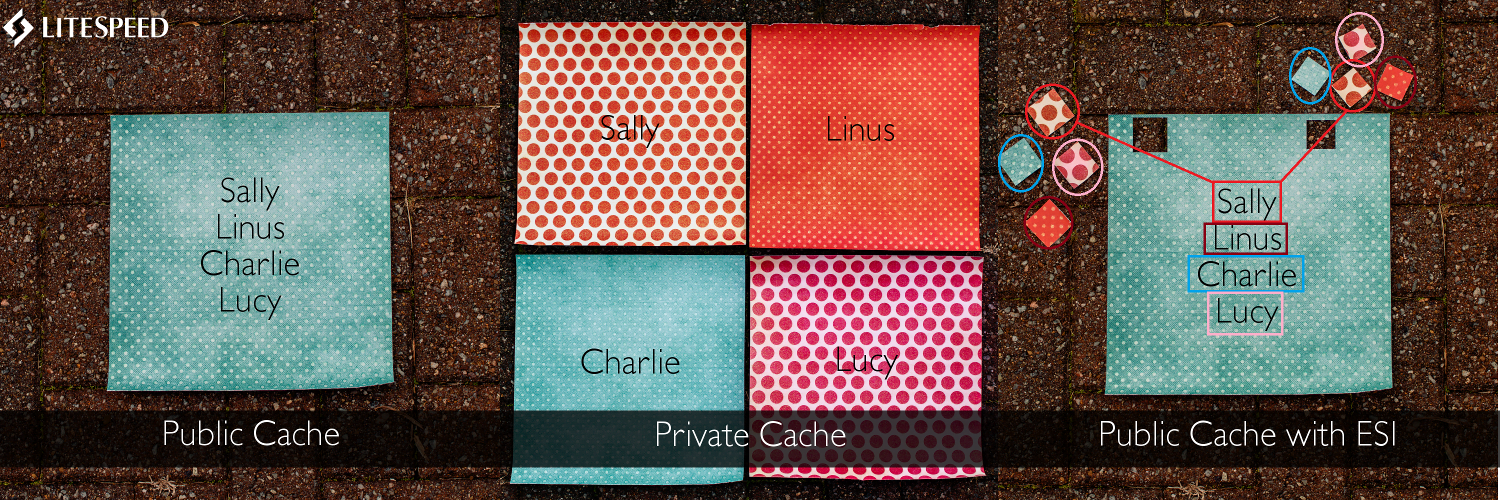
    LiteSpeed Cache can store pages in a public cache, in private caches, and via ESI. (ESI = Edge Side Includes, which can essentially result in a public/private hybrid.) Today we’re going to visualize these three types of caching, and help you to figure out which one is best for your particular application.

    Public Cache

    For the sake of simplicity, let’s say that you have a site with just one page on it, and that your site has four visitors.

    This piece of paper represents the page of your site as stored in public cache. All four visitors to your site’s page are shown that exact same piece of paper.

    PRO: Very little storage space is required.
    CON: There’s no opportunity for personalization – everyone gets the exact same page.

    Any page that has no personalized content whatsoever is a good candidate for public cache.

    A blog archive page, for instance, could work, if it has no Admin Bar at the top, and there are no areas on the page that say “Welcome, Sally” or anything of that kind. When Sally visits the page, she sees exactly the same content as Linus, Charlie, and Lucy do when they visit.

    Many simple sites do just fine with public cache. If you don’t allow your visitors to create logins, and you don’t create any special content based on data that you can learn from their IP address (for instance), the chances are very good that public cache will be adequate for your site.

    So what do you do if your visitors can create logins, or you do want to display the weather for their IP’s city?

    You’re going to need more paper for that.

    Private Cache

    When you have LSCache configured to save a page in private cache, it’s as if you have a whole pile of papers, one for each visitor to that page.

    PRO: You can personalize each paper to a great extent – different colors, different patterns, a completely different design if you like…
    CON: A lot more space is required to store all of those individual pages.

    A classic example of data that should be cached privately is a shopping cart. You certainly do not want every visitor to your shop to be served the exact same shopping cart page. The contents of Sally’s cart are bound to differ from the contents of Linus’s cart.

    The simplest way to deal with this is to store the shopping cart page in private cache. Or, in terms of our paper metaphor, set aside a new piece of paper for each visitor who accesses the page.

    This is fairly simple to set up, but you have to be careful if you have storage limitations. It’s not a big deal with our 4-person example, but if you have 10,000 visitors to one page, that’s 10,000 copies of that page in private cache. It adds up!

    So, what if you have a page with only a very small amount of private content on it? Is there an alternative to storing thousands of copies of the full page, when it’s only a tiny area of the page that is changing?

    Sure there is, and it’s called ESI.

    Public Cache with ESI Blocks

    When you use ESI (or, Edge Side Includes), you are storing the full page in public cache: a single piece of paper like we had earlier. The difference is that now you are punching holes where the private information needs to go, and caching those holes differently.

    When a visitor requests the page, they are served the one single page, but with their own set of special blocks plugging up the holes.

    PROs: Very little space is required, and there’s room for a small amount of personalization.
    CON: It consumes more resources to show a visitor a page that needs to be assembled from several pieces than it does to show them a page that is already intact.

    Let’s look at that shopping cart again. In many cases, the shopping cart block in the middle of the page is the only piece that differs from visitor to visitor. The header, the footer, a sidebar or two, and possibly some displayed shipping policies may be exactly the same for everyone. In this case, it could be better to keep serving the full page from public cache, but punch a hole in it for the private shopping cart contents.

    ESI is best used in situations where most of the page is public, but one or two sections of it are not. A personalized greeting, the aforementioned Admin Bar, a widget showing the visitor’s recent activity… those are all things that can be put inside an ESI block and cached differently than the rest of the page.

    The biggest pitfall with using ESI is in using it too much on a single page. If you have many areas of private content on a page, the effort that the server must go through in order to reassemble the pieces can negate the caching benefits. For pages with a lot of private content, it’s better just to cache the whole page privately.

    What Type of Cache is Right for You?

    As you can see, all three configurations have pros and cons associated with them. You’ll need to look at your own site, and what you are trying to accomplish with it.

    Can you get away with storing just a single page for everyone? Do you need to store a whole separate page for each of your visitors? Or can you use a single page with a few holes punched into it?

    Furthermore, does the same strategy apply to every page on your site, or can you cache some pages differently than others?

    Cache Type When to Use Examples Storage Space Resources
    Public Page has only content that may be displayed to every visitor *Blog post page
    *Blog archive page
    *Product Information page
    Baseline Baseline
    Private Page has extensive customization, relevant only to individual visitors *User account page
    *Shopping cart page
    *Available downloads page
    Significantly more than Baseline About the same as Baseline
    ESI Page is mostly public with a few small areas of private content On otherwise-public page:
    *Admin bar
    *Recent posts widget
    *Personal greeting
    Slightly more than Baseline Significantly more than Basline

    Keep in mind that the examples in the chart above are just that: examples. Even though “blog post page” is listed in the “Public” row, there could certainly be situations where blog post pages contain areas of private content. It depends on the theme and configuration of the site.

    If you want to know more, take a look at these in-depth articles:

    If you still can’t decide which way to go, feel free to post on our support forum. LiteSpeed Cache is capable of handling public cache, private cache, and ESI, and we’d be happy to help you figure it out!

    —
    Have some of your own ideas for future WordPress Wednesday topics? Leave us a comment!

    Don’t forget to meet us back here next week for the next installment. In the meantime, here are a few other things you can do:

  • WpW: Exploring LiteSpeed’s WHM Plugin CLI Script

    WpW: Exploring LiteSpeed’s WHM Plugin CLI Script

    Welcome to another (our 30th!) installment of WordPress Wednesday!

    Back in June we talked about the things you could do with our WHM plugin’s CLI script. At that time, the script was limited to two commands: scan and enable. Today, there are an additional six commands to talk about! Let’s jump right in, shall we?

    setversion

    setversion [--list] | [--latest] | [$VERSION]
    This command lists or sets the active LSCWP version. The active version of the plugin is not necessarily the most recent release. It’s the version that you have chosen to be the default version on all of your installations. You can set the active version to be the most recent release with the --latest parameter, or you can specify an earlier version of your choice.

    Examples
    Display the currently active version:

    ./lscmctl setversion

    Display currently-available versions:

    ./lscmctl setversion --list

    Switch to the latest available version:

    ./lscmctl setversion --latest

    Set the currently active version to 1.6.3:

    ./lscmctl setversion 1.6.3

    disable

    disable -m | $WP_PATH
    Disable the LSCWP plugin. The -m parameter, for all commands where it is an option, always refers to “mass.” It should be used whenever you want to run a command for all known (and unflagged) installations.

    Examples
    Disable LSCWP in all discovered WordPress installations:

    ./lscmctl disable -m

    Disable LSCWP only in user Larry’s WP installation:

    ./lscmctl disable /home/larry/public_html/wp

    upgrade

    upgrade -m | $WP_PATH
    Upgrade LSCWP to the current active version. Usage is similar to that of disable.

    Example
    Upgrade LSCWP only in user Liz’s installation:

    ./lscmctl upgrade /home/liz/public_html/wp

    flag

    flag $WP_PATH
    Flag a single WordPress installation. Flagged installations will be skipped during mass operations.

    unflag

    unflag $WP_PATH
    Unflag a single WordPress installation. Unflagging a previously-flagged installation will allow it to once again be included in subsequent mass operations.

    status

    status $WP_PATH
    This command answers the following questions about the given WordPress installation:

    • Is this installation unflagged? flagged? flagged due to some error?
    • Is LSCWP enabled or disabled in this installation? Is there a conflict with another cache plugin?

    Example
    Get LSCWP status for a single installation:

    ./lscmctl status /home/user/public_html/wp

    These commands make short work of managing your WordPress installations. You can simplify your life even further by hooking some of them into the cron. For instance, you can schedule a ./lscmctl setversion --latest command, followed by a ./lscmctl upgrade -m command to run every Sunday night, so that all of the installations you manage are running the latest version of LSCWP on Monday morning.

    If you feel like you’re missing some of the background for all of this, I suggest you read Autodiscovery, LSCache and the Command Line. We went into quite a bit of detail talking about the CLI script, what it does, and how to automate its functions with cron jobs.

    Do you use our CLI script? Do you have any tricks or useful workflow tips to share? Leave them in the comments!

    —
    Have some of your own ideas for future WordPress Wednesday topics? Leave us a comment!

    Don’t forget to meet us back here next week for the next installment. In the meantime, here are a few other things you can do:

  • WpW: Installing OpenLiteSpeed, WordPress, and LSCache

    WpW: Installing OpenLiteSpeed, WordPress, and LSCache

    WordPress Wednesday: Installing OpenLiteSpeed WordPress and LSCache

    Welcome to another installment of WordPress Wednesday!
    Today’s Topic: Installing OpenLiteSpeed WordPress and LSCache

    So, you want to self-host a WordPress site, and you want to accelerate it with LiteSpeed Cache. That’s great news! LiteSpeed Cache for WordPress can easily be installed through your WordPress Dashboard. However, it requires a LiteSpeed web server in order to function. This guide will walk you through the installation of three free and open source pieces of software: OpenLiteSpeed, WordPress, and LiteSpeed Cache for WordPress.

    When we’re done, you’ll have your own brand new, self-hosted WordPress site, powered by LiteSpeed.

    Please note the versions of everything we are talking about today:

    OpenLiteSpeed: 1.4.28
    WordPress: 4.9
    LiteSpeed Cache for WordPress: 1.6.4

    If you are using different versions of any of this software, your experiences with this tutorial may vary.

    Why OpenLiteSpeed?

    LiteSpeed Cache is a server-level cache. The WordPress plugin provides an easy way for site admins to communicate with the server, but it does not implement any of the caching functionality itself. For this reason, you are required to have a LiteSpeed web server. Without one, the plugin has nothing to talk to.

    You may choose between LiteSpeed Enterprise and OpenLiteSpeed. We’ll be focusing on the latter today, but if you’re wondering which server is right for you, you can compare editions (and take a little quiz, if you like) here.

    Please note: not all LSCache functions are supported by OpenLiteSpeed. If you will be using ESI, for instance, you will need LiteSpeed Enterprise.

    OpenLiteSpeed One-click installation

    ols1clk is a one-click installation script for OpenLiteSpeed. Using this script, you can quickly and easily install OpenLiteSpeed with it’s default settings. By adding different parameters, you can use it to install WordPress and the LiteSpeed Cache.

    Currently one click installation only supports Centos(5-7), Debian(7-9) and Ubuntu(12,14,16)

    ols1clk must be run with superuser access, You can either switch to superuser (root) with the su command or you may run it as root using the sudo command. How you do this will depend upon which distribution you use. Some distributions enable the root user (such as CentOS), while others do not (such as Ubuntu and Debian).

    There are two different one-click methods: Direct Download and Command Line Interface.

    Direct Download

    1. Download ols1clk from GitHub.
    2. Run the ols1clk script on your server command line with ./ols1clk.sh or bash ols1clk.sh;

    CLI Installation

    Run the following from the command line:

    wget --no-check-certificate https://raw.githubusercontent.com/litespeedtech/ols1clk/master/ols1clk.sh; bash ols1clk.sh;
    

    OR, run the following from the command line:

    bash <( curl -k https://raw.githubusercontent.com/litespeedtech/ols1clk/master/ols1clk.sh ) [options] [options] …
    

    The above methods will install OpenLiteSpeed and the lsphp module. For additional options, examples, and a FAQ, see the OpenLiteSpeed wiki.

    WordPress Installation

    Installing OpenLiteSpeed, WordPress, and LSCache

    To install WordPress along with a MySQL database, run the following from the command line:

     ./ols1clk.sh -w.
    

    Answer any prompts within the script and you’re done!

    LSCache for WordPress Installation

    1. Download the LSCWP plugin from our WordPress Plugin Directory page.
    2. Log in to your WordPress Dashboard, navigate to Plugins > Add New and click on Upload Plugin.
    3. Select the LSCWP zip file and click Install Now. Activate the plugin.
    4. Navigate to LiteSpeed Cache > Settings > General and set Enable LiteSpeed Cache to Enable.

    OR

    1. Search for LiteSpeed Cache in the search box. Our plugin should be the first search result to come up.
    2. Press Install Now. Activate the plugin.
    3. Navigate to LiteSpeed Cache > Settings > General and set Enable LiteSpeed Cache to Enable.

    Testing

    Once you have installed LiteSpeed Cache for WordPress, you’ll want to run a few tests to be sure that it’s working as expected.

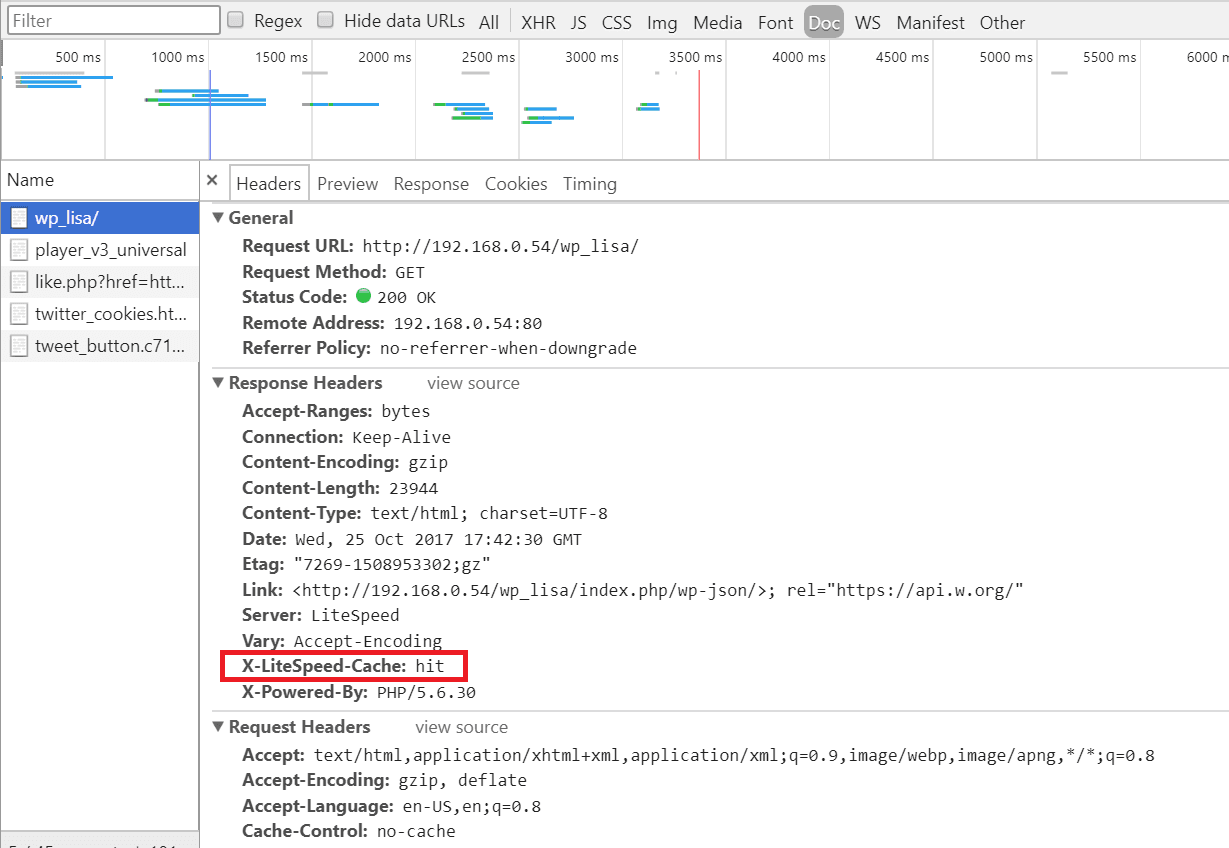
    You can verify a page is being served from LSCWP through the following steps using your browser’s developer tools:

    Step 1: Open the developer tools on a non-logged-in browser and navigate to your site. Open the Network tab.

    Step 2: Refresh the page.

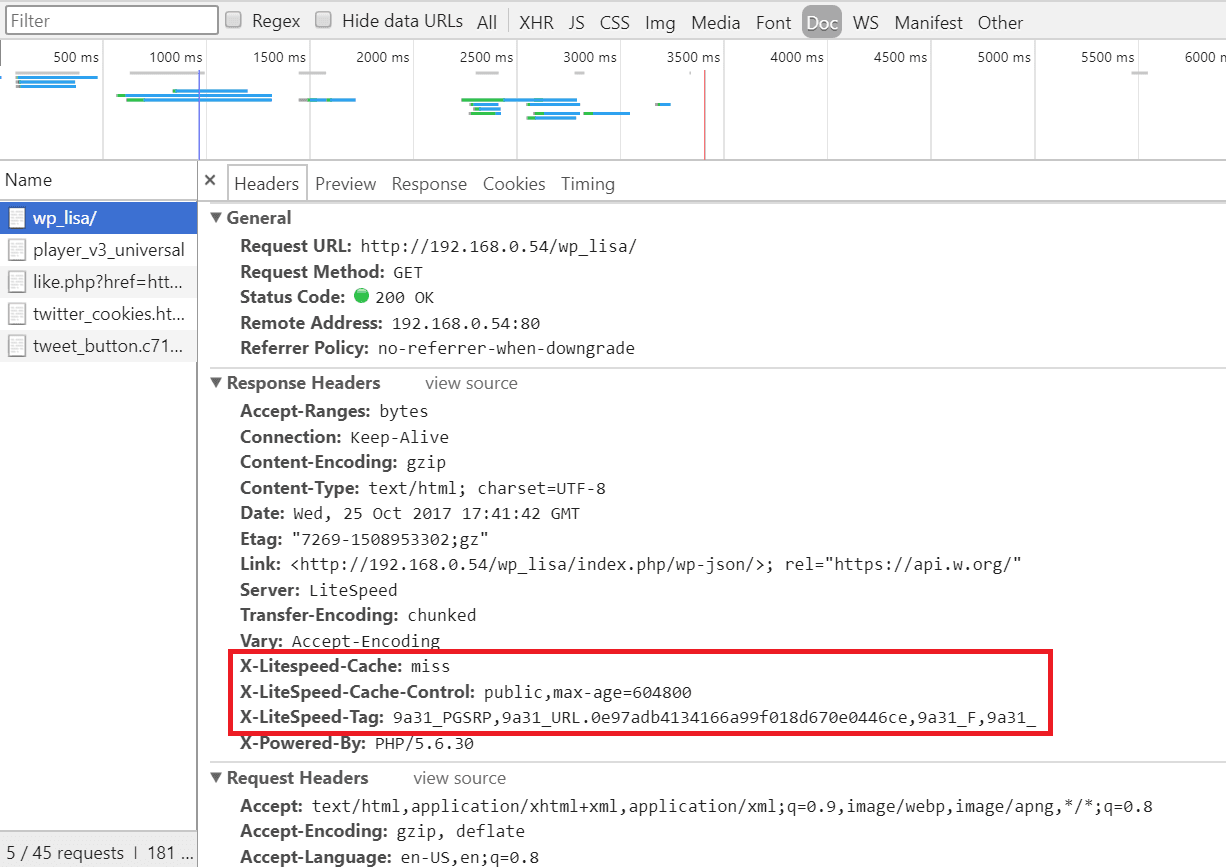
    Step 3: Click the first resource (this should be an HTML file and the resource’s headers should appear as in the image below). For example, if your page is http://example.com/wordpress/, your first resource should either be something like example.com/wordpress/ or wordpress/.

    Step 4: In a different, logged-in browser, in your WordPress Dashboard, navigate to LiteSpeed Cache > Manage and click the Purge All button.

    Installing OpenLiteSpeed, WordPress, and LSCache

    Step 5: Reload the page in the first (non-logged-in) browser and select the same resource again. If you see headings similar to

    X-LiteSpeed-Cache: miss
    X-LiteSpeed-Cache-Control:public,max-age=1800
    X-LiteSpeed-Tag:B1_F,B1_
    

    (for example), this means the page had not yet been cached, but that LiteSpeed has now stored it for future use.

    Installing OpenLiteSpeed, WordPress, and LSCache

    Step 6: Reload the page a second time and you should see X-LiteSpeed-Cache: hit in the response header. This means the page is being served by the cache and LSCWP is configured correctly.

    Note: If your first refresh after purging returns X-LiteSpeed-Cache: hit in the response header, this may be because someone else visited the page after you purged but before you refreshed it yourself. Try again from step 4.

    Finding Errors

    To check the debug log, enter the following at the command line:

    tail -f wp-content/debug.log
    

    How to report problems you can’t fix

    If you run across a problem you can’t solve on your own, we are here to assist! If you take the time to gather a few of the following things before contacting us, it will help us to help you better:

    • Screenshots: If there are any error messages, grab a screenshot so we can see where it happens.
    • Environment Report: Navigate to LiteSpeed Cache > Environment Report > and press the Send to LiteSpeed button. You’ll be given a report number. Save the number.
    • Debug Log: Capture any relevant lines of the debug log as described above.

    Once you have your screenshots, environment report number, and/or debug log, you can share them with us through the WordPress Support Forum for our plugin, or you can submit a ticket to our ticket system.

    Congratulations!

    You are now the proud owner of a self-hosted, LiteSpeed-powered, WordPress site. Enjoy it!

    —
    Have some of your own ideas for future WordPress Wednesday topics? Leave us a comment!

    Don’t forget to meet us back here next week for the next installment. In the meantime, here are a few other things you can do: