WpW: Optimizing Images with LSCache

Written by

in

Welcome to another installment of WordPress Wednesday!

Disclaimer: The information contained in this post is accurate for LSCWP v1.6.2.1 [release log]. If you are using a newer version of the plugin, some details may have changed. Please refer to our wiki for the latest!

Have you ever wished that your site’s images didn’t take so long to transfer? Well, there may be something you can do about it. Many images can be optimized to take up less space, which in turn takes less time to transfer. Two and a half weeks ago, we introduced an Image Optimization feature, and in that time, we’ve already optimized around 640,000 images. That’s a lot of saved bytes!

Intrigued? Today we’re going to talk a little bit about Image Optimization: what it is, and how to use it.

Image Optimization

One effective way to deal with the cost of transmitting images over the Internet is to reduce the size of those images.

Smaller images = faster transmissions.

The LiteSpeed Cache plugin provides access to image optimization services on a central web server. Here’s how it works:

  1. You press the Send Optimization Request button on the Image Optimization page.
  2. The central server denies or accepts the request after callback verification.
  3. The central server distributes the task to a child server.
  4. The child server fetches your images.
  5. The child server processes your images.
  6. The child server notifies WordPress that the images are ready.
  7. A cron job runs and pulls your images back into WordPress.

You may be wondering about step 5. What is actually happening when the child server processes your images?

Well, there are libraries for this sort of thing, so we don’t need to reinvent the wheel. We use Imagick functions to adjust your images to 85%-90% quality of the original. (This optimization is lossy.)

During the process, three versions of each image file are generated:

  • yourimage.bk.jpg: the original version of your image.
  • yourimage.jpg: the optimized version of your image, which is what will be shown on your site from now on.
  • yourimage.jpg.webp: is a version of your image saved in a format that is about 25%-34% smaller than JPG (learn more).

If yourimage.jpg was unable to be optimized for any reason (maybe it was already optimal) there will be no new version generated, and therefore no yourimage.bk.jpg. There will be a WebP format saved, though.

Using multiple plugins

Before we go any further, it’s important to point out that you should not use more than one Image Optimization plugin at the same time! Doing so can cause quirky behavior, and it often leads to errors in processing: errors that can only be cleared by creating a ticket and having us deal with it on our end.

It’s extra hassle for everyone involved, so please just don’t do it 🙂

Generally speaking, it’s never a good idea to have two plugins performing the same optimization functions anyway. To be clear, you can still use multiple optimization plugins, as long as you don’t duplicate any of the individual functions. I go into more detail on that here, if you want to know more.

How do I use Image Optimization on my WordPress Site?

Settings

From the WordPress Dashboard, navigate to LiteSpeed Cache > Settings > Media. Scroll down, and you will see two settings related to optimization.
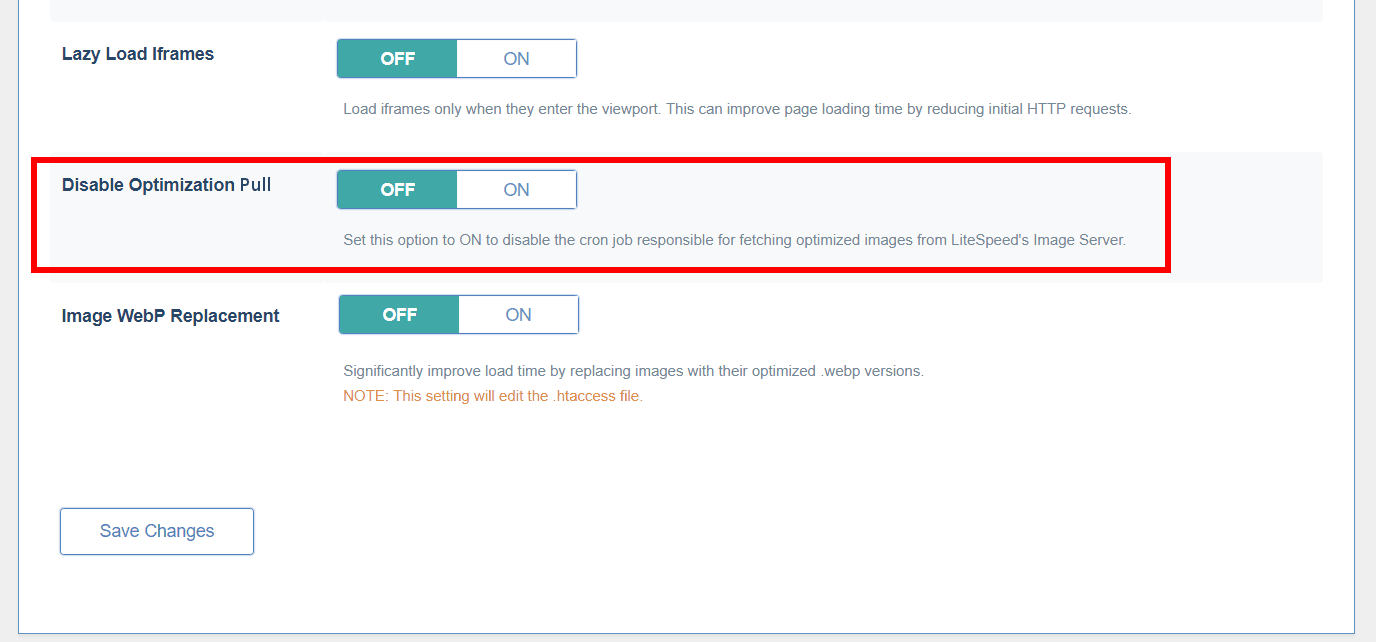
Disable Optimization Pull, when ‘ON’, will disable the cron job that is used to pull optimized images from the central server into your WordPress media library. If you turn this on, you will be unable to retrieve your optimized images.

Under normal circumstances, you will not need to touch this setting.
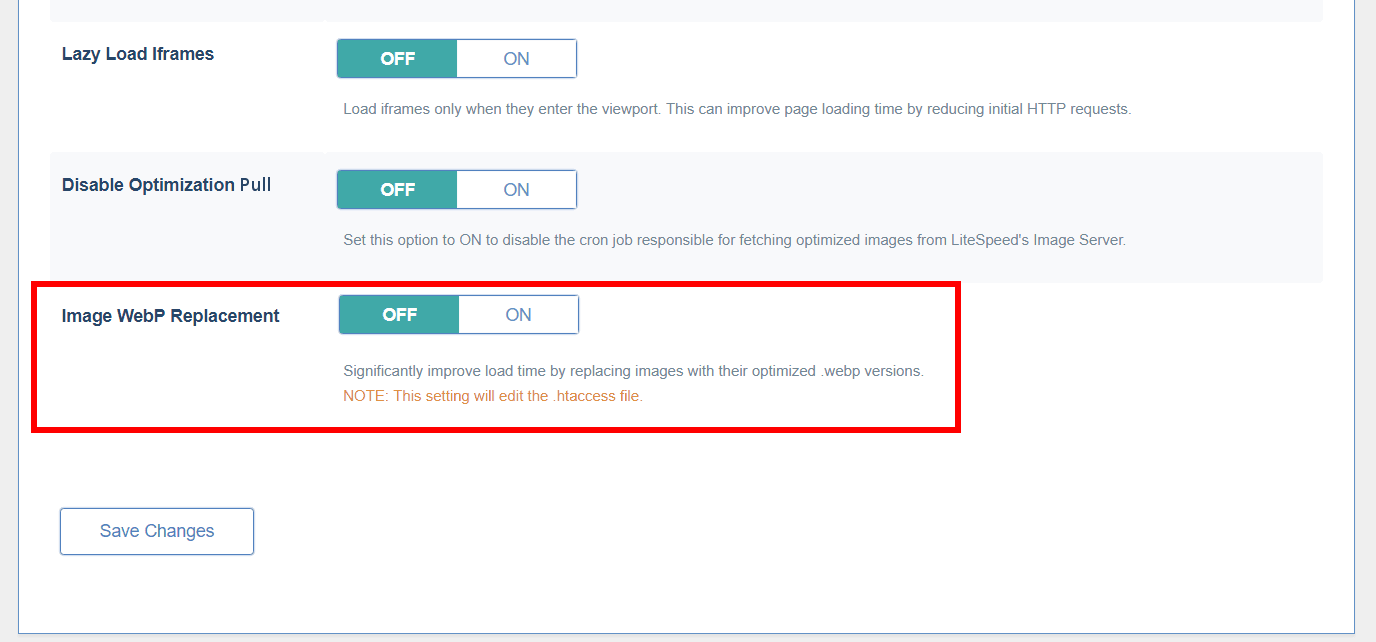
Remember the .webp file format we mentioned earlier? If you would like to use WebP images in place of all of your JPGs and PNGs, turn the Image WebP Replacement option on.

Not all browsers support WebP, so there will be two versions of your pages in cache: one with the WebP images and one with the other image formats, and the appropriate version will be served to your visitors. And since your other optimized image formats are still there, you can turn WebP off at any time, if you change your mind.

Optimize

Navigate to LiteSpeed Cache > Image Optimization.
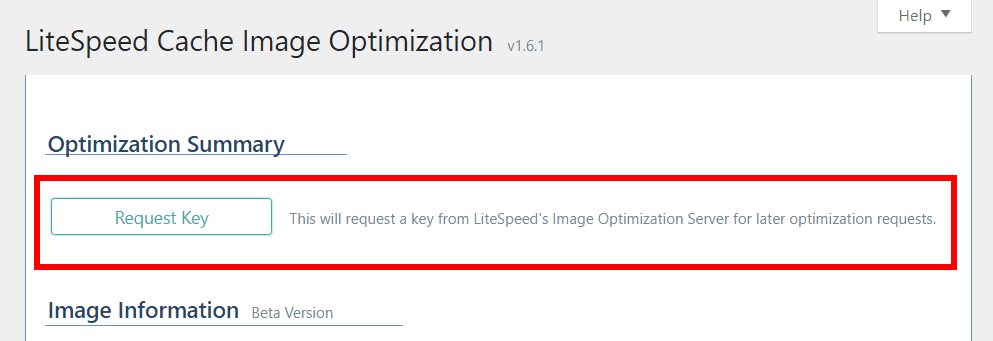
The first time you visit this page, you will see a button that reads Request Key. Press the button to obtain a key from the central server that it will use to process all of your future image optimization requests. Once the key is obtained, your screen should look like the one shown below, and your API key will be listed (although most of it will be blocked out for security purposes).

Below the key is Total Reduction. It shows you how much space the server has saved with image optimization to date. This number isn’t updated automatically, so to get the most recent status you will need to press the Update Reduction Status button.
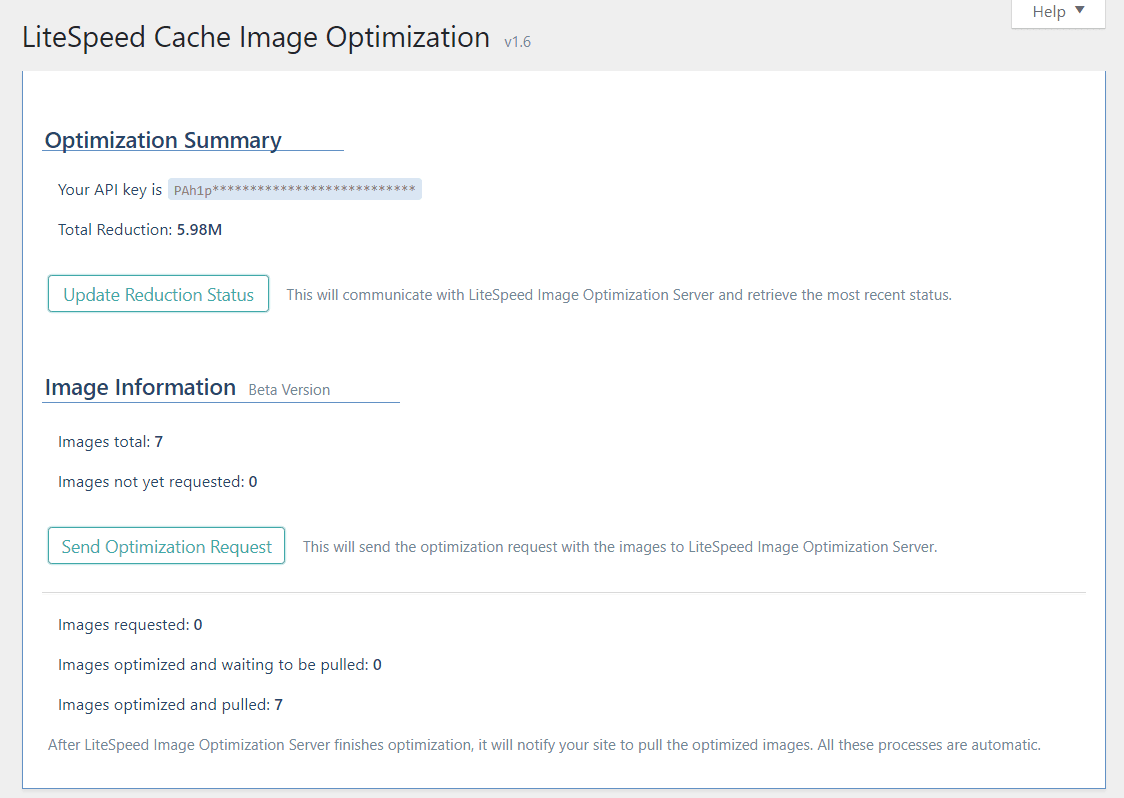
Below Optimization Summary, you’ll see Image Information.

The top section of Image Information is where you submit your request.

  • Images Total displays the number of images present on your site.
  • Images Not Yet Requested shows the number of images yet to be optimized.
  • Press Send Optimization Request and all of the unoptimized will be submitted to the central server for optimization.

The bottom area of this section shows you what’s happening with your current request.

  • Images requested: how many images are waiting their turn to be optimized
  • Images optimized and waiting to be pulled: how many are complete and waiting to be pulled back into WordPress
  • Images optimized and pulled: how many have finished the process completely

All of this happens behind the scenes after you’ve pressed the Send Optimization Request button. You can refresh the page to update these numbers, and you can leave the page while optimization is running, if you’ve got other things to do.

Restore
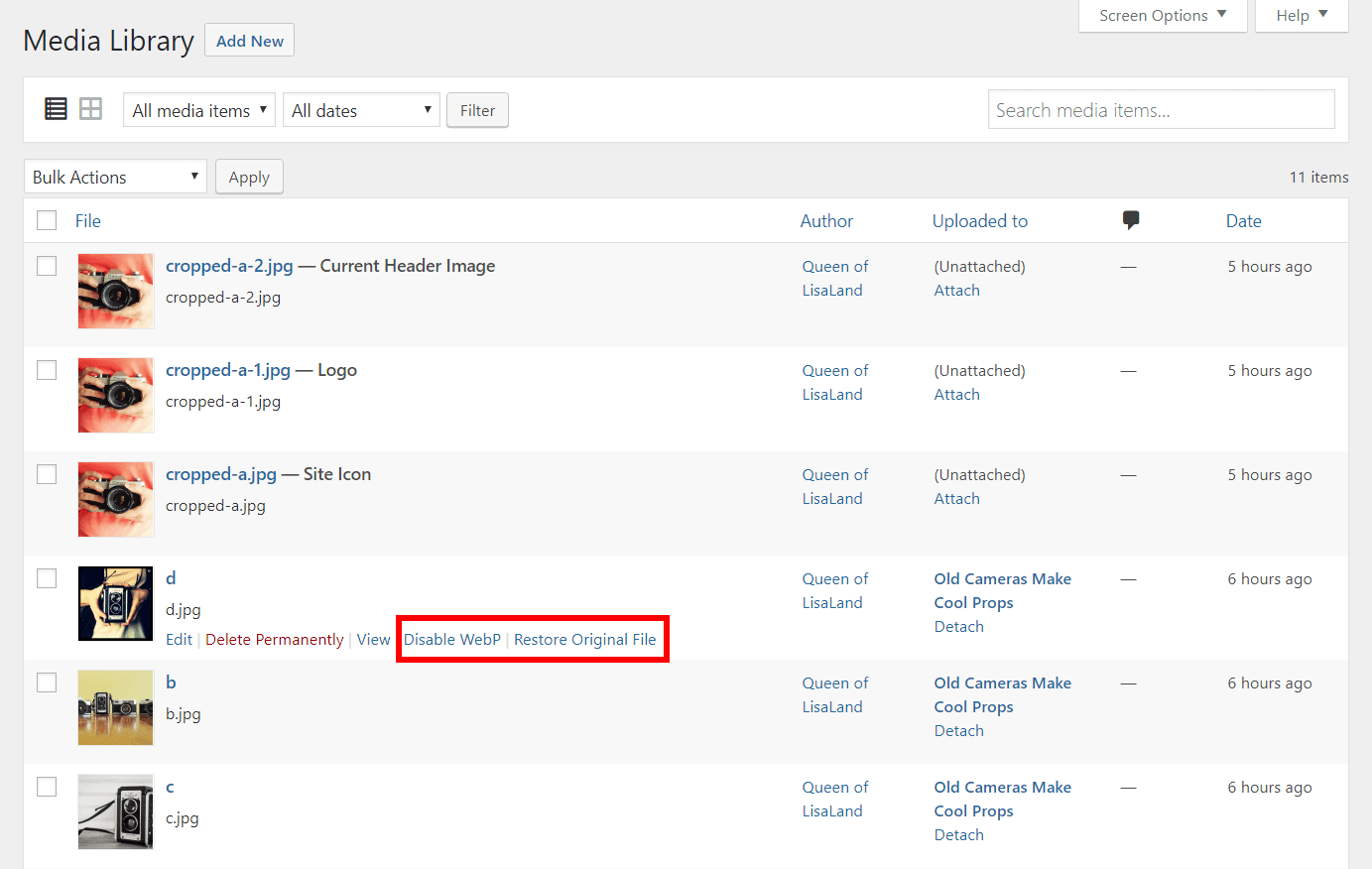
If you are unhappy with the way an image was optimized, you have the ability to restore it back to the original version. From the WordPress Dashboard, navigate to Media > Library, choose the list view, and hover over the image you’d like to revert.

Click Restore Original File and everything goes back to normal.

If you have enabled WebP images globally, you can disable it for individual images using the Disable WebP link.

Comparing Pages With and Without Optimization

I created a few image-heavy blog posts, using differently-sized images for each.

With no optimization whatsoever, my post with the largest images in it had to transfer 14,070,859 bytes of imagery. After optimization, it was 9,467,154 bytes. Nice! And when I enabled WebPs, it was even better at 7,249,465 bytes! Image optimization cut the image size nearly in half.

Your mileage will vary based on how optimized your images already are when they’re uploaded. If you’re a photographer, and you take pains to export your images from Lightroom or Photoshop already nicely-optimized, you will see much less of an improvement (if any) than someone who doesn’t pay too much attention to their imagery before upload.

I saw this in action on a post where the imagery transfer took 353,370 bytes before and after optimization. My images were clearly already optimized. However, when I enabled WebP, it went down to 250,520 bytes. So at the very least, you should be able to see some improvement by enabling WebP.

Image Optimization has been a popular topic on our WordPress forum lately, and there have been a lot of questions about what, exactly, it is doing to your photos. I hope that this has lifted some of the mystery. And if you still have questions, please do ask!

—
Have some of your own ideas for future WordPress Wednesday topics? Leave us a comment!

Don’t forget to meet us back here next week for the next installment. In the meantime, here are a few other things you can do:

Comments

64 responses to “WpW: Optimizing Images with LSCache”

  1. Hakan Avatar
    Hakan

    Hi,

    I push Send Optimization Request but error: Failed to push to LiteSpeed server: cURL error 28: Operation timed out after 5000 milliseconds with 0 bytes received

    Do you have a solution for this?

    1. Lisa Clarke Avatar
      Lisa Clarke

      Hi, Hakan.

      That is something we can fix on our end, but we need a little bit more info from you. Would you please create a ticket (or send email to bug@litespeedtech.com) so we can follow up?

      Thanks!

      1. Hakan Avatar

        Thank you for the quick reply, I’ll make a ticket.

    2. Hai Avatar
      Hai

      Just FYI, this is fixed in latest release.

  2. Jon Avatar

    So what if you’ve already optimized your images through another plugin? When you turn this option on will it try to re-optimize all those same images again?

    I’m interested in the WebP functionality but afraid all my already optimized images will end up wonky if they are optimized again…

    Thanks!

    1. Jonathan Avatar
      Jonathan

      Hi

      I have the same question and also I want to know if new images will be processed automatically or if its a manually completed each time.

      Thanks

    2. Lisa Clarke Avatar
      Lisa Clarke

      Hi, Jon(s) 🙂
      Yes, it will try to optimize the images again. But there’s some good news:
      There’s a new option in LiteSpeed Cache > Settings > Media that will tell the central server to only generate WebP images and leave your originals alone. Just set Only Request WebP to ON before requesting image optimization and you should be good to go.
      Hope this helps!

      1. Jon Avatar

        Great, I will give that a try. So I set only request WebP to On, then turn on the optimization and then when it is done I’m assuming I need to turn the image webP replacement to On, and that’s it, correct?

        Thanks!

        1. Lisa Clarke Avatar
          Lisa Clarke

          Yes, exactly!

          1. Jon Avatar

            Hmm, so it did 58 images of 2,539 and then threw an error (which I did not write down, sorry). It is now saying “Failed to push to LiteSpeed server: Next available request time: 22 hours, 59 minutes and 18 seconds left”
            Is this normal or should I contact support?

          2. Lisa Clarke Avatar
            Lisa Clarke

            Jon, since almost the whole 23 hours have passed at this point, the best idea would be to try again when the time is up, and this time write down the error message. There’s not much we can suggest without that. Thanks!

          3. Jon Avatar

            OK, I will give that a try and report back. Also, I turned the WebP option on and one of the images that made it through is the main photo in this post: https://www.reversewinesnob.com/what-else-is-wine-aged-in-ask-the-expert. The original compressed size is 129kb (the original size of the photo is 387kb) . When I run webpagetest using Chrome and look at the size of the webP photo it is 198kb, which is actually larger!

            Since I am not using Litespeed to compress the images (they have already been compressed by tinypng), is Litespeed generating the webP image off the original version and not the compressed?

            I’ve turned WebP back off for now given these findings. When I did the size of the above image went back to 129kb when I run it through webpagetest, and the load time dropped by 1000ms.

            (FYI, no errors this time in requesting images, but I only did one batch of 58 and then stopped when I discovered the above.)

          4. Lisa Clarke Avatar
            Lisa Clarke

            It certainly sounds like the WebP is being generated from the original image, but I honestly don’t see how that’s possible. From what I understand, tinypng replaces the original image with its optimized version. So, where would LiteSpeed even get the original image from?

            Unless I’m misunderstanding something, it doesn’t seem possible to me. Am I missing something about tinypng?

          5. Jon Avatar

            Hmm, yes that is indeed how tinypng works. So the only other option I can think of is that the webP generation is actually making the compressed image larger for some reason…

          6. Lisa Clarke Avatar
            Lisa Clarke

            That is probably what is happening, although it is odd.
            It’s not unheard of, though.

          7. Jon Avatar

            OK, thanks. So how do I remove the webP images that made it through (117)? I turned everything off and clicked the undo optimization button but I’m still seeing that 117 images were optimized and the litespeed optimization column with the green cameras is still showing in my media library.

          8. Lisa Clarke Avatar
            Lisa Clarke

            You did everything right. The WebPs aren’t showing up on your website, correct? The underlying files aren’t deleted, even when you disable the WebP functionality, so that is why you still see the icons. If they bother you, the only option is to delete them from the file system, if you have access.

          9. Jon Avatar

            No, not showing on the website, was just trying to remove the extra column and green camera.

          10. Lisa Clarke Avatar
            Lisa Clarke

            Understood. Afraid there’s no way to do that right now without directly deleting them. Sorry!

          11. Lisa Clarke Avatar
            Lisa Clarke

            Actually, that’s not entirely accurate. You can get rid of them by hiding the whole column. Use the Screen Options drop down at the top of the page and uncheck the LiteSpeed column. It’s a bit of a cheat, but if you don’t mind it being out-of-sight, out-of-mind, then it’s the best solution 🙂

          12. Jon Avatar

            Works for me, thanks.

  3. Biser Borisov Avatar

    I have installed LSCache, configured all options and also the image optimization plugin. It made the optimizations (I see the optimized images in the library), but when I load the site I am never served webp or optimized images. What could be the problem?

    My setup is WordPress 5.0, PHP7.2, LiteSpeed server with LS Cache plugin, no other optimization plugins activated at the moment.

    BR,
    Biser

    1. Lisa Clarke Avatar
      Lisa Clarke

      Hi, Biser
      Did you purge the cache after you enabled WebP images?
      If so, and you’re still having an issue, it might be a good idea to create a ticket (or send email to bug@litespeedtech.com) so we can help troubleshoot in more detail than is possible in blog comments.

      If you want to give us a head start, when you create the ticket, let us see your Environment Report: Navigate to LiteSpeed Cache > Report, press the Send to LiteSpeed button, make note of the “Report Number”, and include it in the ticket.

      Thanks!
      Lisa

      1. Biser Borisov Avatar

        Report number ZWHTXXEH
        I’ll try to file a ticket.

        Biser

  4. Fran Avatar
    Fran

    Hello

    Do you have to consider putting this functionality WEBP images in the module for Prestashop?
    It would be very useful

    Thank you

    1. Lisa Clarke Avatar
      Lisa Clarke

      Unfortunately, no. At the moment there are no plans to implement image optimization or WebP functionality for any plugins other than WordPress. Sorry!

  5. Jeff Avatar

    I’m using this feature but when I do speed tests with google and other such tools it says I need to optimize my images. I can confirm they are optimized, so I’m not sure why I’m getting this.

  6. Đạo Nguyễn Avatar

    After I click Update Status, I get the error. Please help me fix it, thanks.
    http://prntscr.com/jr269x

    1. Lisa Clarke Avatar
      Lisa Clarke

      Hi, Đạo. Please create a ticket through our client area or by sending email to support@litespeedtech.com. Thanks!

  7. Shout Me Crunch Avatar

    I am using LiteSpeed server but my server does not offer Litespeed cache. In this scenario what will you suggest to optimise the light speed environment with only HD access code? I am using WordPress so I need some easy access code only for lightspeed environment for optimising the WordPress environment.

    1. Lisa Clarke Avatar
      Lisa Clarke

      You can still use the LiteSpeed Cache plugin, even without LSCache enabled. The page caching functions will be unavailable to you, unfortunately, but you will be able to use everything else: all of the optimization and tuning functions, image optimization, etc. You can learn more about that here.

      If you are not comfortable doing it yourself, we offer premium support where we will optimize your site for you. Here are the details about that.

    2. Lisa Clarke Avatar
      Lisa Clarke

      We also want to suggest that you ask your hosting provider to consider adding LSCache. Not only will that be nice for their customers, but it will make a huge difference in terms of server resources 🙂

  8. Amina Avatar
    Amina

    Hi! Can i optimize image from other WordPress folder (not media library)? For
    BuddyPress, bbPress, Youzer WordPress plugins and other?

    1. Lisa Clarke Avatar
      Lisa Clarke

      Hi, Amina. No, I’m afraid the image optimization feature only supports images within the Media Library at the moment.

  9. Simon Avatar

    This is theee beeest caching and optimization plugin on the market!
    Now however for image optimization I’m a bit baffled.
    We have jpegs saved in high quality, not optimized at all.
    We have set options in Lite speed cache:
    Optimize Original Images: off
    Optimize WebP Versions: on
    Optimize Losslessly: off
    Image WebP Replacement: on

    It creates webp images ALOT smaller in size than the original jpegs.

    But it doesn’t seem to care about optimizing the thumbnail jpegs.
    Do we need to set Optimize Original Images: yes for it to optimized thumbnail jpegs?

    As I read “Original Images”, I assumed that was only the ONE original file for each image that the thumbnails are made from.

    But is it actually so that all thumbnails, (when created by wordpress), are considered “originals”?

    Saving backups from all of them would be a waste of space.
    If lite speed cache genereates optimized images from thumbnails, that is bad practice too as it can’t optimize and create as good quality/size as from a larger original.
    Shouldn’t it generate all optimized thumbnail sizes from the ONE original full size?

    Best regards,
    Simon

    1. Lisa Clarke Avatar
      Lisa Clarke

      Hi, Simon. Yes, when we say “original images” we mean all of the JPG images in various sizes that are created when you upload an image to the media library. So, yes, if you want those optimized, you need to set Optimize Original Images to ON.

      In terms of the backups taking up space, once you are satisfied with the optimization, you can delete the originals and just save the optimized versions. You would use the Remove Original Image Backups button on the Image Optimization screen for that.

      One thing to note: if you do change the settings to include original images, you will have to destroy all image optimization data and start again so that the system knows to process originals this time.

      Hope this helps!

  10. Lucas Avatar
    Lucas

    Is there any option to create webp manually and then use some .htaccess to replace .jpg with .webp in joomla ?

    1. Lisa Clarke Avatar
      Lisa Clarke

      Hi, Lucas. Yes! You can get the details on our wiki.

      1. LUCAS Avatar
        LUCAS

        Unfortunately the link doesn’t work 🙁

        1. Lisa Clarke Avatar
          Lisa Clarke

          Oh, I’m sorry. I mistyped the link. Please try it again.

          1. LUCAS Avatar
            LUCAS

            I’ve just added the lines from the article to my .htaccess and created .jpg.webp files that put to the same directory, cleaned up cache, but nothing changed

          2. Lisa Clarke Avatar
            Lisa Clarke

            Would you mind creating a ticket through our client area or by sending email to support@litespeedtech.com? Or drop by our Slack? We will have to dig into it a little deeper than blog comments will allow. Thanks!

  11. Bill Avatar

    I’m about 80% through optimisation. It was done with WebP format off. I’ve decided to give that format a try and enabled it along with the replacement option.
    How will all the jpegs I’ve optimised already be handled? Will I need to reset and start from scratch or …?
    Thanks!

    1. Michael Alegre Avatar
      Michael Alegre

      Hello Bill,

      The unfortunate answer to this question for the time being is yes, you will have to reset and start from scratch.
      I have also talked to our plugin developer who plans to improve the process in the future (around v3.3).

  12. Patrik Avatar

    Hi, I tried to optimize images by clicking the “initialize optimization”…but nothing happens. What should I do to optimize images if this button does not work?

    1. Lisa Clarke Avatar
      Lisa Clarke

      Hi, Patrik. Hmmm. That should work. We’ll have to help you troubleshoot. Please create a ticket through our client area or by sending email to support@litespeedtech.com. As part of your ticket, please include your Report Number, found in WP Admin > LiteSpeed Cache > Report so we can take a look at your settings and environment. Thanks!

  13. Eduard Avatar

    Hi,
    I have created a Directory. If customers upload their images, do litespeed plugin optimize those pictures automatically? Or do I have to start a request every day?

    Thanks!

    1. Lisa Clarke Avatar
      Lisa Clarke

      Hi, Eduard. Image Optimization currently only works on the WP Media Library, so unless your customers are actually uploading images directly to the library, they will not be optimized at all.

      1. Eduard Avatar

        Hi Lisa,

        Thanks for your answer.
        Well, the images will be added to the library aswell. That means that i see the uploaded Images in my library.
        But are the images optimized automaticly or do i have to start a opti manually?

        1. Lisa Clarke Avatar
          Lisa Clarke

          If the images are added to the Media Library, and your cron is working, and you are at image optimization level 3 or above, then yes, they should get automatically optimized. If you’re not yet at level 3, you just need to run the optimization manually a few times until you get there. Let us know if you encounter any problems!

  14. Gurdeep Singh Avatar

    Helo!
    I just want to confirm that can I use LiteSpeed Cache with all caching and image optimization functions on along with Smush in my wordpress site because i already have Smush Plugin installed in my wordpress. Or I will have to remove Smush in order to use LiteSpeed Cache properly.

    1. Lisa Clarke Avatar
      Lisa Clarke

      You can use both Smush and LSCache together, as long as you don’t have them duplicating any functions. For example, if you are optimizing images with Smush, don’t use LiteSpeed’s image optimization. And if you are using LiteSpeed’s lazy load, turn lazy load off in Smush.

  15. Chris Avatar

    Does optimization remove EXIF & IPTC metadata? If so, is there any way to override this?

    1. Lisa Clarke Avatar
      Lisa Clarke

      By default, yes, EXIF data is removed, but you can override this behavior. Navigate to LiteSpeed Cache > Settings > Media and set Preserve EXIF/XMP data to ON. If you’ve already optimized any images, you’ll need to re-optimize them if you want this setting to apply to them.

  16. Eoin Avatar

    This is a really cool feature. Aside from generating the WebP files, does it automatically replace the JPG with WebP or do we have to do something extra once they are generated?

    1. Lisa Clarke Avatar
      Lisa Clarke

      You need to enable it in the settings, and then it is automatic. In LiteSpeed Cache > Image Optimization > Image Optimization Settings, set both Create WebP Versions and Image WebP Replacement to `ON`, and that should do it!

  17. raha ab Avatar
    raha ab

    Hi
    Like what you said before :
    You need to enable it in the settings, and then it is automatic. In LiteSpeed Cache > Image Optimization > Image Optimization Settings, set both Create WebP Versions and Image WebP Replacement to `ON`, and that should do it!

    That’s not work in my website !
    All settings are correct
    Now what to have to do ?

    Is in needed to crate webp with photoshop plugin and uploaded in wordpress and let LSCASH replace with version of other browsers or it can convert to webp ?

    1. Lisa Clarke Avatar
      Lisa Clarke

      I’m sorry to hear it’s not working for you! We have some documentation to help you troubleshoot. Check that out here.

      If you still have a problem after that, please open a ticket by emailing support@litespeedtech.com. The support team will be happy to help you.

  18. Serkan Avatar
    Serkan

    Hi,

    We set up Litespeed Cache on our Litespeed server.

    I wonder is it better to use;
    Smush Pro or Litespeed image optimization?
    Or Autoptimize or Litespeed for code minification?

    1. Lisa Clarke Avatar
      Lisa Clarke

      Well, naturally, we think using our built-in services is a better idea than installing multiple extra plugins, but I don’t really know enough about Smush Pro or Autoptomize to give you a specific feature-by-feature comparison. You might want to visit our Slack workspace and ask some other LiteSpeed Cache users about their experiences.

  19. Nico Avatar
    Nico

    I’m aware that I shouldn’t use two image optimisation plugins but I have inherited a site which has a lot of media which are much bigger than they will ever be on screen and I need to reduce their size.

    Am I correct that Litespeed Image Optimisation cannot resize the actually pixels? IS this every likely to be added?

    If not I will have to stick with another plugin which can for the time being.

    1. Lisa Clarke Avatar
      Lisa Clarke

      Correct. Our Image Optimization reduces file size, but leaves pixel size the same.

      I’m unaware of what plugin will reduce pixel size, but if you know of one, you would only have to run it once to get all of your images to be a more reasonable size, and then you could get rid of it. For future posts, you would just upload images with fewer pixels, or take advantage of the smaller images automatically generated by WP instead of using the uploaded full-size versions.

  20. Rina Avatar
    Rina

    Hi, I just installed the Litespeed plugin and followed a tutorial for the settings, I activated the image optimization only trouble is I didn’t check the “remove original images” on because I wanted to see first how the optimized images look like, but now I see that some images were optimized but I don’t know in which pages they are… I don’t even know if the optimized version is used on my website or still the original… and my host notified me that I almost filled the server with the duplicates of the images… could anyone help? Thank you so much!!

    1. Lisa Clarke Avatar
      Lisa Clarke

      Hi, Rina. It’s not too late to remove those original images, if you want to. Navigate to LiteSpeed Cache > Image Optimization and scroll down to the bottom of the Image Optimization Summary Tab and click the link for `Remove Original Image Backups`. That will delete all of the original images and leave only the optimized versions. It will only impact the images that have already been optimized. Any images that have not been optimized will be left alone.

      In order to see which images have been optimized, you can take a look in your Media Library. If an image has been optimized, there will be information in the LiteSpeed Optimization column.

      Optimized images, if they exist, will always be used on your website instead of the originals.

      Here’s our documentation that might be helpful: https://docs.litespeedtech.com/lscache/lscwp/imageopt/

Leave a Reply

Your email address will not be published. Required fields are marked *