Tag: image optimization

  • LiteSpeed Cache v6.0 for WordPress

    LiteSpeed Cache v6.0 for WordPress

    Introduction

    LiteSpeed Cache v6.0 for WordPress is here, and we’ve got a bunch of behind-the-scenes improvements, a few bug fixes, and some nifty new features. You can see the full release log here, but today we’re going to focus on these great new settings and features:

    • The Preload Featured Image setting in Page Optimization > Media
    • The Vary Cookies setting in Cache > Advanced
    • The new Crawler commands for the WordPress Command Line Interface (WP-CLI)
    • Parallel Pull, an improved method of pulling images for Image Optimization

    Preload Featured Image
    When you instruct a browser to “preload” a resource, that resource is added to the front of the processing queue, and is loaded even before the browser begins to render the page. By preloading a resource, you can potentially eliminate it as a render-blocking element.

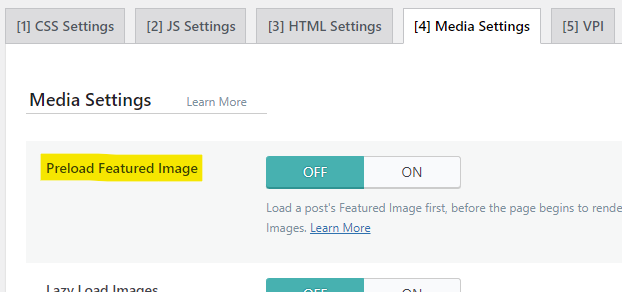
    You can enable the new Preload Featured Image setting to allow your posts’ Featured Images to be preloaded in browsers that support it. This user-experience enhancement ensures that browsers display your most important image right away, with no waiting.

    We’ve disabled this setting by default. To enable it from the WordPress Dashboard, navigate to LiteSpeed Cache > Page Optimization > Media Settings, and set Preload Featured Image to ON.

    NOTE: As of LSCWP v6.2, the Preload Featured Image option has been removed and the functionality folded into the ViewPort Images service. Any image that is detected to be a viewport image for a post is now automatically preloaded.

    Vary Cookies

    Before we talk about the new Vary Cookies setting, it’s helpful to understand the concept of cache varies in general, and the part that cookies play in that.

    LiteSpeed Cache stores and retrieves cache objects using a Cache Key. An optional component of the cache key is the “vary string.” It’s this vary string that allows you to save multiple cache objects from the same URL. This is useful in a number of situations including those where the desktop and mobile views of a page are different, or where the currency displayed on a page varies by the visitor’s geographical location.

    When you instruct the LiteSpeed Cache Engine to vary on a cookie, you are telling the Cache Engine to look for the cookie name, and then create cache varies based on the value of that cookie.

    So, for example, let’s say you have a membership plugin that shows one set of shop prices to members and a different set of prices to non-members, and the behavior is governed by a _member cookie. The cache engine could vary on the value of _member. It would store two copies of your shop page in cache: one for “yes” and one for “no”. Or maybe the cookie has three potential values: “full,” “trial,” and “no.” In that case the cache engine could store three copies of the page.

    LiteSpeed Cache can vary on any cookie you wish, and potentially create a separate version of the page in cache for each value of the cookie.
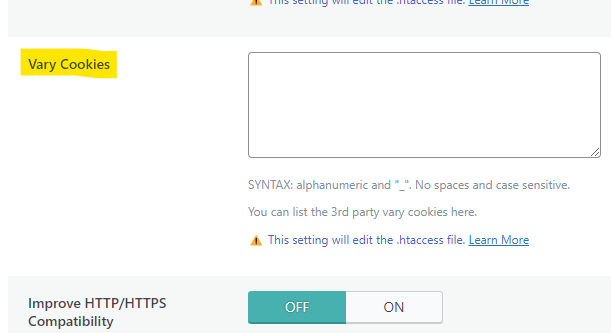
    If you have a situation like this, you can instruct LiteSpeed Cache to vary on any cookie that you wish. Navigate to LiteSpeed Cache > Cache > Advanced and add the name of the cookie to the Vary Cookies setting. If you want to vary on multiple cookies, enter them one per line.

    NOTE: Be careful not to vary on any cookie that uses a unique ID for each user as a value. This can potentially create an infinite number of copies of each page, and that will eat up your cache storage very quickly.

    Why is this new setting a big deal?

    Before Vary Cookies was added to the LiteSpeed Cache plugin, you could have defined some vary cookies for your site with a few lines in the .htaccess file. By adding the setting to the plugin, your defined vary cookies are now passed along to QUIC.cloud CDN.

    This is a big deal, because it means that your cookie-based cache varies exist at the CDN level. No other CDN can serve multiple cached copies of the same page based on a cookie value. But as of LSCWP v6.0, QUIC.cloud CDN can!

    CLI Crawler

    LiteSpeed Cache v6.0 comes with some new commands for the WordPress CLI. Now you can  control the crawler from the command line!

    WP-CLI is accessed with the wp command, and all crawler instructions begin with litespeed-crawler, so a complete WP-CLI crawler command would look like:

    wp litespeed-crawler <instruction> <parameters>
    

    There are five functions available:

    • List: list or l
    • Enable: enable <crawler-id>
    • Disable: disable <crawler-id>
    • Start: run or r
    • Reset: reset

    For more information about the new CLI crawler functionality, and how to use each function, take a look at our documentation.

    Parallel Pull

    Do you use the Priority Line or Jumbo Group power-ups that are available for Image Optimization? If so, you may notice your pulled images sliding back into your WordPress more speedily than they used to.

    This is due to Parallel Pull. Normally, when the cron pulls your optimized images back to your site, it downloads them one at a time. But users of those two power-ups now can expect multiple images to download at one time, potentially decreasing the time it takes to receive a batch of optimized images.

    There is nothing you need to do to enable this behavior. It is on by default when you subscribe to Priority Line or Jumbo Group.

    NOTE: These Image Optimization power-ups have been disabled as of September 1, 2024 in preparation for a new and improved Image Optimization service coming soon.

    Conclusion

    We’re always excited to bring you a new set of features and enhancements, and this release is no different. Install LiteSpeed Cache v6.0 for WordPress today and try it for yourself!!
  • WpW: LSCache New Feature Roundup!

    WpW: LSCache New Feature Roundup!

    WordPress Wednesday LSCache New Features

    Welcome to another installment of WordPress Wednesday!

    Disclaimer: The information contained in this post is accurate for LSCWP v1.6.6 [release log]. If you are using a newer version of the plugin, some details may have changed. Please refer to our wiki for the latest!

    Throughout the last several months, you may have gotten whiplash watching us release new feature after new feature in our LSCache plugin for WordPress! It’s been a whirlwind, we know. We’re at a point now where most of the big stuff been implemented, so I thought it might be a good time to give you a quick guided tour.

    First, I’ll share links to the blog posts we’ve written about the major new features, so you can read up on them in depth, and then I’ll show you some of the smaller things that didn’t get their own posts but are worth a mention just the same.

    Big Feature Roundup

    Check out the linked blog posts to learn all about the following new cache functionality and optimization features:

    Other Features You Might Like

    There are a handful of other new features that didn’t get their own blog posts. We’ve got an interface enhancement, a private cache feature, a new type of URL to exclude, and a collection of new optimization options.

    Tab Switch Shortcut

    WordPress Wednesday LSCache New Feature Tab Switch Shortcut

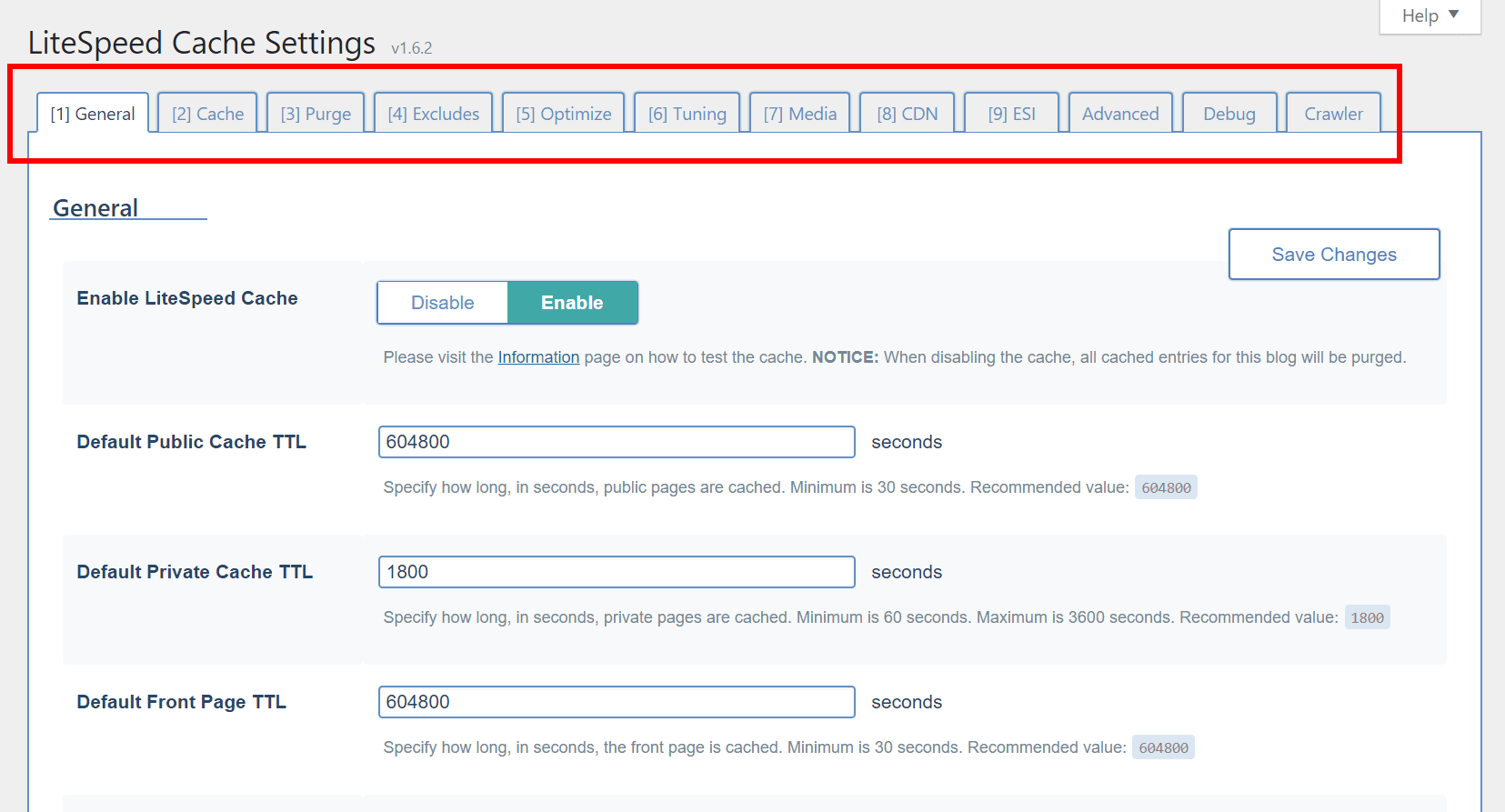
    We’ve got a lot of tabs in our settings at this point, so you might appreciate the ability to easily switch between tabs, if you’re more of a keyboard-user than a mouse-user.

    As long as your cursor is not focused on an input element, you can type a number, and be brought directly to the corresponding tab. For example, if you’re looking at the General tab, but want to change something in the ESI tab, simply press 9 and you will be brought to the ESI tab.

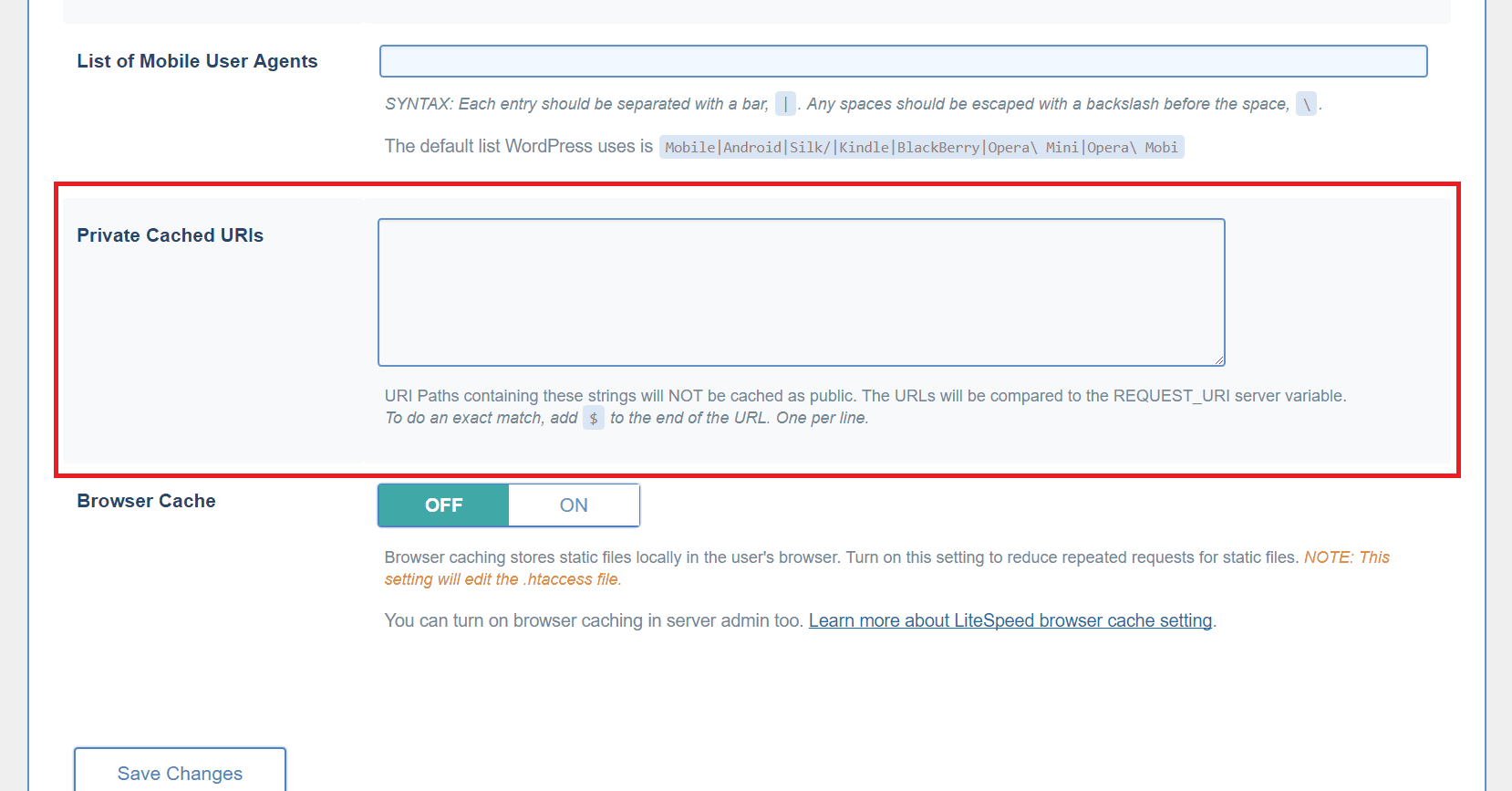
    Private Cached URIs

    From the WordPress dashboard, navigate to LiteSpeed Cache > Settings > Cache and scroll to the bottom of the page.

    WordPress Wednesday LSCache New Feature Private Cached URIs

    You may have pages on your site that would default to public cache under normal circumstances, but which you think should be cached privately (i.e. a separate copy cached for each individual user).

    Use this box to list such URI’s, one per line. You can list an entire path and place a $ after it so that it is interpreted as an exact URI. Otherwise, any URI that includes the path you enter will be privately cached.

    For example:

    reviews/canon/$ will only match reviews/canon/.

    reviews/canon/ will match reviews/canon/ and reviews/canon/eos80d/.

    Additional Excludes

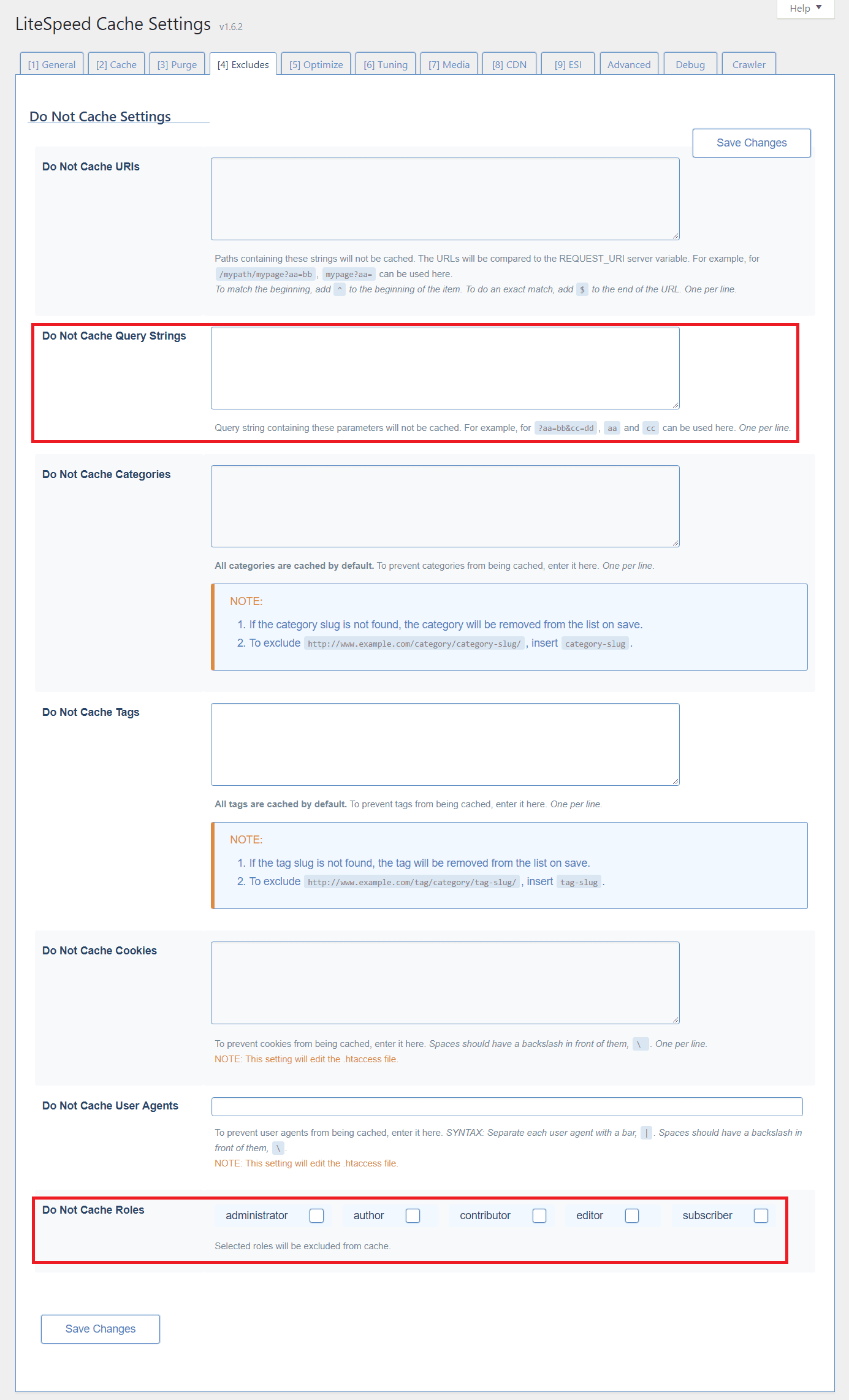
    From the WordPress dashboard, navigate to LiteSpeed Cache > Settings > Excludes.

    WordPress Wednesday LSCache New Feature Additional Excludes

    Query Strings

    You can eliminate URLs with certain query strings from being cached.

    For example, let’s say you have a mechanism that allows you to colorize your site in a purple color scheme like so: http://example.com/page?color=purple.

    if you don’t want to cache any page that is rendered in a colorized way, you could enter color in that list. That would match http://example.com/page?color=purple as well as http://example.com/page?color=red, or any other specified color, and those pages would be excluded from caching.

    From the WordPress dashboard, navigate to LiteSpeed Cache > Settings > Excludes and scroll to the bottom of the page.

    Roles

    There may be user roles that you wish to exclude from caching. For example, if you are an admin testing new functionality, you may want to exclude your administrator role from being served from cache until your testing is through.

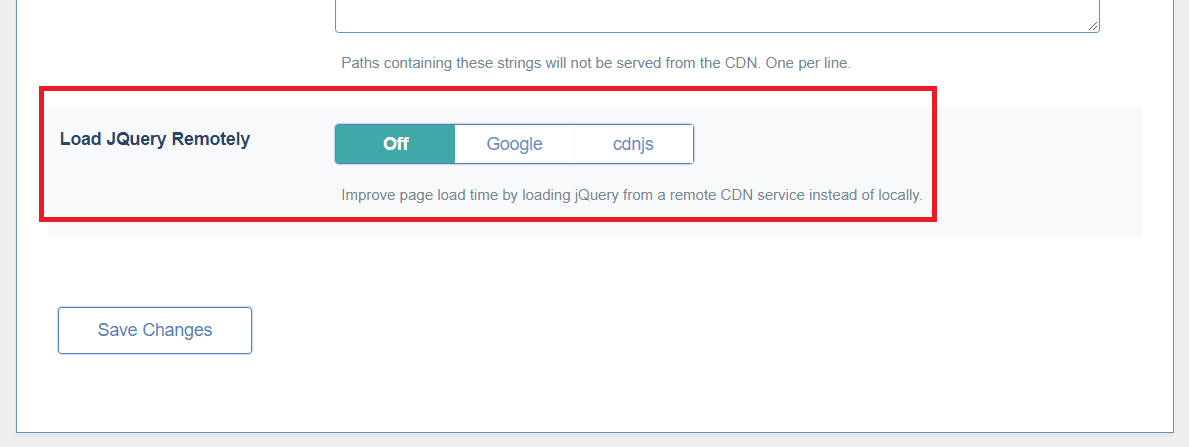
    Load JQuery Remotely

    From the WordPress dashboard, navigate to LiteSpeed Cache > Settings > CDN and scroll to the bottom of the page.

    WordPress Wednesday LSCache New Feature Load JQuery Remotely

    It can be faster to load JQuery from a remote CDN service. You may choose one here.

    Optimization and Tuning

    When we first released the Optimize tab, we wrote up a full blog post on all of the options. After that we added some new settings to the page. And then we added some more. And then, because that page was getting a bit unruly, we split Optimize into Optimize and Tuning.

    So, if the last time you saw Optimize was while reading that blog post, you’ll need to know that two of those settings we discussed (CSS Excludes and JS Excludes) now live on the Tuning page. The other functions remain on Optimize, along with several new ones.

    We recommend checking out both of those pages in our wiki’s Settings section, where every plugin setting is described in detail.

    Image Optimization

    Our image optimization feature is our newest one, and we’re still making adjustments here and there, based on what’s working well, what could use improvement, and the feedback we’ve received. Take a look at the Image Optimization page on our wiki to see how the most up-to-date features work.

    WordPress Wednesday LSCache New Features

    Thus ends our tour of the new features. Keep an eye on WordPress Wednesday in the future for more detailed exploration of various aspects of our plugin!

    For the most up-to-date configuration reference, you’ll want to keep the URL for our wiki handy. We make an effort to publish updates to the wiki as soon as anything changes in the plugin. While it might take us a few weeks to write an in-depth blog post, the wiki gets updated immediately.

    —

    Have some of your own ideas for future WordPress Wednesday topics? Leave us a comment!

    Don’t forget to meet us back here next week for the next installment. In the meantime, here are a few other things you can do:

  • WpW: Optimizing Images with LSCache

    WpW: Optimizing Images with LSCache

    Welcome to another installment of WordPress Wednesday!

    Disclaimer: The information contained in this post is accurate for LSCWP v1.6.2.1 [release log]. If you are using a newer version of the plugin, some details may have changed. Please refer to our wiki for the latest!

    Have you ever wished that your site’s images didn’t take so long to transfer? Well, there may be something you can do about it. Many images can be optimized to take up less space, which in turn takes less time to transfer. Two and a half weeks ago, we introduced an Image Optimization feature, and in that time, we’ve already optimized around 640,000 images. That’s a lot of saved bytes!

    Intrigued? Today we’re going to talk a little bit about Image Optimization: what it is, and how to use it.

    Image Optimization

    One effective way to deal with the cost of transmitting images over the Internet is to reduce the size of those images.

    Smaller images = faster transmissions.

    The LiteSpeed Cache plugin provides access to image optimization services on a central web server. Here’s how it works:

    1. You press the Send Optimization Request button on the Image Optimization page.
    2. The central server denies or accepts the request after callback verification.
    3. The central server distributes the task to a child server.
    4. The child server fetches your images.
    5. The child server processes your images.
    6. The child server notifies WordPress that the images are ready.
    7. A cron job runs and pulls your images back into WordPress.

    You may be wondering about step 5. What is actually happening when the child server processes your images?

    Well, there are libraries for this sort of thing, so we don’t need to reinvent the wheel. We use Imagick functions to adjust your images to 85%-90% quality of the original. (This optimization is lossy.)

    During the process, three versions of each image file are generated:

    • yourimage.bk.jpg: the original version of your image.
    • yourimage.jpg: the optimized version of your image, which is what will be shown on your site from now on.
    • yourimage.jpg.webp: is a version of your image saved in a format that is about 25%-34% smaller than JPG (learn more).

    If yourimage.jpg was unable to be optimized for any reason (maybe it was already optimal) there will be no new version generated, and therefore no yourimage.bk.jpg. There will be a WebP format saved, though.

    Using multiple plugins

    Before we go any further, it’s important to point out that you should not use more than one Image Optimization plugin at the same time! Doing so can cause quirky behavior, and it often leads to errors in processing: errors that can only be cleared by creating a ticket and having us deal with it on our end.

    It’s extra hassle for everyone involved, so please just don’t do it 🙂

    Generally speaking, it’s never a good idea to have two plugins performing the same optimization functions anyway. To be clear, you can still use multiple optimization plugins, as long as you don’t duplicate any of the individual functions. I go into more detail on that here, if you want to know more.

    How do I use Image Optimization on my WordPress Site?

    Settings

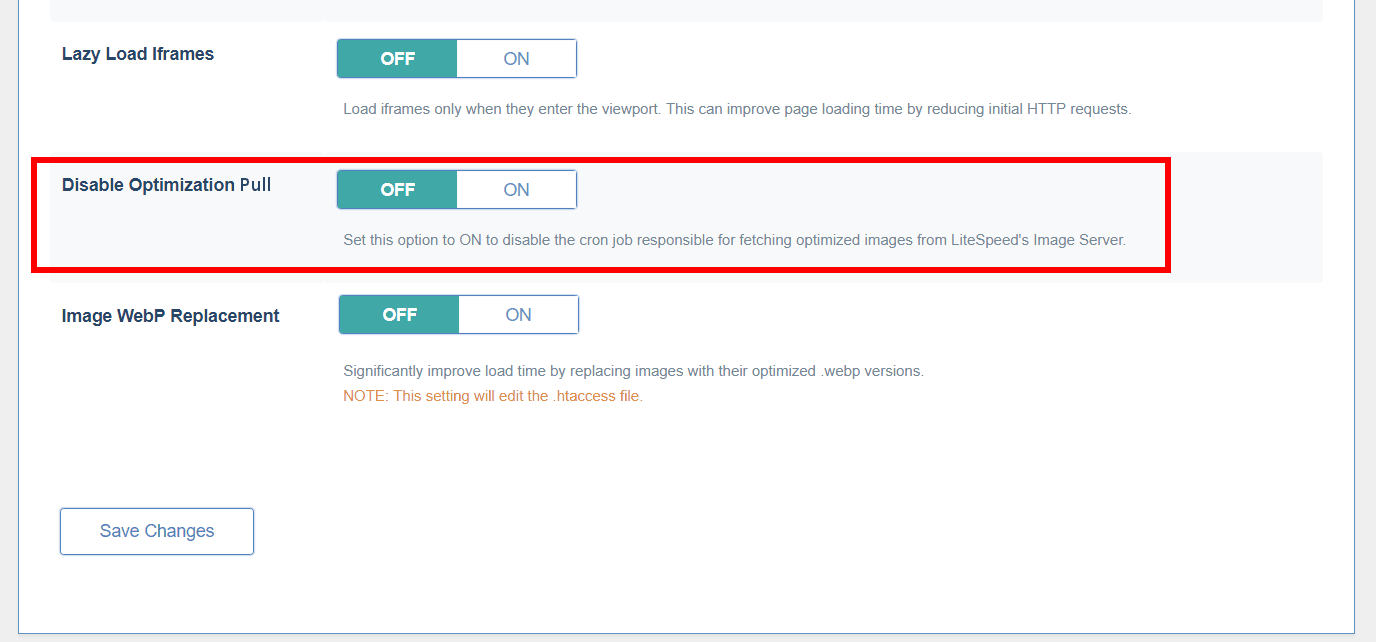
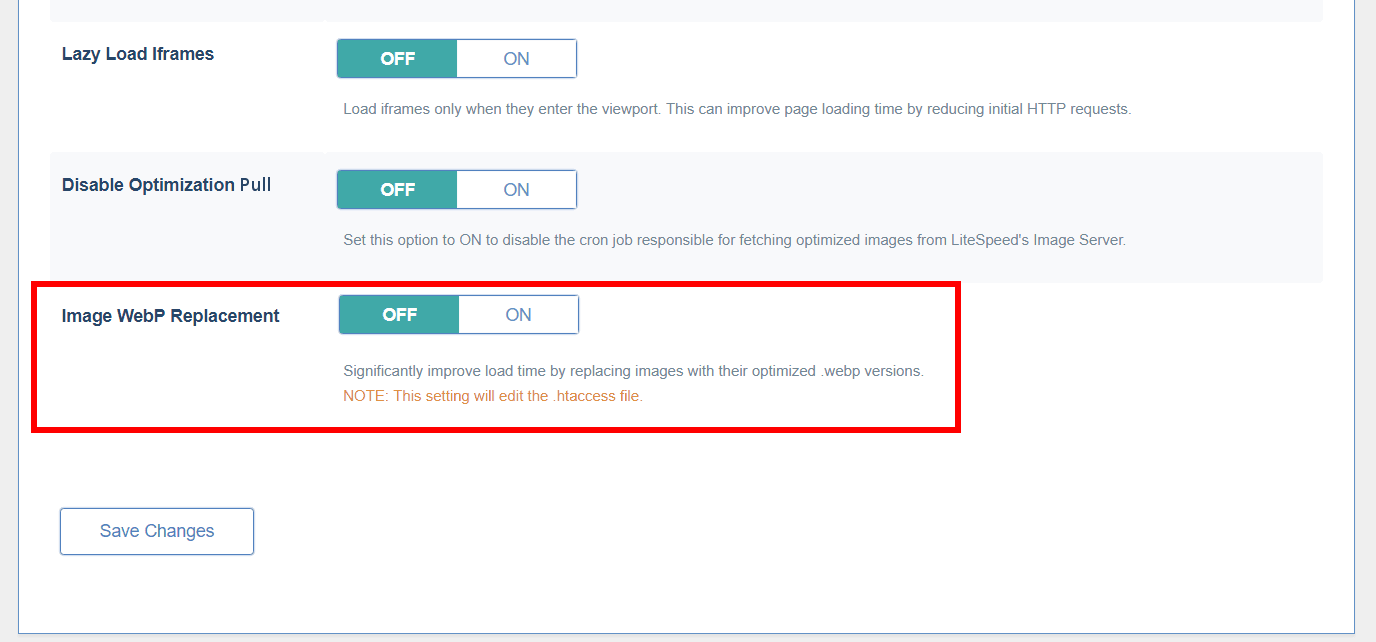
    From the WordPress Dashboard, navigate to LiteSpeed Cache > Settings > Media. Scroll down, and you will see two settings related to optimization.

    Disable Optimization Pull, when ‘ON’, will disable the cron job that is used to pull optimized images from the central server into your WordPress media library. If you turn this on, you will be unable to retrieve your optimized images.

    Under normal circumstances, you will not need to touch this setting.

    Remember the .webp file format we mentioned earlier? If you would like to use WebP images in place of all of your JPGs and PNGs, turn the Image WebP Replacement option on.

    Not all browsers support WebP, so there will be two versions of your pages in cache: one with the WebP images and one with the other image formats, and the appropriate version will be served to your visitors. And since your other optimized image formats are still there, you can turn WebP off at any time, if you change your mind.

    Optimize

    Navigate to LiteSpeed Cache > Image Optimization.

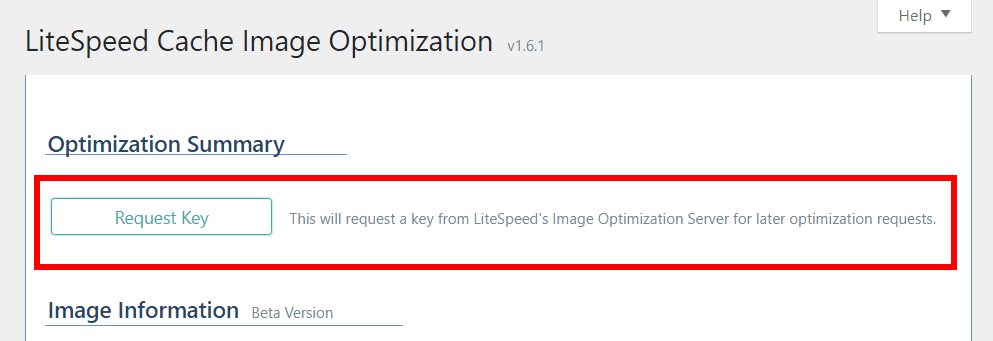
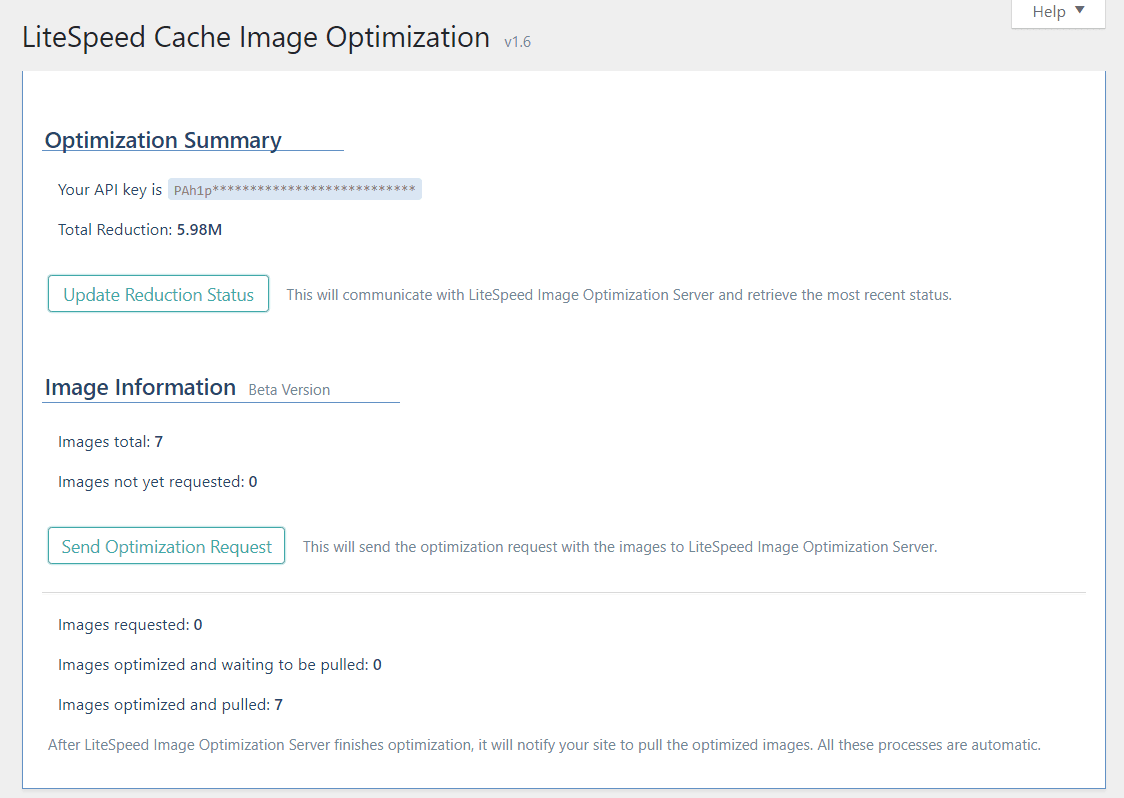
    The first time you visit this page, you will see a button that reads Request Key. Press the button to obtain a key from the central server that it will use to process all of your future image optimization requests. Once the key is obtained, your screen should look like the one shown below, and your API key will be listed (although most of it will be blocked out for security purposes).

    Below the key is Total Reduction. It shows you how much space the server has saved with image optimization to date. This number isn’t updated automatically, so to get the most recent status you will need to press the Update Reduction Status button.

    Below Optimization Summary, you’ll see Image Information.

    The top section of Image Information is where you submit your request.

    • Images Total displays the number of images present on your site.
    • Images Not Yet Requested shows the number of images yet to be optimized.
    • Press Send Optimization Request and all of the unoptimized will be submitted to the central server for optimization.

    The bottom area of this section shows you what’s happening with your current request.

    • Images requested: how many images are waiting their turn to be optimized
    • Images optimized and waiting to be pulled: how many are complete and waiting to be pulled back into WordPress
    • Images optimized and pulled: how many have finished the process completely

    All of this happens behind the scenes after you’ve pressed the Send Optimization Request button. You can refresh the page to update these numbers, and you can leave the page while optimization is running, if you’ve got other things to do.

    Restore

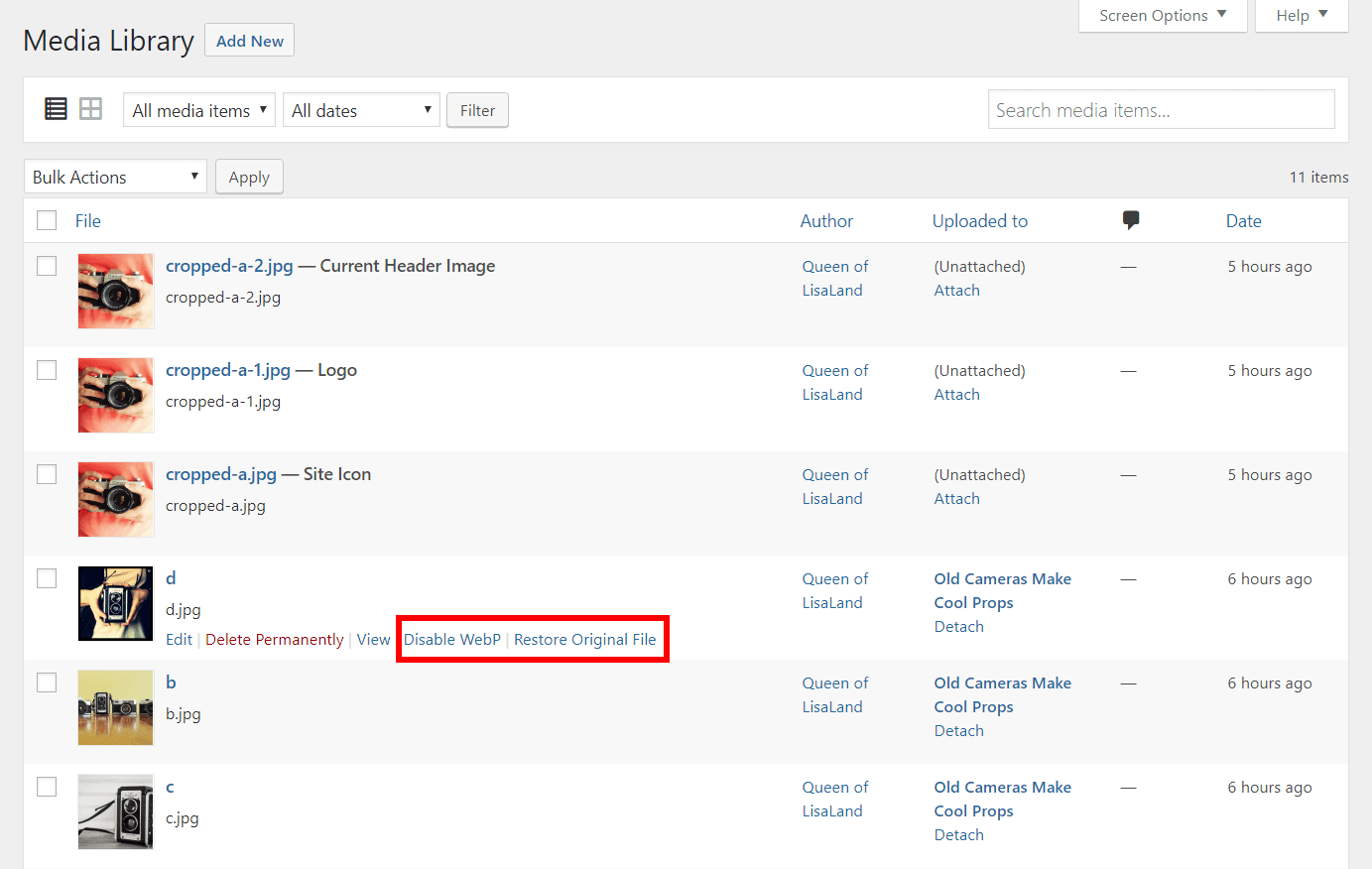
    If you are unhappy with the way an image was optimized, you have the ability to restore it back to the original version. From the WordPress Dashboard, navigate to Media > Library, choose the list view, and hover over the image you’d like to revert.

    Click Restore Original File and everything goes back to normal.

    If you have enabled WebP images globally, you can disable it for individual images using the Disable WebP link.

    Comparing Pages With and Without Optimization

    I created a few image-heavy blog posts, using differently-sized images for each.

    With no optimization whatsoever, my post with the largest images in it had to transfer 14,070,859 bytes of imagery. After optimization, it was 9,467,154 bytes. Nice! And when I enabled WebPs, it was even better at 7,249,465 bytes! Image optimization cut the image size nearly in half.

    Your mileage will vary based on how optimized your images already are when they’re uploaded. If you’re a photographer, and you take pains to export your images from Lightroom or Photoshop already nicely-optimized, you will see much less of an improvement (if any) than someone who doesn’t pay too much attention to their imagery before upload.

    I saw this in action on a post where the imagery transfer took 353,370 bytes before and after optimization. My images were clearly already optimized. However, when I enabled WebP, it went down to 250,520 bytes. So at the very least, you should be able to see some improvement by enabling WebP.

    Image Optimization has been a popular topic on our WordPress forum lately, and there have been a lot of questions about what, exactly, it is doing to your photos. I hope that this has lifted some of the mystery. And if you still have questions, please do ask!

    —
    Have some of your own ideas for future WordPress Wednesday topics? Leave us a comment!

    Don’t forget to meet us back here next week for the next installment. In the meantime, here are a few other things you can do: