WpW: When it’s Good to be Lazy

Written by

in

Welcome to another installment of WordPress Wednesday!

Disclaimer: The information contained in this post is accurate for LSCWP v6.0.0.1 [release log]. If you are using a newer version of the plugin, some details may have changed. Please refer to our documentation for the latest!

At this point in the week are you ready to be a little lazy? To brew a cup of peppermint tea, kick up your feet in a cozy spot and just relax? That does sound nice… Well, while it may not be possible for you to drop everything today and get lazy, it is possible to give your blog images that opportunity.

It’s called “Lazy Load” and it’s one of the ways you can speed up your website. Read on to see how!

What does Lazy Load mean, and why is it a good idea?

If you run an image-heavy site, you have probably felt frustration with your page load times. You may have even seen visitors lose patience and leave the site before all of the media was finished displaying.

Photography and lush imagery can make for a beautiful site, but it comes at a price.

Lazy Loading is a way of minimizing the impact of images on page load time.

If you’ve ever visited an online store, and seen the product images fill up the empty spaces as you scroll down, you have seen Lazy Loading in action.

When you enable Lazy Load on your site, you are configuring images and iframes to load asynchronously. That means, only the content that is currently visible in the viewport is loaded initially. The rest of the content is loaded on an as-needed basis, while you scroll down the page.

As you can imagine, the impact that asynchronous loading has on media-heavy pages is impressive.

Your mobile visitors will thank you for the bandwidth savings that Lazy Loading affords them. Not everyone has an unlimited data plan. (I personally don’t have one, and I very much appreciate sites that only load what I need to see when I need to see it!)

Through LSCWP’s Page Optimization > Media Settings tab, you can configure your site to asynchronously load images and/or iframes.

How to use Lazy Load on your WordPress site

The Media Settings tab includes a lot of interesting optimizations but let’s keep it simple, and just go over a few basic settings. If you want to explore what the other options do, you can see the Media Settings Tab documentation.
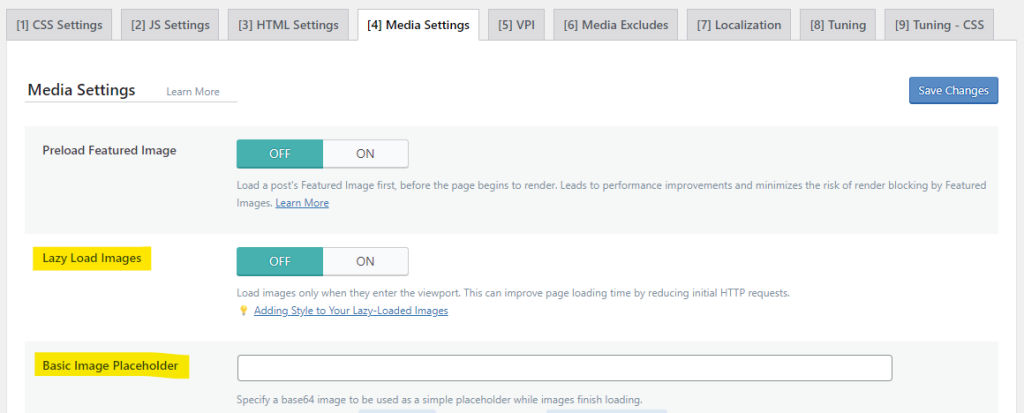
Enable Lazy Load

From your WordPress Dashboard, navigate to Page Optimization > Media Settings.

To enable lazy loading of images, set Lazy Load Images to ON.
To enable lazy loading of iframes, set Lazy Load Iframes to ON.

Placeholder settings

When Lazy Load Images is enabled, and a visitor scrolls down and pulls a new area into the viewport, that is when the next set of images begins to load. Until the images are fully loaded, gray placeholder boxes will appear. You may wish to style these boxes to coordinate better with the rest of your site. The Basic Image Placeholder allows you to do so.

You will need a base64 image. Base64 is a way of converting binary to text. It allows you to easily embed an image into code. You can convert a PNG, JPG or other image format into base64 at a free site such as this one, and then paste the resulting string into the Basic Image Placeholder box.

If you’d like a transparent placeholder, use data:image/gif;base64,R0lGODlhAQABAIAAAAAAAP///yH5BAEAAAAALAAAAAABAAEAAAIBRAA7.

The Basic Image Placeholder is a fixed size. If you prefer, you can set up a Responsive Placeholder using an SVG file, or you can choose a solid Responsive Placeholder Color. Learn more about this option in our docs.

Or, for placeholders that resemble the original images, you can try the LQIP QUIC.cloud service. LQIP stands for Low-Quality Image Placeholder. There is more information about that here.

Exclude some images
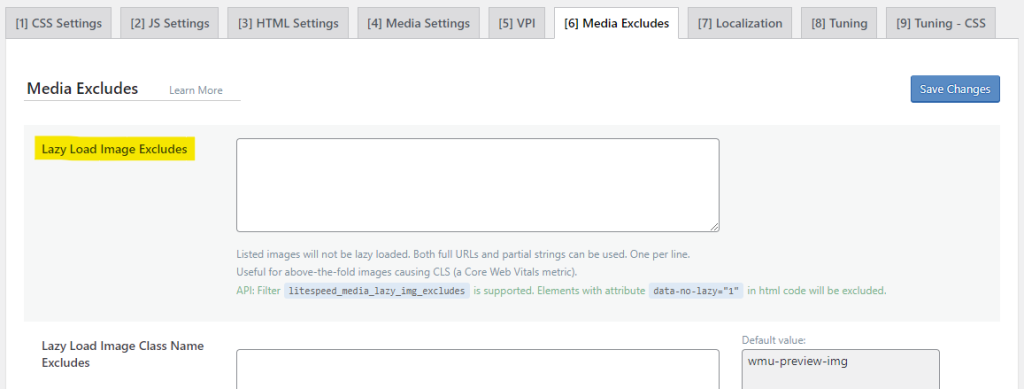
Click the Media Excludes tab and use the Lazy Load Image Excludes setting to specify an image or group of images that should always be loaded right away, regardless of whether they are in the viewport or not. You can specify the image’s entire path here, or a partial string. If you use a partial string, you don’t need wildcards.

Example:
Let’s say you have images/storefront/logo.png, images/storefront/sale.png and images/products/pencils.jpg.

If you enter images/storefront/logo.png in the box, it will only match that single image.
If you enter images/storefront in the box, it will match all images that appear in the storefront directory, including logo.png and sale.png.
Neither string will match the product image pencils.jpg.

Well done!

Now that you’ve got Lazy Load all set up, how about that cup of tea? It’s time to sit back and watch your site performance improve. Cheers!


Have some of your own ideas for future WordPress Wednesday topics? Leave us a comment!

Don’t forget to meet us back here next week for the next installment. In the meantime, here are a few other things you can do:


This content was last verified and updated in January of 2024. If you find an inaccuracy, please let us know! In the meantime, see our documentation site for the most up-to-date information.

Comments

17 responses to “WpW: When it’s Good to be Lazy”

  1. Damon Moats Avatar
    Damon Moats

    Great! Its a very informative blog post, there is a very good tutorial for manually setting up WordPress lazy loading through a plugin on wpblog I found it very easy to follow. I hope others will find it helpful too. thanks

  2. Simon Donald Avatar

    Hi there,

    Is it possible to set a “buffer” on the lazy load functionality on the litespeed cache plugin? I currently use LazyLoad by WP Rocket as the images load when the screen gets within 300 pixels of the image (rather than as the user hits the image). Is there a way to do this with the Litespeed cache plugin?

    Many thanks
    Simon

    1. Lisa Clarke Avatar
      Lisa Clarke

      Currently, no. But we will add the option to a future version. Thank you for the suggestion!

      1. Tim Avatar

        Any update on this? Would be great to be able to fine tune the lazy loading, and this comment was over 2 years ago now.

        1. Lisa Clarke Avatar
          Lisa Clarke

          I’m sorry it’s been so long. I checked with the team. I’m not sure how that enhancement fell off of the list, but they tell me there’s not much demand for that feature, so that’s probably why. Your request has been noted, though, so hopefully it will make it into the plugin sometime.

          1. LauGau Avatar

            I came here after I asked on the FB if a similar feature existed. Someone linked the article and I want to add my big +1 on this ! I love that with Swift Performance we can set it to load image XXXpx before they enter the viewport. The website feels way faster that way. I hate to “see” the image loading.

            Please consider adding this feature
            Thank you

          2. Danijel Avatar
            Danijel

            I am hoping to see this feature aswell for my woocommerce image heavy site.

        2. Lisa Clarke Avatar
          Lisa Clarke

          Hi again, Tim. Our developer started looking into this and discovered that the third party library we use for lazyload functionality actually already has a 300px threshold. An image should start loading when you’ve scrolled to 300px above it. He tested, and it works for him. Our plugin doesn’t allow you to specify your own threshold, but it does appear to respect the default. If you have a different experience on your site, then please let us know.

          1. Paul Avatar
            Paul

            Hi there,

            There is still no way to hook over the default threshold? It would be really great to be able to set it with the data-threshold attribute of the element for example (or to customize the default threshold via the LiteSpeed settings at least). In my case, I have a huge iframe right below the fold that I’d like to force to lazy load but unfortunately I can’t.

            Thanks!

  3. Jonathan Baldwin Avatar

    Thank you for your work in producing this brilliant plugin. It is so feature rich – the best caching plugin I have come across.

    I have the LearnDash plugin enabled on a website that offers online courses and I want to disable lazy loading on all of the LearnDash pages, but keep it for the rest of the site. Is this possible? And if so how would it be achieved?

    1. Lisa Clarke Avatar
      Lisa Clarke

      Hi, Jonathan. It may be possible. If all of the images on the LearnDash pages are named similarly, you can enter a partial string in Lazy Load Image Excludes as described here.

      Once v3 of the plugin is released, you’ll have the ability to exclude images by class name or by parent class name, if either of those options suit the situation better. You can preview v3 here, if you have a test site you’d like to try it on.

  4. Jonathan Baldwin Avatar

    Thanks very much for your reply Lisa. The ability to exclude the image by the parent class name should achieve what I need. I look forward to the v3 release of the plugin.

  5. Blog Malaysia Avatar

    Old post, but still gold! Love it when it can handle 1,000 concurrent connection easily.

  6. Marcelo de Souza Avatar

    Olá!
    Excelente plugin!
    É possível criar uma exclusão de Lazyload para os Ads do Google de primeira dobra?

    1. Lisa Clarke Avatar
      Lisa Clarke

      Hello! Yes, you can exclude images from lazy load in several ways. I’m not sure which method you should use for Google Ads, but if you check this documentation, you will see that you can do it if you know the name of the image, the image class, the image parent class, the iframe, or the iframe parent. One of those should work for Google Ads.

      If you can’t make it work, please ,a href=”https://quic.cloud/support/”>open a support ticket and the team will be happy to help you.

  7. Debra Quincy Avatar

    I have no media tab anywhere in Lite Speed Cache Settings or Image Optimization. The article doesn’t reflect reality anymore. Can’t find anywhere to control Lazy load.

    1. Lisa Clarke Avatar
      Lisa Clarke

      Hi, Debra. Thank you for pointing this out. I’ve added this article to my to-be-updated list. In the meantime, you can find Lazy Load settings in LiteSpeed Cache > Page Optimization > Media Settings.

Leave a Reply

Your email address will not be published. Required fields are marked *