Tag: wordpress wednesday

LiteSpeed’s WordPress Wednesday series shares tips, tutorials, and explorations of new features related to the LSCache for WordPress plugin. Even those not currently using LSCWP can learn something. What is caching? What types of caching can be used with WordPress? How else can you optimize WordPress?

LSCWP provides advanced cache-management tools and optimization features, designed to reduce page load times and give your site an edge. With LiteSpeed, your site can employ the best practices that make for a high PageSpeed score, and – more importantly – an exceptional user experience.

  • WpW: ESI and LiteSpeed Cache

    WpW: ESI and LiteSpeed Cache

    WordPress Wednesday: Edge Side Includes Caching

    Welcome to another installment of WordPress Wednesday!

    As you may know, our LiteSpeed Cache for WordPress plugin supports Edge Side Includes, also known as ESI. Today we are going to talk about why this is such awesome news for your website.

    Please note: OpenLiteSpeed does not support ESI functionality. You will need LiteSpeed Web Server Enterprise, LiteSpeed Web ADC, or QUIC.cloud CDN in order to use ESI.

    What is ESI?

    ESI is a markup language that allows you to designate parts of your dynamic page as separate fragments that are then assembled together to make the whole page. To put it more quaintly, ESI lets you “punch holes” in a publicly cached page, and then fill those holes with privately cached content.

    With ESI, punched holes can be treated differently than the rest of the page. They can have different TTLs and be purged by events that are completely separate from the page they are on. This allows you to cache more of your site for more of your visitors.

    Public Cache vs. Private Cache

    LiteSpeed Cache is tag-based (which means that each page is stored with an identifier that allows it to be purged from cache as part of a specific subset) and has built-in public and private caches. In the public cache you will find pages that are exactly the same for everyone. Private caches contain content that pertains only to a specific user specified by their IP address and session ID.

    Until now, you’ve had to think about your site’s pages in their entirety. Is this page publicly cacheable? Is that one publicly cacheable? If a page had any private data on it at all, you’d have to say “no, it cannot be stored in the public cache.” This issue of having to cache a full page in its entirety is why our WordPress plugin until 2017 only cached pages for non-logged-in users. In WordPress, non-logged-in users are almost always served only public content. And in the few cases where they are not (password-protected posts, moderated comments, etc.), that content is usually considered non-cacheable for that user. ESI changes this.

    How do ESI and Public/Private Cache Work Together?

    ESI allows you to disassemble a full page and treat the pieces differently from each other.

    LiteSpeed Web Server allows you to store content in either the public cache or a private cache.

    Combine these two elements and you get something very powerful. You get a system that can break apart a page into public and private pieces, cache each piece appropriately, and then re-compose the full-page content from the relevant caches and serve it to a user without ever hitting the PHP backend.

    That is pretty amazing.

    Edge Side Includes Caching

    This combination allows you to cache content for logged-in WordPress users. With ESI enabled you can say, “Hey this page is mostly public. Let’s cache it, punch a few holes in it for the private content, and save that content in the private cache.”

    Examples

    Let’s look at a few common scenarios and see how they play out with ESI enabled and without ESI.

    Example #1: Admin Bar

    You’re the site admin, you are logged in, and you visit your site’s home page, which is in the public cache.

    Without ESI: your request hits the backend, because the admin bar at the top of the page is private content, and as such this page (and every other page on your site, for that matter) cannot be served to you from cache.

    With ESI: most of this page is served to you from the public cache, while the admin bar is served to you from your private cache. There is no need to invoke PHP.

    Example #2: Recent Posts Widget

    You have a large site with much static content that rarely changes. Every page has a sidebar, and the sidebar widget “Recent Posts” appears on each page.

    Without ESI: Every time a new post is published, every single page in the site must be purged so that the widget displays up-to-date data. Re-populating the entire cache requires a crawler to run, or visitors to hit all of the pages of the site.

    With ESI: All of the pages in the site can remain cached with a nice long TTL, while the Recent Posts widget is the only thing that needs to be purged. Re-populating that one bit of the cache requires just one visitor to request any page one time.

    You can see how ESI + LSCache can have huge implications for the speed of your site!

    Enabling and Configuring ESI

    LiteSpeed Cache for WordPress considers all cacheable full pages to be publicly cached.

    When you enable ESI, you instruct LSCWP to punch holes in public pages. LiteSpeed then caches the content according to the settings for each block: public, private or not at all, and with its own TTL, independent of the page it is on.

    When you enable ESI, LSCWP creates the following ESI blocks:

    • Admin Bar
    • Comments
    • Comment form
    • Recent Posts widget
    • Recent Comments widget

    Any widget can be an ESI block if you want it to be. By default, ESI is disabled for all but the two widgets listed above, but you can change that in WP Admin.

    Note: ESI doesn’t come without a cost. It is much simpler for the server to return fully-cached pages than it is for it to piece together pages from several different blocks (although it’s still more efficient than invoking PHP would be), and so this must be a factor in your decision to enable ESI. Will the speed benefits outweigh the efficiency hit? It depends on your site, really, and it may require some experimentation on your part.

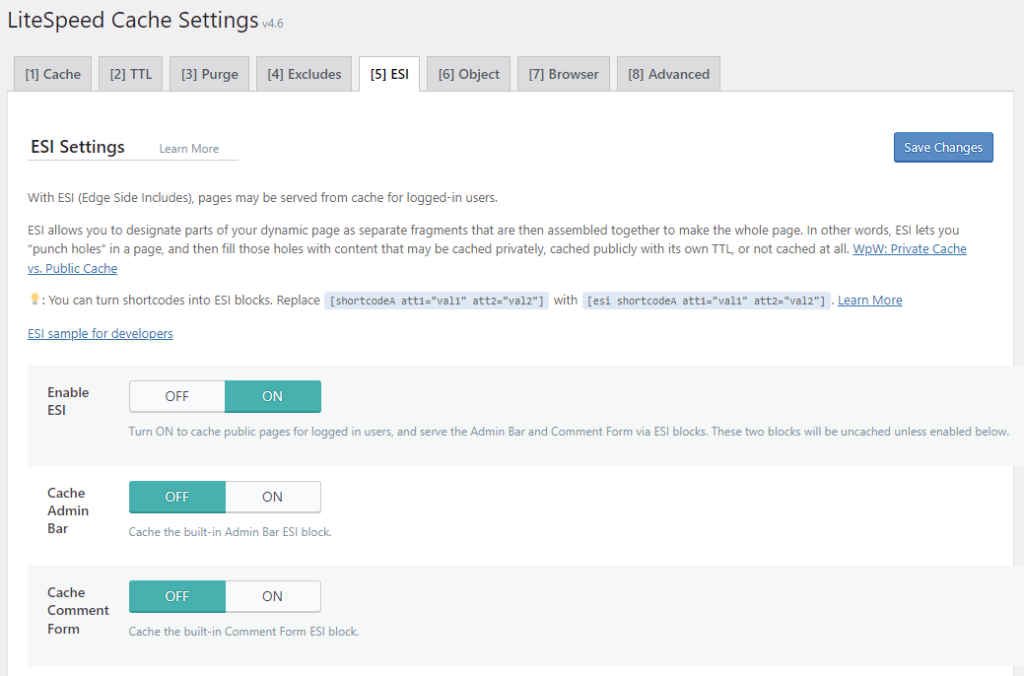
    Basic ESI Settings
    Edge Side Includes in LiteSpeed Cache

    Navigate to WP Admin > LiteSpeed Cache > Cache> ESI. Set Enable ESI to ON.

    This creates the ESI blocks listed above. The blocks will be uncached, unless you enable caching for them via the Cache Admin Bar and Cache Comment Form settings.

    Creating new Widget ESI Blocks

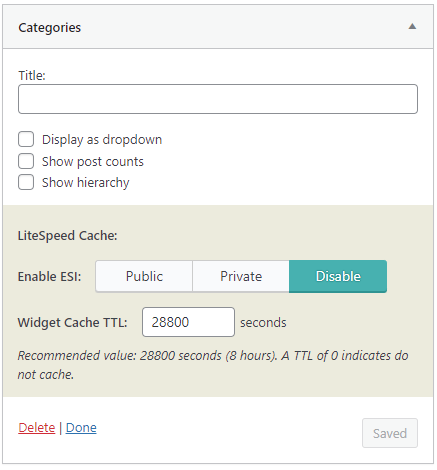
    If you are using Classic Widgets, you can turn any widget into an ESI block. (Please note that at this time, ESI is only available for classic widgets, and not for the new block-style widgets.)
    ESI Classic Widgets with LiteSpeed Cache

    Navigate to WP Admin > Appearance > Widgets and select the widget that you want to turn into an ESI block.

    Within the widget settings area, you will see a shaded box entitled “LiteSpeed Cache.” By default a widget is not considered an ESI block (unless it is Recent Posts or Recent Comments, as mentioned above). If you want the widget to be treated differently than the pages on which it appears, there are a few possible configurations:

    Private widget

    LSCWP will store the contents in private cache, with different copies for each user by IP/session ID. (Examples: a list of recently viewed posts, or a personalized greeting.)

    • Set Enable ESI to Private.
    • Set Widget Cache TTL to a value appropriate for the contents of the widget.

    Public widget

    LSCWP will store the contents in public cache, with each user seeing the exact same thing. (Examples: a list of recent posts, or a calendar of upcoming events).

    • Set Enable ESI to Public.
    • Set Widget Cache TTL to a value appropriate for the contents of the widget.

    Uncached widget

    LSCWP will not cache the contents at all, and WordPress will dynamically-generate the widget each time it displays on the page.

    • Set Enable ESI to either Public or Private (it makes no difference, as long as it’s not Disable)
    • Set Widget Cache TTL to 0.

    ESI and Third Party Plugins

    Our ESI implementation supports a few other blocks that belong to third-party plugins. For instance, we consider the WooCommerce shopping cart to be a private ESI block.

    As we mentioned earlier, with ESI enabled, your site pages are now considered publicly-cacheable, because we are able to punch holes for the occasional non-public content. This is true for all native WordPress pages, and for all WooCommerce pages. It is not, however, true with bbPress.

    A bbPress page contains so many areas of private data, that it’s actually much more efficient to consider the entire page to be private. So, that’s what we’ve done. LSCache considers all bbPress pages to be private.

    If one of your favorite plugins warrants special consideration, we encourage you to get in touch with us via the WordPress plugin support forum and tell us about it.

    Or try turning third party shortcodes into ESI blocks.

    P.S. Want to know more technical details about ESI? Check out the official specs.

    —
    This content was last verified and updated in April of 2023. If you find an inaccuracy, please let us know! In the meantime, see our documentation site for the most up-to-date information.

    —

    Have some of your own ideas for future WordPress Wednesday topics? Leave us a comment!

    Don’t forget to meet us back here next week for the next installment. In the meantime, here are a few other things you can do:

  • WpW: Private Cache vs. Public Cache

    WpW: Private Cache vs. Public Cache

    Private Cache vs. Public Cache

    Welcome to another installment of WordPress Wednesday!

    Did you know that the LiteSpeed Cache plugin for WordPress supports private cache? Today we’re going to talk about the difference between public and private cache, and what this means for your WordPress blog.

    Private Cache vs. Public Cache

    Public cache is cache that can be accessed by everyone. A single copy of a publicly-cached page is stored and served to everyone who requests it.

    Private cache is only accessible to an individual visitor. It usually contains information that is only pertinent to that particular user (for instance, the WordPress admin bar). When a page is privately-cached, there is a separate personalized copy stored for each user that requests it.

    Many other cache plugins only deal in public cache, and so any page that has individualized data on it, is just not cached at all. When a user is logged in, there is the potential for every page to have private data on it, and so other plugins deal with this by never caching anything for logged-in users.

    LiteSpeed supports private cache, which means that many of the pages that other plugins consider uncacheable are actually cached easily by LiteSpeed.

    Is this the same thing as ESI?

    No, though Private Cache is an essential element of ESI. ESI (Edge Side Includes) technology allows you to disassemble a page, pull some parts of it from public cache, and other parts of it from private cache, re-assemble the page, and serve it to the visitor. If you want to know more about how ESI works, there’s a WordPress Wednesday for that.

    NOTE: OpenLiteSpeed doesn’t support ESI, but it does support Private Cache.

    So, how does our Private Cache work?

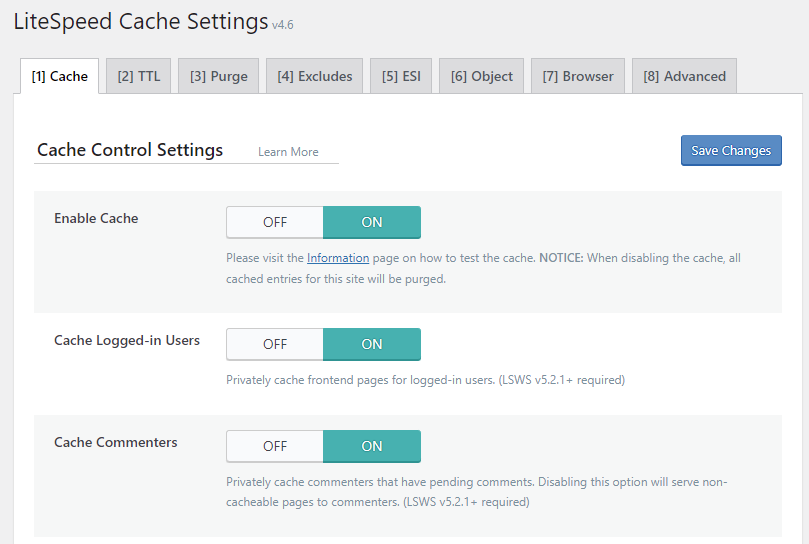
    There are two situations in which you have the ability to enable Private Cache: when a user is logged in, or when a visitor has pending comments. You can enable or disable this functionality in WP-Admin. Navigate to LiteSpeed Cache > Cache and select the Cache tab.

    LiteSpeed Cache Settings

    When Cache Logged in User is set to ON, LSCWP will privately cache every page for logged-in users. Each logged-in user will have their own individual copy of every cacheable page they visit.

    When set to OFF, no pages will be cached at all for logged-in users.

    When Cache Commenter is set to ON, LSCWP will cache pages for users who have left a pending comment. This setting is relevant for sites where comment moderation is enabled. Visitors who have left a comment that is awaiting moderation are able to see their comment, even though nobody else is able to do so. This makes their view different than everyone else and therefore ineligible to be served from public cache.

    When set to OFF, no pages will be cached at all for visitors who have left a pending comment.

    Force Private Cache

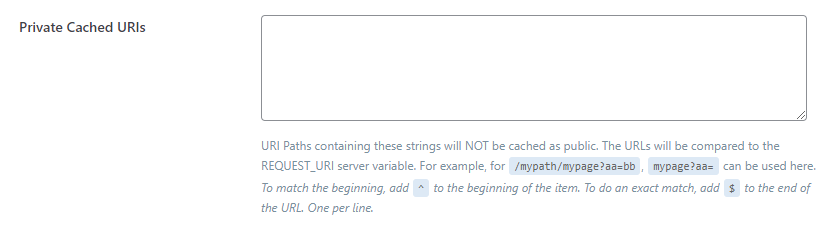
    If you have pages that should always be cached privately (and never publicly), you can list them in Private Cached URIs, further down on that same page.

    List the URIs one per line. (The URI is the part of the URL that comes after https://www.example.com.)

    Press the Save Changes button after editing any of the settings on this page.

    Stay tuned!

    We’ve got more enhancements to come! In the meantime, we hope you’ll share your feedback and let us know how we’re doing! And of course, if you find any of this confusing, don’t hesitate to reach out and ask us about it. That’s what we’re here for.

    Also! If you are a fan of our plugin, would you mind leaving us a rating or review in the WP Plugin directory if you haven’t already? Every little bit of word-of-mouth helps! Thanks 🙂

    —
    This content was last verified and updated in June of 2022. If you find an inaccuracy, please let us know! In the meantime, see our documentation site for the most up-to-date information.

    —
    Have some of your own ideas for future WordPress Wednesday topics? Leave us a comment!

    Don’t forget to meet us back here next week for the next installment. In the meantime, here are a few other things you can do:

  • WpW: LiteSpeed Cache, Post Types and Taxonomies

    WpW: LiteSpeed Cache, Post Types and Taxonomies

    Welcome to another installment of WordPress Wednesday!

    Last week we explored the often misunderstood concepts of Post Types and Taxonomies in WordPress. This week, we are going to relate that to our LiteSpeed Cache plugin. How does LSCWP handle Post Types and Taxonomies, both the built-in kinds and the custom ones? .

    You know from our last article that WordPress consists of seven post types and four taxonomies by default (as of this writing), plus any custom post types and taxonomies you or your plugins may have added.

    LiteSpeed Cache for WordPress caches all post types and post-related taxonomies, even custom ones.

    Additionally, when it comes to managing the cache, there are a few places where post type and taxonomy come into play.

    Purging by Taxonomy

    You can purge two built-in taxonomies from the cache on demand: category and tag.

    From your WordPress dashboard, navigate to LiteSpeed Cache > Manage, scroll down to Purge By… and select either Category or Tag. Enter the name(s) of the category or tag that you wish to purge.

    It is not currently possible to manually purge any taxonomies other than category or tag from the cache.

    Auto Purging

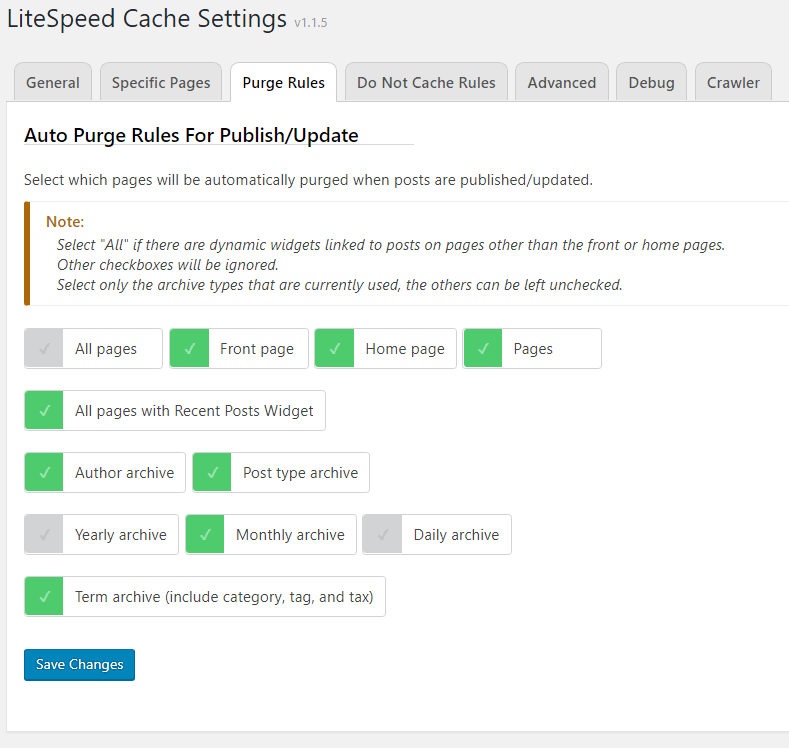
    One of LSCache’s most powerful features is its ability to auto-purge certain pages based on a set of rules. These rules say: “when a post is updated or published, purge these other pages that are related to the post.”

    See the Post type archive and Term archive options up there? If you select those, then your custom post types and your custom taxonomies will be included in an automatic purge.

    Remember last week’s example? We put our discussion of custom post types and taxonomies in the context of your fictitious automotive review site. We said that you had a custom post type “Review” and custom taxonomies “Model Year,” “Make” and “Model.”

    Continuing with that example, if you were to update your review of the 2013 Chevy Impala, then that post would be purged, along with the post type archive (review), and the taxonomy/term archives (2013, chevrolet, and impala). To access these settings, from your WordPress dashboard, navigate to LiteSpeed Cache > Settings > Purge Rules.

    Do Not Cache Rules for Custom Post Types and Taxonomies

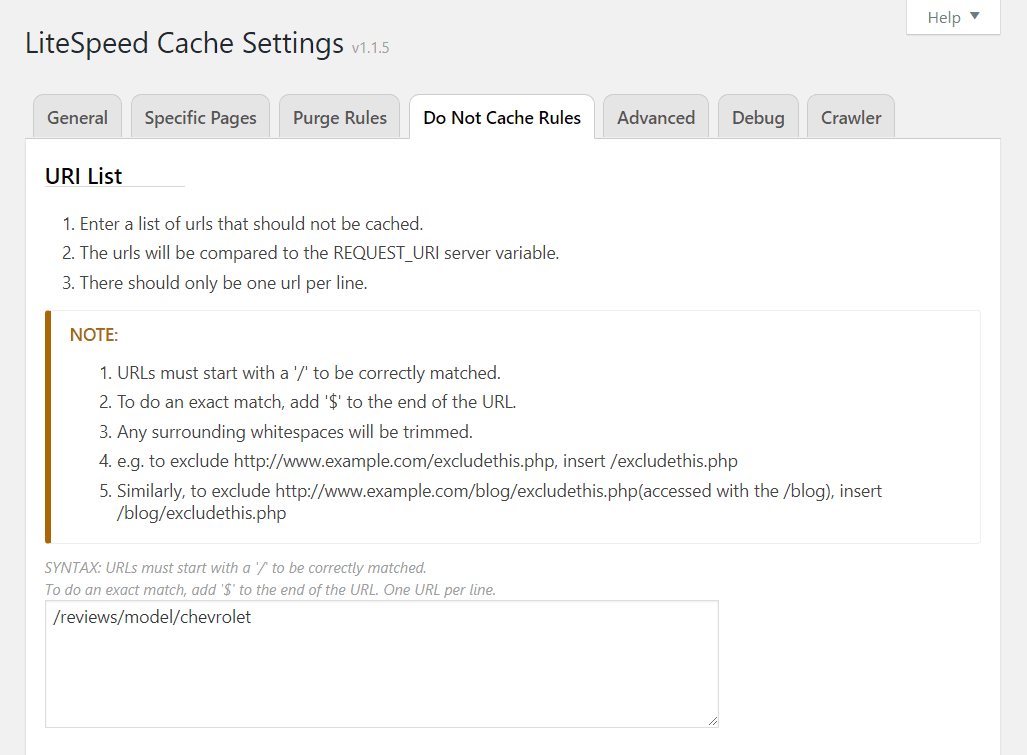
    If you have post types that you do not want to be cached, you can define rules to exclude them. From your WordPress dashboard, navigate to LiteSpeed Cache > Settings > Do Not Cache Rules.

    You can exclude particular categories by listing the relevant category IDs in the Category List box.

    You can exclude particular tags by listing the relevant tag IDs in the Tag List box.

    You can exclude custom taxonomies (and post types) as well, if your permalink structure supports it, but it’s not quite as simple. You need to use the URI List. To determine what to enter in the box, you’ll have to look at the structure of your permalinks. Let’s say your permalinks are in this format:

    http://www.yourdomain.com/custom-post-type/custom-taxonomy/term/post-title
    

    for example:

    http://www.yourautoreviewsite.com/reviews/makes/chevrolet/reviewing-2013-chevy-impala
    

    If you wanted to exclude all of your reviews from being cached, you’d enter /reviews/ in the URI List.

    If you only wanted to exclude reviews of Chevrolets, then you’d enter /reviews/makes/chevrolet/ in the URI List.

    URI List does a prefix match to relative links, meaning it matches whatever strings you enter to the beginning of the URLs (minus the domain names).

    So, using the example URL above, if you enter /reviews/makes/chevrolet/ it will match /reviews/makes/chevrolet/reviewing-2013-chevy-impala, and /reviews/makes/chevrolet/reviewing-2006-chevy-uplander but not /reviews/makes/pontiac/reviewing-2006-pontiac-montana.

    Your permalinks may be set up differently than this, but hopefully there is something about them that can differentiate them enough from your other content. Use that difference to single out a prefix for the URI List box.

    Crawling

    If the crawler is enabled on your site, then your custom post types are already included in the crawl. You can exclude them, if you like.

    From the WordPress dashboard, navigate to LiteSpeed Cache > Settings > Crawler. Under the Exclude Custom Post Types input box, you will see a list of available custom post types. Enter the ones you want to exclude, one line at a time, and they will not be crawled.

    And there you have it. LiteSpeed Cache for WordPress caches all built-in and custom post types, which is great news! And for those special cases, where you don’t want certain post types to be cached, LSCWP provides mechanisms that allow you to manage those cases. Be sure to leave a comment if you have any questions about this topic!

    —

    Have some of your own ideas for future WordPress Wednesday topics? Leave us a comment!

    Don’t forget to meet us back here next week for the next installment. In the meantime, here are a few other things you can do:

  • WpW: Understanding Custom Post Types and Taxonomies

    WpW: Understanding Custom Post Types and Taxonomies

    Welcome to another installment of WordPress Wednesday!

    Today we are going to explore the often misunderstood concepts of Post Types and Taxonomies in WordPress.

    About the word “post”

    I think that much of the confusion around Post Types and Taxonomies is the multiple definitions of the word “post.” So, let’s get that cleared-up first thing. Here are the two ways in which “post” is used by WordPress:

    1. A post is any piece of content that is stored on a WordPress site.
    2. A post is a particular type of content, typically associated with a blog, and usually displayed in reverse-chronological order.

    Another way to look at this is to say a post is a type of a post. Well, no wonder this is confusing!

    Let’s decide right now how we’re going to use the word “post” so that we’re all on the same page. For the purposes of this discussion, we’re going to use “post” in the generic way (definition #1), using it to refer to any piece of content in WordPress. If we need to refer to the other kind of post (definition #2), we’ll call it a “blog post” just to be more specific.

    Then we can say, a blog post is a type of a post, and that is actually pretty clear.

    Post Types

    A post type is just like it sounds: a type of a post. All posts are stored in the same place in WordPress (the wp_posts database table). Post types are used to differentiate the nature of the post.

    WordPress has seven built-in post types:

    • Blog Post
    • Page
    • Attachment
    • Revision
    • Navigation Menu
    • Custom CSS
    • Changesets

    Blog Posts and Pages are probably the most familiar of these. They are both stored in the database as posts, but their post type determines how they are handled by the front end.

    For example, a particular post may be displayed on the home page alongside several others in reverse-chronological order if it has the post type “blog post.” Or it may appear as a link in a sidebar list of informational topics, if it has the post type “page.”

    Taxonomies

    A taxonomy is a way of grouping together any type of object. Probably the most familiar taxonomy is “category” which allows you to sort blog posts into broad topics.

    WordPress has four built-in taxonomies:

    • Category (applies to Blog Posts)
    • Tag (applies to Blog Posts)
    • Link Category (applies to Links)
    • Post Format (applies to Blog Posts)

    A taxonomy can be hierarchical like categories (where one category can be a child of another), or they can be flat like tags (where all tags are on the same level).

    As you can see by the third item in the list above, taxonomies are not limited to working with posts (remember, Links are not on the list of post types that we discussed earlier).

    Custom Post Types and Taxonomies

    With WordPress, it is possible to define custom post types and taxonomies. This is useful if you have content that doesn’t fit into the predefined mechanisms. You may have come across this before with certain plugins and themes that you’ve installed, although the use of custom post types and taxonomies is not limited to plugin authors. Any site owner with enough technical know-how can create his or her own set.

    WooCommerce, for example defines a new post type “Product” and new taxonomies “Product Category” and “Product Tag.” By defining their own custom post type, WooCommerce is able to single out the posts that belong to their plugin and treat them differently than the built-in post types. And by defining their own custom taxonomies, they can easily group together like items within their custom post type. It allows them to use WordPress’ structure, without impacting any of WordPress’ built-in post types.

    Let’s imagine you have a site that does automotive reviews. You don’t want to use blog posts for your reviews because you already use them for regular old blog posts. You can create a custom post type and call it Review. Then, you can create three new custom taxonomies: Model Year, Make and Model. These new taxonomies allow you to easily group your Reviews in useful ways.

    Users browsing your site can see all reviews for 2013 models, or all reviews for Chevrolets, or they can specifically look for a review of the 2013 Chevy Impala, all through your custom taxonomies.

    There is a lot more about this in the WordPress Codex. If you’re interested in building your own custom post type and taxonomy structure, you should take a look.

    Next week, we’ll explore how LiteSpeed Cache for WordPress handles post types and taxonomies (both the built-in and custom varieties).

    —

    Have some of your own ideas for future WordPress Wednesday topics? Leave us a comment!

    Don’t forget to meet us back here next week for the next installment. In the meantime, here are a few other things you can do:

  • WpW: What is LiteSpeed Cache and how did it get here?

    WpW: What is LiteSpeed Cache and how did it get here?

    WordPress Wednesday: What is LiteSpeed Cache and How Did it Get Here?

    Welcome to another installment of WordPress Wednesday!

    You’re a site owner, minding your own business, tending to your WordPress sites, and then one day you notice it: LiteSpeed Cache. It’s just sitting there in your list of active plugins, but you don’t remember installing it. How did it get there? What does it do? Read on to find out!

    How did it get there?

    Chances are your hosting provider put it there.

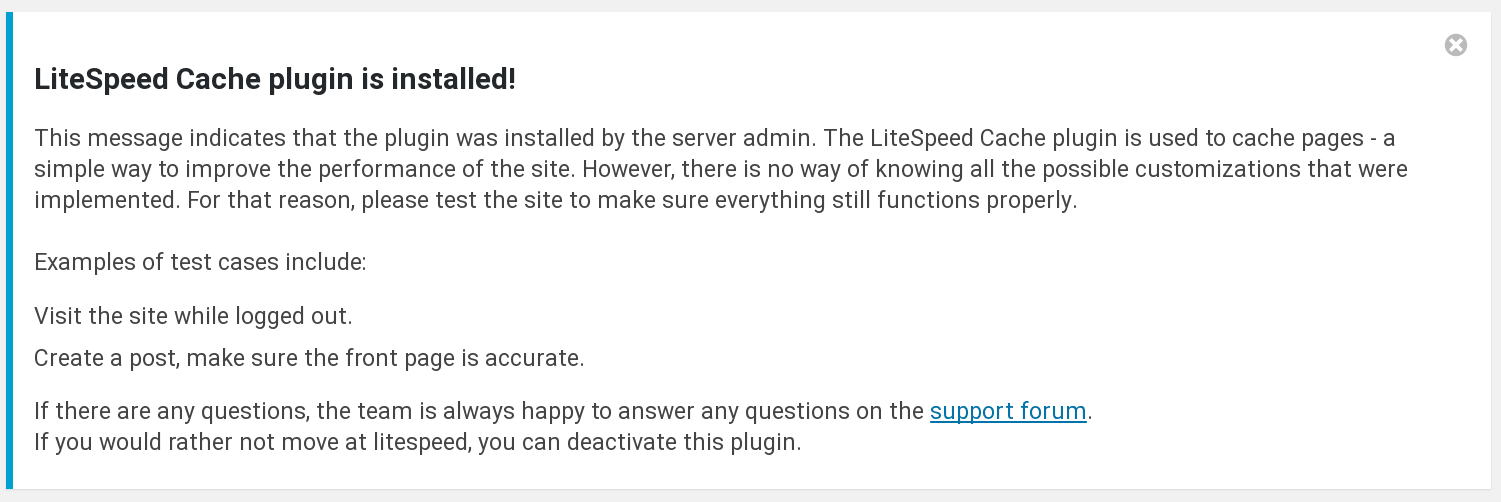
    Hosting companies that are powered by LiteSpeed Web Server have access to a cache manager function that can automatically install and enable the LiteSpeed Cache plugin on every WordPress installation they host. If this is what has happened with your site, a message similar to the following should have been displayed in the WordPress dashboard:

    What is LiteSpeed Cache

    If you are having an issue and do not have time to read any further or to troubleshoot, you may deactivate the plugin. Navigate to WP Admin > Plugins > Installed Plugins and click on Deactivate under LiteSpeed Cache.

    If you are having an issue and you do have time to troubleshoot, keep reading. If this article doesn’t answer all of your questions, drop by the support forum and we’ll be happy to help.

    What does LiteSpeed Cache do?

    WordPress sites consist of dynamic pages that are built with PHP. The pages of a WP site don’t exist anywhere in the file system; they are constructed on-demand through PHP, and then served to the visitor as HTML. This can be a resource-heavy process, and the LiteSpeed Cache for WordPress plugin is one way of dealing with it.

    When WP dynamically generates the static HTML page, LSCache communicates with LiteSpeed Web Server to store a copy of it. Once the static copy exists in the cache, then that copy can be served to future visitors, eliminating the expensive WordPress PHP process for all but the first visitor to request the page.

    When your site is cached, it requires much less involvement from the WordPress backend, which translates into a faster site and a better experience for your site’s visitors.

    What is LiteSpeed Cache

    Think of it like baking: do you assemble the ingredients anew and turn on the oven every time a visitor to your house wants some dessert? No! You go through the baking process once for your first visitor, and then serve to each of your subsequent visitors from the finished dish. It’s faster and far more efficient.

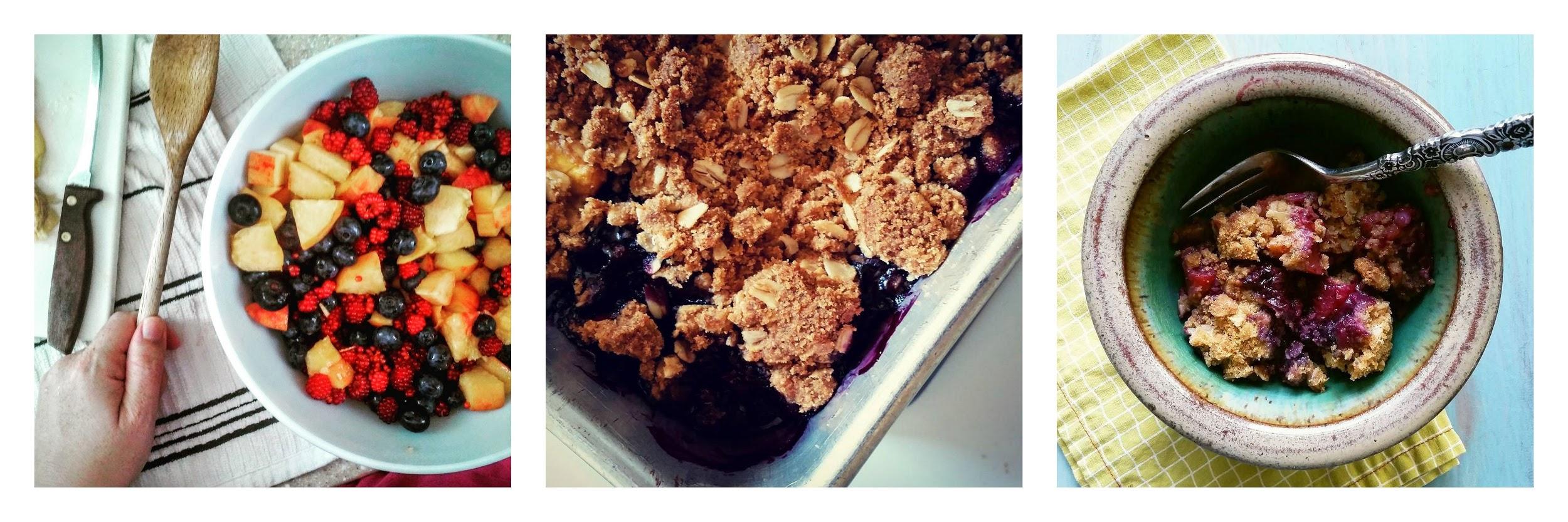
    LiteSpeed Cache is to your WordPress site as a pan of baked berry crisp is to dessert: quick and easy to serve, because all of the work of assembling the ingredients and baking them together has already been done.

    If you’d like to know more about how LiteSpeed Cache works, or the concept of Caching in general, take a look at our Caching 101 articles. If you want to play around with some settings, visit our wiki for an explanation of what each of the settings means. If you’d like to see how a WordPress site with LSCache performs against a WordPress site without it, our benchmarks are a good place to start.

    Why does my hosting provider want this?

    You’ve seen above what LSCache can do for you. But what’s in it for your hosting provider?

    As we mentioned previously, generating WordPress pages can be resource-intensive. With LSCache providing some relief, hosting providers can get better performance for all of the WordPress sites they host (including yours) while using fewer resources. It’s a win for everyone involved!

    Specifically:

    • LiteSpeed’s cache module is integrated directly into LiteSpeed Web Server, which makes for a shorter server stack and allows it to work more efficiently than any other WordPress cache plugin.
    • With fewer resources being used for each client, hosting providers can offer their services to more clients without purchasing additional hardware, or negatively impacting the performance of their existing clients’ sites.
    • With LiteSpeed-provided control panel plugins and command-line-interface scripts, hosting providers can easily manage all of the WordPress installations on their servers with one or two simple commands.

    Do I have a choice?

    Always! Let’s go back to that hosting provider function that we mentioned at the beginning. Its job is to autodiscover WordPress installations, install LSCache, and enable it. Sites are skipped if they already have another cache plugin in place, or if a file called .litespeed_flag exists in the WordPress root directory.

    If you do not want any caching at all on your site, you have two options:

    1. Deactivate the plugin and leave it installed
    2. Deactivate the plugin, uninstall it and create the .litespeed_flag file in your WordPress root directory

    If you choose option #2 and are not comfortable doing it yourself, your hosting provider should be able to help you create the file.

    Of course, we hope you will leave LiteSpeed Cache installed on your site! If you are still unsure, or if you have any questions we haven’t answered here, please drop by the support forum. We are always happy to assist.

    P.S. If I have made you hungry for berry crisp with the images and the analogy in this post, the least I can do is share the recipe 🙂

    —

    Have some of your own ideas for future WordPress Wednesday topics? Leave us a comment!

    Don’t forget to meet us back here next week for the next installment. In the meantime, here are a few other things you can do:

  • WpW: Using Multiple Cache Plugins

    WpW: Using Multiple Cache Plugins

    Welcome to another installment of WordPress Wednesday!

    —

    Please Note: At the time of this writing, the LSCache plugin did not support optimization features other than caching. Since then, our little plugin has come a long way! We support combination, minification, image optimization, and a host of other features. You shouldn’t need to use other optimization plugins alongside LSCache. However, if you still want to do so, the information in this post is still valid. 

    The most important rule when using multiple optimization plugins together: don’t duplicate functions. In other words, if you have cache enabled in one, don’t enable cache in the other. And if you are minifying CSS in one, don’t minify CSS in the other. And so on.

    —

    Today we’re going to talk about how to use other cache plugins alongside LiteSpeed Cache for WordPress. While LSCache is the only full-page WordPress cache you need, we know that there are other plugins that include features not available from LiteSpeed, like minification, lazy image loading, database caching, etc.

    The good news is that you can easily use these other plugins right next to LiteSpeed Cache. Read on, and we’ll show you how!

    Is the other plugin a good choice?

    Not all cache plugins are good candidates to pair with LiteSpeed. Our plugin is a full-page cache. You can get more details on that here, but essentially what that means is that LSCache stores copies of fully-assembled pages. It’s strongly recommended that you only use one full-page cache. In order for the other plugin to be a good fit with LSCache, it must either:

    1. not include a full-page cache at all, or
    2. include a full-page cache that can be disabled.

    Setting up the other plugin

    Before you install and activate LiteSpeed Cache, you should first get the other plugin working to your satisfaction. Doing this part first will make it easier because you can follow the plugin’s given directions without having to worry about how it will impact LiteSpeed’s setup.

    Once the plugin is installed, activated, and set up to your liking, purge that plugin’s cache to ensure there are no conflicts from the start, and then disable its full-page cache functionality.

    Setting up LiteSpeed Cache for WordPress

    Install and activate LSCWP. Upon activation, you should see the following warning message:

    This message indicates that there is another cache plugin activated and that it is using the WordPress advanced-cache.php file. This is normal behavior! If you see this warning, it means everything is working as expected.

    If you don’t see the above message, we need to figure out why. Try refreshing your screen a few times. If it’s still not there after that, it can mean one of two things:

    1. The other plugin you installed doesn’t use advanced-cache.php
    2. There is an underlying issue that needs to be addressed

    In either of these cases, it’s best to let us know. We’ll be able to tell you if this is normal for the other plugin you’re using, and if it’s not, we can troubleshoot the underlying issue.

    Configuring LSCWP

    Assuming you’ve seen the message above, the last step is to configure LSCWP not to use advanced-cache.php. If the other plugin wants to use that file, we are going to let it do so. Navigate to Settings → LiteSpeed Cache → Advanced, and uncheck the Check advanced-cache.php option. (The box will be green when “checked” and gray when “unchecked.”)

    Save your changes, and the warning should no longer display. If the message is still there, let us know.

    A Note about ExpiresDefault

    A recent update to our plugin added a warning that you might see:

    ERROR 4010: In .htaccess file found one unexpected cache rule ExpiresDefault

    This will show up if your other plugin includes browser caching functionality. We added the warning because browser cache can conflict with page cache and cause undesired behavior.

    To deal with this, edit your .htaccess file (in the root directory of your WordPress installation) and add the following line above the ExpiresDefault line:

    ExpiresByType text/html "access plus 0 seconds"

    (If an ExpiresByType text/html rule already exists, either comment it out, or change it to match the 0-second rule above.)

    This rule will make it so that the pages that are cached by LSCWP are not included in the browser cache, but any other browser-cache behavior will remain unchanged.

    As of this writing, LSCWP will still put up a warning even after you’ve added this line. We’ll be changing that behavior with the next release, but until then, you can either ignore the warning, or insert a single space in front of ExpiresDefault. If you add the space, the rule should still work as intended for the other plugin, but LSCWP will no longer detect it.

    If you have difficulty with this, drop by the support forum and we’ll talk you through it.

    Checking your work

    At this point, you should have both plugins working together in harmony, but you’ll want to do a quick test, just to be sure. To verify that your pages are actually being cached by LiteSpeed:

      1. Visit a page on your website while not logged in.
      2. Reload the page.
      3. View the page source (CTRL-U or right-click, then “View Source”)
      4. Scroll all the way to the bottom of the source code and check the last line. It should say something like:
        <!-- Page generated by LiteSpeed Cache on 2017-07-31 15:56:52 -->

    If you don’t see the LiteSpeed Cache comment above, then the page was not cached by LiteSpeed and something in your setup is not quite right. Contact us, if you need help!

    If you do see the LiteSpeed Cache comment above, then congratulations! LiteSpeed will now handle the page-caching duties, and the other plugin will handle whatever it is that the other plugin handles. Don’t forget to take a look at your LiteSpeed Cache settings and see if anything needs adjustment. In general, the default settings are fine, but you might want to tweak a few things since you’ve got the other plugin running, too!

    —

    Have some of your own ideas for future WordPress Wednesday topics? Leave us a comment!

    Don’t forget to meet us back here next week for the next installment. In the meantime, here are a few other things you can do:

  • WpW: .htaccess and Rewrite Rules

    WpW: .htaccess and Rewrite Rules

    Welcome to another installment of WordPress Wednesday!

    We’ve covered a lot of complex topics here lately, so how about we give you a nice quick tip for a change? Today, we’ve got a little tidbit related to your .htaccess file and LiteSpeed Cache Rewrite Rules.

    What is .htaccess?

    LiteSpeed Web Server supports the Apache .htaccess file. This configuration file is important because it allows us to enable or disable additional functionality, and to define URL redirect rules, among other things.

    When you look at the .htaccess in your WordPress root directory, there are two things you should notice:

    1. There should be a line that reads CacheLookup on
    2. WordPress’ URL rewrite rules (if there are any) should come after LiteSpeed’s Cache rules.

    Under normal circumstances, this is not something you should have to worry about. There should not be any need for you to edit this file yourself. LiteSpeed’s WP plugin maintains the .htaccess file automatically. When the plugin is installed or uninstalled, enabled or disabled, or when you change relevant settings in your WP dashboard, .htaccess is updated to reflect that change.

    In some more detail

    If you have chosen to use pretty permalinks (i.e. your WordPress URLs look more like example.com/post-title or example.com/2017/07/post-title than example.com/?p=123), then WP has used the .htaccess file in its root directory to define some rewrite rules. Depending on how many plugins you’ve got installed and a variety of other factors, your .htaccess could be fairly simple like the one below, or it could be really hairy with many different blocks belonging to a variety of plugins and other software.

    WordPress Rewrite Rules

    This is an example of the lines that a basic WP installation would insert into .htaccess:

    # BEGIN WordPress
    <IfModule mod_rewrite.c>
    RewriteEngine On
    RewriteBase /
    RewriteRule ^index\.php$ - [L]
    RewriteCond %{REQUEST_FILENAME} !-f
    RewriteCond %{REQUEST_FILENAME} !-d
    RewriteRule . /index.php [L]
    </IfModule>
    # END WordPress
    

    LiteSpeed Cache Rewrite Rules

    LiteSpeed Cache, too, uses .htaccess. Here’s an example of the LSCache-related lines you might find in your .htaccess:

    # BEGIN LSCACHE
    ## LITESPEED WP CACHE PLUGIN - Do not edit the contents of this block! ##
    
    RewriteEngine on
    CacheLookup on
    RewriteRule .* - [E=Cache-Control:no-autoflush]
    RewriteRule \.litespeed_conf\.dat - [F,L]
    
    ### marker CACHE RESOURCE start ###
    RewriteRule wp-content/.*/[^/]*(responsive|css|js|dynamic|loader|fonts)\.php - [E=cache-control:max-age=3600]
    ### marker CACHE RESOURCE end ###
    
    ### marker FAVICON start ###
    RewriteRule favicon\.ico$ - [E=cache-control:max-age=86400]
    ### marker FAVICON end ###
    
    ### marker WEBP start ###
    RewriteCond %{HTTP_ACCEPT} "image/webp" [or]
    RewriteCond %{HTTP_USER_AGENT} "Page Speed"
    RewriteRule .* - [E=Cache-Control:vary=%{ENV:LSCACHE_VARY_VALUE}+webp]
    RewriteCond %{HTTP_USER_AGENT} iPhone.*Version/(\d{2}).*Safari
    RewriteCond %1 >13
    RewriteRule .* - [E=Cache-Control:vary=%{ENV:LSCACHE_VARY_VALUE}+webp]
    ### marker WEBP end ###
    
    ### marker DROPQS start ###
    CacheKeyModify -qs:fbclid
    CacheKeyModify -qs:gclid
    CacheKeyModify -qs:utm*
    CacheKeyModify -qs:_ga
    ### marker DROPQS end ###
    
    
    ## LITESPEED WP CACHE PLUGIN - Do not edit the contents of this block! ##
    # END LSCACHE
    

    The exact lines you see for WordPress and LSCache depend on which options you have enabled in the plugin, and may not match these examples directly, but they should be pretty similar.

    Putting Them Together

    In order for LSCache to work properly, two things must be true:

    1. Public Cache Lookup must be enabled via the CacheLookup on directive.
    2. The LITESPEED WP CACHE PLUGIN block must appear before any WordPress rewrite rules.

    If you’re noticing quirky behavior, take a look at your configuration file. You can view it via WP Dashboard > LiteSpeed Cache > Toolbox > View .htaccess. Like we mentioned earlier, LSCache for WordPress automatically handles cache-related changes to .htaccess, but if it has been manually updated or otherwise manipulated by another plugin, you may find irregularities that need to be corrected.

    —

    Have some of your own ideas for future WordPress Wednesday topics? Leave us a comment!

    Don’t forget to meet us back here next week for the next installment. In the meantime, here are a few other things you can do:

    —
    This content was last verified and updated in October of 2022. If you find an inaccuracy, please let us know! In the meantime, see our documentation site for the most up-to-date information.

  • WpW: LiteSpeed Caching 101

    WpW: LiteSpeed Caching 101

    WordPress Wednesday: LiteSpeed Caching 101

    Welcome to another installment of WordPress Wednesday!
    Today’s Topic: Understanding LiteSpeed Cache

    Previously in our Cache 101 series, we discussed the basics of caching. Be sure to take a look at that, if you missed it, because today we are going to go more in-depth, and discuss LiteSpeed Cache in particular. We’ll talk about how it works, how it is different than other WP caching solutions available, and what that really means for your WordPress site.

    LiteSpeed Cache

    As we mentioned, LSCache is a server-side page cache. This essentially means we are storing static snapshots of the pages on your WordPress site. We can do this because the dynamically-generated pages are effectively the same each time they are built. Why generate the same page multiple times, when you can do it once and save the results at the server level? Rather than making your visitors wait for WordPress and PHP to assemble the pages for each request, we can serve them the snapshots much faster.

    Filling up and using the cache

    LiteSpeed Web Server is required for the use of the LSCache for WordPress plugin. This is because the basic LSCache functions are actually carried out by the server. The plugin is provided as an easy way for a site admin to communicate with the cache engine, but it doesn’t actually execute any of the caching tasks, and the cache files themselves are not stored within the WordPress file structure.

    LiteSpeed’s cache can be populated in two ways: behind the scenes through the use of a crawler, or through visits to the site. We’ve written a comprehensive overview of our crawler functionality before, so for now let’s just focus on a basic example where a couple of users drop by to check out your site.

    Visitor #1:

    1. lands on your site and requests a dynamic page to view.
    2. The request goes to the server, which checks to see if the page is in the cache.
    3. It is not, so the request goes to WordPress.
    4. The WordPress backend processes all of the PHP code and generates an HTML page
    5. The HTML page is served to the visitor.
    6. The page is also stored in the cache.

    Visitor #2:

    1. lands on your site and requests the same dynamic page to view.
    2. The request goes to the server, which checks to see if the page is in the cache.
    3. This time the server finds the page in cache
    4. The cached page is quickly served to the visitor.

    You can see, when the page was cached after Visitor #1 requested it, that things really improved for Visitor #2 (and presumably, every subsequent visitor as well). That is the benefit of caching, in a nutshell.

    As long as a page remains in cache, all visitors will have the same experience as Visitor #2. Once some event occurs that purges the page from the cache, the process begins again. The next visitor after a purge will have the same experience as Visitor #1 did: waiting for the backend to process the request and store an updated version in the cache.

    Emptying the cache

    Understanding LiteSpeed Cache

    Pages cannot remain in the cache indefinitely, so while visitors keep triggering more and more additions to the cache, LSCache relies on a set of rules to tell it when to remove pages. A page removal (or, purge) occurs when certain activities trigger it, or when the page has been in the cache long enough to expire.

    Purge through expiration

    The most common way for a page to be removed from the cache is for its TTL to expire. Each page has a TTL (Time to Live) defined, and when that time is up, the page is purged from the cache. As site admin, you have control over your pages’ TTLs, and it makes sense to choose a time that is as long as possible without impacting your site’s functionality.

    For example, if you have a site with a few thousand pages, most of which never change, then you can set your TTL to something quite long, like a week, or maybe even a month.

    On the other hand, if your site is frequently being updated, you’ll want a TTL that isn’t very long, like a day or 8 hours.

    Purge through activity

    There are certain events that are built in to LSCache that trigger a purge. If a post is edited, saved, deleted, trashed, or an attachment is deleted, then that post is purged from the cache.

    Additionally, LSCache has a really nifty tagging system that allows pages to be grouped together and purged all at once after a triggering event. Here’s an example that shows the “smart purge” system in action:

    You publish the following post:

    Title: Hello, World!

    Category: Greetings

    People visit your site, the post ends up in the cache.

    You then edit the post and change the Title and add a second Category:

    Title: Hey, World, How Are You?

    Category: Greetings, Questions

    Since there have been changes to the post, the following pages are purged from the cache according to the rules set up in LSCache admin:

    • The post itself
    • The front page and/or home page of your site
    • The author archive page
    • The post type archive page
    • The monthly archive page
    • The “greetings” and “questions” category pages

    You can change the rules to purge even more pages than this (or fewer), if it’s appropriate for your site.

    This purge tag functionality is very powerful. It means that LSCache can do a targeted purge like we saw above, removing the edited post, as well as every other page that is influenced by that post. Without a tagging system, other plugins can either purge too little (just the post) or too much (all of the site’s pages).

    This functionality allows you to specify relatively long TTLs for your pages, knowing that LSCache will step in and purge any pages that are affected by recent activities.

    Some things cannot be cached

    Not every page on your site is cacheable. As of version 1.1.2, these are some of the pages that LiteSpeed Cache considers uncacheable, a few of which are configurable in WP-Admin:

    • Admin pages
    • Post requests
    • Pages where no theme is in use
    • Any page that is specified as “do not cache” in WP-Admin
    • Any post that has a category or tag that is specified as “do not cache” in WP-Admin
    • Any request that has a cookie or user agent that is specified as “do not cache” in WP-Admin

    Public cache vs. private cache

    As of this writing, the LiteSpeed Cache for WordPress plugin only deals with public cache. This will be changing soon, and we’ll update here when it does. But for now, let’s talk a bit about the difference between public and private, and what that means in a caching context.

    [UPDATE: Private cache is available now.]

    Public cache is cache that can be accessed by everyone. A single copy of a publicly-cached page is stored and served to everyone who requests it.

    Private cache, on the other hand, is only accessible to an individual visitor. It usually contains information that is only pertinent to that particular user (for instance, shopping cart contents, or a personalized greeting). When a page is privately-cached, there is a separate copy stored for each user that requests it.

    As previously mentioned, the WP plugin currently only deals in public cache, and so any page that has private data on it, is just not cached at all.

    When a user is logged in, there is the potential for every page to have private data on it, and so pages are never cached for logged-in users.

    We are very close to releasing a new version of the plugin that will support Edge Side Includes (ESI). This is technology that allows us to “punch holes” into publicly-cached pages, and treat those areas differently, whether that be to store them in private cache or to not cache them at all. We will have a lot more to say about this when it’s ready, so stay tuned for that!

    [UPDATE: ESI is available now.]

    LiteSpeed Cache vs. Other Plugins

    Understanding LiteSpeed Cache

    As we discussed earlier, LSCache is an integral part of LiteSpeed Web Server. The plugin is merely the channel through which a WP admin can communicate with the server. This is not the way that other WP cache plugins operate. Other cache plugins don’t have the luxury of such a close relationship with the server. They must sit on top of the server, while LSCache is integrated directly into it.

    This is an important distinction. To understand why this is so, we need to look at how WordPress caching works for just about every plugin (including ours):

    The most effective WordPress caching plugins use rewrite rules to manage the cache.

    The rules tell the server where to look for cached content. Plugins can place pages in the cache by writing to the file system, and they can purge pages from the cache by deleting the files. They can tell whether or not a page is cached by checking for the presence of the file. And they can tell if a cached page has expired by comparing the file time to the page’s TTL.

    Pretty much all cache plugins can do these things, but that is the extent of their ability to manage the cache. If a plugin wants to avoid the expense of invoking PHP, then it cannot “remember” information about the cache entries between user sessions. Either the cached files exist, are fresh and can be served, or they don’t exist and/or cannot be served. That’s it.

    LiteSpeed Cache can go further. Because the cache is integrated into the server, LSCache can remember things about the cache entries that other plugins cannot, and it can analyze dependencies. It can utilize tags to manage the smart purging of the cache as we discussed earlier, and it can use vary cookies to serve multiple versions of cached content based on things like mobile vs. desktop, geographic location, and currencies.

    Through its tight integration with the server, LiteSpeed Cache provides powerful cache management tools that are simply not possible for the other plugins to replicate.

    LiteSpeed Cache’s relationship with LiteSpeed Web Server translates into superior performance, as our benchmarks can attest. Even better, see what other people are saying!

    If your WordPress blog is powered by LiteSpeed Web Server, and you haven’t given our cache plugin a try yet, I hope we’ve convinced you by now that it’s worth a try!

    Conclusion

    And thus ends our Caching 101 series. That wasn’t too painful, was it? You should now understand how LiteSpeed Cache works, and why it’s so unique among the available plugins. Now that we’ve got this basic foundation down, we can start talking about more advanced topics that rely on this knowledge. For example, we’d like to share some tips for plugin authors who want to maintain compatibility with LSCache. You can’t talk about that without understanding a bit about how LSCache does what it does! Keep an eye out for that topic (and others like it) in future installments.

    In the meantime, if you have questions, please don’t hesitate to leave a comment. We’d love to help!

    —

    Have some of your own ideas for future WordPress Wednesday topics? Leave us a comment!

    Don’t forget to meet us back here next week for the next installment. In the meantime, here are a few other things you can do:

  • WpW: Caching 101

    WpW: Caching 101

    WordPress Wednesday: Caching 101

    Welcome to another installment of WordPress Wednesday!
    Today’s Topic: What is Caching?

    Today we are going to begin a series-within-a-series, and talk about the basics of caching: what is a cache? Why is it beneficial to cache your WordPress site? What types of caching are available to web applications? And then we’ll get into the basics of our own caching solution: LiteSpeed Cache, affectionately referred to as LSCache for short. We’ll also talk about how LSCache is different than other WP caching solutions available, and what that really means for you.

    It’s a meaty topic, so we’re going to split it up into a few smaller chunks for easier digestion. Today, let’s start with the basics of web app caching, as they pertain to WordPress.

    What is Caching?

    Generally speaking, a cache is a mechanism for storing data in such a way that it is easier or faster to retrieve than the original source.

    WordPress sites consist of dynamic pages that are built with PHP. The pages of a WP site don’t exist anywhere in the file system; they are constructed on-demand through PHP, and then served to the visitor as HTML. Along this path, there are a few places that are resource-intensive and ripe for the caching.

    Types of Cache

    Cache can be stored on the visitor’s own device (client side), on the website’s network (server side), or halfway around the world (via a content delivery network). Some sites may employ all of these methods, while others have the need for very few.

    Client-side caching

    All modern browsers support client-side caching. Your browser knows that certain files rarely change. Files like CSS, Javascript, and images can all be stored locally in your browser’s cache so that they can be accessed quickly and easily without being re-downloaded from the server.

    Server-side caching

    What is Caching

    Most of the work of generating and delivering a web page is done on the server side, so it make sense that more of the opportunities to increase efficiency would also be here. There are four major types of server-side caches available to WordPress sites.

    database cache

    A database cache saves time and resources related to the execution of database queries. WordPress relies on its database for basic information about the site, and it asks for this same information often. A database cache stores the query results so that they may be referenced again and again without the need to repeatedly access the database.

    object cache

    An object cache saves time and resources related to the computation of objects. WordPress has a built in object cache mechanism with a defined class and set of functions that can be used to add, access, remove, or otherwise manipulate the object cache. An object cache doesn’t stick around for long. By default, it’s only relevant for the duration of a single request. It’s used to store data that is needed multiple times in a request, but is considered expensive to re-compute. Often, the object cache stores database queries, which is why it is sometimes mistaken for a synonym of “database cache.”

    opcode cache

    An opcode cache saves time and resources related to the execution of PHP code. Before PHP can be executed it must be compiled. An opcode cache stores this compiled code at the server level so that it may be reused without recompiling. The next time a request is sent that requires that PHP code to be executed, it can save the compilation step and just run the code that was saved in the opcode cache.

    page cache

    LiteSpeed Cache is a page cache. Page caches, too, save time and resources, and they do so by storing the full content of dynamically-generated pages so that static copies may be served to the user. A page cache allows the server to bypass PHP and database queries altogether. The other types of cache can be helpful while building up your page cache, but once there is a fresh, well-managed page cache in place, there is little need for database, object, or opcode caches.

    Content delivery networks

    Content delivery networks (or, CDNs) store static website content remotely in servers all around the world. The content may then be served to a site’s visitor from the server that is physically closest to that visitor’s location. The closer the server, the less time the data takes in transit. CDNs are great when it comes to static content, but are lacking when you have a dynamically-generated site such as WordPress, as the content requests must still hit the WP backend.

    Until Next Time…

    So, there is your overview. At this point, you should understand what types of caching are available for your web apps, and why you might want to use them. Our next article in the Caching 101 series will focus specifically on our solution: LiteSpeed Cache. We’ll talk about how it works, why it’s different than other WordPress page-caching plugins, and what benefits those differences get you. Be sure to meet us back here for that!

    —

    Have some of your own ideas for future WordPress Wednesday topics? Leave us a comment!

    Don’t forget to meet us back here next week for the next installment. In the meantime, here are a few other things you can do:

  • WpW: Autodiscovery, LSCache and the Command Line

    WpW: Autodiscovery, LSCache and the Command Line

    Welcome to another installment of WordPress Wednesday!

    Our topics in this series so far, have been mainly aimed at site owners, but today it’s your turn, hosting providers! Today we are going to talk about Autodiscovery through our command-line interface (CLI) script.

    What do I mean by this?

    Shared hosting providers love our WHM plugin’s web cache manager. It allows for autodiscovery of clients’ new WordPress installations and mass enabling of LiteSpeed Cache for all accounts. As more and more accounts are added, more and more hosts have requested to automate this via a CLI script.

    So, since LiteSpeed Web Server v 5.1.14, cPanel users who have the WHM plugin installed have had access to a nifty script that can be run from the command line. This script will automatically discover all of the WordPress installations on the server, and optionally enable LiteSpeed Cache for WordPress for each installation. It can be run by the cron as well, so that you can auto-discover and auto-enable on a schedule.

    Why would you want to do this?

    We’ve discussed before a few of the benefits to having your WordPress installation running our LSCache plugin. Now imagine you are providing hosting to dozens, hundreds, maybe even thousands of WordPress sites. Wouldn’t you want each of those sites to be using as few resources as possible, to keep everything running quickly and smoothly? Enabling LSCache on all of your clients’ sites allows you to host more sites on the same equipment you already own – no extra investment in hardware.

    As a busy hosting provider, you don’t have time to manually enable plugins on each and every site. That’s where the CLI comes in.

    With the CLI, you can auto-discover new WordPress installations and auto-enable the LSCache plugin, all without leaving the comfort of your simple command prompt. What a time saver! You can make it even less labor-intensive by hooking it into the cron. Every night at 3am, while you sleep, LiteSpeed Cache could be quietly enabled in all of the previous day’s new WordPress sites. Sweet dreams!

    How does it work?

    First, make sure you’re using cPanel and the WHM plugin.

    Then, locate the script at /usr/local/lsws/admin/misc/lscmctl, and you’re good to go.

    The CLI takes a command and a few possible parameters like so:

    ./lscmctl [-php path/to/php] command [flag/parameter]
    

    You can pass in the location of your preferred PHP binary, if necessary, via the -php flag, where path/to/php is, you guessed it, the path to your PHP executable.

    Let’s look at the commands you can use.

    Scan (Autodiscover)

    You can scan for all WordPress installations (and optionally enable the LSCache plugin) through the appropriately-named scan command.

    This command creates a lsc_manager_data file under the .../lsws/admin/lscdata directory, which contains information on all of the installations that are discovered.

    There are two options you can use with the scan command:

    • -n only discovers installations that are new since the last scan
    • -e enables the LSCache plugin on all discovered installations after scanning is complete

    Examples

    Discover all installations:

    ./lscmctl scan
    

    Discover new installations only:

    ./lscmctl scan -n
    

    Discover new installations and enable LSCache on them:

    ./lscmctl scan -n -e
    

    Notes

    When a site is discovered, the user’s home directory and the site’s document root are remembered. If a scan for new installations only (scan -n) is then run, it ignores this home directory/document root combination because it has already been discovered.

    This is usually not a problem, but there is one situation where it could be: Say a user, who already has one or more WP sites, installs a new one under an existing document root. That new site will not be found, because that home directory and document root were already previously discovered.

    For this reason, it’s recommended that you run a full scan once in a while, to catch these fringe cases that may have slipped through the cracks of a scan -n.

    Additionally, please keep in mind that autodiscovery only works two levels deep. So, it will find installations in path/doc-root, or path/doc-root/subdir, but not in path/doc-root/subdir/subdir.

    Enable

    The enable command is used to turn on the LSCache plugin on all discovered WordPress installations without running a new scan first.

    There is currently one option you can use with the enable command:

    • -m stands for “mass” and indicates that you want to enable to whole lot at once

    Example

    Enable LSCWP for all previously-discovered WordPress installations:

    ./lscmctl enable -m
    

    Notes

    When running the enable -m command, there are two situations where LSCache may fail to be enabled on a particular site:

    1. The site has opted out of LSCache. The WHM plugin provides the ability to “flag” a particular site so that it is skipped during a mass enable.
    2. The site has been auto-flagged to be skipped. This is usually caused by the detection of another cache plugin, but can sometimes also be triggered by an unspecified error with WordPress.

    Hands-Off Autodiscovery and Enabling

    Now that you know how all of this works, you’re probably thinking, “I don’t want to have to run this every single day by hand.” Well, you’re in luck. You can have the cron take care of the whole thing.

    Let’s say you want to do autodiscovery of new installations once-a-day, and you want to enable LSCWP for each of those newly-discovered installations.

    That’s a ./lscmctl scan -n -e command, which can be easily added to the cron.

    Enter crontab -e at the command-line prompt, and add the following line to the file:

    00 03 * * * /usr/local/lsws/admin/misc/lscmctl scan -n -e
    

    The 00 and 03 represent minute 00 and hour 03 (aka 3am). If you prefer a different time of day, you would change those numbers. If you’re unfamiliar with crontab syntax, you might want to take a look at this post, where we discussed it some detail.

    What if you’re not a cPanel user?

    It’s true that we have started with cPanel, but our goal is to make the CLI script available for users of all of our control panel plugins, including Plesk. So stay tuned, if this is you!

    So, hosting providers, what do you think?

    You can use the command-line interface to easily keep LiteSpeed Cache enabled on all of your clients’ WordPress sites, including brand new installations. Even better, you can hook this process into the cron so that the entire thing is nicely-automated.

    Be sure to leave a comment on this post, or contact us for support, if you have any questions about what the CLI script can do to speed up both your users’ sites and your own administrative tasks!

    [2019 update: there are additional commands beyond what are mentioned here. Please visit our wiki to learn what else you can do with the CLI script.]

    —

    Have some of your own ideas for future WordPress Wednesday topics? Leave us a comment!

    Don’t forget to meet us back here next week for the next installment. In the meantime, here are a few other things you can do: