Welcome to another installment of WordPress Wednesday!
Today we are going to talk about another enhancement to the LSCache plugin for WordPress: Browser Caching! We’ll talk a little bit about how browser caching is different than page caching (LSCWP’s specialty), but if you’d like a more in-depth exploration of the topic, you should take a look at our Caching 101 series.
Why Browser Caching?
LiteSpeed Cache is a full-page cache. It takes expensive-to-generate dynamic content and stores it as easy-to-serve static files. While it handles dynamically-generated content well, it only handles dynamically-generated content. Static content such as images, video, or fonts is not included in a page cache. And yet, this content may be requested from the server repeatedly. Take, for instance, your site’s logo. That image is likely to be displayed on every page that the user visits, which means the server has to transfer that same image to that same user, over and over and over again.
This is where browser caching comes in handy. With browser caching enabled, your logo (along with other static content) is stored locally on the user’s device the first time it is requested. After that, the content is pulled from the device’s local storage until the browser cache expires. Displaying a local image will always use fewer resources than transferring an image across the internet, no matter how fast your connection may be.
How to Set it Up
Normally, browser caching is enabled at the LiteSpeed Web Server level. However, if you do not have access to your server’s admin, you can still enable browser caching through the LSCWP plugin settings. You can choose to set this up at whichever level makes the most sense for your site(s).
If browser caching is turned on at any level (server, plugin, or both) then it will be enabled.
At the Plugin Level
From the WordPress Dashboard, navigate to LiteSpeed Cache → Settings → Advanced and scroll down to Browser Cache.
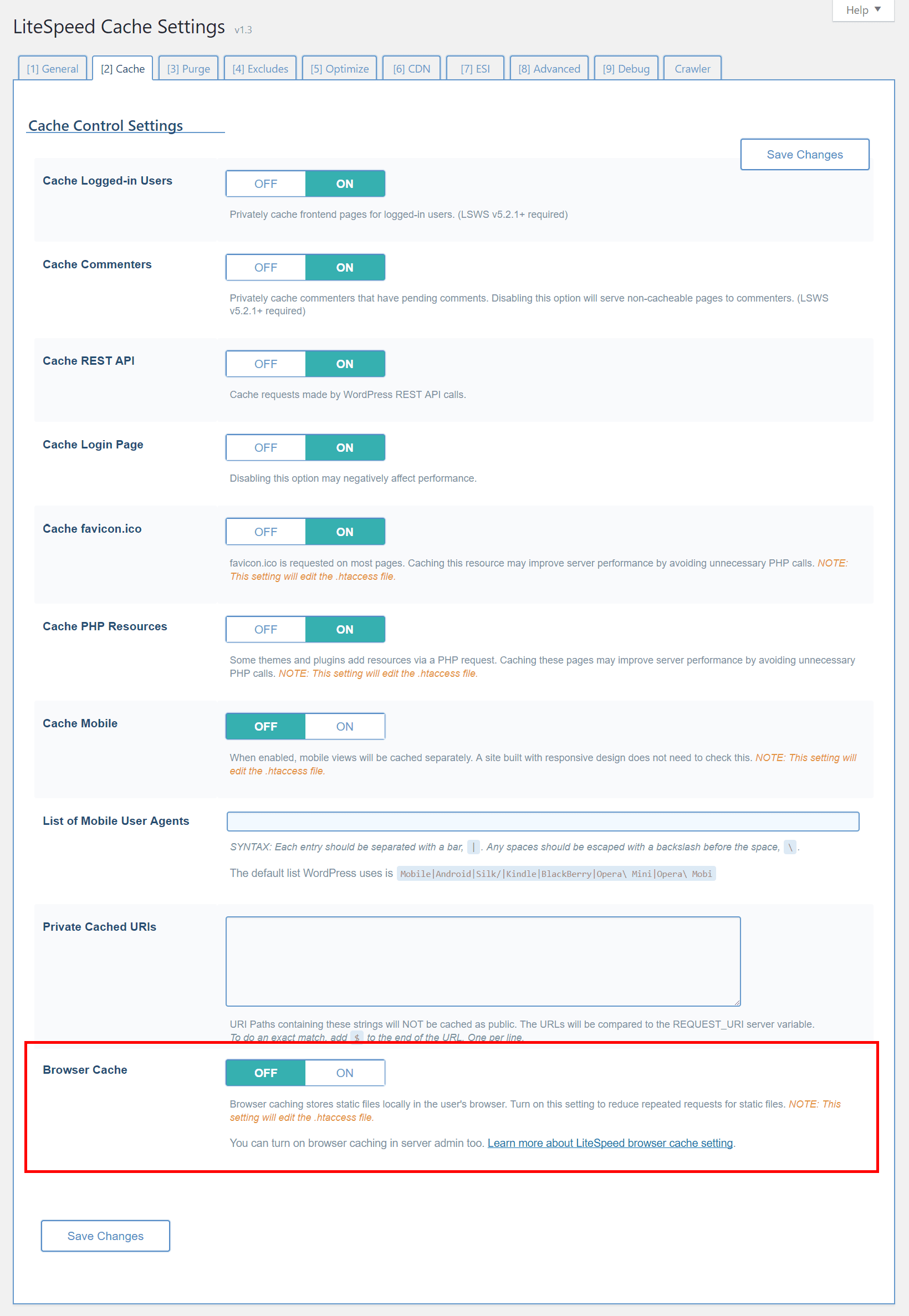
Set Browser Cache to ON.
That’s it! Browser caching will now be enabled for your site. Most static files will be cached locally on the user’s device, and will expire after one month.
At the Server Level
If you are a server admin, you have somewhat more control. In the LiteSpeed Web Server Admin, navigate to Server > General and scroll down to Expires Settings.
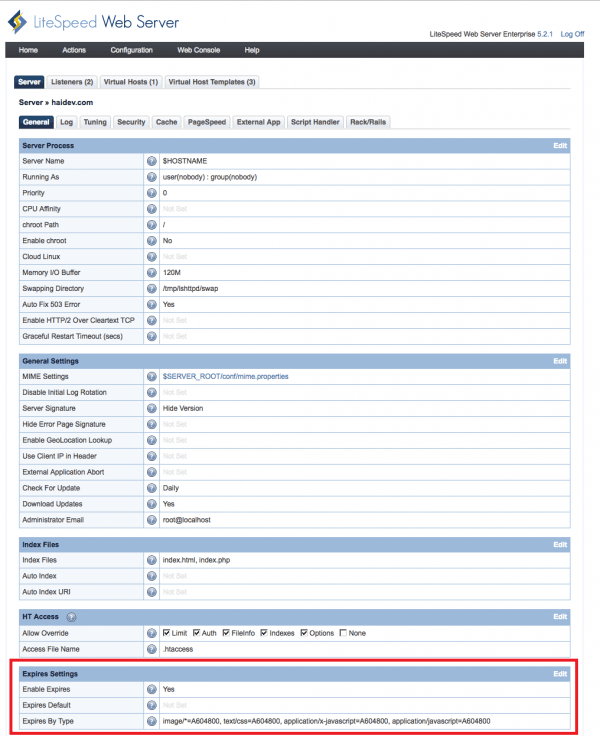
Set Enable Expires to Yes.
Expires Default may be set to a number of seconds or left blank if you don’t wish to provide a catch-all expiration.
Set Expires by Type to a string similar to the example shown, changing any file types or expiration times as desired. The example enables browser caching for all images, css, and javascript, and it sets all of their expirations to 604800 seconds (or one week). If you leave Expires Default blank, then you must specifically include every file type you want cached by the browser in Expires by Type.
NOTE: Do not set a text/html Expires by Type, because that will interfere with LSCWP’s page cache.
Once you have enabled browser caching using one of the above methods, your visitors should experience a performance boost, particularly if your site is image-heavy, or contains a large amount of other static files. Just remember, a browser cache operates like every other cache does: it needs to be populated before your users will see any benefit. So, the first time a visitor requests a page on your site, all of the static assets will still need to be transferred over the internet. For subsequent visits, any static files that have already been requested will now be available locally on the visitor’s device until they expire.
If you have any questions or suggestions regarding this new feature, let us know in the comments section!
—
Have some of your own ideas for future WordPress Wednesday topics? Leave us a comment!
Don’t forget to meet us back here next week for the next installment. In the meantime, here are a few other things you can do:
- Subscribe to the WordPress Wednesday RSS feed
- Download LiteSpeed Cache for WordPress plugin
- Learn more about the plugin on our website


Leave a Reply