
Welcome to another installment of WordPress Wednesday!
We’ve got more new features to talk about, so fasten your seatbelt and let’s get right to it: Minification, Combination, and HTTP/2 Push!
Presumably, you are already enjoying the benefits of caching with LiteSpeed Cache for WordPress. These three new optimization functions are designed to give your website an additional performance boost beyond that!
It’s generally accepted that the fewer plugins you have running the better, both in terms of performance, and in terms of just being able to manage everything efficiently. So, if you can replace two plugins with one that does everything, shouldn’t you?
These three new optimization functions (along with other new additions: database optimization, content delivery network support, and more coming soon) will allow you to retire your other optimization plugins and let LiteSpeed handle all of it.
For those of you who maybe have never minified or combined files before, let’s talk about what each of the new functions does. And then, we’ll show you how to set it all up.
What is Minification?

JavaScript, CSS, and HTML can all be put through the minification process.
When code is minified, all unnecessary whitespace characters, newline characters, and comments are removed. Minification, as its name implies, shrinks the size of the source code, and the resulting new code is more efficient to transmit over networks.
Minified code is distinctly difficult for a human to read, because all of those non-essential characters that were removed are precisely what made the original code readable in the first place. Despite any readability issues, minification is still popular because it’s generally considered more important to have a fast site than it is to have code your visitors can read. In fact, some might consider it a benefit to have their code be obfuscated to outsiders in this way.
Here’s an example of CSS before and after minification:
.sample {

border: 1px solid;

color: #123456;

/* this is a comment */

}
.sample{border:1px solid;color:#123456}
As you can see, the first block of code is easier on the eyes, but the second block of code takes up much less space, and still has the exact same functionality. This is just a tiny example. Imagine the space savings on a CSS file with thousands of styles defined!
With LSCWP minification, your source JS or CSS is not changed. We place the minified source into a new file, and the generated HTML includes that new file in the header instead of the original.
Minified CSS and JS will be placed in the code with a line that looks similar to:
<script data-minified='1' src='http://yoursite.com/min/3fb36.js'></script>
Please be aware, if you do not have pretty permalinks enabled (i.e., your site has URLs that look like http://yoursite.com/?p=123) then your minified code will have a ? in the URL like so:
<script data-minified='1' src='http://yoursite.com/?/min/3fb36.js'></script>
When HTML minification is enabled, your source HTML is also not changed. In fact, it can’t be changed because there is no source HTML. HTML is generated on-the-spot by WordPress and PHP, so if minification is enabled, the HTML will be generated already in the minified form.
What is Combination?
When a web app includes several JavaScript files, those files may be combined into one. The same goes for CSS files. This reduces the number of requests made by the browser and potentially removes duplicate code, both of which translate to improvements in speed.
With LSCWP combination, your source JS and CSS is not changed. We create a new file, the generated HTML includes that new file in the header, and the original files are not referenced.
One thing to note when combining JavaScript files: If you have JS code within the HTML itself, we cannot combine all of the JS without running the risk of introducing conflicts. If there is JS within your HTML, that JS will not be combined. All other JS will be combined, but it will not be placed in the header in this case. It will be placed in the footer instead.
What is HTTP/2 Push?
In an effort to reduce the number of requests necessary when loading a web page, HTTP/2 Push may be used to anticipate the browser’s needs and act upon them.
For instance, if the browser requests index.html, HTTP/2 can reasonably assume that the browser also wants the included CSS and JS files, and will push them along with index.html. The browser doesn’t need to ask for those files, and the transaction is completed more quickly as a result.
Some things you should know about HTTP/2 Push:
- Due to the fact that we’re using HTTP/2, the only URLs that are eligible to be pushed must be HTTPS URLs.
- The main site and the files to be pushed all need to be part of the same site URL. For example, if your site is served by LiteSpeed Web Server from
https://example.combut the CSS is served by a content delivery network fromhttps://cdn.com/example, HTTP/2 Push will not work. The main site and all of the files to be pushed will need to be served from the same place.
As far as that second point goes, we’ve recently introduced CDN support, and will explore it further in a future issue of WordPress Wednesday!
How do I enable these features?
The Optimize options are all turned off by default because they may have unexpected results. None of these methods should impact your code’s ability to function, but like we said, it can be unpredictable, so please test thoroughly before enabling minification or combination on your production site!
From your WordPress Dashboard, navigate to LiteSpeed Cache > Settings and select the Optimize tab (or press 5).
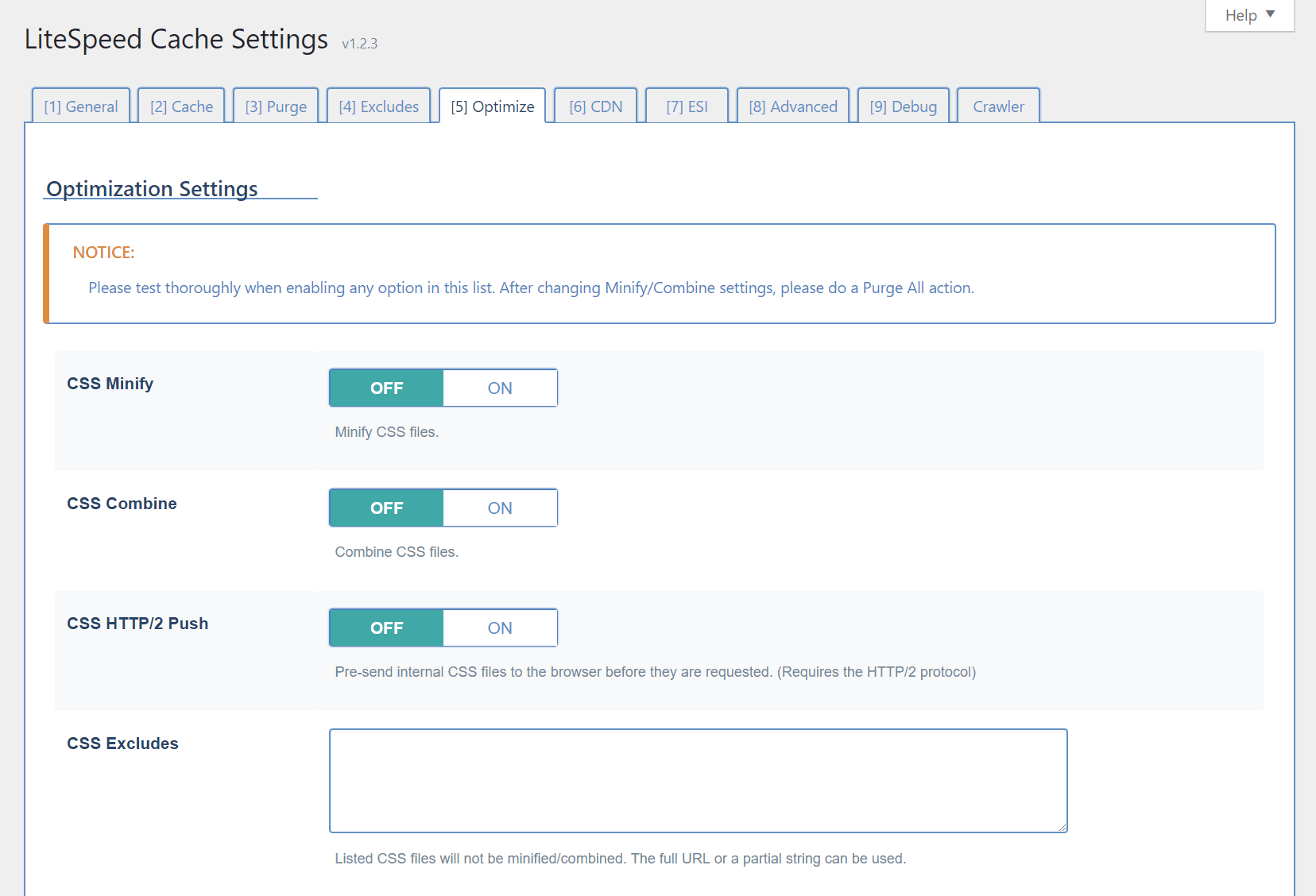
CSS Minify
Extra white space characters, new line characters, and comments will be stripped from all CSS, if this option is turned on.
CSS Combine
All individual CSS files will be combined into a single CSS file.
CSS HTTP/2 Push
CSS will be sent to the browser before it is requested.
CSS Excludes
Use this space to list any CSS files (one per line) that should be excluded from the above three functions. You may enter full URLs or a partial string. There’s no need to use wildcards in partial strings.
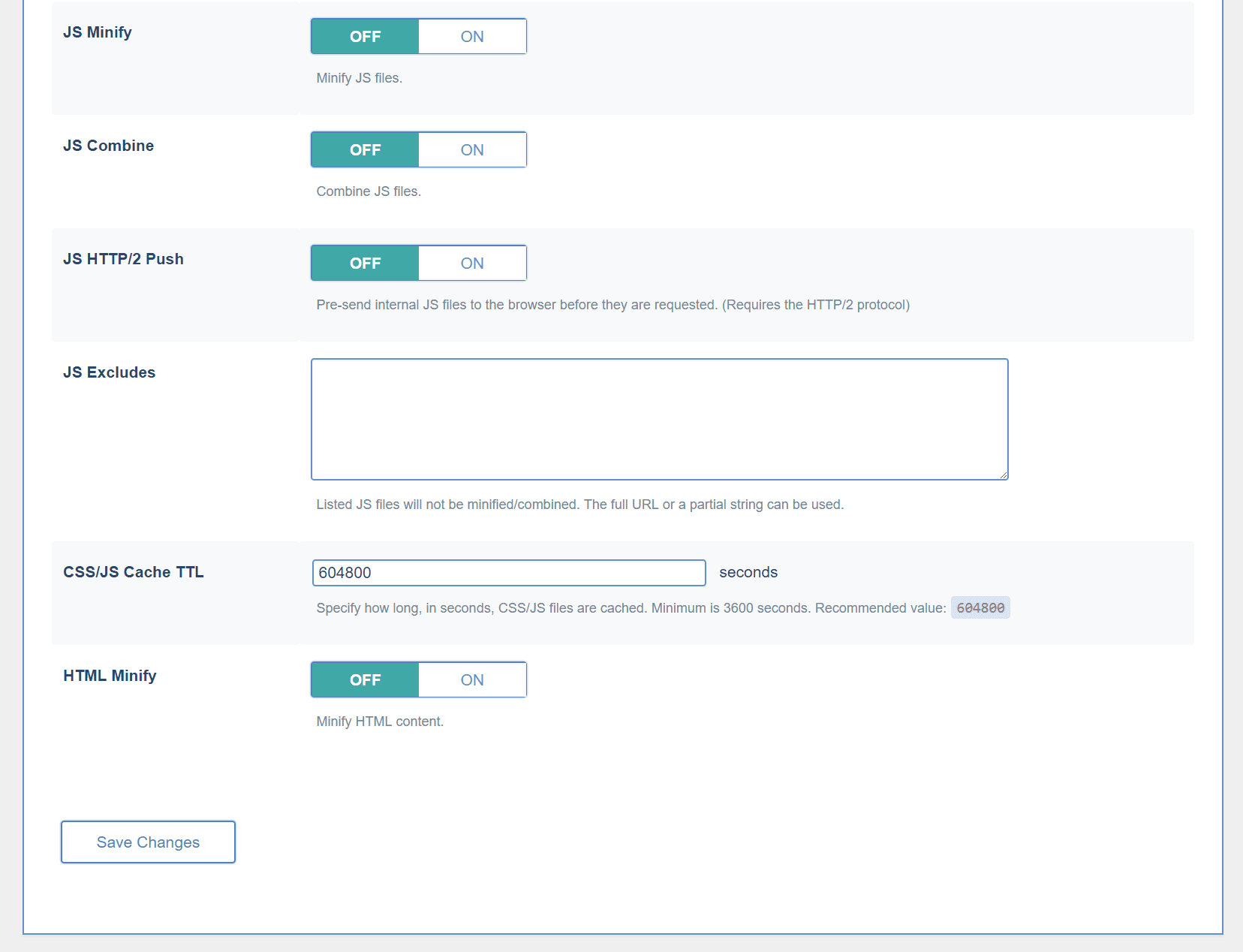
JS Minify
Extra white space characters, new line characters, and comments will be stripped from all JS, if this option is turned on.
JS Combine
All individual JS files will be combined into a single JS file.
JS HTTP/2 Push
JS will be sent to the browser before it is requested.
JS Excludes
Use this space to list any JS files (one per line) that should be excluded from the above three functions. You may enter full URLs or a partial string. There’s no need to use wildcards in partial strings.
CSS/JS Cache TTL
The minified and combined files are cached. This setting specifies for how long. The minimum is 3600 seconds, but we recommend 604800. When a Purge All command is issued, the minified and combined CSS/JS are included in that purge.
HTML Minify
Extra white space characters, new line characters, and comments will be stripped from all HTML, if this option is turned on.
What if I’m using other plugins that include some of these services?

There are many optimization plugins in the WordPress Plugin Directory, and they all have their own unique sets of features. Many of the individual options of any one plugin, however, may overlap with the individual options of the others.
As long as the plugins you are using allow you to enable and disable features at will, then they may be used at the same time. Just be sure not to use the same features in more than one plugin at a time.
Besides the fact that it just doesn’t make sense to have two plugins running the exact same optimization steps, it also has the potential to introduce buggy behavior.
Pick a plugin to do a particular optimization technique and then disable that technique in all others.
We’ve talked a little bit about this before, if you want to read up. At the time of that writing, we didn’t have some of the great extra features that we do now. Today we are better equipped to be your one-stop optimization shop than we’ve ever been! And we’re not finished yet, so stay tuned!
—
Have some of your own ideas for future WordPress Wednesday topics? Leave us a comment!
Don’t forget to meet us back here next week for the next installment. In the meantime, here are a few other things you can do:
- Subscribe to the WordPress Wednesday RSS feed
- Download LiteSpeed Cache for WordPress plugin
- Learn more about the plugin on our website


Leave a Reply