WpW: Database Optimization

Written by

in

Welcome to another installment of WordPress Wednesday!

We’re on quite a roll lately, with all of the new functionality being introduced into our cache plugin. But don’t worry if you haven’t had a chance to figure it all out yet. That’s why I’m here! Today, allow me to be your guide through Database Optimization.

Disclaimer: The information contained in this post is accurate for LSCWP v7.2 [release log]. If you are using a newer version of the plugin, some details may have changed. Please refer to our documentation for the latest!

From your WordPress Dashboard, navigate to LiteSpeed Cache > Database. You’ll notice some icons and buttons, and you may also notice that the page has been split up into two tabs: Manage and DB Optimization Settings.

Manage

Database optimization is a useful tool when it comes to speeding up your site. We’ve included it here because there’s nothing we love more than an accelerated internet! This is one of many such “extras” we’ve adding to the plugin.

Our DB Optimizer gives you an easy way to keep your WordPress database slim, trim, and as efficient as possible.
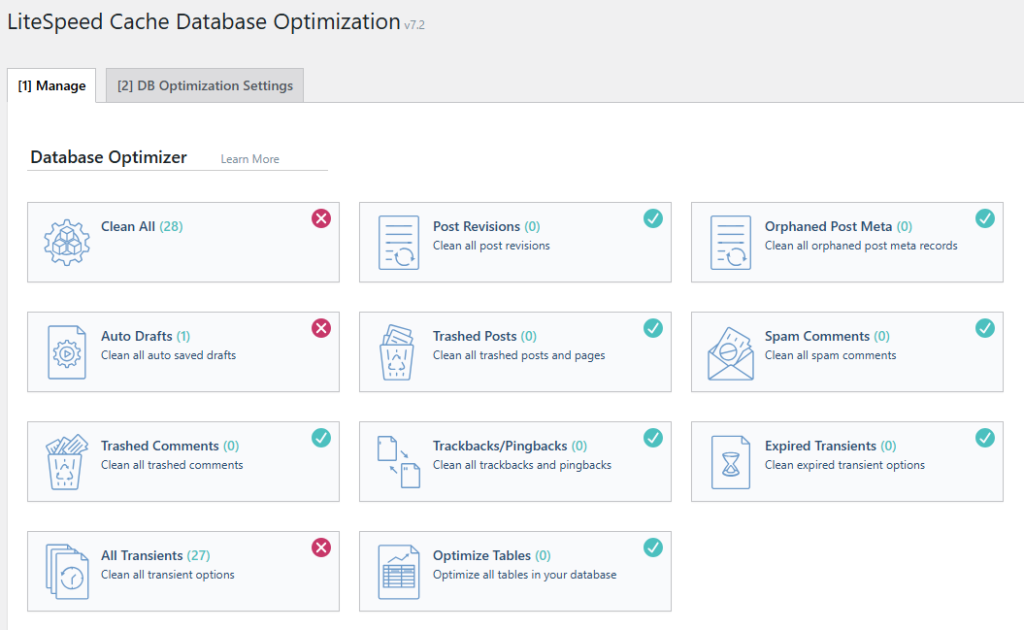
Database Optimization in LSCWP
You’ll notice that some of the buttons have green check-marks while others have red X’s. The check marks indicate that the area has already been cleaned-up. If you see a red X, it is an indication that you have an opportunity to do some optimization.

A word of caution: as with most tools of this nature, it is a good idea to have a current backup of your database before you begin pressing buttons!

So let’s take a look at each of those buttons and see what they do.

Clean All

This button is for the site admin in a rush. It allows you to clean up everything at once by executing all of the other cleanup buttons with a single click.

NOTE: Optimize Tables is different than the other buttons, so it’s not included in Clean All. Its functionality is explained in more detail below.

Post Revisions

When you edit an existing post, WordPress saves a copy of the original version, just in case you make a mistake and need to revert back. If you edit the post 8 times, you will have 8 revisions saved. That’s 8 full copies of the post, each just a little bit different than the others. This button removes all but the most recent revision from the database.

The Post Revisions button has the potential to free up a considerable amount of space, if you are prone to frequent edits. Just be aware that you will sacrifice your ability to ever restore old versions of posts. This is a sacrifice that most site owners can easily live with, though.

Orphaned Post Meta

If you’ve deleted posts in the past, there is a chance that some metadata records from those posts remain. This button cleans them up.

Auto Drafts

When you create or edit a post, WordPress automatically saves drafts now and then. This is to protect you in case you unexpectedly lose your connection, or your computer crashes. If you know that all of your posts are either published or saved correctly as drafts, then it is safe to press this button and remove the automatic drafts.

Trashed Posts

If you’ve put a post or page into the trash, then that’s a pretty good sign that you don’t need it anymore. Press this button to permanently empty that garbage can.

Spam Comments

There should be no need to keep comments that have been marked as spam. Press this button to erase them once and for all.

Trashed Comments

Trashed comments, too, take up space. Press this button to permanently delete them.

Trackbacks & Pingbacks

When other blogs link to you (or when you link back to other posts on your own blog), it can create trackbacks or pingbacks. These are stored as comments and can be seen in the Comments section of your WordPress Admin. Additionally, some themes display trackbacks and pingbacks in among the comments on a post. If keeping a record of these external (and internal) links is not important to you, press this button to clear them from the database.

Expired Transients

Transients are the result of a form of caching that can happen in the WordPress database with the results of remote API calls. This option clears all of the expired transients from the database.

All Transients

This option clears all of the transients in the database, whether expired or not.

Optimize Tables

This button is different than the others. It’s the cleanup after the cleanup, if you will. When you delete large amounts of information from your database, it leaves gaps. The Optimize Tables button reclaims that disk space and reorganizes the table indexes for better efficiency. It’s a useful last step once you’ve done all you care to with the other buttons.

Keeping your database clean and free of trash is a great way to keep your WordPress site running efficiently. We hope you’ll give the new DB Optimizer tab a try! Be sure to let us know if you have any questions, or any suggestions for future enhancements. We’d love to hear from you!

Be sure to meet us back here next week to talk about more LSCWP features!


Have some of your own ideas for future WordPress Wednesday topics? Leave us a comment!

Don’t forget to meet us back here next week for the next installment. In the meantime, here are a few other things you can do:


This content was last verified and updated in July of 2025. If you find an inaccuracy, please let us know! In the meantime, see our documentation site for the most up-to-date information.

Comments

22 responses to “WpW: Database Optimization”

  1. Jason Avatar

    Hi, question…there are times when the db optimizer doesn’t fully clear, at least that’s what the numbers show. I used to be able to clear it with wp-cli, but now that’s not even working. Any suggestions?

    1. Lisa Clarke Avatar
      Lisa Clarke

      Hi, Jason.

      Are you referring to the “transients” section? This is normal behavior. The transients are created by plugins, so as long as you have plugins installed, whenever a page is reloaded more transients are created.

      Hope this helps.

  2. Deny Gustavo Avatar

    I have a suggestion: would be great to have a scheduled DB optimization function, to let us never mind to manually clean the DB and/or have a shortcut to DB clean-up in the wpadmin bar LSCWP icon. Thank you in advance!

    1. Lisa Clarke Avatar
      Lisa Clarke

      Thanks for the suggestion – I’ll pass it along!

    2. Lisa Clarke Avatar
      Lisa Clarke

      Good news: it’s already in the plan! Look for it in v3.0 (or, possibly 3.1, depending on a few things).

      1. Lu Avatar
        Lu

        Does this function already exist? I couldn’t find the option in the plugin.

        1. Lisa Clarke Avatar
          Lisa Clarke

          Yes, it exists, but it has moved. You can find it under LiteSpeed Cache > Database in the Manage tab. Thanks for asking, and sorry for the confusion. I will update the blog post this week!

          1. Trevor Avatar
            Trevor

            Hi

            I can’t see the scheduled DB optimization function on the manage database tab – am I being dumb?

          2. Lisa Clarke Avatar
            Lisa Clarke

            Hi, Trevor. I don’t see it either, and I’ve been scouring changelogs to figure out what happened to it. The best I can figure is that I misspoke when I replied to that previous comment, and thought it was asking about something else.

            Anyway, I found it in the changelog for v7.3, and it is not actually a setting within the plugin. It is a CLI command. You can hook it into your cron and do any optimizations to any schedule you wish. Here is the documentation on that: https://docs.litespeedtech.com/lscache/lscwp/cli/#litespeed-database

            I hope this helps, and I’m sorry for the confusion!

  3. Manuel Avatar

    Hey Lisa thanks for this, is this tool still working?
    We would love to avoid installing wp-optimize if this does the job

    1. Lisa Clarke Avatar
      Lisa Clarke

      Yes, it does still work 🙂

  4. Harshad Avatar

    when used this feature, my site not working, it shows error like this

    “There has been a critical error on your website.

    Learn more about debugging in WordPress.”

    !!!

  5. Macky Avatar

    Hi, I am new to this plug in, but really like it! I am using this instead of the paid version of wp fastest cache on getting better results.

    I want to clean my databases, but concerned about what potential effects it might have on my site.

    I want to clean the css/ jss optimiser mainly. But haven’t seen this button on any other plug in so not sure what it really does.

    Any help would be greatly appreciated

    1. Lisa Clarke Avatar
      Lisa Clarke

      Hi, Macky. If you use the JS or CSS optimization functions, like minification and/or combination, this option will do two things: purge the existing combined/minified CSS/JS files, and clean up any related database entries. The only thing that might be a potential issue for your site is that CSS and JS will need to be re-minified and re-combined the next time someone visits your site, assuming you have those setting enabled. That is not a big deal, though.

      If you are not using the CSS/JS settings in the Page Optimization settings, then this button isn’t relevant for your site, and shouldn’t have any effect at all.

      Hope that clears it up!

  6. Dejan Buric Avatar

    Hello,
    In Database option, when I click on Optimize Tables, I see down Database Table Engine Converter. And I see some Tables, Engine (MyISAM), and Tool with option – Convert to InnoDB. Should I click on that option – Convert to InnoDB, for every Table, or not?

    1. Lisa Clarke Avatar
      Lisa Clarke

      It is entirely up to you. You might want to do some research on the difference between MyISAM and InnoDB. But basically, InnoDB is a newer format with better performance and stability. In particular, it features row-level locking (as opposed to full-table locking), which allows queries to process faster. Most newer sites use InnoDB, so it’s probably worth it to convert your tables. But it’s not required. Hope this helps!

      1. Dejan Buric Avatar

        Thank you very much for the quick response. I have another question. In the Database Optimizer option, when I click on the Clean All and All Transients fields, I always get the result (6), not (0) as in the other fields. You can see it here: https://prnt.sc/1156fwq How do I get the result (0) in those 2 fields as well?

        1. Lisa Clarke Avatar
          Lisa Clarke

          I believe the reason for that is that those six are new transients. Clean All Transients removes all of the old transients, but six new ones are created in the meantime. It’s not likely that you will ever get that down to zero, but it’s ok. Transients are self-expiring and by design don’t really clutter things up. You can learn more about transients in the WP handbook. Hope that helps!

  7. toby Avatar
    toby

    Hi, what do the numbers show on the “clean CSS/JS Optimizer” button? Even when I never edit any pages or posts, it still show numbers after I have clean it (after few days I checked it). Should I always check and clean it?

    1. Lisa Clarke Avatar
      Lisa Clarke

      If you are using the CSS or JS optimizations (such as combination and minification) there will be records stored in the database for that. Pressing the button deletes all of the existing optimizations and runs a Purge All. So, I wouldn’t recommend pressing that button unless you decide to stop optimizing.

  8. Donovan Avatar

    Hi, I see by my Database Summary that it is loading some things (jetpack, redus demo, ect) that I have deleted in the past. how can I delete those from my database? please help

    1. Lisa Clarke Avatar
      Lisa Clarke

      Hi, Donovan. We suggest you contact the authors of those plugins to find out how you can safely remove their tables from your database. That is the best way to make sure you don’t break your site.

Leave a Reply

Your email address will not be published. Required fields are marked *