Tag: database optimization

  • WpW: LSCache New Feature Roundup!

    WpW: LSCache New Feature Roundup!

    WordPress Wednesday LSCache New Features

    Welcome to another installment of WordPress Wednesday!

    Disclaimer: The information contained in this post is accurate for LSCWP v1.6.6 [release log]. If you are using a newer version of the plugin, some details may have changed. Please refer to our wiki for the latest!

    Throughout the last several months, you may have gotten whiplash watching us release new feature after new feature in our LSCache plugin for WordPress! It’s been a whirlwind, we know. We’re at a point now where most of the big stuff been implemented, so I thought it might be a good time to give you a quick guided tour.

    First, I’ll share links to the blog posts we’ve written about the major new features, so you can read up on them in depth, and then I’ll show you some of the smaller things that didn’t get their own posts but are worth a mention just the same.

    Big Feature Roundup

    Check out the linked blog posts to learn all about the following new cache functionality and optimization features:

    Other Features You Might Like

    There are a handful of other new features that didn’t get their own blog posts. We’ve got an interface enhancement, a private cache feature, a new type of URL to exclude, and a collection of new optimization options.

    Tab Switch Shortcut
    WordPress Wednesday LSCache New Feature Tab Switch Shortcut

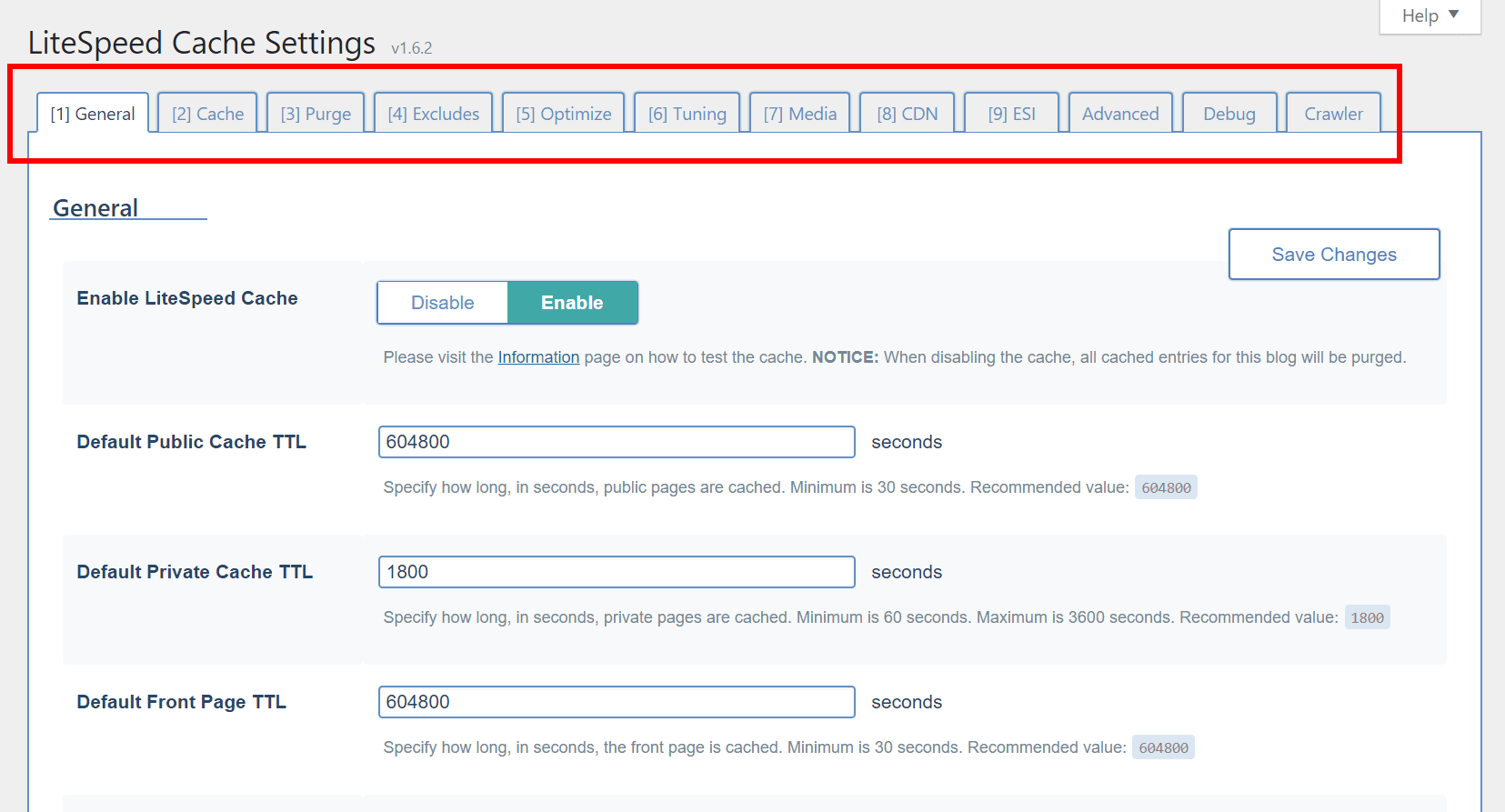
    We’ve got a lot of tabs in our settings at this point, so you might appreciate the ability to easily switch between tabs, if you’re more of a keyboard-user than a mouse-user.

    As long as your cursor is not focused on an input element, you can type a number, and be brought directly to the corresponding tab. For example, if you’re looking at the General tab, but want to change something in the ESI tab, simply press 9 and you will be brought to the ESI tab.

    Private Cached URIs

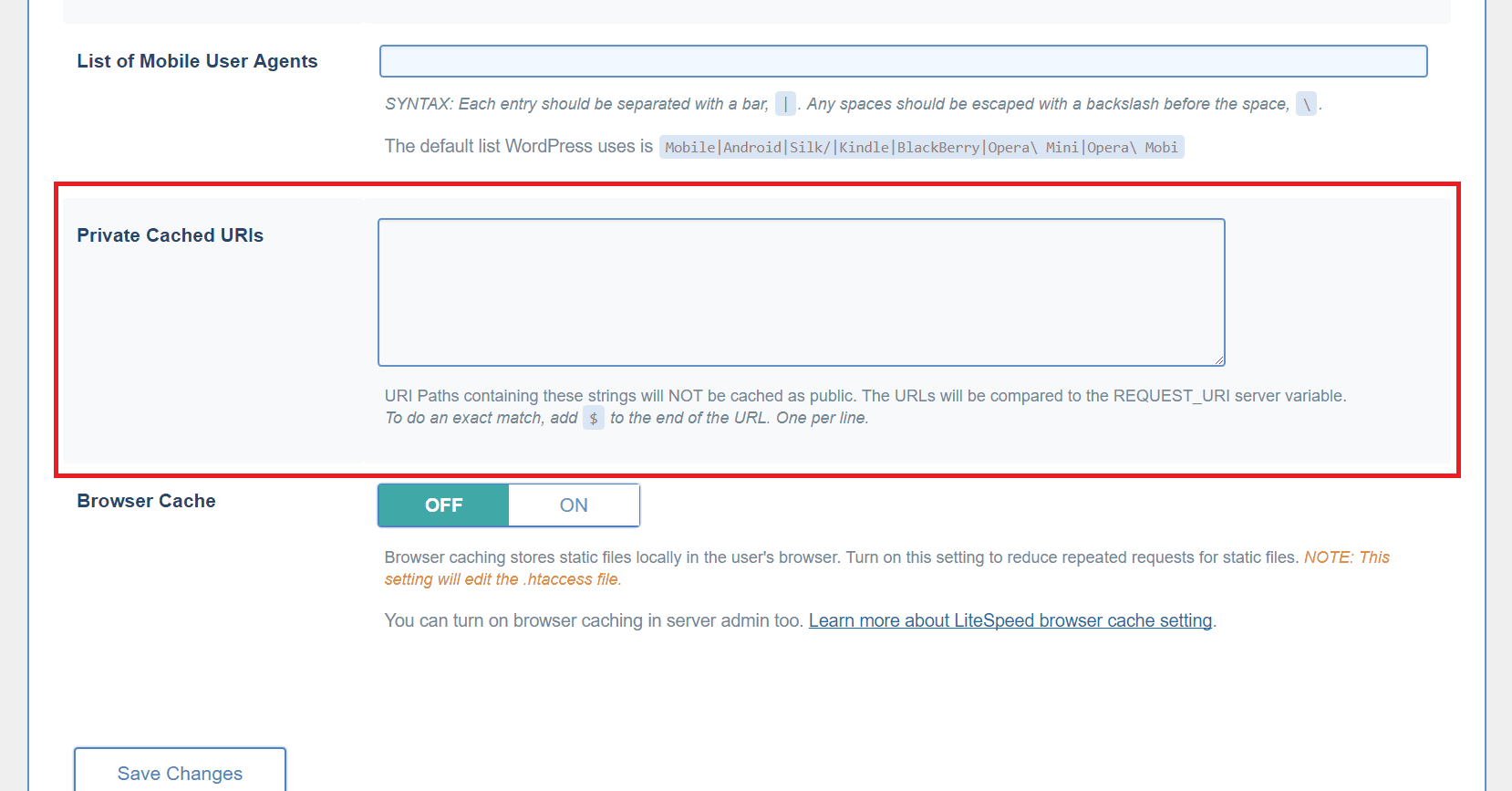
    From the WordPress dashboard, navigate to LiteSpeed Cache > Settings > Cache and scroll to the bottom of the page.
    WordPress Wednesday LSCache New Feature Private Cached URIs

    You may have pages on your site that would default to public cache under normal circumstances, but which you think should be cached privately (i.e. a separate copy cached for each individual user).

    Use this box to list such URI’s, one per line. You can list an entire path and place a $ after it so that it is interpreted as an exact URI. Otherwise, any URI that includes the path you enter will be privately cached.

    For example:

    reviews/canon/$ will only match reviews/canon/.

    reviews/canon/ will match reviews/canon/ and reviews/canon/eos80d/.

    Additional Excludes

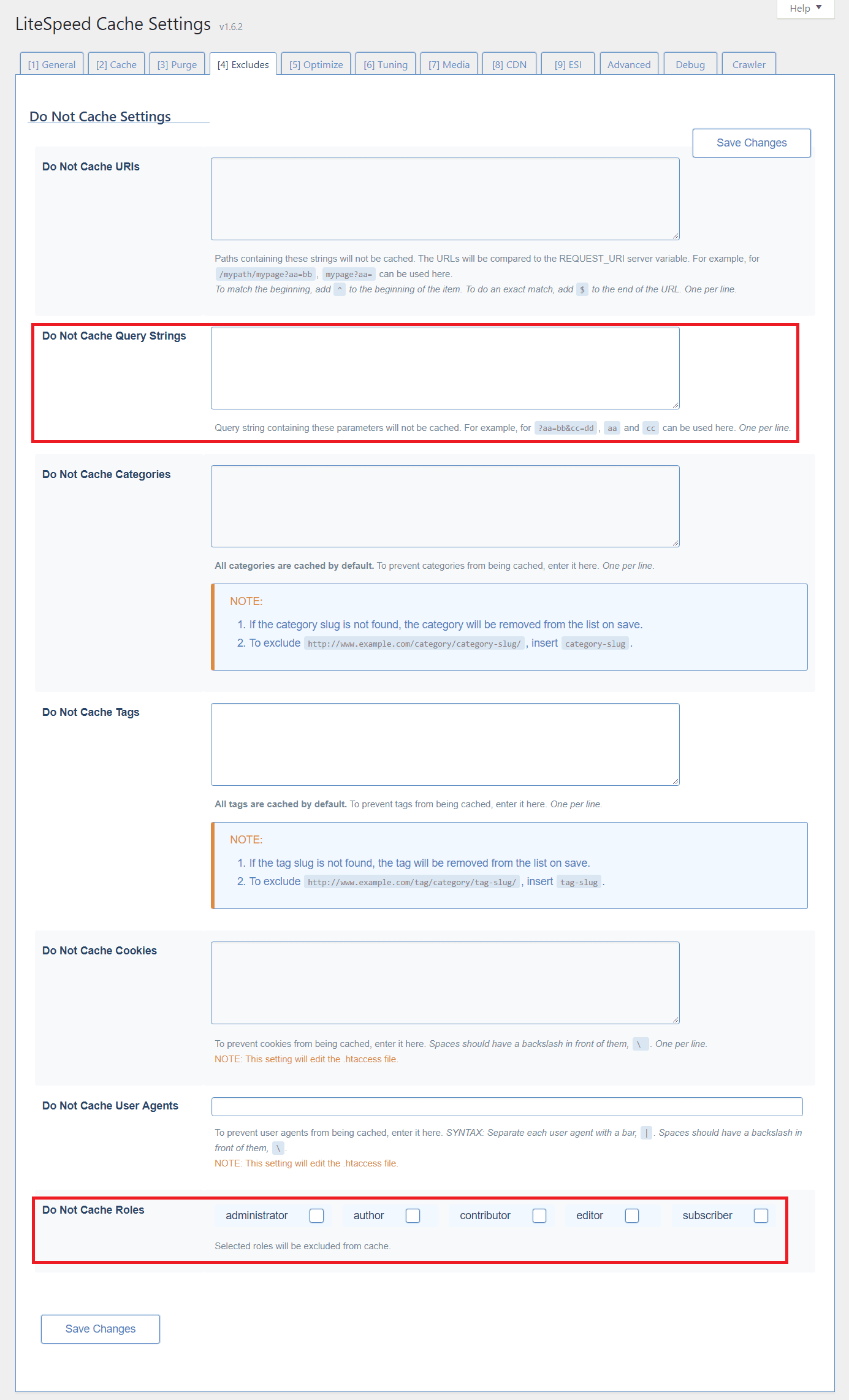
    From the WordPress dashboard, navigate to LiteSpeed Cache > Settings > Excludes.
    WordPress Wednesday LSCache New Feature Additional Excludes

    Query Strings

    You can eliminate URLs with certain query strings from being cached.

    For example, let’s say you have a mechanism that allows you to colorize your site in a purple color scheme like so: http://example.com/page?color=purple.

    if you don’t want to cache any page that is rendered in a colorized way, you could enter color in that list. That would match http://example.com/page?color=purple as well as http://example.com/page?color=red, or any other specified color, and those pages would be excluded from caching.

    From the WordPress dashboard, navigate to LiteSpeed Cache > Settings > Excludes and scroll to the bottom of the page.

    Roles

    There may be user roles that you wish to exclude from caching. For example, if you are an admin testing new functionality, you may want to exclude your administrator role from being served from cache until your testing is through.

    Load JQuery Remotely

    From the WordPress dashboard, navigate to LiteSpeed Cache > Settings > CDN and scroll to the bottom of the page.
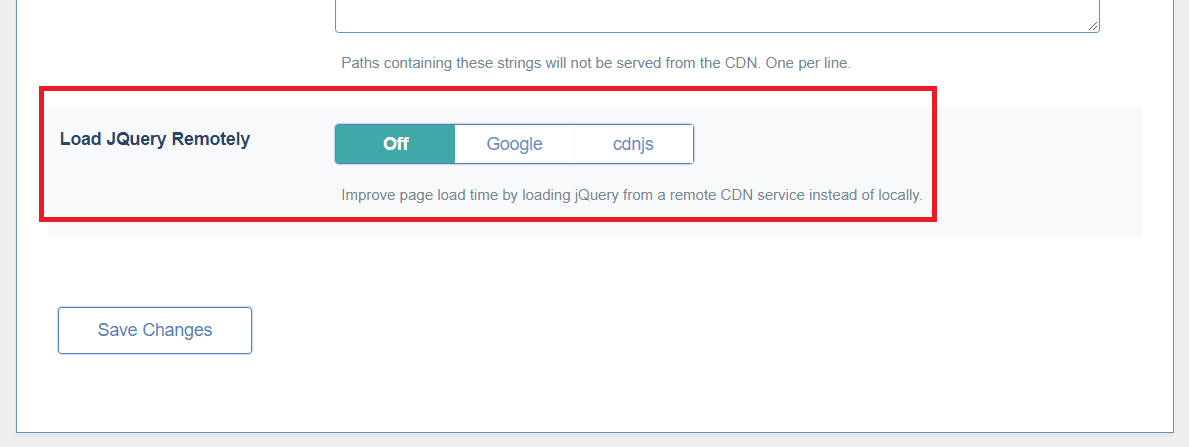
    WordPress Wednesday LSCache New Feature Load JQuery Remotely

    It can be faster to load JQuery from a remote CDN service. You may choose one here.

    Optimization and Tuning

    When we first released the Optimize tab, we wrote up a full blog post on all of the options. After that we added some new settings to the page. And then we added some more. And then, because that page was getting a bit unruly, we split Optimize into Optimize and Tuning.

    So, if the last time you saw Optimize was while reading that blog post, you’ll need to know that two of those settings we discussed (CSS Excludes and JS Excludes) now live on the Tuning page. The other functions remain on Optimize, along with several new ones.

    We recommend checking out both of those pages in our wiki’s Settings section, where every plugin setting is described in detail.

    Image Optimization

    Our image optimization feature is our newest one, and we’re still making adjustments here and there, based on what’s working well, what could use improvement, and the feedback we’ve received. Take a look at the Image Optimization page on our wiki to see how the most up-to-date features work.
    WordPress Wednesday LSCache New Features

    Thus ends our tour of the new features. Keep an eye on WordPress Wednesday in the future for more detailed exploration of various aspects of our plugin!

    For the most up-to-date configuration reference, you’ll want to keep the URL for our wiki handy. We make an effort to publish updates to the wiki as soon as anything changes in the plugin. While it might take us a few weeks to write an in-depth blog post, the wiki gets updated immediately.

    Have some of your own ideas for future WordPress Wednesday topics? Leave us a comment!

    Don’t forget to meet us back here next week for the next installment. In the meantime, here are a few other things you can do:

  • WpW: Database Optimization

    WpW: Database Optimization

    Welcome to another installment of WordPress Wednesday!

    We’re on quite a roll lately, with all of the new functionality being introduced into our cache plugin. But don’t worry if you haven’t had a chance to figure it all out yet. That’s why I’m here! Today, allow me to be your guide through Database Optimization.

    Disclaimer: The information contained in this post is accurate for LSCWP v7.2 [release log]. If you are using a newer version of the plugin, some details may have changed. Please refer to our documentation for the latest!

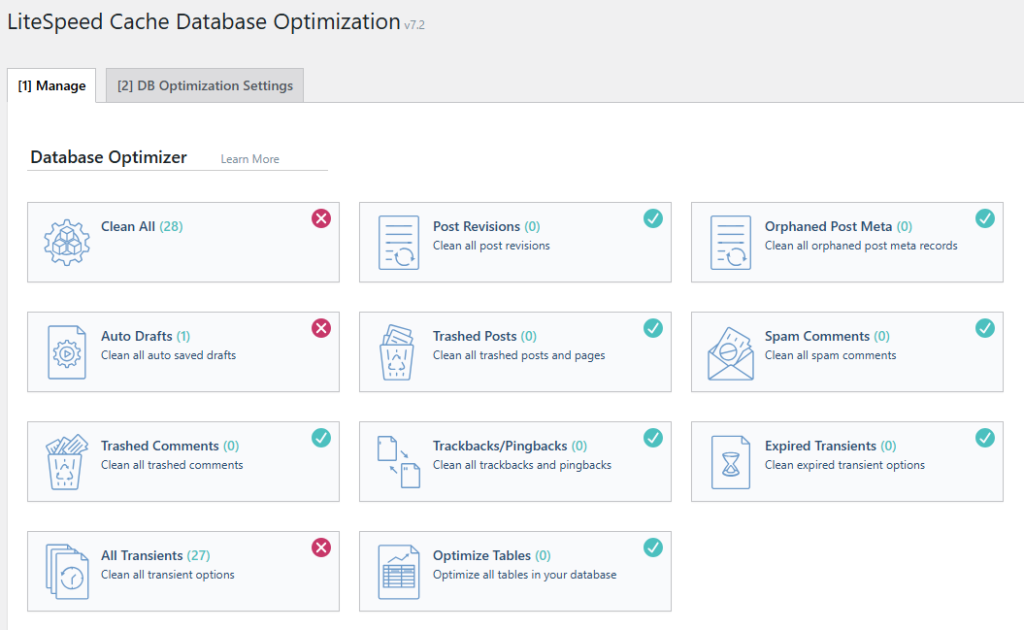
    From your WordPress Dashboard, navigate to LiteSpeed Cache > Database. You’ll notice some icons and buttons, and you may also notice that the page has been split up into two tabs: Manage and DB Optimization Settings.

    Manage

    Database optimization is a useful tool when it comes to speeding up your site. We’ve included it here because there’s nothing we love more than an accelerated internet! This is one of many such “extras” we’ve adding to the plugin.

    Our DB Optimizer gives you an easy way to keep your WordPress database slim, trim, and as efficient as possible.

    Database Optimization in LSCWP
    You’ll notice that some of the buttons have green check-marks while others have red X’s. The check marks indicate that the area has already been cleaned-up. If you see a red X, it is an indication that you have an opportunity to do some optimization.

    A word of caution: as with most tools of this nature, it is a good idea to have a current backup of your database before you begin pressing buttons!

    So let’s take a look at each of those buttons and see what they do.

    Clean All

    This button is for the site admin in a rush. It allows you to clean up everything at once by executing all of the other cleanup buttons with a single click.

    NOTE: Optimize Tables is different than the other buttons, so it’s not included in Clean All. Its functionality is explained in more detail below.

    Post Revisions

    When you edit an existing post, WordPress saves a copy of the original version, just in case you make a mistake and need to revert back. If you edit the post 8 times, you will have 8 revisions saved. That’s 8 full copies of the post, each just a little bit different than the others. This button removes all but the most recent revision from the database.

    The Post Revisions button has the potential to free up a considerable amount of space, if you are prone to frequent edits. Just be aware that you will sacrifice your ability to ever restore old versions of posts. This is a sacrifice that most site owners can easily live with, though.

    Orphaned Post Meta

    If you’ve deleted posts in the past, there is a chance that some metadata records from those posts remain. This button cleans them up.

    Auto Drafts

    When you create or edit a post, WordPress automatically saves drafts now and then. This is to protect you in case you unexpectedly lose your connection, or your computer crashes. If you know that all of your posts are either published or saved correctly as drafts, then it is safe to press this button and remove the automatic drafts.

    Trashed Posts

    If you’ve put a post or page into the trash, then that’s a pretty good sign that you don’t need it anymore. Press this button to permanently empty that garbage can.

    Spam Comments

    There should be no need to keep comments that have been marked as spam. Press this button to erase them once and for all.

    Trashed Comments

    Trashed comments, too, take up space. Press this button to permanently delete them.

    Trackbacks & Pingbacks

    When other blogs link to you (or when you link back to other posts on your own blog), it can create trackbacks or pingbacks. These are stored as comments and can be seen in the Comments section of your WordPress Admin. Additionally, some themes display trackbacks and pingbacks in among the comments on a post. If keeping a record of these external (and internal) links is not important to you, press this button to clear them from the database.

    Expired Transients

    Transients are the result of a form of caching that can happen in the WordPress database with the results of remote API calls. This option clears all of the expired transients from the database.

    All Transients

    This option clears all of the transients in the database, whether expired or not.

    Optimize Tables

    This button is different than the others. It’s the cleanup after the cleanup, if you will. When you delete large amounts of information from your database, it leaves gaps. The Optimize Tables button reclaims that disk space and reorganizes the table indexes for better efficiency. It’s a useful last step once you’ve done all you care to with the other buttons.

    Keeping your database clean and free of trash is a great way to keep your WordPress site running efficiently. We hope you’ll give the new DB Optimizer tab a try! Be sure to let us know if you have any questions, or any suggestions for future enhancements. We’d love to hear from you!

    Be sure to meet us back here next week to talk about more LSCWP features!


    Have some of your own ideas for future WordPress Wednesday topics? Leave us a comment!

    Don’t forget to meet us back here next week for the next installment. In the meantime, here are a few other things you can do:


    This content was last verified and updated in July of 2025. If you find an inaccuracy, please let us know! In the meantime, see our documentation site for the most up-to-date information.