WpW: The Beginner’s Guide to LiteSpeed Cache for WordPress

Beginner's Guide to LiteSpeed Cache for WordPress

Written by

in

WordPress Wednesday: Beginner's Guide to LiteSpeed Cache for WordPress

Welcome to another installment of WordPress Wednesday!
Today’s Topic: Beginner’s Guide to LiteSpeed Cache for WordPress

Disclaimer: The information contained in this post is accurate for LSCWP v5.5 [release log]. If you are using a newer version of the plugin, some details may have changed. Please refer to our documentation for the latest!

So you’ve downloaded the LiteSpeed Cache for WordPress plugin, installed it, and activated it. Now what?

Some people are invigorated by the site of all of those settings tabs and are eager to jump right in, while others find all of the options overwhelming, and are paralyzed with indecision.

Well, if you are part of the latter camp, you’ve come to the right place. Today we are going to talk about setting up LSCWP simply and easily. We’ll go over the things you must know in order to successfully use the plugin, and tell you which settings you can safely ignore.

I’ve installed and activated LSCache for WordPress. Now what?
Beginner's Guide to LiteSpeed Cache for WordPress

LSCWP essentially has two purposes: that of a full-page cache for your site’s dynamically-generated pages, and that of a site-optimization plugin. Most people who install LSCache do so for the caching functions, and the rest is just the icing on the cake.

You are free to enable the caching functions and ignore everything else.

Upon activation, you’ll find that caching is enabled, but everything else is disabled. If you navigate to LiteSpeed Cache > Cache > Cache you will see that Enable Cache is set to ON.

You could stop right there, never configure another setting, and the plugin would probably cache your site very nicely. We specifically chose the default settings to work with the majority of sites right out of the box.

TL;DR: This is a very long post, but that’s only because I set out to explain every single basic setting for you. In the event that you want to tweak things a bit, it doesn’t hurt to have a rudimentary understanding of these things. There’s no need to read it now, though! Use the default settings, bookmark the version of this post that exists in the documentation (which we will keep updated through each plugin version), and check it when you need the reference.

Still reading? Ok! Let’s look at the first four tabs in the Cache section, and see what they do. These are the most basic settings for your cache.

Beginner’s Guide to LiteSpeed Cache for WordPress
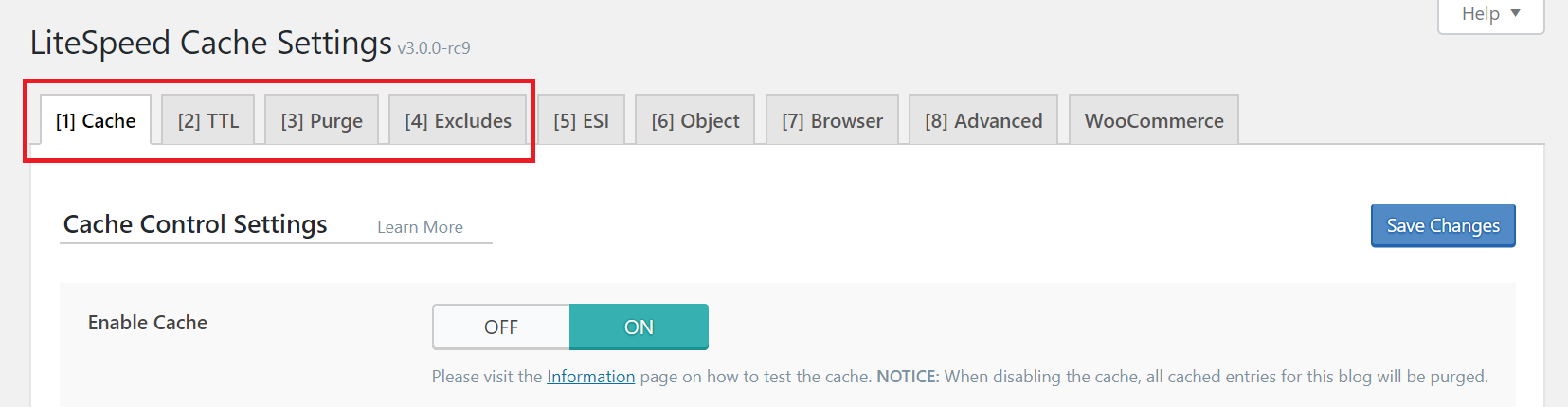
LiteSpeed Cache for WordPress Basic Cache Tabs

Tip: This is a high-level overview. For a detailed explanations of each setting on each tab of the Cache section, please see the Screen-by-Screen documentation.

Cache Tab

The first option on the Cache tab turns the caching functionality on and off. The remaining settings allow you to decide what types of content will be cached. By default, everything is enabled. If you don’t know what these settings do, it’s best to leave them set to their defaults.

TTL Tab

TTL stands for “Time to Live” and it refers to the number of seconds a page can remain in cache before it is considered stale. Once a page reaches its TTL, it is purged from cache. We’ve chosen default TTLs that should work for most sites, but you are free to change them.

If you would like a deeper understanding of how content is cached and purged, take a look at this blog post. It’s written at a high-level, so you can get the gist without knowing a lot of jargon.

Purge Tab

There are sometimes situations where pages should be purged before their natural expiration. This section allows you to define the rules for that behavior. The default selections should work for most sites, but you can change them if you need to.

Example

If you write a new post, tag it “brownies,” and publish it in the “recipes” category, several pages will change: the home page, the recipes category archive page, the brownies tag archive page, your author archive page, and probably some other pages, depending on your theme.

All of the affected pages will need to be purged in order to avoid serving stale content. These settings give you an opportunity to adjust the rules to fit what is needed by your site.

Excludes Tab

You may have pages that you don’t want cached at all. These options allow you to exclude specific parts of your site from being cached. Again, for most sites, there will be no need to change these settings. They are provided to allow you to make custom exceptions to the cache rules.

The Other Cache Tabs

The rest of the Cache tabs (four or five, depending on whether you have WooCommerce enabled) cover more advanced types of caching. We cover these in-depth in the Screen-by-Screen Cache section documentation.
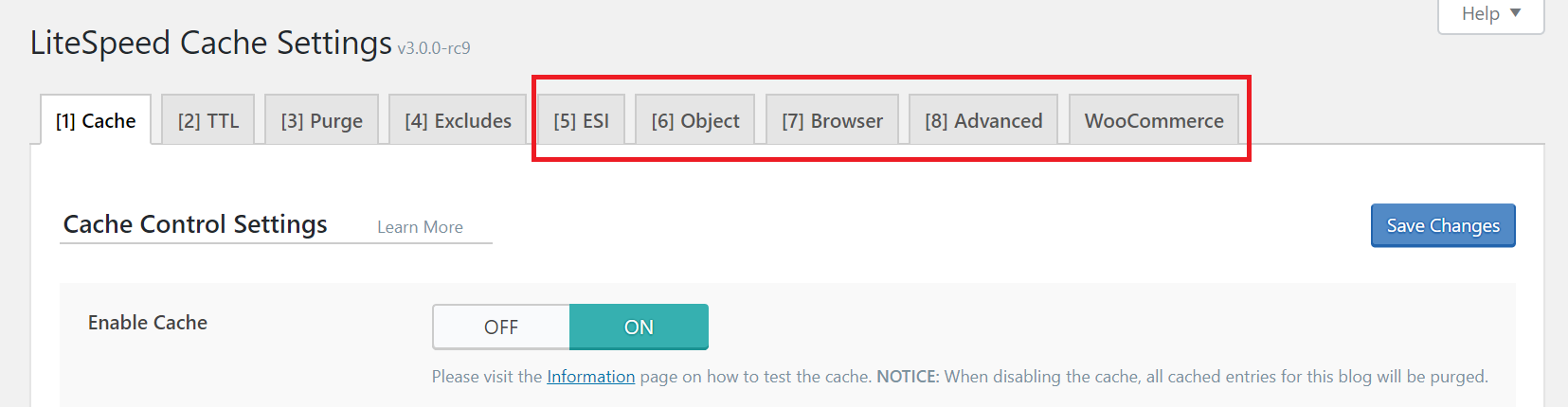
LiteSpeed Cache for WordPress Other Cache Tabs

ESI

“Edge Side Includes” (ESI) is a method through which you can “punch holes” in public content, and fill them with private or uncached content. ESI is useful for things like shopping cart widgets and personalized greetings, but we’ve left it disabled by default. Go in-depth here.

Object

The settings on this tab allow you to control an external object cache (Memcached, LSMCD, or Redis). The server admin needs to have previously enabled and configured this external cache.

Browser

Browser cache is a client-level cache for static files. With browser caching enabled, static files (like images) are stored locally on the user’s device the first time they are requested. After that, the content is pulled from their local storage until the browser cache expires. The settings on this tab control the browser cache.

Advanced

As you might guess from the name of this tab, it’s aimed at more experienced users. You are not likely to need this tab, unless you have some kind of conflict with another cache plugin.

WooCommerce

LSCache is compatible with WooCommerce. If you have WooCommerce enabled, this tab will appear, and will allow you to configure settings related to caching shop content.

Other Plugin Sections

There are many more sections to explore in the LSCache plugin. Each of these is documented in much greater detail in the docs Screen-by-Screen section. I’ve provided links to each section in the descriptions below.
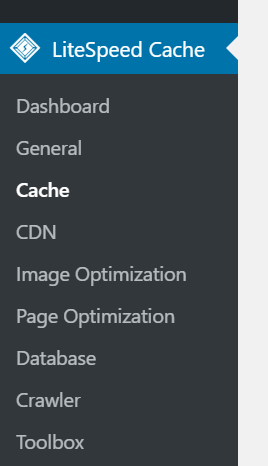
LiteSpeed Cache for WordPress Menu

Dashboard

The LiteSpeed Cache Dashboard allows you to see the status of all of your LSCache and QUIC.cloud services (Image Optimization, Critical CSS Generation, Low-Quality Image Placeholders, Cache Crawler, etc.) at a glance. You can also check your page load time and your page speed score. Learn more.

General

The settings in this section control your usage of QUIC.cloud services, the ability to auto upgrade the plugin, and which messages you want to have displayed on the dashboard. Learn more.

CDN

This section allows you to configure your Content Delivery Network for use with WordPress. If you don’t use a CDN, don’t worry about it. We’ve left CDN support disabled by default. Learn more.

Image Optimization

LiteSpeed Cache for WordPress provides the ability to optimize your images, making them smaller, and faster to transmit. This is done through a QUIC.cloud service and can be controlled in this section of the plugin. Learn more.

Page Optimization

There are several non-cache measures you can take to speed up your WordPress site, and many of them are supported in this tab. CSS and Javascript minification and combination, HTTP/2 push, asynchronous and deferred load… if you don’t know what these things mean, don’t worry. We’ve left them disabled by default. Learn more.

Database

This section allows you to optimize your WordPress database. Database optimization is a useful tool when it comes to speeding up your site. LSCWP’s DB Optimizer gives you an easy way to execute some of these tasks in your WordPress database. Learn more.

Crawler

We’ve disabled the crawler by default. When it’s active, it travels your site, refreshing any pages that may have expired from the cache. Crawling can be a resource-intensive process, and not all hosting providers will allow its use. If your hosting provider does allow crawling, it’s a nice way to keep your cache fresh. Learn more.

Toolbox

When you need to manually purge the cache, export your site settings, or debug an issue, you’ll find the means in the Toolbox section. Probably the most useful thing you will find here is the Environment Report. If you are having a problem and LiteSpeed support asks for your Report Number, this is where you would go to get it. Learn more.

Watch the Video

What now?

Now, you sit back and watch your site load more quickly 😀

If you’re feeling adventurous, you can start looking at some of those other features we glossed over. Or, maybe you’d like to try a preset. They’re a great way to kick start your configuration, and they’re available for every comfort level.

We have documentation that provides explanations of every setting (specific sections are linked to above), and you can explore previous WordPress Wednesday topics for more in-depth discussions of some of them.

If anything we covered was not clear enough, or you feel the need for additional help, please don’t hesitate to leave a comment here or post on our WordPress support forum. We enthusiastically support this plugin and are happy to answer any of your questions!


Have some of your own ideas for future WordPress Wednesday topics? Leave us a comment!

Don’t forget to meet us back here next week for the next installment. In the meantime, here are a few other things you can do:


This content was last verified and updated in June of 2023. If you find an inaccuracy, please let us know! In the meantime, see our documentation site for the most up-to-date information.

Comments

81 responses to “WpW: The Beginner’s Guide to LiteSpeed Cache for WordPress”

    1. Lisa Clarke Avatar
      Lisa Clarke

      You’re welcome 🙂

  1. Huy Phước Avatar

    LiteSpeed ​​Cache cho WordPress, quá tuyệt! Cảm ơn!

    1. Lisa Clarke Avatar
      Lisa Clarke

      Không có chi!

  2. Manpreet Singh Avatar

    HI,
    I am using yoast wp seo plugin for seo & sitemap with litespeed cache plugin. My WordPress is hosted on WordPress managed hosting with free cloudflare service.

    how can I be sure that the sitemap_index.xml and other sitemaps under it like post-sitemap1.xml or page-sitemap.xml are not cached by my plugin, hosted server & cloudflare.

    1. Lisa Clarke Avatar
      Lisa Clarke

      Please create a ticket through our client area or by sending email to support@litespeedtech.com.

  3. Bobby Avatar

    This is really helpful article about the LiteSpeed Cache plugin for WordPress platform, thanks for sharing this informative post about setting the LS Cache the right way, It would be helpful for everyone looking to speed up performance and speed of WOrdPress site.

  4. safakozt Avatar

    Hello there,
    Optimize the pictures while skipping the levels a little longer takes what level of auto optimization you need to

    1. Lisa Clarke Avatar
      Lisa Clarke

      Hi, safakozt. I don’t understand what you are asking. Can you rephrase the question, please? Thank you.

  5. Jyoti Raghuvanshi Avatar

    First of all thanks for sharing a step-by-step tutorial. Just want to know that will it work perfectly with plugins like Autoptimize, Async Javascript, Yoast SEO and WooCommerce?

    1. Lisa Clarke Avatar
      Lisa Clarke

      LSCache will work with Yoast and WooCommerce. As for the other two, it should work with them as long as you are not duplicating functions. In other words, if you are using Async Javascript to defer JS, then you should not enable that function in LSCache. And if you are using Autoptomize to minimize your CSS, then you should not minimize CSS in LSCache. There’s more on this topic here. Let us know if you have any other questions!

  6. animehaynhat.com Avatar

    LiteSpeed ​​Cache cho WordPress great, i like , thanks for so.

  7. Jerry Peres Avatar

    Really amazing post with much helpful information. Thank you very much for writing great stuff about LiteSpeed Cache for WordPress for us.

  8. poul Avatar

    hi
    how to enable gzip?

    1. Lisa Clarke Avatar
      Lisa Clarke

      Hi, Poul. Gzip compression is a server-level setting in LiteSpeed Web Server and is enabled by default. Learn more here.

  9. Amogh Avatar

    I want to know about other settings like EPI & others as in 2020 they have upgraded the Panel and I want to set it to the best for my Blog, can you help me in that?

    1. Lisa Clarke Avatar
      Lisa Clarke

      Hi, Amogh

      We’ve updated the Beginner’s Guide since the plugin has changed so much. We will update this blog post, too, as time allows, but for now, please see the new Beginner’s Guide on our documentation site.

  10. David Chisomeje Avatar

    wow i so much love this plugin

  11. FALOLA OLUBIYI OLANIYI Avatar

    this plugin was so helpful

  12. 3allemni Avatar

    Can you make a downable file for the settings so we can import?

    1. Lisa Clarke Avatar
      Lisa Clarke

      It is something we have discussed in the past, but at the moment there are no concrete plans to implement it. I have passed your request along to the developer.

  13. Ahmed Avatar

    Great tutorial thanks alot

  14. Soulseeker Avatar

    Awesome tips. Thanks for sharing!

  15. M K Mathur Avatar

    Hi,
    After all the setting, some icons awasome , images are not showing in browser. Like hover to Web Hosting Link in top navigation menu, you will see square boxes. Same such as on homw page under section What makes our Web hosting is Best?
    Like this , missing on many pages.

    Please guide me how can I fix this issue.

    1. Lisa Clarke Avatar
      Lisa Clarke

      Hello. I’m sorry to hear you’re having a problem. We can help with that. Please open a ticket. You can do so from your client area on our site (or, send email to support@litespeedtech.com), and provide your Report Number, found in WP Admin > LiteSpeed Cache > Toolbox > Report.

  16. vcenter Avatar

    so great and informative post

  17. Shail Avatar

    Your contents is vary very very helpfully and quality content

  18. Isibor Joshua Avatar

    this pluggin is the best so far

  19. amirwap Avatar

    Thank you litespeed, remarkable

  20. heyapakabar.com Avatar

    We strongly recommended this article for your next reading Setting Plugin LiteSpeed Cache

  21. hallowp.com Avatar

    Thank you, LiteSpeed, for helping many of my clients with a super-fast web server.
    I documented my version. Maybe someone is interested in reading it.
    LiteSpeed Cache Plugin Setting

  22. Sadhana Avatar

    Hi My website very slow after install this plugin, pls tell me what can i do for speedup my website

    1. Lisa Clarke Avatar
      Lisa Clarke

      Hi, Sadhana. I’m sorry to hear your website is slow. The first thing you should do is verify that your site is actually being cached. Please see this documentation to learn how. If you need help after that, you can open a ticket by sending email to support@litespeedtech.com. Good luck!

  23. ToTemat Avatar

    When I set up everything I can in the addition of litespeed and you can hardly see any changes – still about 40% mobile and 60% page desktops in google speed. My server handles it but you can’t see almost any difference I don’t know why.

    1. Lisa Clarke Avatar
      Lisa Clarke

      It’s possible that caching is not properly enabled. Here’s how you can verify if caching is working on your site.

      If you need help beyond that, please open a ticket by emailing support@litespeedtech.com, so our support staff can lend a hand.

    2. eFakty24 Avatar

      how can I be sure that the sitemap_index.xml and other sitemaps under it like post-sitemap1.xml or page-sitemap.xml are not cached by my plugin, hosted server & cloudflare.

      1. Lisa Clarke Avatar
        Lisa Clarke

        LiteSpeed Cache only caches front-end content, so it shouldn’t touch those XML files. As for Cloudflare and your hosting provider, you would have to ask them.

  24. sunil Avatar

    this is appearing in the Google speed insights of my website and due to this my speed loading time is 6 seconds. what should I do?

    “Eliminate render-blocking resources
    2.99 s
    Resources are blocking the first paint of your page. Consider delivering critical JS/CSS inline and deferring all non-critical JS/styles. Learn more.
    WordPress
    There are a number of WordPress plugins that can help you inline critical assets or defer less important resources. Beware that optimizations provided by these plugins may break features of your theme or plugins, so you will likely need to make code changes.
    URL
    Transfer Size
    Potential Savings
    …block-library/style.min.css?ver=5.5.3(utsukhindi.in)
    7.9 KiB
    480 ms
    …block-library/theme.min.css?ver=5.5.3(utsukhindi.in)
    1.2 KiB
    480 ms
    …css/front.css?ver=3.1.1(utsukhindi.in)
    9.9 KiB
    930 ms
    …css/style.css?ver=1.0.0(utsukhindi.in)
    2.1 KiB
    480 ms
    …css/font-awesome.min.css?ver=4.7.0(utsukhindi.in)
    7.1 KiB
    780 ms
    …bam/style.css?ver=5.5.3(utsukhindi.in)
    10.5 KiB
    930 ms
    /css?family=…(fonts.googleapis.com)
    2.8 KiB
    780 ms
    …css/font-awesome.min.css?ver=4.7.0(cdn.jsdelivr.net)
    7.4 KiB
    1,080 ms
    …css/tooltip.css?ver=5.5.3(utsukhindi.in)
    1.3 KiB
    180 ms
    …jquery/jquery.js?ver=1.12.4-wp(utsukhindi.in)
    32.7 KiB
    1,380 ms
    …js/tooltip.js?ver=5.5.3(utsukhindi.in)
    2.4 KiB
    180 ms
    …js/front.js?ver=3.1.1(utsukhindi.in)
    2.4 KiB
    180 ms
    …js/jq-sticky-anything.min.js?ver=2.1.1(utsukhindi.in)
    2.3 KiB
    180 ms

    1. Lisa Clarke Avatar
      Lisa Clarke

      Hi, Sunil. In the Page Optimization section of the plugin, there are settings that will allow you to optimize CSS and JavaScript for a better page score. You can read the documentation here if you need it. If you need any help beyond that, please open a ticket by emailing support@litespeedtech.com.

  25. Nadir Javed Avatar
    Nadir Javed

    Can we use Perfmatters and LiteSpeed Cache together or not???

    1. Lisa Clarke Avatar
      Lisa Clarke

      Hi, Nadir. You can use two performance/cache plugins together as long as you don’t duplicate functions. In other words, if you use LSCache for caching, then you must disable caching in any other plugin you use. And if you use another plugin for CSS minimization (for example), you must disable CSS minimization in LSCache. You can learn more about that here.

  26. iBest Avatar

    i use litespeed, my website can be opened in 0.5s

  27. iBest Avatar

    For Indonesian i recommended to read my article
    Cara Setting Plugin LiteSpeed Cache
    This setting is used on the website and gets a loading speed of 0.5s

  28. Praveen Kr Avatar

    My website is loading slow after installing this plugin before i was using wp fastest cache and i think it was working better am i doing something wrong?

    1. Lisa Clarke Avatar
      Lisa Clarke

      It sounds like maybe something is wrong in the configuration and the site is not being cached. Here’s how to verify if your site is being cached. After you’ve checked that, if you still need help, our support team will be happy to lend a hand. Here’s how to get support. Good luck!

  29. Arvind Joshi Avatar

    Hi Team,

    I am using a Colibri Pro theme and though litespeed indeed helps me in speeding up the site performance score but i realise everytime i enable the Litespeed cache plugin, my page does not load when i try customising or editing it. Rest all works ok, its only the editing part where page keeps on showing loading.

    1. Lisa Clarke Avatar
      Lisa Clarke

      I’m afraid I don’t know what would be causing that. Please contact our support team and they will be able to help you out./

  30. donabisnis Avatar

    i have question, my blog donabisnis installed LiteSpeed Cache. Fast when open homepage, but when go to dashboard, the speed dropped. How should i do?

    1. Lisa Clarke Avatar
      Lisa Clarke

      LiteSpeed Cache does not cache the WP Admin dashboard. It only caches the front end pages.

  31. Andrew Avatar

    This was a very helpful article and exactly what I was looking for. Thank you. 🙂

  32. manoj kumar Avatar

    very work full for word press blog

  33. manoj kumar Avatar

    how can I be sure that the sitemap_index.xml and other sitemaps under it like post-sitemap1.xml or page-sitemap.xml are not cached by my plugin, hosted server & cloudflare.

    1. Lisa Clarke Avatar
      Lisa Clarke

      The LSCache plugin actually does cache your sitemap by default. If you don’t want it to be cached, you can navigate to LiteSpeed Cache > Cache > Excludes from the WP Dashboard, and add `sitemap` to the Do Not Cache URIs list.

      To see if the sitemap is being cached, visit the URL in your browser, and follow these directions to check if the page is cached by LSCache.

      As for Cloudflare and your host, you will have to contact them about that.

      Hope this helps!

  34. Bersamakristus Avatar

    I want to ask, in litespeed cache there are any file manager or not? my site bersamakristus use litespeed cache but i dont know for it.

    1. Lisa Clarke Avatar
      Lisa Clarke

      I’m not sure what you mean by a file manager in this context. What do you want to be able to do?

  35. Delcho Delchev Avatar

    Amazing plugin. Helped me a lot. Thanks for this blog post.

  36. Cara Avatar

    I am very grateful to have seen this article, the way that you present about Lite Speed ​​is very helpful. My website is now better off using this cache plugin. Thanks you very much.

  37. vera Avatar

    thanks very much.
    i like this plugin.

    very very good :like:

  38. tahviehnegar Avatar

    thanks for your explanation

  39. Vu Tru So Avatar

    When I check my site in this tool:

    https://check.lscache.io/?host=https%3A%2F%2Fvutruso.com%2F

    LSCache is not supported.

    I really install Litespeed and Litespeed cache plugin and config correctly. But I got the above message.

    How to fix it. Thank you so much.

    1. Lisa Clarke Avatar
      Lisa Clarke

      If you’re sure the plugin is installed and turned on, then you may have a server-level configuration issue. Please take a look at these instructions. If you follow them and still can’t get it working, please email support@litespeedtech.com and the support team will be happy to take a look.

  40. Farhan Web Avatar

    Very helpfull for my wordpress thanks

  41. Conny Johannesson Avatar

    Hi. I have a site that I´ve cleaned from wp super catch.

    Now when I installed the litespeedcatch, it wont catch !!

    I thought this program should fill in all the codes in the following files.
    wp-config.php
    wp-settings.php

    Since I deleted the files from wp super catch, I also deleted the line define wpcatch & define wpcatchome. in wpconfig.php

    Then I also deleted :
    if ( WP_CACHE && apply_filters( ‘enable_loading_advanced_cache_dropin’, true ) ) {
    // For an advanced caching plugin to use. Uses a static drop-in because you would only want one.
    WP_DEBUG ? include( WP_CONTENT_DIR . ‘/advanced-cache.php’ ) : @include( WP_CONTENT_DIR . ‘/advanced-cache.php’ );

    // Re-initialize any hooks added manually by advanced-cache.php
    if ( $wp_filter ) {
    $wp_filter = WP_Hook::build_preinitialized_hooks( $wp_filter );
    }
    }
    I don´t have any advanced-catch.php file. I don´t know what to put in it. ??

    1. Lisa Clarke Avatar
      Lisa Clarke

      Hi, Conny.

      You shouldn’t need to go to that kind of trouble to switch from WP Super Cache to LSCache. You should be able to simply deactivate WP Super Cache and then activate LSCache. It should not be necessary to make any changes to PHP files.

      This is a more complicated question than we can answer in blog comments. Please open a ticket by sending email to support@litespeedtech.com.

  42. dewangga bruri Avatar

    i have use Litespeed enterpise and cyberpanel for two years an i love it. and i create post a tutorial about speed up wordpress with litespeed cache mempercepat wordpress menggunakan litespeed

  43. bhadresh Avatar

    If I set up your Lightspeed Cache plugin, my website is crashing.

    1. Lisa Clarke Avatar
      Lisa Clarke

      That shouldn’t happen. Please contact support@litespeedtech.com for help!

  44. qiannah ayudisa Avatar

    I love litespeed can speedup wordpress site on speedtest metrix. I am using cyberpanel+lswsand litespeed cache. and i have make article cara mempercepat wordpress menggunakan plugin litespeed cache i hope all people on my country using litespeed

  45. Eileen Valdez Avatar

    This is a fantastic post that contains a lot of useful information. I appreciate you writing on LiteSpeed Cache for WordPress since it’s really useful to us.

  46. Eileen Valdez Avatar

    thanks for sharing nice info on how to install litespeed cache plugin

  47. Live Macau Avatar

    i love litespeed cachee

  48. Div Acharya Avatar

    This helped me Improve my site’s Core web Vitals… Thank you!

  49. Jak Avatar

    Hello, I have a question about LiteSpeed Cache. Do you need to use these third-party cloud and redis services in this plugin to see positive differences in website speed. And why, after installing this plugin, the database is many times larger. I have a small website on the lite speed server https://totemat.pl/ and I do not know why it is that when I run this plugin, the website works slower than faster according to google page speed. Maybe you have any suggestions?

    1. Lisa Clarke Avatar
      Lisa Clarke

      Hi, Jak, no you should be able to see an improvement in speed without third party object caching. If you’re having trouble seeing improvements, you might want to open a support ticket via email to support@litespeedtech.com, or join our Slack community and get suggestions from the LiteSpeed team as well as other plugin users.

  50. Qiannah Avatar

    I love this plugin and still using this.

  51. Qiannah Avatar

    Thanks for sharing article, i love this plugin and i made article
    How To Setting Cloudflare CDN On LiteSpeed Cache Plugin

  52. kumiskiri Avatar

    On my blog there are a lot of tourorials about the process of setting security, speeding up websites and many tips and tricks related to litespeed or openlitespeed. Keamanan WordPress Openlitespeed with Htaccess

  53. BDG games Avatar

    This guide was incredibly helpful! I’ve been looking for ways to optimize my WordPress site, and the step-by-step instructions made it easy to implement LiteSpeed Cache. I appreciate the clear explanations and tips—thank you for breaking it down so well!

  54. kumar Avatar

    i added “fire unicode” on my website webpage title but it shows fire symbol when i was inside the page but in google search results it only shows plain titile text only no unicode is displayed . can you solve this ? whether i need to disable the litespeed cache setting which says “remove the emoji” to solve this issue?

    1. Lisa Clarke Avatar
      Lisa Clarke

      Hi, Kumar. I asked our team to take a look at this, and they were unable to duplicate the issue. You can email them at support@litespeedtech.com to help them look further into the issue, if you would like.

  55. Modas Avatar

    I recently started using the LiteSpeed Cache plugin for WordPress and found the number of settings a bit overwhelming at first. For those just starting out, I wanted to share that you don’t need to configure everything to get great results. The plugin works well right after activation with default settings, especially the caching feature.

Leave a Reply

Your email address will not be published. Required fields are marked *