
WpW: Crawl Your Site; Make it Fly!

WordPress Cache Crawler

Written by

in

WordPress Cache Crawler

Welcome to another installment of WordPress Wednesday!
Today’s Topic: LiteSpeed’s WordPress Cache Crawler

We’re going to talk about the concept of “crawling” and why it has the potential to make your WordPress site even faster.

What does a crawler do?

Our LiteSpeed Cache for WordPress plugin includes crawler functionality. What does this mean?

LSCache’s crawler, travels its way throughout the backend, refreshing pages that have expired in the cache. The purpose is to keep the cache as fresh as possible while minimizing visitor exposure to uncached content.

IMPORTANT NOTE: Crawler functionality is enabled or disabled at the server level, and its availability is controlled by your hosting provider. We’ll talk about that more below, or you can see our docs on how to enable the crawler.

WordPress Cache Crawler

Why would we want to do this?

Well, first let’s look at how pages are cached without a crawler. The whole process is initiated by user request. The cache is empty until users start sending requests to the backend. The first time a page is visited, the request hits the backend, WordPress’s PHP code is invoked to generate the page, the page is served to the user, and then stored in cache for next time.

That’s a fairly time-consuming (and bandwidth-consuming!) process for the server.

Now, let’s look at what happens when the cache is built by a crawler. When the crawler requests a page, the request hits the backend, WordPress’s PHP code is invoked to generate the page, but because of the special header that lets LSWS know that this is a crawler that initiated the request, the full page doesn’t need to be served. It is simply stored in cache.

This saves significant bandwidth.

Additionally, with the crawler refreshing expired pages at regular intervals, the chances that a user will encounter an uncached page is significantly diminished. This makes for a faster site.

Let’s look at some settings

You want the crawler to be effective in its mission, but not at the expense of your system’s performance. It’s helpful to know what some of the settings mean, so you can control just how many resources you want to give to the crawling process.

Note: We’ve selected default settings that should be reasonable for most sites, so if you don’t want to be messing around with these settings, it’s fine to leave them as-is.

Navigate to WP-Admin > LiteSpeed Cache > Crawler > General Settings and take a look at the following settings:
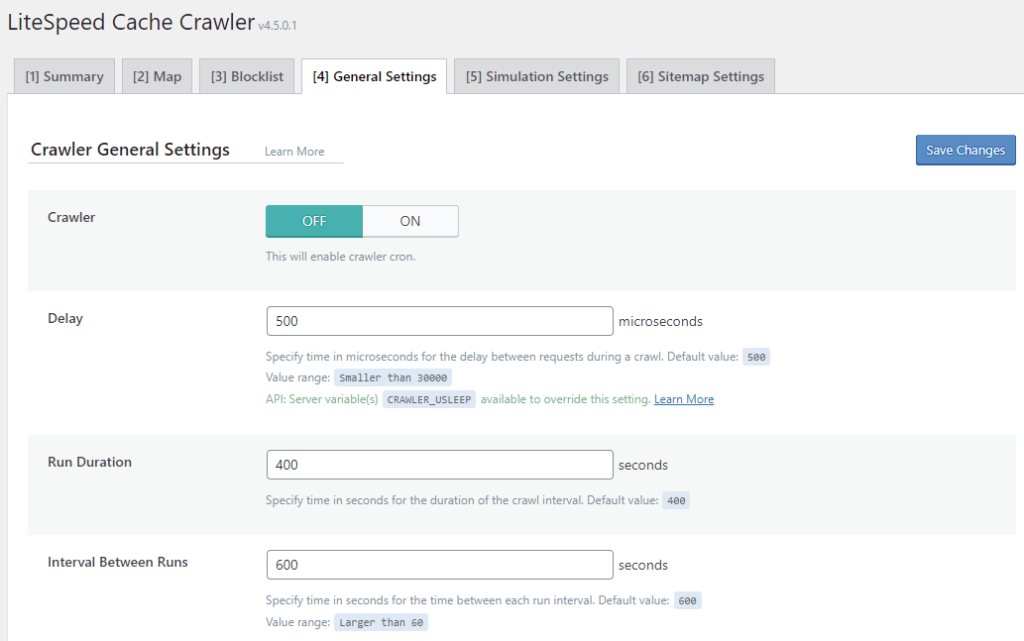
LSCache for WordPress Crawler General Settings

Crawler

This setting allows you to enable (ON) or disable (OFF) the crawler. It defaults to OFF.

Delay

The crawler sends requests to the backend, one page after another, as it traverses your site. This can put a heavy load on your server if there is no pause between requests. Set the Delay to let LSCache know how often to send a new request to the server. The default is 500 microseconds (or 0.0005 seconds). You can increase this amount to lessen the load on the server, just be aware that will make the entire crawling process take longer.

Run Duration

In order to keep your server from getting bogged-down with behind-the-scenes crawling, you can put limits on the crawling duration. For example, if we set Run Duration to 400 seconds, then the crawler will run for 6.66667 minutes before taking a break. After the break is over, the crawler will start back up exactly where it left off and run for another 400 seconds. This will continue until LiteSpeed crawls the entire site.

Interval Between Runs

This setting determines the length of the break mentioned above. In that same example, if we set Interval Between Runs to 600 seconds, then the crawler would pause for 10 minutes after every 1-minute run.
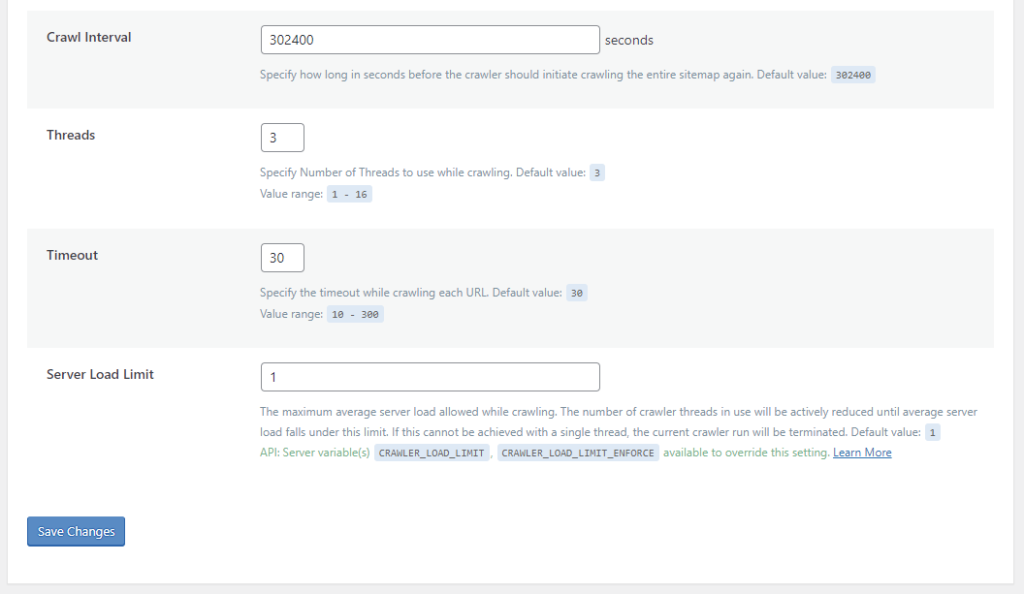
LSCache for WordPress Crawler General Settings

Crawl Interval

How often do you want to re-initiate the crawling process? This depends on how long it takes to crawl your site. The best way to figure this out is to run the crawler a couple of times and keep track of the elapsed time. Once you’ve got that amount, set the interval to slightly more than that. For example, if your crawler routinely takes 4 hours to complete a run, you could set the interval to 5 hours (or 18000 seconds).

Threads

When Threads is set to 3, then there are 3 separate crawling processes happening concurrently. The higher the number, the faster LiteSpeed crawls your site, but also the more load that the crawler puts on your server.

Timeout

Use this setting to specify how long you are willing to take processing a single URL. The crawler has this many seconds to crawl a page before moving on to the next page. The default is 30, but you can adjust that up or down according to your needs.

Server Load Limit

This setting is a way to keep the crawler from monopolizing system resources. Once the server’s load average reaches this limit, the crawler will be terminated, rather than allowing it to compromise server performance.

For example, to terminate the crawler once half of your server resources are being consumed, set Server Load Limit to 0.5 for a one-core server, 1 for a two-core server, 2 for a four-core server, and so on.

Protecting your server from overload

We designed all of the settings above to work together to protect your server from overload. The first four parameters (Delay, Run Duration, Interval Between Runs, and Crawl Interval) control how often and for how long to allow the crawler to run. You can set these values to give your crawler as many or as few resources as your system can afford.

Timeout keeps the crawler from getting stuck for too long on any one page.

Threads and Server Load Limit are two settings that work together to automatically terminate the crawler if it tries to get too greedy with system resources. Here’s an example:

Let’s say we have the following values set before the crawler starts:

Server Load Limit = 5
Threads = 4

The current server load is at 2, and the crawler begins. It’s crawling 4 urls at a time (due to the Threads setting), but this has caused the server load to jump up above our limit of 5. In response, the crawler drops the number of threads to 3 and keeps going.

If the server load hits our limit of 5 again, the crawler will drop the number of threads to 2 and go on. This process repeats until we are down to a single thread.

If the server load is still too high with only one crawler thread, the crawling process terminates.

On the other hand, if the server is doing just fine with one thread, the crawler will increase the number of threads one at a time, until it has either reached the Thread Limit we set (4 in this case) or our Server Load Limit.

Watching the crawler do its thing

If you’re the kind of person who likes to sit in front of a terminal and watch a process making progress (and, really, who isn’t?) you’ll enjoy the Watch Crawler Status section.

Navigate to WP-Admin > LiteSpeed Cache > Crawler > Summary.
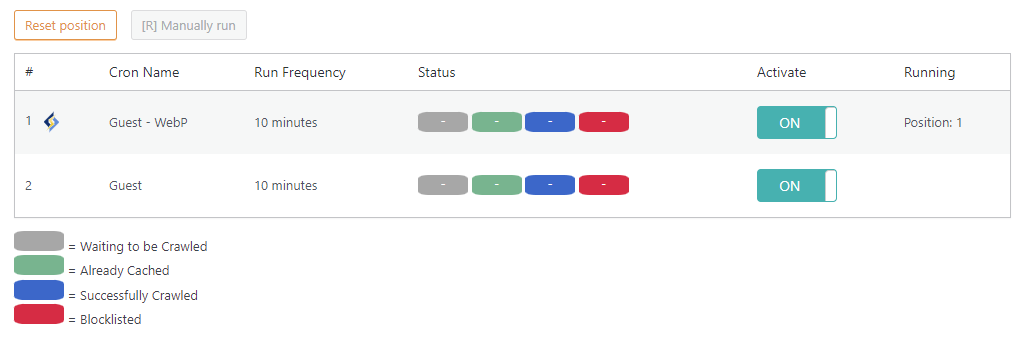
LSCache Crawler Cron

If the crawler isn’t actually running right now, make sure you set Crawler to ON on the previous screen, and that one or more of the crawlers listed on this page have Activate set to ON. If a crawler is not currently running, you can press the Manually run button.
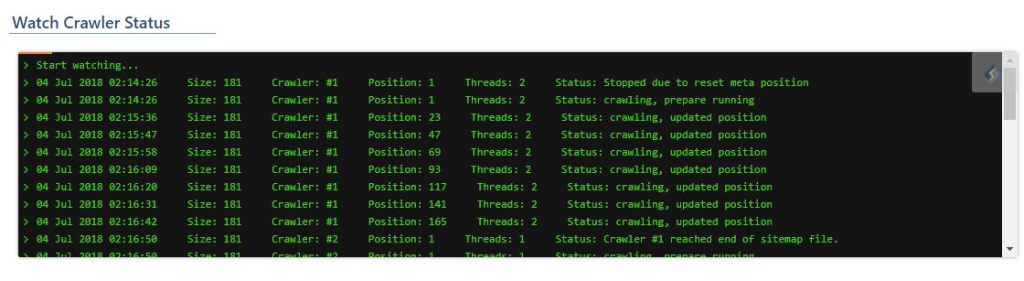
LSCWP Watch the Crawler

Look at it go!

Impacts on Shared Hosting

Site owners love the crawler functionality, but if you are a shared hosting provider, chances are your first thought goes to the impact all of this crawling could have on your servers. Despite the fact that we’ve provided several features designed to minimize a crawler’s impact on the server, it’s a valid concern when you are hosting thousands of installations. This is why we have ultimately put crawler control into the hands of the hosts.

LiteSpeed Web Server disables crawling by default. This will keep usage restricted to those who truly want to use it. As host, it is your choice whether to enable crawler functionality at all. You can keep it permanently-disabled on a server-wide basis, if you do not want crawling on your system.

When crawling is disabled, site administrators will see the following message in WP Admin > LiteSpeed Cache -> Crawler

Warning: The crawler feature is not enabled on the LiteSpeed server. Please consult your server admin or hosting provider.
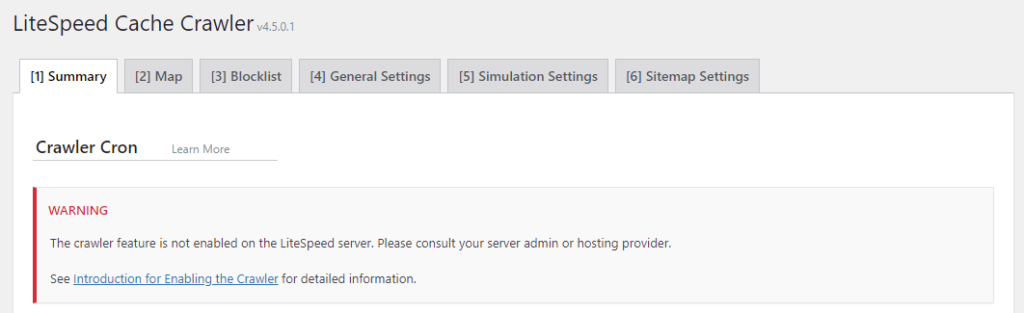
LSCWP Crawler Disabled

How to Enable the Crawler

NOTE: we do not recommend crawler usage for shared hosting setups unless the server has enough capacity to handle it!

There are a few different approaches you can take to crawling on your LiteSpeed Web Server:

  • Disable it for the entire server
  • Enable it for the entire server
  • Selectively enable it for particular clients, while leaving it disabled for everyone else

Disable Crawling for the Entire Server

Do nothing. LiteSpeed Web Server disables crawling by default.

Enable Crawling for the Entire Server

You need to update the appropriate configuration file, like you did when you originally set up your cache root. Add the following:

<IfModule LiteSpeed>
  CacheEngine on crawler
</IfModule>

Selectively Enable Crawling

To enable crawling for select clients, you would not update the server’s config file. Instead, locate (or create) the virtual host include files for those clients and add the above lines to that.

The exact location of the relevant configuration or include file varies, depending on the control panel you use (or if you use no control panel at all), and which of the above options you are looking to enact. For detailed instructions, please see our documentation on the subject.

If you don’t have access to the appropriate files, you will need to ask your server administrator to enable the crawler for you.

Update It!

LiteSpeed Cache for WordPress’s crawler functionality is pretty handy, don’t you think? By regularly renewing the cache, you minimize the number of times your users have to wait for WordPress to process dynamic pages, and you speed up your whole site!

After you’ve experienced your first crawl, come back here and let us know what you think. We’d love to get your feedback.

P.S. There is more to this topic! If you want to get the most out of your crawler, take a look at these blog posts: Limiting the Cache Crawler and Managing Multiple Cache Crawlers.


Have some of your own ideas for future WordPress Wednesday topics? Leave us a comment!

Don’t forget to meet us back here next week for the next installment. In the meantime, here are a few other things you can do:


This content was last verified and updated in March of 2022. If you find an inaccuracy, please let us know! In the meantime, see our documentation site for the most up-to-date information.

Comments

38 responses to “WpW: Crawl Your Site; Make it Fly!”

  1. Swift Designs Avatar

    I have a question about the crawler and mobile optimisation. As you’re no doubt aware, more and more emphasis is being placed on mobile browsing. Some websites have taken the approach to offer a mobile version in the form of something m.website or weburl/amp. This obviously creates a great user experience, but there’s no way to warm up the cache. On a desktop the crawler works like a dream, but it doesn’t do much for mobile. Is there a plan to add mobile user agent crawling in the future? This will greatly benefit those who generate a separate mobile cache.

    1. Lisa Clarke Avatar
      Lisa Clarke

      Good news: it’s already on our list. It should be coming soon!

  2. Oliver Avatar

    Hello,
    LS Cache + Liteserver should not be advised for shared hosting at all because of the lack of preloading (and crawling in that case).
    My hosting provider updated their servers from Apache to Liteserver. At the begining, I was happy, but finally it’s a big disapointment!
    Indeed, before I had WP Rockett and got better results because it was possible to preload the cache! Now all my first visitors of a page have to wait for a long time the page to be cached!
    It’s all the more right with a “dynamic page”. The cache is all the time cleared and so the new visitors have to wait for… and leave the page…

    1. Lisa Clarke Avatar
      Lisa Clarke

      Hi, Oliver. You will be happy to hear that we are planning a “lighter” version of the crawler that it will be possible to run without requiring server-side control from your hosting provider. Getting version 3.0 of the plugin released is our current top priority, but once that’s done, we can start working on some user requests, including improvements to the crawler. Stay tuned!

  3. Alexey Avatar
    Alexey

    In the attachment picture, tell me why the crawler does not show how it bypasses the pages on my site?
    I only see the dots running.
    How do I know when the crawler has gone through the pages and when it’s finished?

    Start watching…
    09 Aug 2019 18:35:13 Size: 180181 Crawler: #1 Position: 1 Threads: 4 Status: crawling, updated position
    …………………

  4. Anupam Avatar

    Hi,

    Still waiting for Lite Client Site “lighter” version of the crawler. Version 3.0 is already out. Please add it.
    I moved to Litespeed based Cloud server and was happy. But because of disabled crawler google marked most of the pages as too slow . I had to remove LS Cache plugin and use Wp-Rocket Along with Litespeed server because it has preload feature. But I liked many features of LSCache plugin.

    Please add Client Side Crawler Option as soon as possible.

  5. dewangga bruri Avatar

    Im use vps on vultr,

    lsws site owner + cyber panel. when ibsee crawler ihave notice The crawler feature is not enabled on the LiteSpeed server. Please consult your server admin or hosting provider.

    See Introduction for Enabling the Crawler for detailed information

    how to fix it ?
    https://prnt.sc/ymlib5

    1. Lisa Clarke Avatar
      Lisa Clarke

      The crawler must be enabled at the server level, and that message indicated that it has not been enabled. Please see these instructions to enable the crawler on your server.

  6. Rob Avatar
    Rob

    Hi is there any update of the “lighter” version of the crawler?
    Seems like the only missing feature when compared to competitor plugins.

    1. Lisa Clarke Avatar
      Lisa Clarke

      I’m afraid we haven’t made any progress on that, but thank you for the reminder that it is still something people would like to see!

      1. Michael Bourne Avatar
        Michael Bourne

        Definitely count me in on that, my host said the crawling was eating resources on multiple sites. Surely there’s got to be a way to do it, all the others have cache warmers etc. I’m still baffled as to why crawling via an external crawler doesn’t cache the pages as you mentioned. After crawling with an SEO crawler recently, my pages worked like lightning afterwards?

        1. Lisa Clarke Avatar
          Lisa Clarke

          What I was told is that in order for a crawler to work, it needs to include a cookie simulator which can use the cookies native to the LSCache plugin. Maybe this SEO crawler does that. Either way, if you pass along the name of that crawler, I can share it with the team and see how the progress is coming on a “light” crawler option.

  7. SaneeshVS Avatar

    I am on Hostinger Shared Hosting. If I enables this, does it decrease or impact page load speed or core web vitals?

    1. Lisa Clarke Avatar
      Lisa Clarke

      Running the crawler doesn’t make already-cached pages load any faster (they should already be loading fairly quickly). What it does is re-cache any pages that have expired. Since uncached pages load slowly, running the crawler should help by minimizing the number of times a user might encounter an uncached page. So, it does make some pages load faster, but only the ones that would have been uncached without crawling.

      I hope that makes sense. If not, let me know and I will try to be more clear.

      I don’t know if Hostinger allows the crawler to be enabled on shared hosting, though. You’d have to ask them.

  8. kdfr Avatar

    Hi Lisa,

    I am not allowed to use the Litespeed Crawler.
    With which sitemap cacher warmer can the Litespeed cache be addressed and warmed up?

    I tried the following programs:

    https://github.com/khromov/sitemap-cache-warmer

    https://tzm.wordpress.org/plugins/warm-cache/

    http://home.snafu.de/tilman/xenulink.html

    They work correctly but unfortunately do not heat the cache.

    Thanks in advance!
    Best regards

    1. Lisa Clarke Avatar
      Lisa Clarke

      Unfortunately we are not aware of any third-party crawlers that work with LSCache. In order for a crawler to work, it needs to include a cookie simulator which can use the cookies native to the LSCache plugin.

      1. WPJohnny Avatar
        WPJohnny

        Hey Lisa,

        Can you expand on why that is? I’m trying to implement a 3rd-party cache-crawler myself that crawls based on user-provided sitemap. Is there something in LSWS server security or LSC mechanism that would limit that? (I’m doing this on OLS, btw.)

        1. Lisa Clarke Avatar
          Lisa Clarke

          I asked Hai about this, and here is what he said:

          The easiest way to crawl as one role is just visit the site w/ that role (mobile, webp, GM) and see what the request cookie is, then when crawling, append it to his request cookie

          I think the easiest way to figure out everything you need to know is probably to go to Slack and ask on the #wpcache-dev channel. Those with more crawler knowledge than me can definitely help 🙂

  9. KDFR Avatar

    Hi Lisa,
    thank you for the friendly answer.
    With that I can end my search for now.
    Perhaps there is a developer who can take into account the specifications for Litespeed Cache.
    Of course, it would be ideal if LiteSpeed ​​Technologies could still fulfill this wish in the plug-in.

    Best regards

  10. V. Avatar
    V.

    Hello Lisa,

    What is the difference between the Litespeed Crawler and Litespeed Hotcache?

    LiteSpeed Hotcache is an automated service that monitors your WordPress site and automatically caches all pages using a generated site map. Please note that the Hotcache service is available only if you use the LiteSpeed ​​Cache plugin (LSCWP) and if you have a generated site map. The advantage of this service is that all pages are always cached, ie. it is not necessary for someone to visit the appropriate page beforehand in order for it to be cached. In this way, latency is significantly reduced and performance is increased.

    1. Lisa Clarke Avatar
      Lisa Clarke

      I am unfamiliar with LiteSpeed Hotcache, and the only place I could see it mentioned online is at AltusHost. So, I am assuming it’s a precaching service that they provide, which can be used in place of LSCWP’s native crawler function. But you would have to ask them, if you want more information.

      1. V. Avatar
        V.

        Thanks for your reply Lisa

  11. devak Avatar
    devak

    Hey! Is There any way to write a cron job for lightspeed to get clear selected pages every 10 minutes etc. ?

    1. Lisa Clarke Avatar
      Lisa Clarke

      Are you saying you want to purge particular pages from cache every 10 minutes? You could probably use the WP CLI for that. The command would be something like `wp litespeed-purge post_id 1 3 5` if the post ids are `1`, `3`, and `5`.

      See the docs if you need more information. And if that doesn’t help, you can open a ticket by emailing `support@litespeedtech.com`.

  12. Vaclav Avatar
    Vaclav

    Hi LiteSpeed team, it has been more than three years, when the idea/plan for “lighter” crawler was mentioned.
    Please is there any update (or vision to nearest weeks/months)?

    As without crawler many ‘shared hosting’ users will be tempted to look for LS cache plugin replacement, due to “full” crawler being disabled by most shared hosting providers.

    I have made some initial tests with WP Rocket ‘pre-caching’ and it seems quite working even with on LS servers. So quite tempting (even though I love using other features of LS cache plugin in general) :-/

    1. Lisa Clarke Avatar
      Lisa Clarke

      Hi, Vaclav. You have been very patient 🙂 I hope we can convince you to wait just a little bit longer. Crawler improvement is next on our list once we have settled our current priorities. Thank you for your enthusiasm!

  13. Narzędzia Avatar

    In my mind, you don’t need to turn on this robot because the site works fine without it. If someone enters, it will force his input to make a cache apmieci in the future of this entry. Although I wonder how the comments to the entry appear – are they added without a robot or not on the website?

    1. Lisa Clarke Avatar
      Lisa Clarke

      If an approved comment is posted to the page, then the page is purged from the cache, so that the comment may be viewed. This happens whether or not you are using a crawler to warm up the cache.

  14. Vu Tru So Avatar

    After many years I still see crawler still not working as expected, much worse than wp-rocket or fastest cache

    1. Lisa Clarke Avatar
      Lisa Clarke

      In what way is the crawler not working? Please open a support ticket (email support@litespedtech.com) to let us know what is happening.

      1. Vu Tru So Avatar
        Vu Tru So

        Okay, I sent now…

  15. av_admin Avatar
    av_admin

    Hi
    I’m in a private and dedicated server
    the crawler is on and working, and all things working except caching pages and put them in green color which means Green, Cache Hit: the page is already cached, so the crawler skipped it
    I want to know why? and how to fix it?

    1. Lisa Clarke Avatar
      Lisa Clarke

      Hi. That behavior you describe is how it is supposed to work. If the page is already cached, the crawler doesn’t need to cache it again, so it is skipped.

      1. Alex Avatar
        Alex

        Look like this is answer on my question, isnt’it?

  16. Alex Avatar

    Hey!
    I curious about logic. You mention Crawl Interval in cite: “How often do you want to re-initiate the crawling process?”
    I want all pages cached in each certain period of time. Let say we do not make any change does it mean that no need to crawl pages right? So If we do not change website for 1 month do I need to Crawl website even every 5 hours?

    Do i miss something and page wouldn’t crawl in no changes apply?

    1. Lisa Clarke Avatar
      Lisa Clarke

      It actually depends on two things:

      1. whether you have changed the pages at all
      2. how long the TTL (time to live) is

      If you haven’t changed the pages in a month, and the TTL is set for a month (or longer) then you don’t need to crawl very frequently. And, as you read in one of the comments below, any pages that are still cached will be skipped when the crawler gets to them.

  17. kamil Avatar
    kamil

    Hi, if I clear cache and visit homepage in private mode, does it have same effect as if it was crawled? As in, will next visitor be served cache created upon my visit?

    1. Lisa Clarke Avatar
      Lisa Clarke

      If you clear the cache and then visit the home page while not logged in, LiteSpeed will cache the page upon your visit. And so yes, the next visitor will be served from cache.

Leave a Reply

Your email address will not be published. Required fields are marked *