Tag: crawler

  • LiteSpeed Cache v6.0 for WordPress

    LiteSpeed Cache v6.0 for WordPress

    Introduction

    LiteSpeed Cache v6.0 for WordPress is here, and we’ve got a bunch of behind-the-scenes improvements, a few bug fixes, and some nifty new features. You can see the full release log here, but today we’re going to focus on these great new settings and features:

    • The Preload Featured Image setting in Page Optimization > Media
    • The Vary Cookies setting in Cache > Advanced
    • The new Crawler commands for the WordPress Command Line Interface (WP-CLI)
    • Parallel Pull, an improved method of pulling images for Image Optimization

    Preload Featured Image
    When you instruct a browser to “preload” a resource, that resource is added to the front of the processing queue, and is loaded even before the browser begins to render the page. By preloading a resource, you can potentially eliminate it as a render-blocking element.

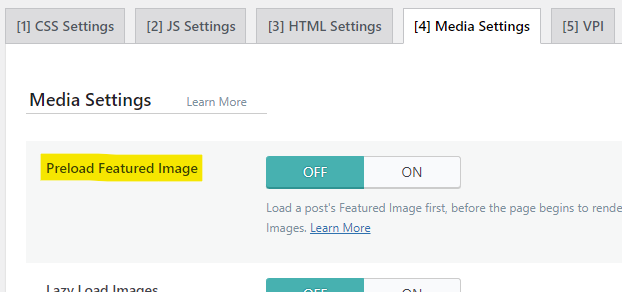
    You can enable the new Preload Featured Image setting to allow your posts’ Featured Images to be preloaded in browsers that support it. This user-experience enhancement ensures that browsers display your most important image right away, with no waiting.

    We’ve disabled this setting by default. To enable it from the WordPress Dashboard, navigate to LiteSpeed Cache > Page Optimization > Media Settings, and set Preload Featured Image to ON.

    NOTE: As of LSCWP v6.2, the Preload Featured Image option has been removed and the functionality folded into the ViewPort Images service. Any image that is detected to be a viewport image for a post is now automatically preloaded.

    Vary Cookies

    Before we talk about the new Vary Cookies setting, it’s helpful to understand the concept of cache varies in general, and the part that cookies play in that.

    LiteSpeed Cache stores and retrieves cache objects using a Cache Key. An optional component of the cache key is the “vary string.” It’s this vary string that allows you to save multiple cache objects from the same URL. This is useful in a number of situations including those where the desktop and mobile views of a page are different, or where the currency displayed on a page varies by the visitor’s geographical location.

    When you instruct the LiteSpeed Cache Engine to vary on a cookie, you are telling the Cache Engine to look for the cookie name, and then create cache varies based on the value of that cookie.

    So, for example, let’s say you have a membership plugin that shows one set of shop prices to members and a different set of prices to non-members, and the behavior is governed by a _member cookie. The cache engine could vary on the value of _member. It would store two copies of your shop page in cache: one for “yes” and one for “no”. Or maybe the cookie has three potential values: “full,” “trial,” and “no.” In that case the cache engine could store three copies of the page.

    LiteSpeed Cache can vary on any cookie you wish, and potentially create a separate version of the page in cache for each value of the cookie.
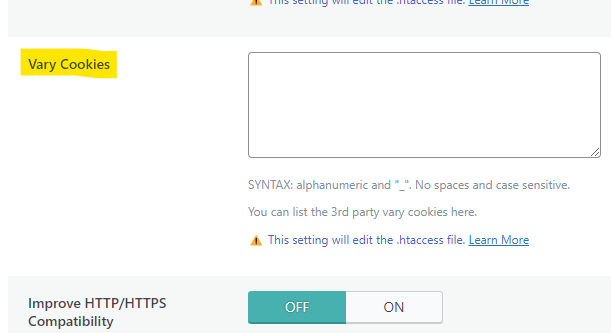
    If you have a situation like this, you can instruct LiteSpeed Cache to vary on any cookie that you wish. Navigate to LiteSpeed Cache > Cache > Advanced and add the name of the cookie to the Vary Cookies setting. If you want to vary on multiple cookies, enter them one per line.

    NOTE: Be careful not to vary on any cookie that uses a unique ID for each user as a value. This can potentially create an infinite number of copies of each page, and that will eat up your cache storage very quickly.

    Why is this new setting a big deal?

    Before Vary Cookies was added to the LiteSpeed Cache plugin, you could have defined some vary cookies for your site with a few lines in the .htaccess file. By adding the setting to the plugin, your defined vary cookies are now passed along to QUIC.cloud CDN.

    This is a big deal, because it means that your cookie-based cache varies exist at the CDN level. No other CDN can serve multiple cached copies of the same page based on a cookie value. But as of LSCWP v6.0, QUIC.cloud CDN can!

    CLI Crawler

    LiteSpeed Cache v6.0 comes with some new commands for the WordPress CLI. Now you can  control the crawler from the command line!

    WP-CLI is accessed with the wp command, and all crawler instructions begin with litespeed-crawler, so a complete WP-CLI crawler command would look like:

    wp litespeed-crawler <instruction> <parameters>
    

    There are five functions available:

    • List: list or l
    • Enable: enable <crawler-id>
    • Disable: disable <crawler-id>
    • Start: run or r
    • Reset: reset

    For more information about the new CLI crawler functionality, and how to use each function, take a look at our documentation.

    Parallel Pull

    Do you use the Priority Line or Jumbo Group power-ups that are available for Image Optimization? If so, you may notice your pulled images sliding back into your WordPress more speedily than they used to.

    This is due to Parallel Pull. Normally, when the cron pulls your optimized images back to your site, it downloads them one at a time. But users of those two power-ups now can expect multiple images to download at one time, potentially decreasing the time it takes to receive a batch of optimized images.

    There is nothing you need to do to enable this behavior. It is on by default when you subscribe to Priority Line or Jumbo Group.

    NOTE: These Image Optimization power-ups have been disabled as of September 1, 2024 in preparation for a new and improved Image Optimization service coming soon.

    Conclusion

    We’re always excited to bring you a new set of features and enhancements, and this release is no different. Install LiteSpeed Cache v6.0 for WordPress today and try it for yourself!!


  • WpW: Managing Multiple Cache Crawlers

    WpW: Managing Multiple Cache Crawlers

    Welcome to another installment of WordPress Wednesday!
    Today’s topic is: Managing Multiple Cache Crawlers

    LiteSpeed’s WordPress Cache Crawler travels your sitemap and re-caches any pages that have expired. By default, the crawler is run from the point of view of a non-logged-in guest. This is what that might look like on the LiteSpeed Cache > Crawler page:

    This is sufficient for a simple site, but some sites display different content in particular situations (for example, special content for logged-in users, specifically mobile content, or content that relies on the value of a cookie). What if you are in that situation? How do you configure the crawler to keep multiple views warm?

    The LSCache crawler can be configured to simulate traffic based on three different criteria:

    1. User roles
    2. Cookies (new!)
    3. Mobile view (new!)

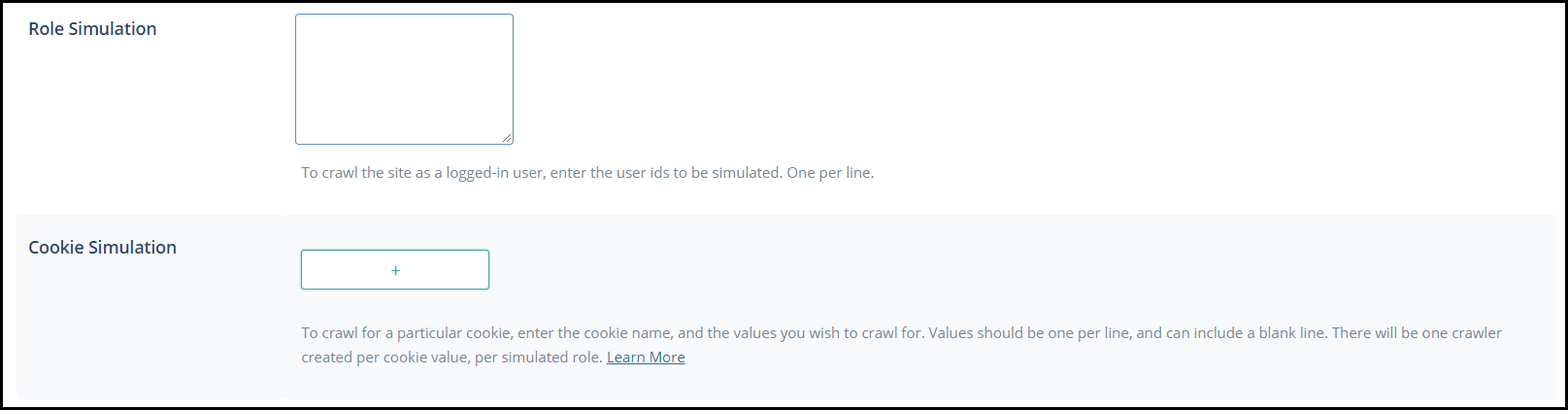
    The first two options are controlled by settings on the LiteSpeed Cache > Settings > Crawler tab: Role Simulation and Cookie Simulation.

    Mobile view is controlled via the Cache Mobile setting on the LiteSpeed Cache > Settings > Cache tab. Let’s look at each of these configurations.

    User Role Simulation

    The main advantage of a crawler is that it minimizes the chances that your visitors will encounter uncached content. This is a nice perk for your guests. But what if you have the kind of site where many of your visitors log in? Maybe you have a particular user role that you would like to see warmed up with a crawler?

    Navigate to LiteSpeed Cache > Settings > Crawler and add a user ID to the Role Simulation box.

    In this example, we entered the ID 2. User number 2 has the role of Editor, so now we have two crawlers:

    Now, in addition to crawling the sitemap from the point of view of a non-logged-in user, LSCache will crawl the sitemap from the point of view of a user with the Editor role.

    Of course, with more crawlers comes more server load. So you should consider the benefits of a warm cache in the context of how many resources you have available.

    Cookie Simulation

    What if you have implemented a cache vary based on a cookie value. Wouldn’t it be nice to crawl that view, too? There aren’t many situations where you would need to simulate a cookie crawler, but it can be useful for sites that use a cookie to control multiple languages or currencies.

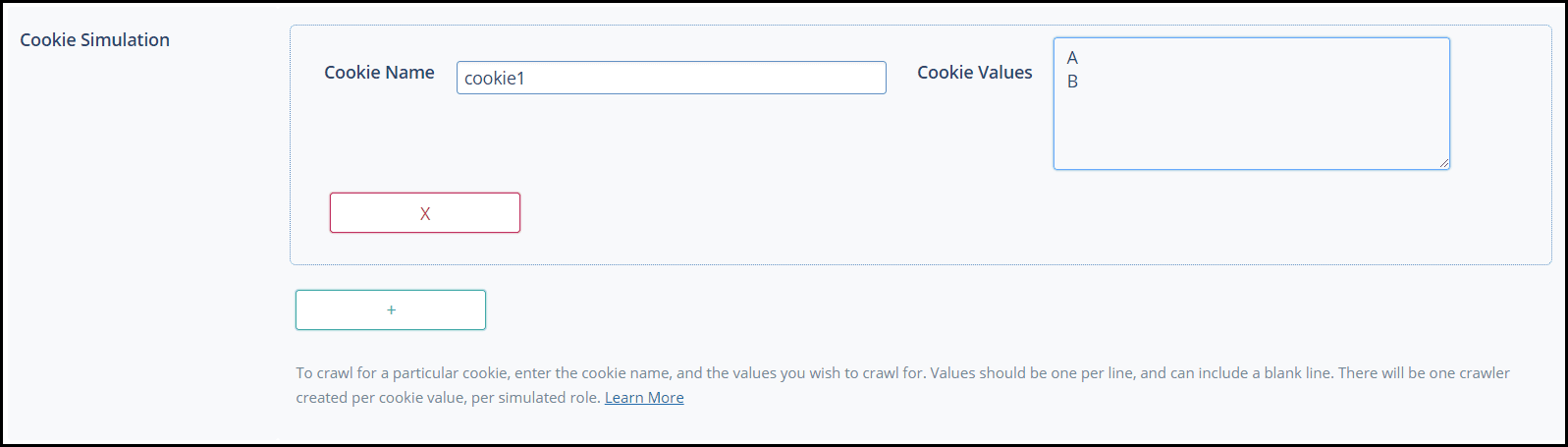
    To create a new crawler for a particular cookie, press the + button. Enter the cookie name, and the values you wish to crawl for. Values should be one per line, and can include a blank line.

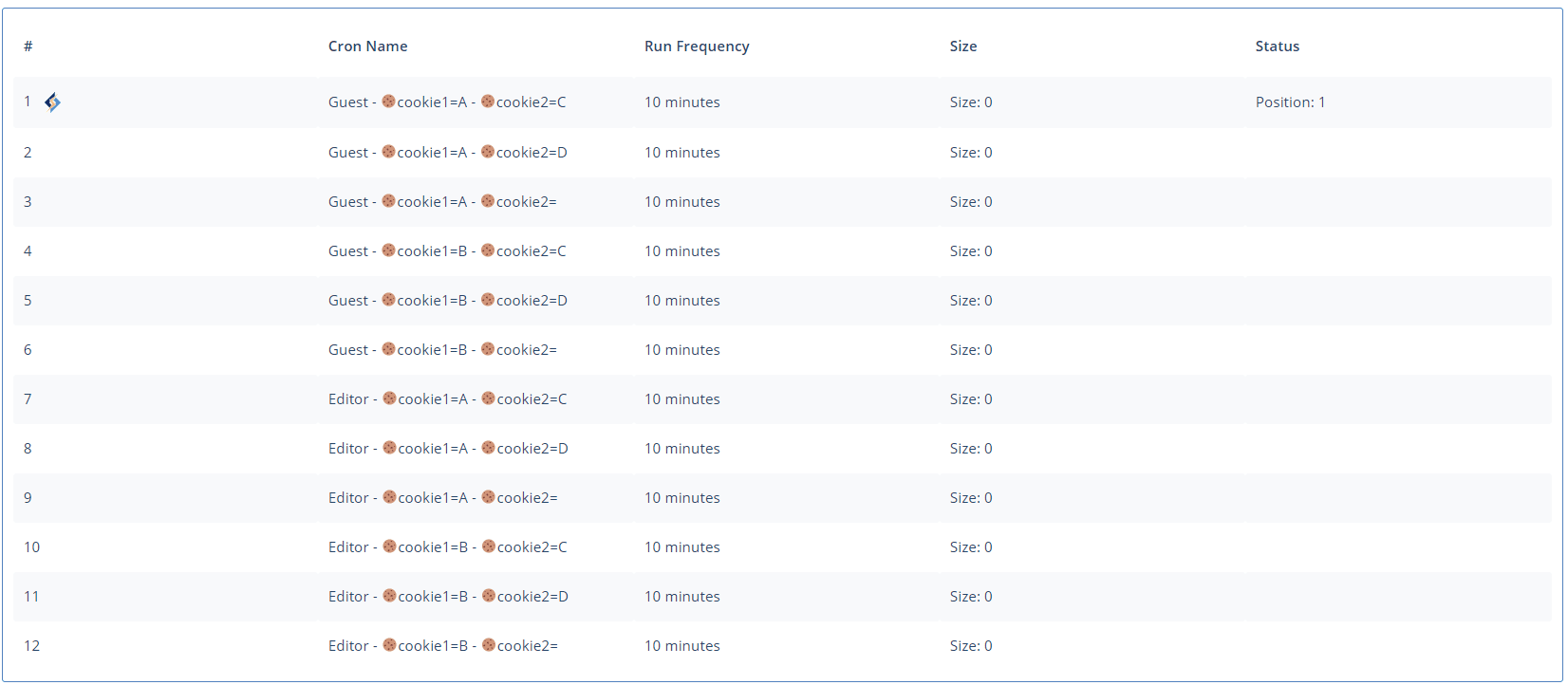
    There will be one crawler created per cookie value, per simulated role. In other words, this:

    Press the + button to add additional cookies, but be aware the number of crawlers grows quickly with each new cookie, and can be a drain on system resources. Let’s add cookie2 with the values C, D, and .

    One cookie, eight additional crawlers!

    This is a cool feature, but be careful with it, or your server will never get a break from all of the crawling!

    Mobile View

    One last type of crawler is the Mobile Crawler. This one is automatically created if you have LiteSpeed Cache > Settings > Cache > Cache Mobile set to ON.

    Just for fun, let’s see what happens to your crawler list when you crawl a mobile view:

    As you have probably guessed, it doubles the number of crawlers you will run.

    In Conclusion

    You can create crawlers for many different cache vary situations. It’s a handy tool, just remember to crawl responsibly.

    —
    Disclaimer: The information contained in this post is accurate for LSCWP v2.8 [release log]. If you are using a newer version of the plugin, some details may have changed. Please refer to our wiki for the latest!

    Have some of your own ideas for future WordPress Wednesday topics? Leave us a comment!

    We’ll be back soon with another installment. In the meantime, here are a few other things you can do:

  • Crawling Your PrestaShop or Magento 2 Store

    Crawling Your PrestaShop or Magento 2 Store

    Cache Crawler for PrestaShop and Magento 2

    We recently released two new crawler scripts: one for Magento 2 stores using LiteMage, and another for PrestaShop stores using LSCache.

    The LSCache/LiteMage crawler, travels its way through your sitemap file, refreshing pages that have expired in the cache. The purpose is to keep the cache as fresh as possible while minimizing visitor exposure to uncached content.

    Why Crawl Your Store?

    Well, first let’s look at how cache plugins store pages without a crawler. A user request kicks off the whole process. The cache is empty until users start sending requests. The first time a visitor requests a page, the request hits the backend. PHP code is invoked to generate the page, the page is served to the user, and then the page is stored in cache for next time.

    That’s a fairly time-consuming process for the server.

    Now, let’s look at what happens when a crawler builds the cache. When the crawler requests a page, the request hits the backend. PHP code is invoked to generate the page, but because of the special header that lets LSWS know that this is a crawler that initiated the request, the full page doesn’t need to be served. It is simply stored in cache.

    Additionally, with the crawler refreshing expired pages at regular intervals, the chances that a user will encounter an uncached page is significantly diminished. This makes for a faster site.

    So, now that you’re sold on the idea, let’s look at how it’s done.

    Please Note: The concepts behind the PrestaShop cache crawler script and the Magento 2 cache crawler script are the same, and so the instructions are very similar. Where they differ, we’ll put PrestaShop on the left, and Magento 2 on the right.

    Before You Begin

    There are a few things you need to do before you can begin to use the new script.

    • You must be using LiteSpeed Cache for PrestaShop or LiteMage 2 for Magento 2. Follow those links to install and enable the relevant extension.
    • The crawler must be enabled at the server level, or you will see the warning message Server crawler engine not enabled. Please check.... If you are using a shared hosting server, please contact your hosting provider, or see our instructions.
    • Prepare your site’s XML sitemap using the tool of your choice.

    Generate a Sitemap

    If you haven’t yet generated your sitemap, you can use an online sitemap generator such as XML-Sitemaps.com.

    After the crawl is finished, click DOWNLOAD YOUR XML SITEMAP FILE and put it where the crawler script can access it.

    If you’d prefer to do it from within your site, both PrestaShop and Magento 2 have modules that can generate XML sitemaps.

    PrestaShop Magento 2
    The Google Sitemap module is quite popular for Prestashop, and it’s fast.

    For PrestaShop v1.6, the Google Sitemap Module is installed by default.

    For v1.7+, it needs to be installed from source:

    • Download and rename file to gsitemap.zip
    • Navigate to Modules and Services
    • Click Upload a Module and drag the file to into the box to install

    Configure the sitemap as desired and press Generate Sitemap. You can find the URL of your new sitemap displayed in the Your Sitemaps section.

    Magento 2 has a builtin module for generating a sitemap and it’s fast.

    • Navigate to Magento Admin > Stores > Settings > Configuration > Catalog > XML Sitemap
    • Set Generation Settings > Enabled to Yes
    • Navigate to Magento Admin > Marketing > Seo & Search > Sitemap
    • Click the Add Sitemap button.
    • Set Filename = sitemap.xml and Path = /
    • Click the Save & Generate button

    A sitemap.xml file will be generated in your Magento 2 document root.

    Using the Cache Crawler Script

    Download the crawler script from the appropriate link below, and then change the permissions so that the file is executable, like so:

    PrestaShop Magento 2
    Download, then chmod +x cachecrawler.sh

    Usage: bash cachecrawler.sh https://www.example.com/sitemap.xml

    Download, then chmod +x M2-crawler.sh

    Usage: bash M2-crawler.sh https://www.example.com/sitemap.xml

    The crawler scripts take some parameters:

    • -h to display help
    • -m for when Desktop & Mobile have different themes
    • -i NUM to change the default interval from 0.1s to NUM.

    Changing the Crawl Interval

    How often do you want to re-initiate the crawling process? This depends on how long it takes to crawl your site and your Public Cache TTL. The default TTL is one day (24 hours). Let’s say you want to run the script by cron job every 12 hours.

    Add the following to your crontab to run twice a day, once at 3:30am and once at 3:30pm:

    PrestaShop Magento 2
    30 3/15 * * * path_to_script/cachecrawler.sh https://www.example.com/sitemap.xml -m -i 0.2 30 3/15 * * * path_to_script/M2-crawler.sh https://www.example.com/sitemap.xml -m -i 0.2

    You can use an online crontab tool to help you to verify time settings.

    Verifying the Crawler is Working

    When using the browser developer tool, load a page where the TTL has expired. On the first view after the crawler runs, you should see:

    PrestaShop Magento 2
    X-LiteSpeed-Cache: hit X-LiteSpeed-Cache: hit,litemage

    The cache hit indicates that the crawler cached the page for you. If the crawler were not running, you’d have gotten a cache miss.

    Any questions about our new crawler scripts? Let us know in the comments!

  • MM: Cache Warmup for Large Stores

    MM: Cache Warmup for Large Stores

    Magento Monday: LiteMage Cache Warmup for Large Stores

    Welcome to another installment of Magento Monday!
    Today’s Topic: LiteMage Cache Warmup for Large Stores

    Disclaimer: The information contained in this post is accurate for LiteMage v1.3.7 [release log] and Magento 1.x. If you are using a newer version of the extension, some details may have changed. Please refer to our wiki for the latest!

    LiteMage for Magento 1.x is equipped with a crawler function. The crawler travels its way throughout the backend, refreshing pages in the cache. The purpose is to keep the cache as fresh as possible while minimizing visitor exposure to uncached content.

    Our wiki instructions for setting up the LiteMage crawler are detailed and extensive, and if you’ve never enabled your site’s crawler before, we recommend you start there. If you own a large store, you may find the crawler’s duration to be problematic, so today we’re going to discuss how to configure the crawler for stores with many thousands of products.

    What works for small-to-medium sized stores may not work for larger stores. If you have thousands of pages for the crawler to traverse, you may need to adjust the crawler’s settings to make it less intrusive into your store’s daily operation.

    How Long Does Your Crawler Take?

    Before you can begin to determine the optimal configuration for your store’s crawler, you will need to know how long it actually takes to complete.

    LiteMage Cache Warmup for Large Stores: LiteMage Crawler Warmup Status

    You can find that out, along with other useful crawler statistics, in the LiteMage Crawler Warm-up Status section. From the Magento Admin Panel, navigate to System > Cache Management. It should be at the bottom of that page.

    An Example Scenario

    • Shop configuration: A book shop with 15 thousand products
    • Public Cache TTL (Time to Live): 86400 (24 hours)
    • Crawler Warmup Interval: 57600 (16 hours)
    • Crawler Duration: 8 hours

    Fifteen thousand product pages are set to expire in the cache after 24 hours, so every 16 hours the crawler begins refreshing the pages. This process takes about 8 hours to complete, and consumes enough resources to slow the site down considerably.

    Crawling the site takes 8 hours, and it runs every 16 hours. Essentially half of the time that this store is up, it is experiencing crawler-induced lag.

    This is not ideal. However, you don’t want to give up the warm cache, so what can you do?

    A Possible Solution

    LiteMage Cache Warmup for Large Stores: Crowded Bookshelves

    LiteMage’s crawler function is flexible, and with a few adjustments, you can tune it to work well for your store.

    The first thing to consider is the TTL. How often do your products change? If it’s less frequently than “every day,” you don’t need a TTL of 24 hours. How about a week? If it’s reasonable to assume that your products are not likely to change within seven days, you can set your TTL to 604800 seconds (1 week).

    Once your TTL is changed, you can adjust your warmup interval. We have a handy rule-of-thumb for that:

    Warmup Interval <= Public Cache TTL – 2 X Warmup Duration

    Let’s say the TTL is set to 604800 (7 days).

    We know our warmup duration is about 8 hours, or ⅓ day.

    The Warmup Interval we choose should be less than or equal to 7 days minus 2 times ⅓ day

    In other words, the Warmup interval should be less than 6 ⅓ days.

    Let’s set the Warmup Interval to 6 days (or 518400 seconds). This means that instead of your system slowing down every day for 8 hours, it will slow down every six days for 8 hours. That’s a big improvement.

    You can also enable the delta crawler. The delta crawler will allow you to confidently set a one-week TTL, knowing that if a product changes during that time, it will be recrawled within 5 minutes.

    In Conclusion

    As you can see, with the LiteMage crawler, you have options. If your products are fairly static, you might even choose to set a one month TTL, or longer!

    If you have any questions about this, leave a comment. We’ll be happy to help!

    P.S. Perhaps your large store could benefit from our ADC solution. Check out LiteSpeed Web ADC for details.

    —

    Have some of your own ideas for future Magento Monday topics? Leave us a comment!

    If you enjoyed this, here are a few other things you can do:

  • WpW: Limiting the LSCache Crawler

    WpW: Limiting the LSCache Crawler

    WordPress Wednesday: Limiting the LiteSpeed Cache Crawler

    Welcome to another installment of WordPress Wednesday!
    Today’s topic is: Limiting the LiteSpeed Cache Crawler

    Disclaimer: The information contained in this post is accurate for LSCWP v1.9 [release log]. If you are using a newer version of the plugin, some details may have changed. Please refer to our wiki for the latest!

    When we introduced the LiteSpeed Cache Crawler in our WordPress plugin last May, we told you that the crawler has the potential to consume significant system resources, if not configured with efficiency in mind. It was for this reason that we put the on/off switch in the hands of the hosting providers.

    Some hosts wanted the ability to allow their clients the use of a LSCWP crawler, but only if the providers had the ability to set some limits.

    We thought that was a great idea, and so today we’re going to talk about the new crawler-specific server variables that we created in response to this request.

    Why Limit the Crawler?


    Limiting the LSCache Crawler: Forest Tent Caterpillar Moth

    The settings in LSCWP’s Crawler tab have always been designed to minimize server impact. Site admins are encouraged to configure their crawler to be conservative in its usage of resources. That said, users are free to configure it however they like. Site admins on shared hosting could conceivably use crawler settings that bring a server to its knees if they wanted to, negatively impacting every other site on that server.

    With no safeguards in place to protect against the rogue site owner in the second scenario, many shared hosting providers have decided not to take a chance on enabling the crawler.

    But now, with these new server variables, we are giving hosting providers the ability to set some boundaries for the site owners. The idea being, if they can guarantee that no client can hog all of the resources, then there should be enough to go around.

    Exactly What Do These New Variables Limit?

    Currently hosting providers can potentially limit two of the crawler settings that are found in LiteSpeed Cache > Settings > Crawler.

    Delay

    This setting lets LSCache know how often to send a new request to the server. The longer the delay, the less load there is on the server, but the longer it takes to crawl. LSCache defaults Delay to 500 microseconds, but site admins may change the number to whatever they like.

    The CRAWLER_USLEEP variable puts a minimum allowed value on the Delay field. You can specify a large number, if you want to slow down all of the crawlers on your server and minimize their impact.

    For example, if you set CRAWLER_USLEEP to 1000 microseconds, then your site admins may set their own crawler delays to any number greater than or equal to 1000. All site crawlers across the server will never be allowed to run faster than 1000 microseconds between requests.

    Server Load Limit

    Server Load Limit keeps the crawler from monopolizing system resources. Once the load reaches this limit, the crawler will be terminated rather than allowing it to compromise server performance. LSCache defaults Server Load Limit to 1, which is fairly conservative, but site admins have the ability to crank it up as high as they like.

    With the following server variables, hosting providers can prevent site owners from setting the limit too high.

    • CRAWLER_LOAD_LIMIT sets a default value for the Server Load Limit field.
    • CRAWLER_LOAD_LIMIT_ENFORCE sets a maximum allowed value on the Server Load Limit field. While the previous variable is more of a suggestion, this is an enforced maximum.

    For example, if you set CRAWLER_LOAD_LIMIT to 3, then 3 will override the LSCache default of 1. If a site admin enables crawling without changing any of the settings, that site’s Server Load Limit will be 3.

    If you use CRAWLER_LOAD_LIMIT by itself, site admins are still free to change it to whatever they like. To prevent this behavior, and set a maximum Server Load Limit, you would use CRAWLER_LOAD_LIMIT_ENFORCE. Set it to 6, for example, and the site owners will not be allowed to exceed a Server Load Limit value of 6.

    How to Limit the Crawler

    Limiting the LSCache Crawler: Forest Tent Caterpillar Moth

    To use the server variables, add them one-per-line to the appropriate configuration file. For example:

    CacheEngine on crawler
    
    SetEnv CRAWLER_USLEEP 1000
    SetEnv CRAWLER_LOAD_LIMIT_ENFORCE 6


    The variables can be used server-wide or on a virtual-host basis, and are completely optional. We’ve incorporated the server variable instructions into our Enabling the Crawler instructions. Check that out to get specific directions for your control panel, for LiteSpeed native WebAdmin, or for no control panel at all.

    Hosting providers, we hope that these new variables will allow some of you to open up crawler usage to more of your clients!

    Site owners, if you’ve been unable to persuade your hosting provider to enable crawling, maybe this new ability to limit crawler impact will change their minds! Feel free to share this blog post with your host, or share a link to the crawler setup page on our wiki.

    —

    Have some of your own ideas for future WordPress Wednesday topics? Leave us a comment!

    Don’t forget to meet us back here next week for the next installment. In the meantime, here are a few other things you can do:

  • WpW: More About Crawling

    WpW: More About Crawling

    Welcome to another installment of WordPress Wednesday!

    Last week we talked about the new crawler functionality in our LiteSpeed Cache for WordPress plugin, and since then there have been some questions about enabling the crawler, and a couple of new fields added to the Settings page. Today, we thought it would be a good idea to talk about these things and get everyone up to speed and on the same page.

    Enabling the Crawler

    This has been the area where we’ve had the most requests for help, so let’s see if we can clear up some of the confusion.

    The first thing to know is that the crawler must be enabled at the server or virtual host level. If you don’t have access to these areas, you will need to ask your web host to do it for you.

    Additionally, this functionality requires the latest build of our server software, so if you’re running 5.1.16 and you are still having difficulty getting the crawler enabled, chances are you are not running the latest build (as of this writing, that is LSWS version 5.1.16 build 3). Force a reinstall, and it should work.

    Enabling the crawler requires you to add a few lines to a server config file or a virtual host include file. These are those lines:

    <IfModule Litespeed>
     CacheEngine on crawler
    </IfModule>
    

    Due to the fact that every control panel stores its config files in its own directory structure, we can’t just say, “update filexyz.” We have, however, written up a detailed wiki article that explains where you need to look for your particular control panel (or for no control panel at all). We recommend that you refer to the wiki to be sure you’re putting the code in the proper location.

    New Fields

    There are two new fields on the WP-Admin > LiteSpeed Cache > Settings > Crawler tab. Site IP allows the crawler to go directly to your server to retrieve content, without having to get the DNS involved. Custom Sitemap allows the crawler to use a sitemap you already have, rather than building its own.

    Site IP

    As of the plugin’s version 1.1.1, you can enter your Site’s IP address to simplify the crawling process and eliminate the overhead involved in Domain Name Server (DNS) and Content Delivery Network (CDN) lookups.

    Note: a server may have multiple IPs. Use the IP address that was set for your domain in the server’s configuration.

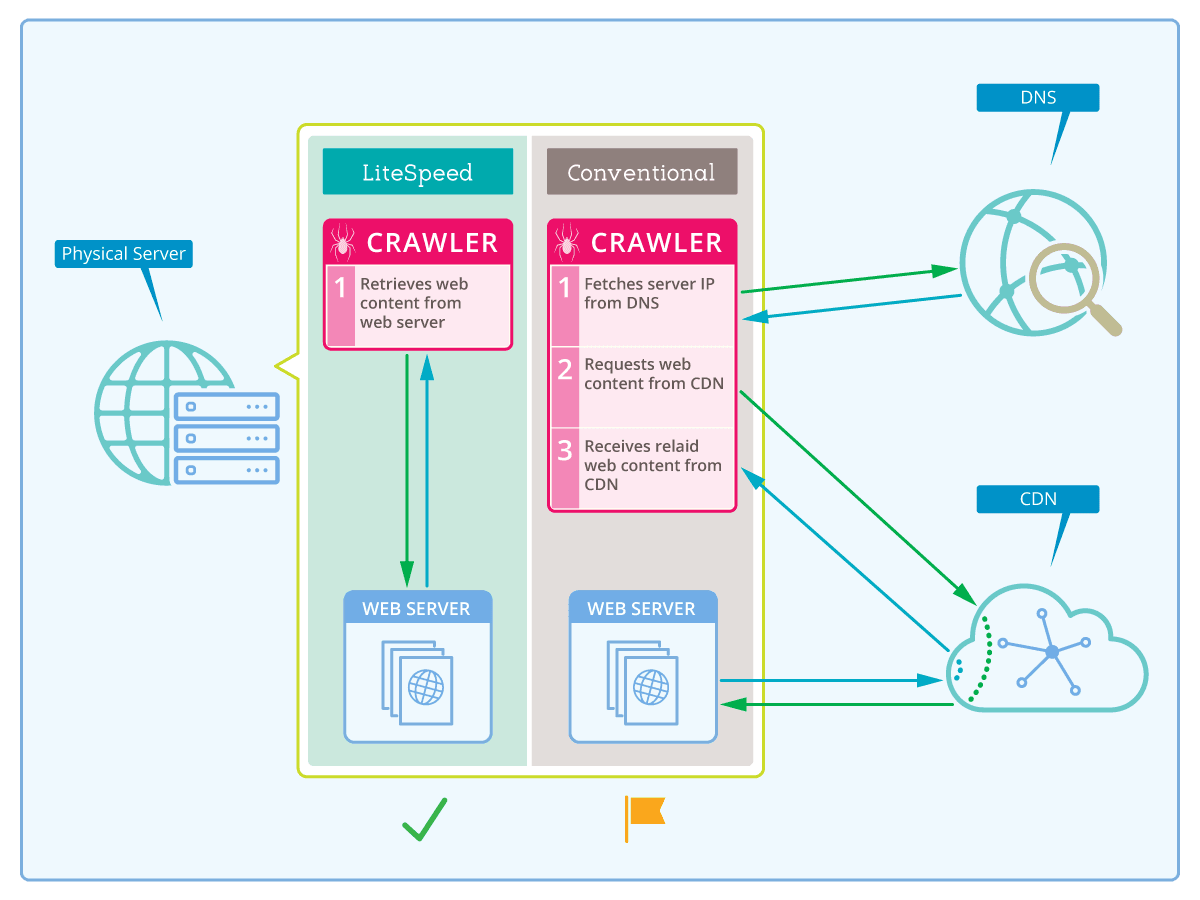
    Conventionally, the crawler retrieves a URL to crawl from the sitemap, and looks to the DNS to get the URL’s IP address. If you’re using a CDN, the IP that the DNS returns is actually that of the CDN. The CDN only caches static content, so when the crawler asks the CDN for the dynamically-generated content it needs, the CDN must go back to your server to retrieve it and then return it to the crawler. This is so inefficient! The crawler, which lives on the same server as your content, needs to travel all over the internet before it can get that content!

    On the other hand, if you tell LiteSpeed’s crawler ahead of time what your domain’s IP address is, it doesn’t need to involve the DNS or CDN at all. The content can be retrieved directly from the server. Nice!

    To understand this better, let’s look at this diagram:

    In other words…

    If you are using a CDN

    • The crawler retrieves http://yourserver.com/path from the sitemap
    • The crawler requests yourserver.com‘s IP address from the DNS
    • The DNS returns the CDN’s IP address to the crawler
    • The crawler requests dynamic content from the CDN
    • The CDN must retrieve the page from yourserver.com
    • The CDN returns the page to the crawler

    If you are not using a CDN

    • The crawler retrieves http://yourserver.com/path from the sitemap
    • The crawler requests yourserver.com’s IP address from the DNS
    • The DNS returns your server’s IP address to the crawler
    • The crawler retrieves the page from yourserver.com

    In both scenarios, there are lookups that occur, expending time and resources. These lookups can be eliminated by entering your domain’s IP in this field.

    If Site IP has been specified

    • The crawler retrieves http://yourserver.com/path from the sitemap
    • The crawler retrieves the page directly from yourserver.com because it already knows the IP address

    So, you can see that by entering your site’s IP address, the middlemen are eliminated, along with all of their overhead. That’s pretty useful. Honestly, is there any reason why you would not want to use this option?

    Custom Sitemap

    A sitemap tells the crawler which pages on your site should be crawled. By default, LSCache for WordPress generates its own sitemap. If, however, you already have a sitemap in standard XML Sitemap format, and you’d like to use that, it’s an option as of v1.1.1.

    Be sure to enter the full URL to the sitemap.

    Any questions?

    This covers the bulk of the issues we’ve been addressing over the last week, but if there’s something else you want to know, please do reach out to us! You are welcome to post a comment here, leave a question on the plugin forum, or open a ticket. How can we help?

    —

    Have some of your own ideas for future WordPress Wednesday topics? Leave us a comment!

    Don’t forget to meet us back here next week for the next installment. In the meantime, here are a few other things you can do:

  • WpW: Crawl Your Site; Make it Fly!

    WpW: Crawl Your Site; Make it Fly!

    WordPress Cache Crawler

    Welcome to another installment of WordPress Wednesday!
    Today’s Topic: LiteSpeed’s WordPress Cache Crawler

    We’re going to talk about the concept of “crawling” and why it has the potential to make your WordPress site even faster.

    What does a crawler do?

    Our LiteSpeed Cache for WordPress plugin includes crawler functionality. What does this mean?

    LSCache’s crawler, travels its way throughout the backend, refreshing pages that have expired in the cache. The purpose is to keep the cache as fresh as possible while minimizing visitor exposure to uncached content.

    IMPORTANT NOTE: Crawler functionality is enabled or disabled at the server level, and its availability is controlled by your hosting provider. We’ll talk about that more below, or you can see our docs on how to enable the crawler.

    WordPress Cache Crawler

    Why would we want to do this?

    Well, first let’s look at how pages are cached without a crawler. The whole process is initiated by user request. The cache is empty until users start sending requests to the backend. The first time a page is visited, the request hits the backend, WordPress’s PHP code is invoked to generate the page, the page is served to the user, and then stored in cache for next time.

    That’s a fairly time-consuming (and bandwidth-consuming!) process for the server.

    Now, let’s look at what happens when the cache is built by a crawler. When the crawler requests a page, the request hits the backend, WordPress’s PHP code is invoked to generate the page, but because of the special header that lets LSWS know that this is a crawler that initiated the request, the full page doesn’t need to be served. It is simply stored in cache.

    This saves significant bandwidth.

    Additionally, with the crawler refreshing expired pages at regular intervals, the chances that a user will encounter an uncached page is significantly diminished. This makes for a faster site.

    Let’s look at some settings

    You want the crawler to be effective in its mission, but not at the expense of your system’s performance. It’s helpful to know what some of the settings mean, so you can control just how many resources you want to give to the crawling process.

    Note: We’ve selected default settings that should be reasonable for most sites, so if you don’t want to be messing around with these settings, it’s fine to leave them as-is.

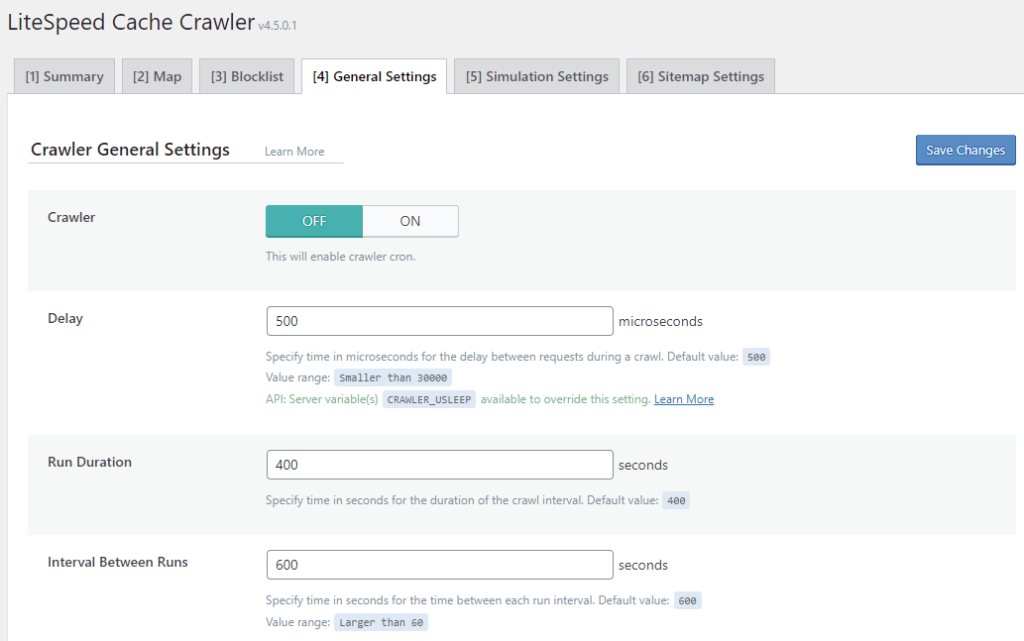
    Navigate to WP-Admin > LiteSpeed Cache > Crawler > General Settings and take a look at the following settings:

    LSCache for WordPress Crawler General Settings

    Crawler

    This setting allows you to enable (ON) or disable (OFF) the crawler. It defaults to OFF.

    Delay

    The crawler sends requests to the backend, one page after another, as it traverses your site. This can put a heavy load on your server if there is no pause between requests. Set the Delay to let LSCache know how often to send a new request to the server. The default is 500 microseconds (or 0.0005 seconds). You can increase this amount to lessen the load on the server, just be aware that will make the entire crawling process take longer.

    Run Duration

    In order to keep your server from getting bogged-down with behind-the-scenes crawling, you can put limits on the crawling duration. For example, if we set Run Duration to 400 seconds, then the crawler will run for 6.66667 minutes before taking a break. After the break is over, the crawler will start back up exactly where it left off and run for another 400 seconds. This will continue until LiteSpeed crawls the entire site.

    Interval Between Runs

    This setting determines the length of the break mentioned above. In that same example, if we set Interval Between Runs to 600 seconds, then the crawler would pause for 10 minutes after every 1-minute run.

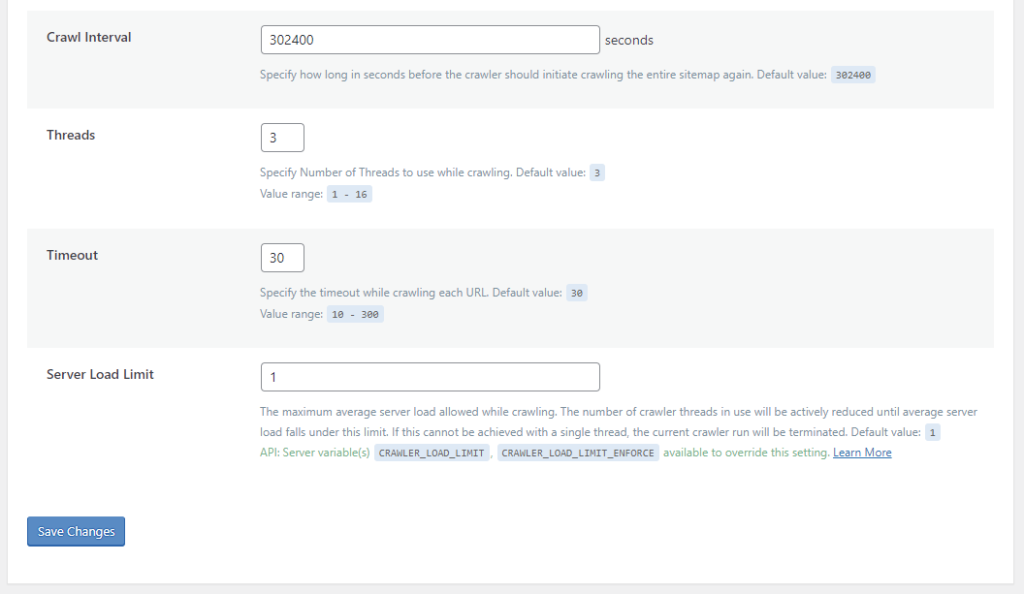
    LSCache for WordPress Crawler General Settings

    Crawl Interval

    How often do you want to re-initiate the crawling process? This depends on how long it takes to crawl your site. The best way to figure this out is to run the crawler a couple of times and keep track of the elapsed time. Once you’ve got that amount, set the interval to slightly more than that. For example, if your crawler routinely takes 4 hours to complete a run, you could set the interval to 5 hours (or 18000 seconds).

    Threads

    When Threads is set to 3, then there are 3 separate crawling processes happening concurrently. The higher the number, the faster LiteSpeed crawls your site, but also the more load that the crawler puts on your server.

    Timeout

    Use this setting to specify how long you are willing to take processing a single URL. The crawler has this many seconds to crawl a page before moving on to the next page. The default is 30, but you can adjust that up or down according to your needs.

    Server Load Limit

    This setting is a way to keep the crawler from monopolizing system resources. Once the server’s load average reaches this limit, the crawler will be terminated, rather than allowing it to compromise server performance.

    For example, to terminate the crawler once half of your server resources are being consumed, set Server Load Limit to 0.5 for a one-core server, 1 for a two-core server, 2 for a four-core server, and so on.

    Protecting your server from overload

    We designed all of the settings above to work together to protect your server from overload. The first four parameters (Delay, Run Duration, Interval Between Runs, and Crawl Interval) control how often and for how long to allow the crawler to run. You can set these values to give your crawler as many or as few resources as your system can afford.

    Timeout keeps the crawler from getting stuck for too long on any one page.

    Threads and Server Load Limit are two settings that work together to automatically terminate the crawler if it tries to get too greedy with system resources. Here’s an example:

    Let’s say we have the following values set before the crawler starts:

    Server Load Limit = 5
    Threads = 4

    The current server load is at 2, and the crawler begins. It’s crawling 4 urls at a time (due to the Threads setting), but this has caused the server load to jump up above our limit of 5. In response, the crawler drops the number of threads to 3 and keeps going.

    If the server load hits our limit of 5 again, the crawler will drop the number of threads to 2 and go on. This process repeats until we are down to a single thread.

    If the server load is still too high with only one crawler thread, the crawling process terminates.

    On the other hand, if the server is doing just fine with one thread, the crawler will increase the number of threads one at a time, until it has either reached the Thread Limit we set (4 in this case) or our Server Load Limit.

    Watching the crawler do its thing

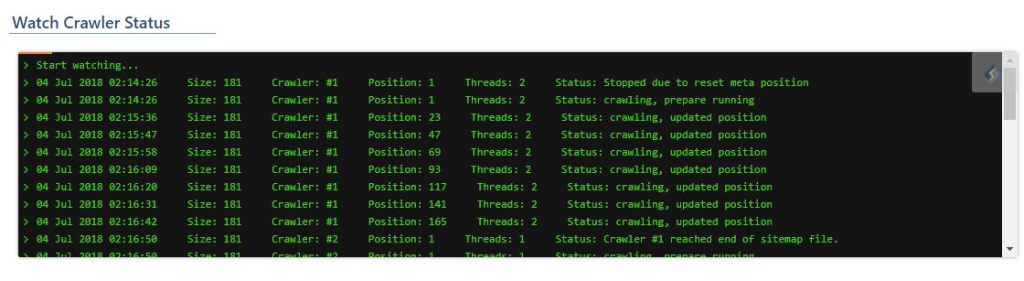
    If you’re the kind of person who likes to sit in front of a terminal and watch a process making progress (and, really, who isn’t?) you’ll enjoy the Watch Crawler Status section.

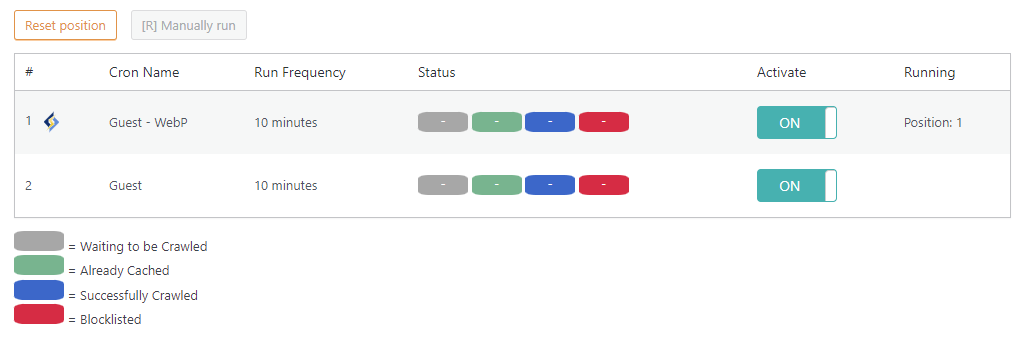
    Navigate to WP-Admin > LiteSpeed Cache > Crawler > Summary.

    LSCache Crawler Cron

    If the crawler isn’t actually running right now, make sure you set Crawler to ON on the previous screen, and that one or more of the crawlers listed on this page have Activate set to ON. If a crawler is not currently running, you can press the Manually run button.

    LSCWP Watch the Crawler

    Look at it go!

    Impacts on Shared Hosting

    Site owners love the crawler functionality, but if you are a shared hosting provider, chances are your first thought goes to the impact all of this crawling could have on your servers. Despite the fact that we’ve provided several features designed to minimize a crawler’s impact on the server, it’s a valid concern when you are hosting thousands of installations. This is why we have ultimately put crawler control into the hands of the hosts.

    LiteSpeed Web Server disables crawling by default. This will keep usage restricted to those who truly want to use it. As host, it is your choice whether to enable crawler functionality at all. You can keep it permanently-disabled on a server-wide basis, if you do not want crawling on your system.

    When crawling is disabled, site administrators will see the following message in WP Admin > LiteSpeed Cache -> Crawler

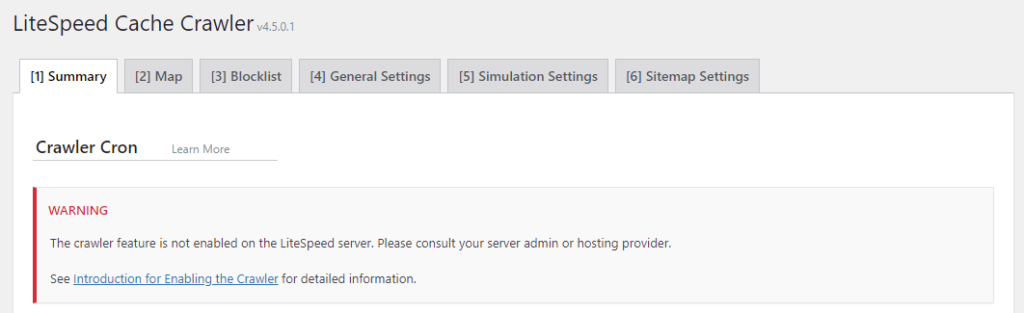
    Warning: The crawler feature is not enabled on the LiteSpeed server. Please consult your server admin or hosting provider.

    LSCWP Crawler Disabled

    How to Enable the Crawler

    NOTE: we do not recommend crawler usage for shared hosting setups unless the server has enough capacity to handle it!

    There are a few different approaches you can take to crawling on your LiteSpeed Web Server:

    • Disable it for the entire server
    • Enable it for the entire server
    • Selectively enable it for particular clients, while leaving it disabled for everyone else

    Disable Crawling for the Entire Server

    Do nothing. LiteSpeed Web Server disables crawling by default.

    Enable Crawling for the Entire Server

    You need to update the appropriate configuration file, like you did when you originally set up your cache root. Add the following:

    <IfModule LiteSpeed>
      CacheEngine on crawler
    </IfModule>

    Selectively Enable Crawling

    To enable crawling for select clients, you would not update the server’s config file. Instead, locate (or create) the virtual host include files for those clients and add the above lines to that.

    The exact location of the relevant configuration or include file varies, depending on the control panel you use (or if you use no control panel at all), and which of the above options you are looking to enact. For detailed instructions, please see our documentation on the subject.

    If you don’t have access to the appropriate files, you will need to ask your server administrator to enable the crawler for you.

    Update It!

    LiteSpeed Cache for WordPress’s crawler functionality is pretty handy, don’t you think? By regularly renewing the cache, you minimize the number of times your users have to wait for WordPress to process dynamic pages, and you speed up your whole site!

    After you’ve experienced your first crawl, come back here and let us know what you think. We’d love to get your feedback.

    P.S. There is more to this topic! If you want to get the most out of your crawler, take a look at these blog posts: Limiting the Cache Crawler and Managing Multiple Cache Crawlers.

    —
    Have some of your own ideas for future WordPress Wednesday topics? Leave us a comment!

    Don’t forget to meet us back here next week for the next installment. In the meantime, here are a few other things you can do:

    —
    This content was last verified and updated in March of 2022. If you find an inaccuracy, please let us know! In the meantime, see our documentation site for the most up-to-date information.