
Serving Static Content Through a Subdomain

Serving Static Content Through a Subdomain

Written by

in

Serving Static Content Through a Subdomain

Serving static content from a subdomain can provide multiple benefits, including better website performance and optimization. It can allow you to offload your images to a CDN, or allow you to serve a specific file extension through a different domain.

But how does this work with the LiteSpeed Cache Plugin for WordPress (LSCWP)? Let’s take a closer look.

LSCWP allows you to offload static content such as images, JavaScript, and CSS files or any file extensions you define, so that they are served from a subdomain.

This involves two main steps:

  • Setting up the subdomain on your Hosting Server
  • Configuring LSCWP to use the new subdomain

Step 1: Create a Subdomain

Setting up a subdomain to serve static content is a simple process that can be done with all hosting panels or even on custom servers if you’re an experienced system admin.

The goal here is to point the subdomain exactly to the same directory as the main website, so that it can access static files correctly.

Here’s an example of how to set up your subdomain using cPanel:

1.1 Create a subdomain in cPanel
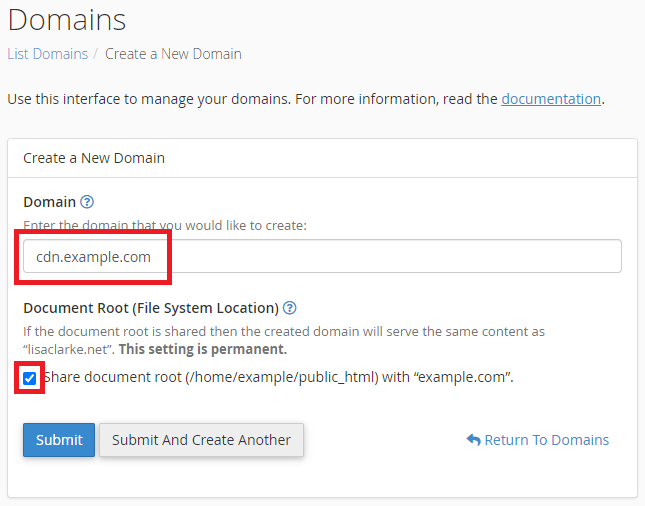
Create a subdomain in cPanel

  1. Log into cPanel using the account where you wish to add the subdomain.
  2. Click Domains under the Domains section.
  3. Click the Create A New Domain button.
  4. Enter the subdomain name (cdn.example.com) in the Domain text box.
  5. Select the Share document root (/home/username/public_html) with “example.com” option. Using a shared document root for a subdomain can be useful when serving static content because it allows you to easily manage and update your static files without duplicating them across multiple directories.
  6. Click the Submit button.

1.2 Add CORS Headers

For your subdomain to be able to serve files that are originally meant for your domain, most common browsers will ask you to set up CORS headers for your domain.

Setting up a CORS header can be a bit complex depending on your stack. On Litespeed Enterprise, which has full .htaccess support, you can add this line to your .htaccess:

Header add Access-Control-Allow-Origin "*" 
Header add Access-Control-Allow-Methods: "GET,POST,OPTIONS,DELETE,PUT"

Note: These are only basic CORS instructions. You should consider consulting with your developer and/or hosting provider before implementing CORS.

Step 2: Instruct Litespeed Cache to replace your URLs
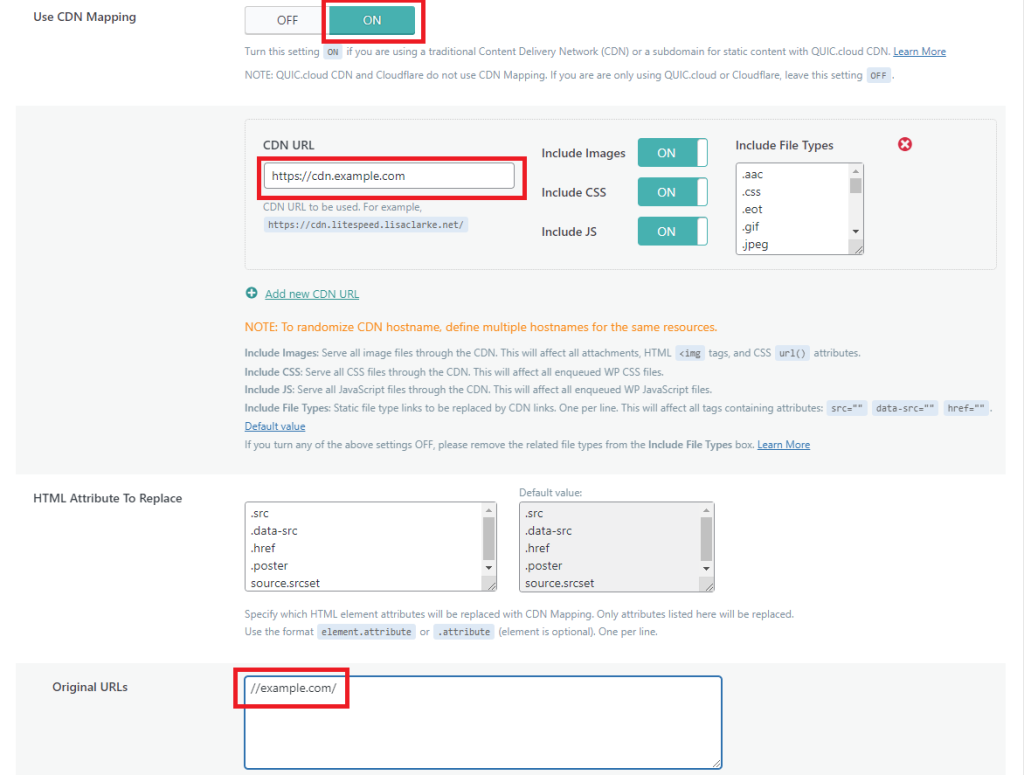
LiteSpeed Cache CDN Settings

From the WordPress Dashboard, navigate to LiteSpeed Cache > CDN.
Set up CDN mapping to use the new subdomain, like so:

  1. Set Use CDN Mapping to ON
  2. Set CDN URL to cdn.example.com
  3. Put //example.com/ in the Original URLs box.
  4. Save changes

Verify

Finally, you will need to test your website to ensure that everything is working correctly. Visit your website in a browser, view the site’s page source, and verify that images and other static files are being served from cdn.example.com.

Troubleshooting

URL’s are replaced in the website source, but images don’t load on the website.

Please check Step 1, and ensure that you have set up the subdomain correctly to serve your static files.

URL’s are not replaced in the website source.

Please check the Original URLs setting in LSCWP. Ensure you have set it correctly and it is the same as your WordPress site.

Some resources are not replaced but some are.

Please check the Extensions list in the LSCWP CDN Mapping settings to verify the file extensions.

Conclusion

Routing your static content using CDN Mapping from your main domain using LiteSpeed Cache for WordPress is a great way to improve your website’s performance and reduce server load. By offloading your static content to a subdomain, a CDN or a different server, you can deliver your website’s images, stylesheets, and other assets to your visitors more quickly, while also reducing the bandwidth and server resources needed to serve these files.

Comments

20 responses to “Serving Static Content Through a Subdomain”

  1. Prabhu Kumar Avatar

    Thanks for the information.

  2. Abhishek Avatar

    After performing this step, even a post can be opened using that domain. E.g.
    I created a subdomain “static.sfdchub.com” now even posts can be opened through static.sfdchub.com/hello-world

    How can I avoid this?

    1. Shivam Avatar
      Shivam

      WordPress will generally serve only the domain set as the WP_SITE_URL, if this install is serving the sub-domain you’ve setup aswell, this is likely a mis-configuration within the WordPress installation.

      It might be best to consult your WordPress developer or hosting provider to fix this, or alternatively setup an additional `.htaccess` rule to redirect from the sub-domain to main-domain for all non-static files.

  3. DPNmw Avatar
    DPNmw

    How would you do this in openlitespeed?

    1. Shivam Avatar
      Shivam

      Hi,

      Thank you for your reply.

      On the server level, in any and all setups, the end goal would be the same, creating a subdomain that points to the same doc root as the main website.

      e.g., in OpenLitespeed, if your current main domain virtual host points to /var/www/html, creating an exactly similar virtual host but with the domain set as cdn.yourdomain.com, pointing to the same directory will do the job.

      For more information on how to create and manage virtual hosts using OpenLitespeed’s own panel, please check out the OpenLitespeed doc on Virtualhosts here – https://openlitespeed.org/kb/setting-up-name-based-virtual-hosting-on-openlitespeed/

      However, these steps won’t be the same for Openlitespeed with another management panel, such as Cyberpanel or DirectAdmin. For such a case, simply create a subdomain according to the panel’s respective documentation.

      Hope this helps.

  4. Rudra Rawat Avatar

    I have created a subdomain and did all the thing what you mentioned here. But I want to know how my data load thorough that subdomain, when there is no data present in it. please guide me how to store my images, css and js file to subdomain.

    1. Shivam Avatar
      Shivam

      Hi Rudra,

      In the tutorial, you’ll notice a step where we point the subdomain to the same docroot as the main website.

      Since they point to the same docroot, you are able to access all static files(CSS, JS, Images) from the subdomain directly from the main domain data itself.

      Hope this helps
      Shivam

      1. Rudra Rawat Avatar

        Thanks for replying.

        I am getting 403 Forbidden error while opening the subdomain, but still some photos are loading from the cdn to the main website. Don’t know why all the data is not coming through cdn.

        1. Shivam Avatar
          Shivam

          I can’t put my finger on what is exactly wrong, without looking into it, but I can say It is definetely something to do with how you’ve setup your subdomain.

          If you’re unsure how to point it to the same docroot, I will recommend contacting the system admin of your environment or your hosting provider. They will be the right people to know how to do the server-side part in your environment.

          Hope this helps

          1. Rudra Rawat Avatar

            Ok thanks. Can you tell me if I use this method, is my cdn subdomain will also get index in the search result. If so how to avoid duplicate content.

  5. poshleafs Avatar

    Great post. Excellent Very helpful blog. Thanks for sharing.

  6. Jay Avatar
    Jay

    Hi, may I know how to serve static content with Cloudflare CDN? I’m currently using Quic.cloud CDN, plan to utilize both CDN.

    1. Shivam Avatar
      Shivam

      Hi,

      Once you setup your CDN subdomain which points to your docroot and is working.

      You may route it through Cloudflare by changing the cdn.yourdomain.com(for ex) to Orange Proxy.

      This will make your main domain load through QUIC.cloud, while the assets loading through cdn subdomain would load through Cloudflare to your origin server.

      Best Regards
      Shivam

      1. Wakzi Avatar
        Wakzi

        Can you please elaborate on how to do this while still keeping the usage of quic cdn? Currently I use quic DNS as well. How to keep using quic DNS and serve static via cloudflare?

        1. Shivam Avatar
          Shivam

          Hi,

          If your domain.com NS is on QC, Unfortunately, you cannot use Cloudflare for static.domain.com.

          For that to work you have to use their Nameservers, then you may enable the CF integration at QC and then use the above tutorial to setup your subdomain with Cloudflare.

          Best Regards
          Shivam

  7. Stéphane Avatar

    Hi,
    Can you explain why a subdomain on SAME host would improve performance please.
    I see no reasons there.
    It will ad more DNS requests, but finally same Disk and Bandwidth..

    Thanks.

    1. Shivam Avatar
      Shivam

      Hi Stephane,

      Thank you for your comment. You’re right, In most general cases, you do not need to do this and it will indeed add one additional DNS request.

      However, some cases require users to utilize a different CDN only for their Static Content, where this proves to be useful.

      Best Regards
      Shivam

  8. gzingkala Avatar

    Hello, thank you for your good site and very useful content.

  9. Marcelo Avatar
    Marcelo

    I am using Cloudflare as DNS since I have the domain with them and quic cloud to speed up the site but the webmail directly does not work to receive and send mails . I will have to delete quic cloud and speed up the site again with Cloudflare.

    1. Shivam Avatar
      Shivam

      Hi Marcelo,

      Thank you for your comment. QUIC.cloud currently only proxies Port 80 and 443, Webmail using cPanel or WHM uses a non-standard HTTP/HTTPS Port, which we do not proxy. However, you should be able to access Webmail using your IP address and Port directly.

      In the case of a cPanel/WHM server, it would http://IP:2096, I hope this helps.

Leave a Reply

Your email address will not be published. Required fields are marked *
