Tag: esi

  • WpW: WordPress Shortcodes as ESI Blocks

    WpW: WordPress Shortcodes as ESI Blocks

    WordPress Wednesday: Shortcodes as ESI Blocks

    Welcome to another installment of WordPress Wednesday!
    Today’s topic is: Turning WordPress Shortcodes into ESI Blocks

    If you’ve ever used ESI blocks before on your WordPress site, you know that they allow you to cache your content in an incredibly flexible way. We’ve talked before about ESI, and as part of that conversation we showed you how you could use ESI to cache widgets separately from the pages on which they appear.

    For example, you can set your entire site to be cached for a week, but set your ESI widgets to expire after only 12 hours, if they have time-sensitive content. Or you can set your widgets to contain privately cached content, even when the rest of the page is cached publicly. This latter scenario is especially useful in WooCommerce and other shopping sites. Be sure to read that blog post for the whole story about how ESI and ESI widgets work.

    Using ESI Shortcodes

    This ability to define a different set of parameters for caching widget content is so useful. It’s only natural to consider other WP constructs that could be made better with ESI. The “shortcode” is one such construct.

    As of LSCWP v2.8, ESI shortcodes are now supported. This allows you to cache the contents of the shortcode in a different way than you’ve cached the rest of the page.

    If you have a myeventlist shortcode, for example, and it inserts a list of upcoming events into your page, you might use it like this:

    [myeventlist month="December" year="2018"]

    In its most basic form, an ESI shortcode is written exactly like the original shortcode with an esi in front of it. So, to turn the myeventlist shortcode into an ESI block, you would instead write this:

    [esi myeventlist month="December" year="2018"]

    By default, shortcode contents are stored in public cache, and the TTL defaults to whatever value you have stored in LiteSpeed Cache > Settings > General > Default Public Cache TTL, but you can change that with a few parameters.

    To store the shortcode contents in private cache for five minutes (or 300 seconds), you can say this:

    [esi myeventlist month="December" year="2018" cache="private" ttl="300"]

    TL;DR: To turn a shortcode into an ESI shortcode, write it this way:

    [esi + original shortcode and its parameters + optional esi parameters + ]

    If You Deactivate LSCache…
    Turning WordPress Shortcodes into ESI Blocks: Apple Picking Sign

    If, for some reason, you decide in the future to deactivate the LiteSpeed Cache plugin, please be aware that your ESI shortcodes will no longer work. You will need to manually replace all ESI shortcodes with their original versions.

    In other words, you’d need to change

    [esi myeventlist month="December" year="2018" cache="private" ttl="300"]

    back to

    [myeventlist month="December" year="2018"]

    everywhere it appears.

    Limitations

    ESI shortcodes have one important limitation: while LiteSpeed Cache can easily cache your shortcode contents, it is not possible for LSCache to purge the shortcode contents on demand.

    Shortcode ESI blocks will naturally expire when the TTL is reached, but a purge cannot be triggered by particular events. This makes sense, because LiteSpeed can’t know which occurrences should trigger a purge. Different shortcodes all have different events that render them out-of-date, and there’s no way for LiteSpeed to know what they are.

    Using the example of the event listing plugin above, let’s say you use the following shortcode:

    [esi myeventlist month="December" year="2018"]

    This will cache the myeventlist block for the same length of time as your site’s default TTL. If someone edits an event before the TTL is reached, then the ESI block will, unfortunately, be out-of-date until it expires naturally.

    There are two ways to handle this issue:

    • Have the shortcode’s plugin author use our API to trigger a purge when block content changes.
    • Use a very short TTL, and live with the possibility that contents may be briefly out-of-date.

    Let’s look at these two options.

    Get the Plugin Author Involved

    If it’s important that the shortcode contents be purged by specific events, you can share this API call with the author of the shortcode’s plugin (just be sure to replace myeventlist with the actual name of the shortcode you want to purge:

    method_exists( 'LiteSpeed_Cache_API', 'purge' ) && LiteSpeed_Cache_API::purge( 'esi.myeventlist' ) ;

    LSCache uses a powerful tagging system, and all cached content is organized by one or more tags. Content that belongs to an ESI shortcode is tagged with esi.+shortcode-name. (In this example, that’s esi.myeventlist.)

    The plugin author should use this method any time the contents of the shortcode change. This is the most precise way to keep the content in the shortcode up-to-date and accurately cached according to the shortcode’s own requirements.

    Learn more about the LiteSpeed API on our wiki.

    Do it Yourself

    If it is not critical for the contents of the shortcode to have up-to-the-minute accuracy, then you can use the ttl parameter to cache the content for a short time. For example, if you can live with content that is an hour old, set ttl="3600". If you are thinking more along the lines of five minutes, set it to ttl="300".

    While it is possible to set the content to not be cached at all ( ttl="0"), it is not recommended. Any time there is uncached content on a page, PHP must be invoked in order to generate that content. PHP uses valuable resources, and significantly slows down a page. It’s far better to cache your content for a small amount of time than not at all.

    Do You Need ESI Shortcodes?

    Shortcodes are used for a wide variety of functions, and ESI will not be necessary for every one. If the shortcode contains private content on a public page, it might benefit from ESI. If it contains quickly-changing content on an otherwise mostly-static page, then ESI might be a useful way to cache more flexibly.


    Disclaimer: The information contained in this post is accurate for LSCWP v2.8.1 [release log]. If you are using a newer version of the plugin, some details may have changed. Please refer to our wiki for the latest!

    Have some of your own ideas for future WordPress Wednesday topics? Leave us a comment!

    We’ll be back soon with another installment. In the meantime, here are a few other things you can do:

  • JT: Using ESI in Joomla with LSCache

    JT: Using ESI in Joomla with LSCache

    Joomla Tips: Using ESI in Joomla

    Welcome to another installment of Joomla Tips!
    Today’s topic is: Using ESI in Joomla

    Last week we discussed private cache for your Joomla site. Today we’re going to take that a step further and explore ESI, or “Edge Side Includes”. ESI takes the concepts of public cache and private cache, and combines them in a way that allows you to serve cached content flexibly and to more of your visitors, both logged out and logged in.

    Please note: ESI is not supported in OpenLiteSpeed. You must be using LiteSpeed Enterprise in order to take advantage of ESI functionality.

    What is ESI?

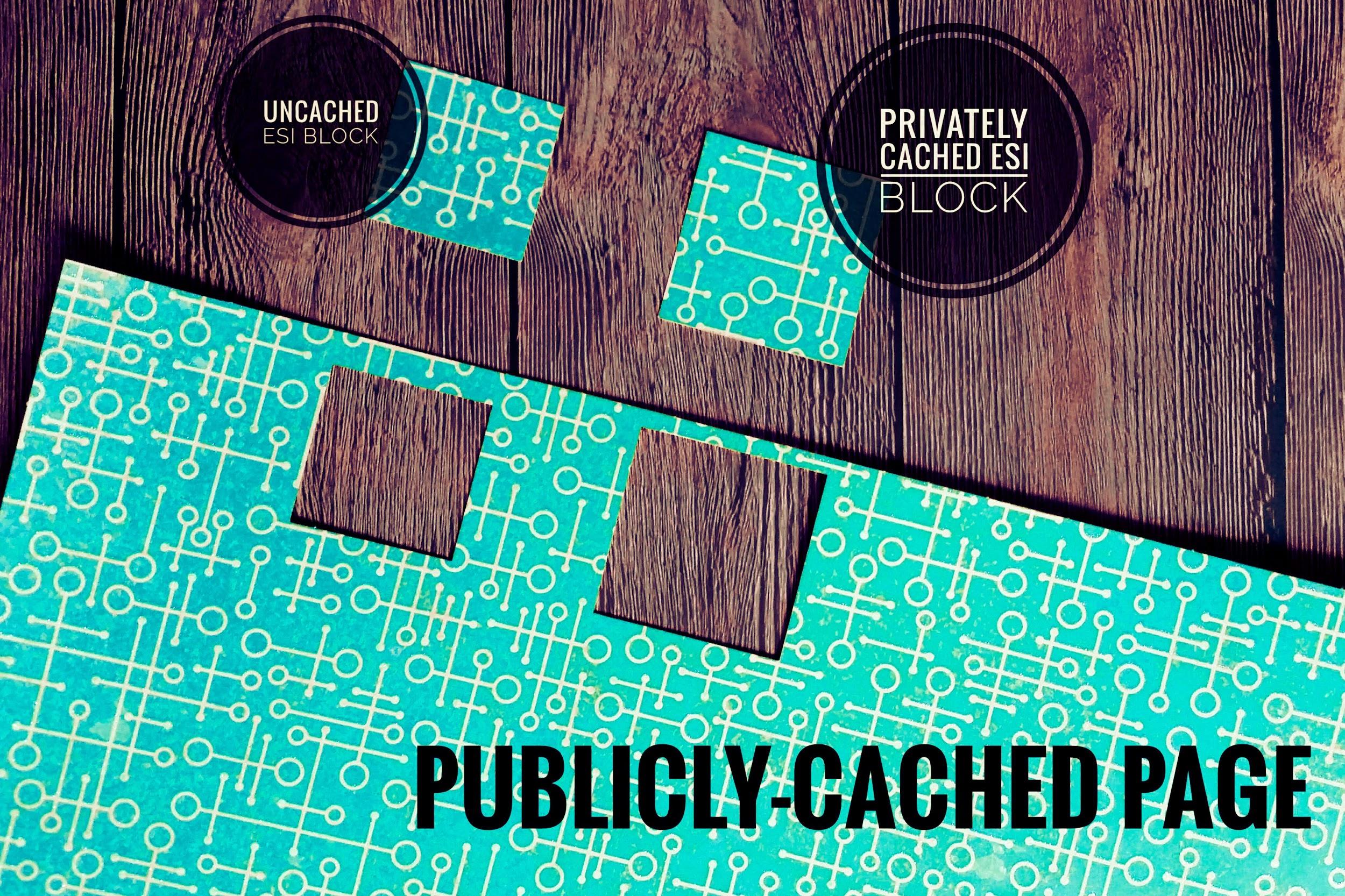
    ESI is a markup language. It allows you to designate parts of your dynamic page as separate fragments that are then assembled together to make the whole page. ESI lets you “punch holes” in a page, and then fill those holes with content that has different caching requirements than the rest of the page.

    For instance, ESI blocks can have different TTLs and be purged by events that are completely separate from the page they are on. Additionally, ESI blocks can contain private content even when the page they are on is publicly cached. This flexibility allows you to cache more of your site for more of your visitors. ESI is a an important aspect of any ecommerce caching strategy.

    How do ESI and Public/Private Cache Work Together?

    ESI allows you to disassemble a full page and treat the pieces differently from each other.

    LiteSpeed Web Server allows you to store content in either the public cache or a private cache.

    These two elements combine to give you something very powerful: a system that can break apart a page into public and private pieces, cache each piece appropriately, re-assemble the full-page content from the relevant caches, and then serve it to a user without ever hitting the PHP backend.

    That is pretty amazing!

    Using ESI in Joomla: Punched holes in paper

    Examples

    Let’s look at a few common scenarios where ESI is helpful.

    Example #1: The Login Module

    Let’s say your site has a login module on every page. You are logged in, and you visit your site’s home page, which is in the public cache.

    Without ESI: Your request must invoke PHP, because the login module contains private content, and as such this page (and every other page on your site, for that matter) cannot be served to you from public cache.

    With ESI: Most of this page is served to you from the public cache, but the login module is served to you from your private cache. There is no need to invoke PHP.

    Other Thoughts: Technically in this scenario, you could skip ESI and use logged-in caching for every page, but private cache storage adds up, particularly if you have a busy site, or a lot of pages on your site. Using ESI here means that the only thing you need to store in private cache for each user is the contents of a single module.

    Example #2: The Latest Articles Module

    Let’s say you have a large site with mostly static content that rarely changes. The “Latest Articles” module appears on each page.

    Without ESI: Every time a new article is published, every single page in the site must be purged so that the module displays up-to-date data. Re-populating the entire cache requires a crawler to run, or visitors to hit all of the pages of the site.

    With ESI: All of the pages in the site can remain cached with a nice long TTL, while the Latest Article module is the only thing that needs to be purged. Re-populating that one bit of the cache requires just one visitor to request any page one time.

    Other Thoughts: Using an ESI widget for this allows us to keep most pages in cache for a long time, while letting the module change as often as it needs to. If we weren’t using ESI for this, we’d be putting a lot of unnecessary load on the server, and increasing the chances that visitors to the site would encounter uncached content.

    Enabling and Configuring ESI

    When you enable ESI, you allow holes to be punched for content that will either be privately-cached, publicly-cached with its own TTL, or not cached at all.

    While leaving an ESI block uncached is an option, it is not recommended. An uncached module will need to invoke PHP each time that it is requested. PHP uses a lot of resources and slows down your page considerably. If you can avoid hitting the PHP backend, you should.

    Using ESI in Joomla: Advanced configuration screen

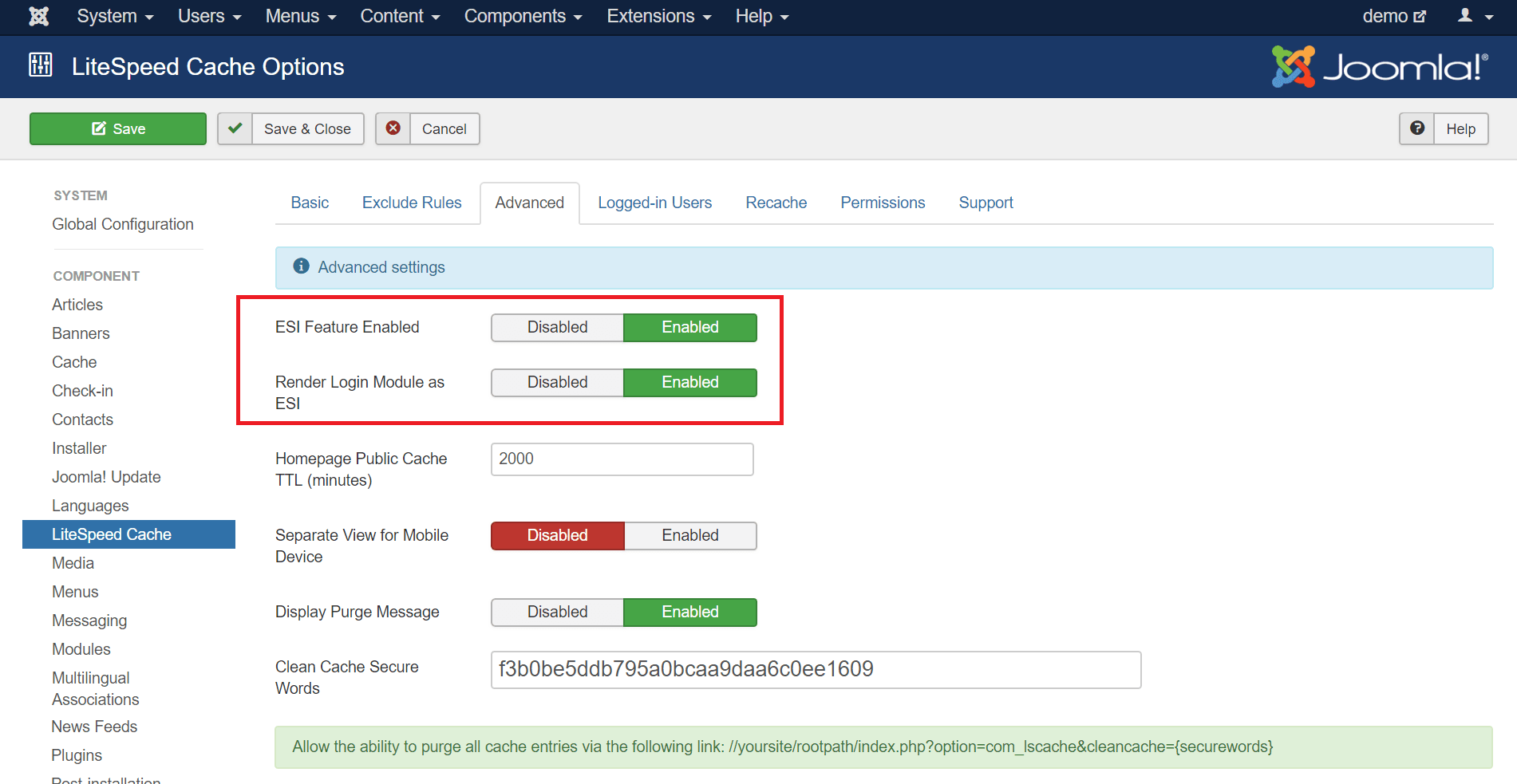
    To enable ESI, navigate to System > Global Configuration > LiteSpeed Cache and click the Advanced tab. Verify that ESI Feature Enabled is set to Enabled. It should be on by default.

    You can also set Render Login Module as ESI to Enabled here, although we are going to take care of that in the LiteSpeed Cache Settings (ESI Module Settings) screen below.

    Rendering Modules as ESI

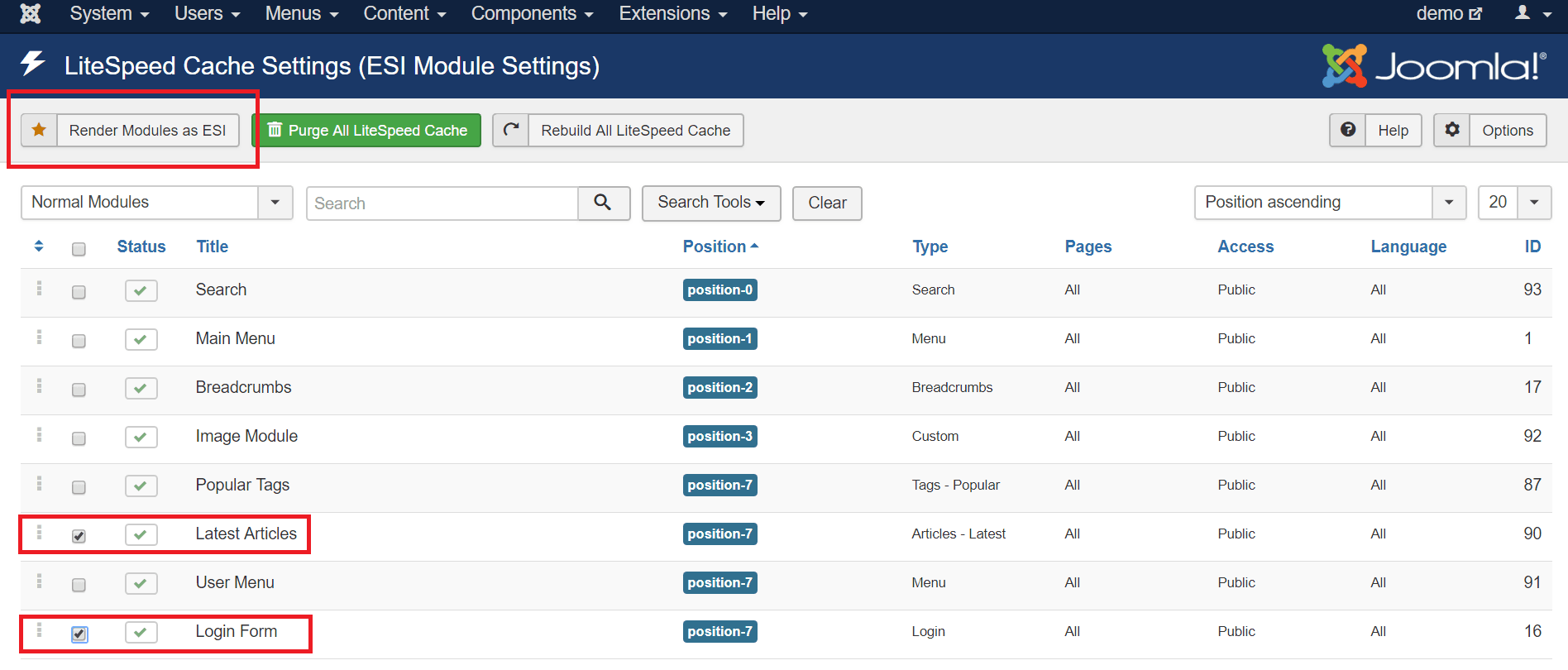
    Any module can be an ESI block if you want it to be. Modules are perfectly-suited to it. They are already self-contained bits of code. Navigate to Components > LiteSpeed Cache.

    Using ESI in Joomla: Module settings screen before

    Select the modules that you would like to render as ESI blocks. The following types of modules are good candidates for ESI:

    • Any module that displays personalized information
    • Any module that displays something different for logged in and logged out users
    • Modules whose content changes very frequently compared to the rest of the site

    In this example, we’ve chosen the Login Form and User Menu, but you can choose any modules that make sense for your particular installation.

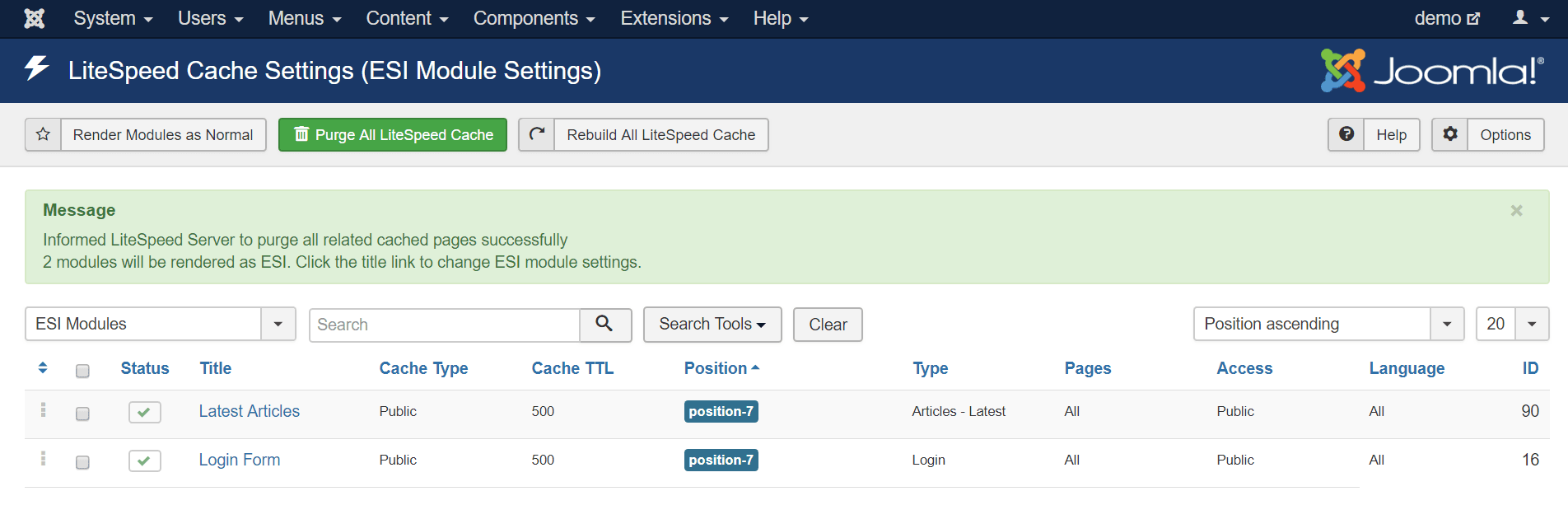
    Press the Render Modules as ESI button.

    Using ESI in Joomla: Module settings screen after

    The display will change to show only ESI Modules. At this point, you can click on a module name to configure the ESI settings for that module, like so:

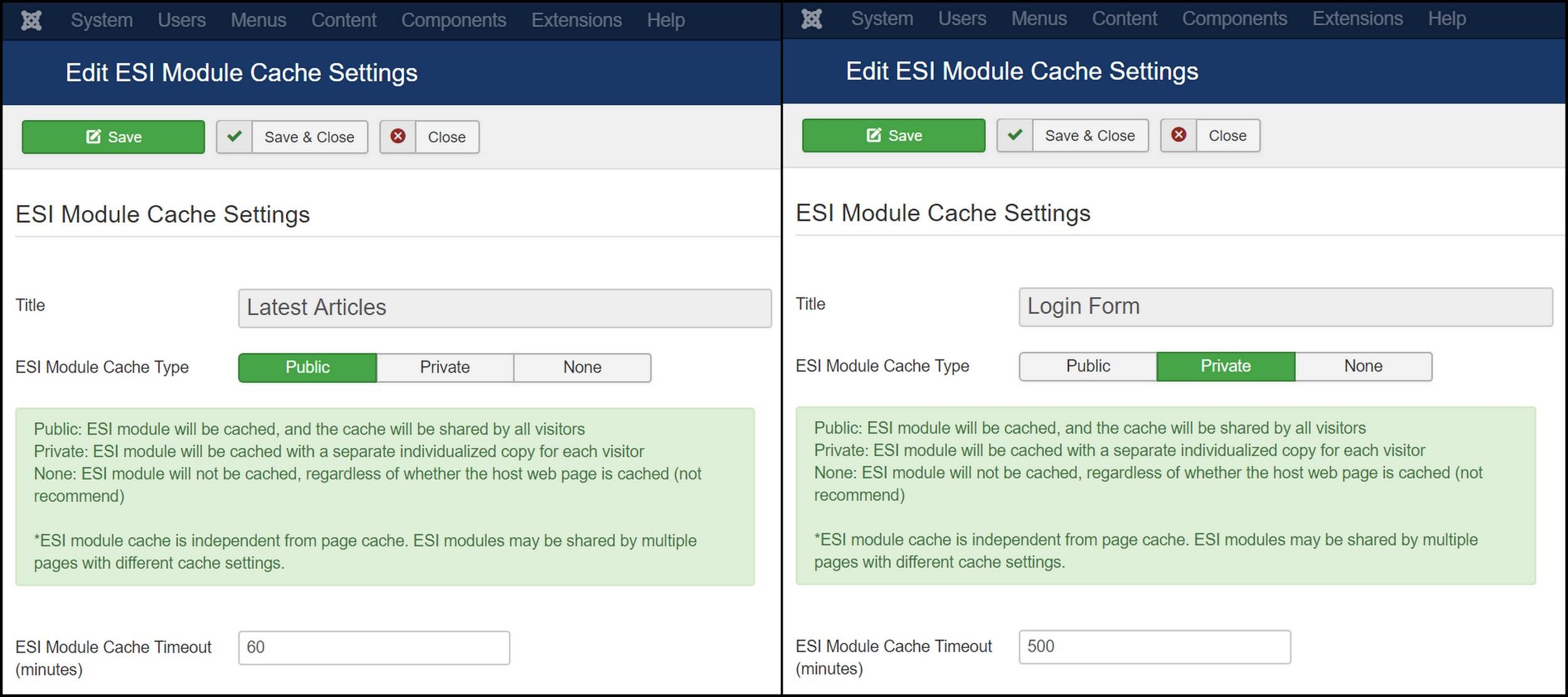
    Using ESI in Joomla: ESI Module cache settings

    The important fields here are ESI Module Cache Type and ESI Module Cache Timeout, and how you set them depends entirely on the function of the module.

    Let’s look at the two modules we are setting up. We’re using ESI with them for two completely different reasons, and so we will configure them differently. These are the same two modules from our previous examples.

    Using ESI for Frequently Changing Content

    We can use an ESI module to display frequently-changing content on pages that rarely change.

    The “Latest Articles” module always contains public content, so we can set the ESI Module Cache Type to Public. We want to use ESI for this module because we have an active site with new content being added every hour or so. We set ESI Module Cache Timeout to ‘60’ minutes, so that the module stays up to date with the more recently published articles.

    Now we are free to set the site’s Public Cache TTL to something more appropriate for a site with rarely-changing pages, like a week (or 10080 minutes).

    Using ESI for Private Content on a Public Page

    We can use an ESI module to punch a hole for private information on a public page.

    The “Login Form” module says one thing when the user is logged out, but contains personalized content when the user is logged in. For that reason, we should set the ESI Module Cache Type to Private. We can leave the other settings at their defaults.

    Then, when a user logs in, there is no need to serve them everything from private cache. We can serve all of the pages from public cache, and simply punch holes for the private content stored in the “Login Form” module.

    Conclusion

    So what do you think? Would you like to give ESI a try on your site?

    ESI allows you the flexibility to cache more of your site in a variety of complex situations. With pages that mix-and-match private/public cache or differing TTLs, you can serve cached content to a larger percentage of your users, and keep everything running quickly and smoothly.

    P.S. Want to know more technical details about ESI? Check out the official specs.

    Disclaimer: The information contained in this post is accurate for LSCJoomla v1.2.0 [release log]. If you are using a newer version of the plugin, some details may have changed. Please refer to our wiki for the latest!

    Have some of your own ideas for future Joomla Tips topics? Leave us a comment!

    While you’re waiting for the next installment, here are a few things you can do:

  • WpW: LSCache New Feature Roundup!

    WpW: LSCache New Feature Roundup!

    WordPress Wednesday LSCache New Features

    Welcome to another installment of WordPress Wednesday!

    Disclaimer: The information contained in this post is accurate for LSCWP v1.6.6 [release log]. If you are using a newer version of the plugin, some details may have changed. Please refer to our wiki for the latest!

    Throughout the last several months, you may have gotten whiplash watching us release new feature after new feature in our LSCache plugin for WordPress! It’s been a whirlwind, we know. We’re at a point now where most of the big stuff been implemented, so I thought it might be a good time to give you a quick guided tour.

    First, I’ll share links to the blog posts we’ve written about the major new features, so you can read up on them in depth, and then I’ll show you some of the smaller things that didn’t get their own posts but are worth a mention just the same.

    Big Feature Roundup

    Check out the linked blog posts to learn all about the following new cache functionality and optimization features:

    Other Features You Might Like

    There are a handful of other new features that didn’t get their own blog posts. We’ve got an interface enhancement, a private cache feature, a new type of URL to exclude, and a collection of new optimization options.

    Tab Switch Shortcut

    WordPress Wednesday LSCache New Feature Tab Switch Shortcut

    We’ve got a lot of tabs in our settings at this point, so you might appreciate the ability to easily switch between tabs, if you’re more of a keyboard-user than a mouse-user.

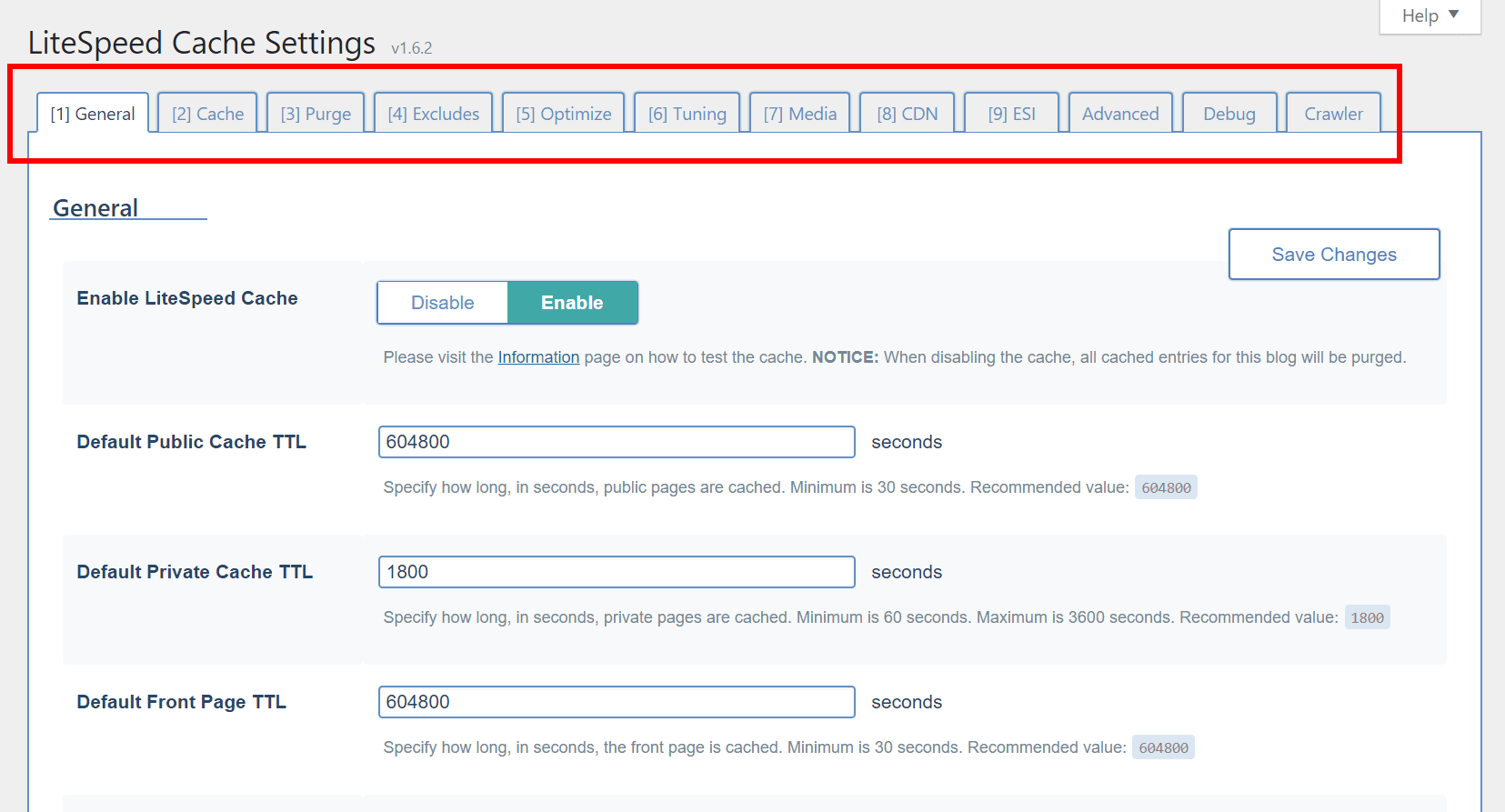
    As long as your cursor is not focused on an input element, you can type a number, and be brought directly to the corresponding tab. For example, if you’re looking at the General tab, but want to change something in the ESI tab, simply press 9 and you will be brought to the ESI tab.

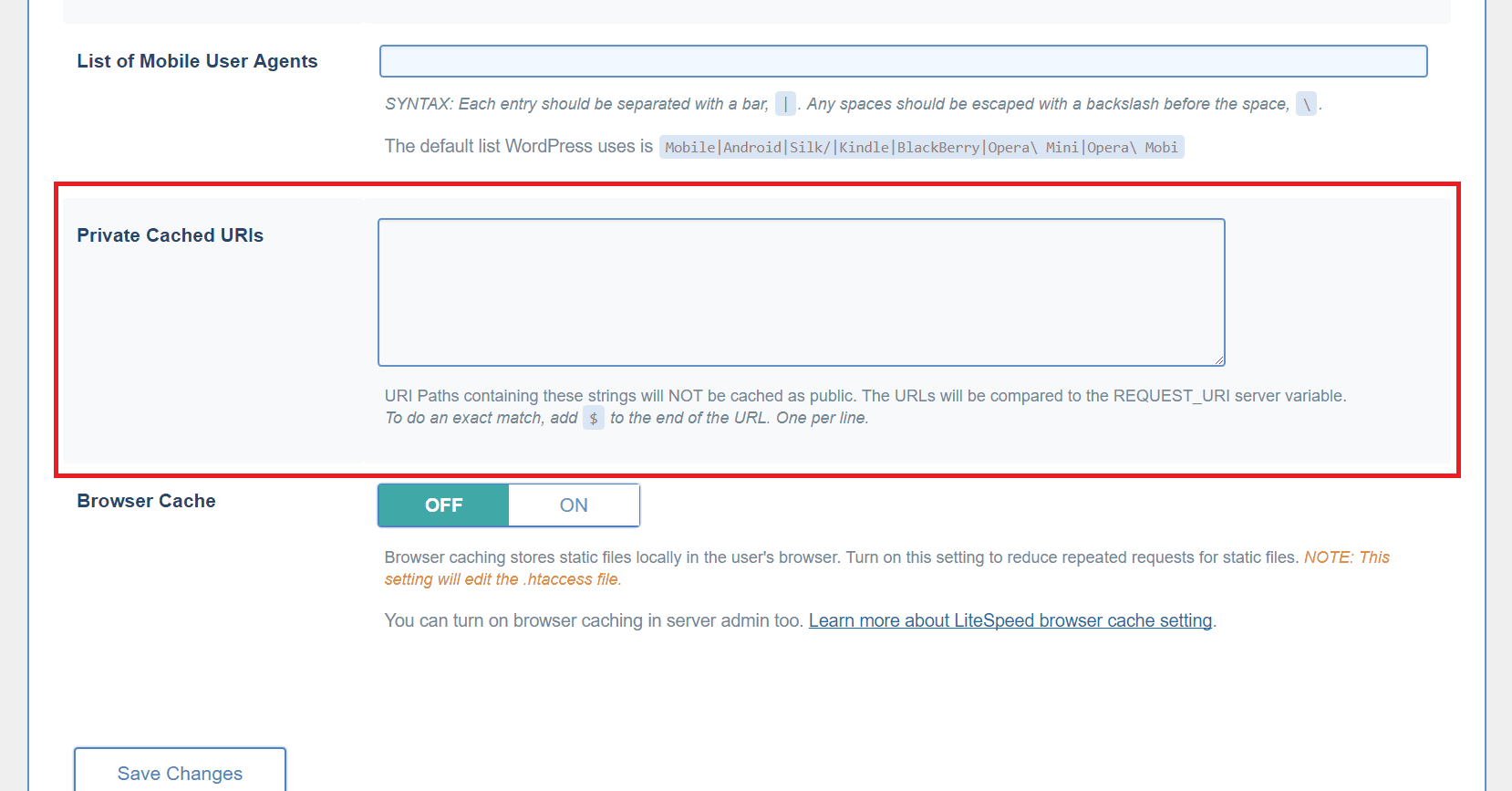
    Private Cached URIs

    From the WordPress dashboard, navigate to LiteSpeed Cache > Settings > Cache and scroll to the bottom of the page.

    WordPress Wednesday LSCache New Feature Private Cached URIs

    You may have pages on your site that would default to public cache under normal circumstances, but which you think should be cached privately (i.e. a separate copy cached for each individual user).

    Use this box to list such URI’s, one per line. You can list an entire path and place a $ after it so that it is interpreted as an exact URI. Otherwise, any URI that includes the path you enter will be privately cached.

    For example:

    reviews/canon/$ will only match reviews/canon/.

    reviews/canon/ will match reviews/canon/ and reviews/canon/eos80d/.

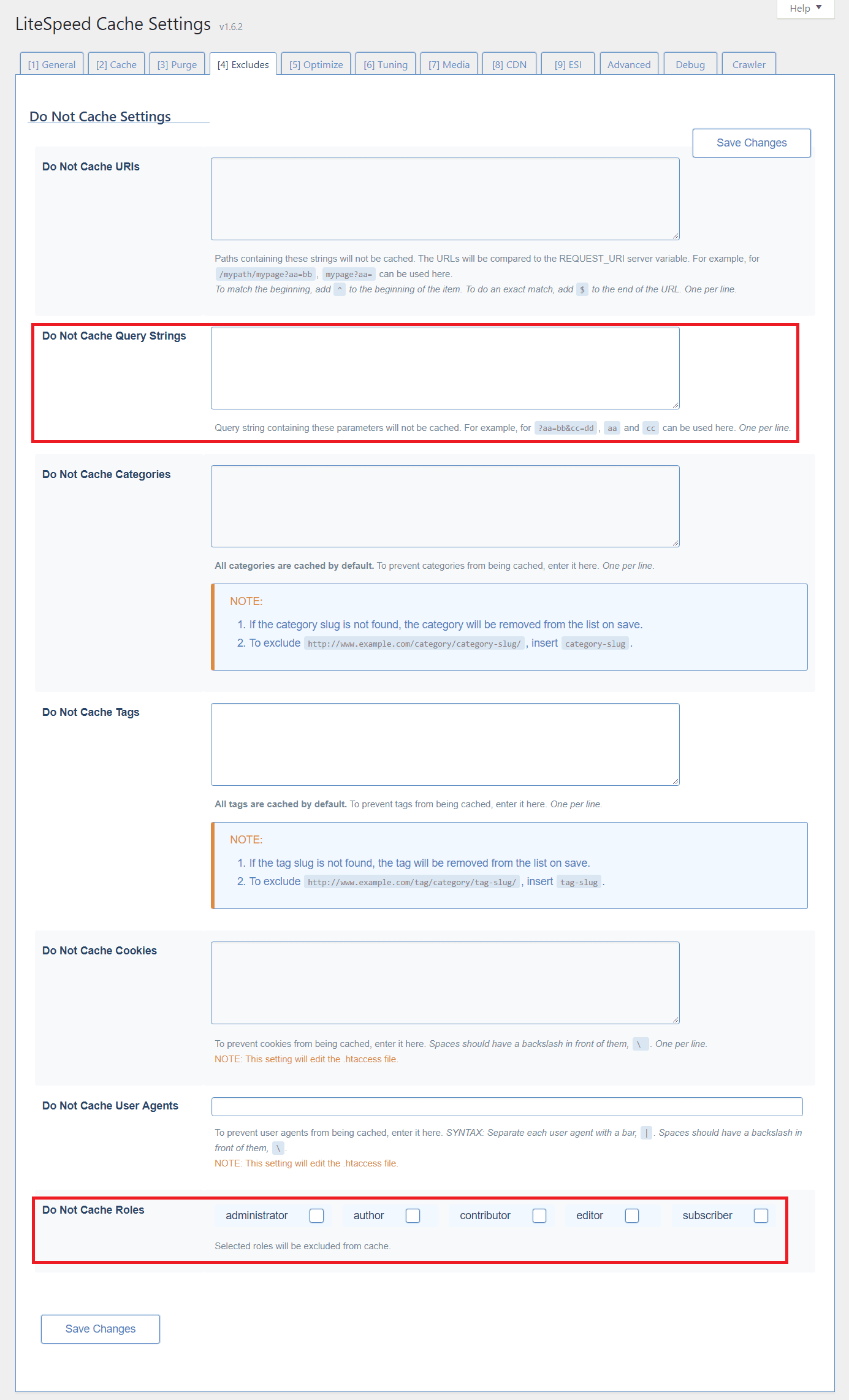
    Additional Excludes

    From the WordPress dashboard, navigate to LiteSpeed Cache > Settings > Excludes.

    WordPress Wednesday LSCache New Feature Additional Excludes

    Query Strings

    You can eliminate URLs with certain query strings from being cached.

    For example, let’s say you have a mechanism that allows you to colorize your site in a purple color scheme like so: http://example.com/page?color=purple.

    if you don’t want to cache any page that is rendered in a colorized way, you could enter color in that list. That would match http://example.com/page?color=purple as well as http://example.com/page?color=red, or any other specified color, and those pages would be excluded from caching.

    From the WordPress dashboard, navigate to LiteSpeed Cache > Settings > Excludes and scroll to the bottom of the page.

    Roles

    There may be user roles that you wish to exclude from caching. For example, if you are an admin testing new functionality, you may want to exclude your administrator role from being served from cache until your testing is through.

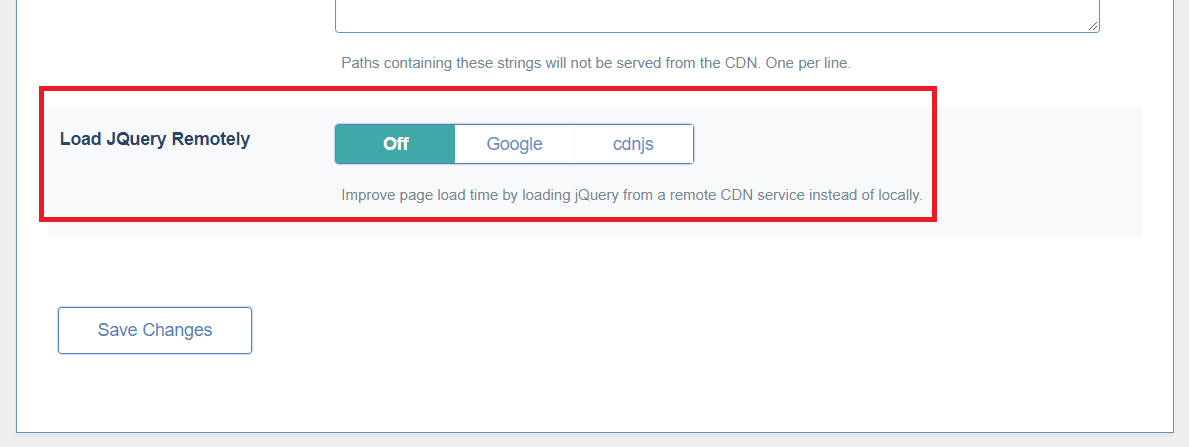
    Load JQuery Remotely

    From the WordPress dashboard, navigate to LiteSpeed Cache > Settings > CDN and scroll to the bottom of the page.

    WordPress Wednesday LSCache New Feature Load JQuery Remotely

    It can be faster to load JQuery from a remote CDN service. You may choose one here.

    Optimization and Tuning

    When we first released the Optimize tab, we wrote up a full blog post on all of the options. After that we added some new settings to the page. And then we added some more. And then, because that page was getting a bit unruly, we split Optimize into Optimize and Tuning.

    So, if the last time you saw Optimize was while reading that blog post, you’ll need to know that two of those settings we discussed (CSS Excludes and JS Excludes) now live on the Tuning page. The other functions remain on Optimize, along with several new ones.

    We recommend checking out both of those pages in our wiki’s Settings section, where every plugin setting is described in detail.

    Image Optimization

    Our image optimization feature is our newest one, and we’re still making adjustments here and there, based on what’s working well, what could use improvement, and the feedback we’ve received. Take a look at the Image Optimization page on our wiki to see how the most up-to-date features work.

    WordPress Wednesday LSCache New Features

    Thus ends our tour of the new features. Keep an eye on WordPress Wednesday in the future for more detailed exploration of various aspects of our plugin!

    For the most up-to-date configuration reference, you’ll want to keep the URL for our wiki handy. We make an effort to publish updates to the wiki as soon as anything changes in the plugin. While it might take us a few weeks to write an in-depth blog post, the wiki gets updated immediately.

    Have some of your own ideas for future WordPress Wednesday topics? Leave us a comment!

    Don’t forget to meet us back here next week for the next installment. In the meantime, here are a few other things you can do:

  • WpW: Choosing Between Public Cache, Private Cache, and ESI

    WpW: Choosing Between Public Cache, Private Cache, and ESI

    Welcome to another installment of WordPress Wednesday!
    Today’s Topic: When to Use Public Cache, Private Cache, or ESI

    Disclaimer: The information contained in this post is accurate for LSCWP v1.6.6 [release log]. If you are using a newer version of the plugin, some details may have changed. Please refer to our wiki for the latest!

    LiteSpeed Cache can store pages in a public cache, in private caches, and via ESI. (ESI = Edge Side Includes, which can essentially result in a public/private hybrid.) Today we’re going to visualize these three types of caching, and help you to figure out which one is best for your particular application.

    Public Cache

    For the sake of simplicity, let’s say that you have a site with just one page on it, and that your site has four visitors.

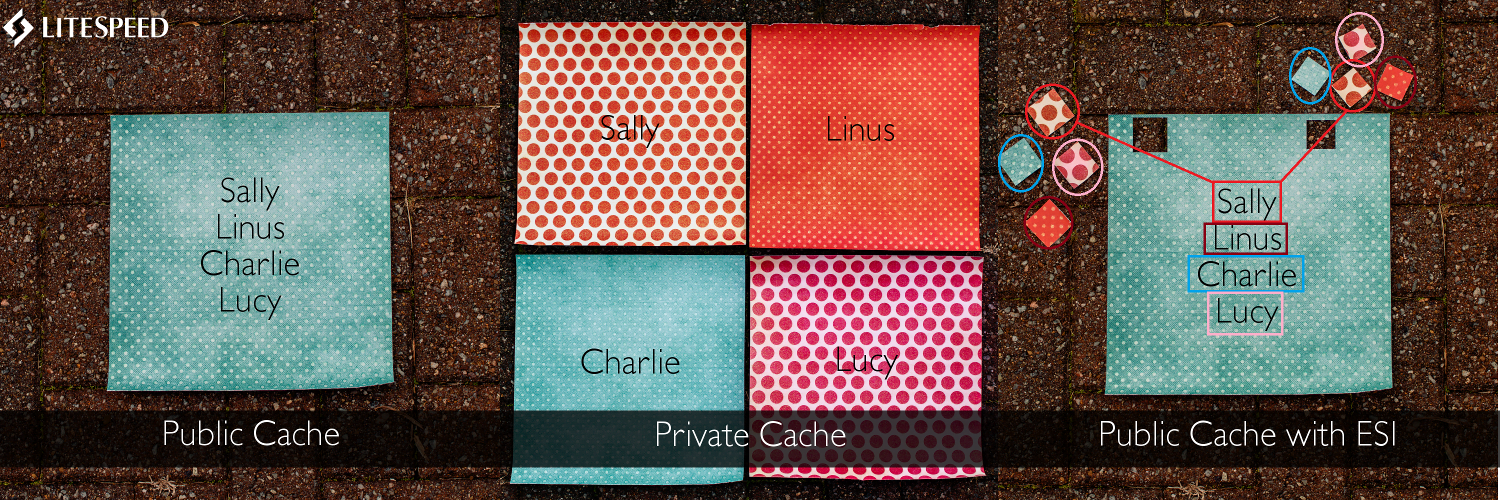
    This piece of paper represents the page of your site as stored in public cache. All four visitors to your site’s page are shown that exact same piece of paper.

    PRO: Very little storage space is required.
    CON: There’s no opportunity for personalization – everyone gets the exact same page.

    Any page that has no personalized content whatsoever is a good candidate for public cache.

    A blog archive page, for instance, could work, if it has no Admin Bar at the top, and there are no areas on the page that say “Welcome, Sally” or anything of that kind. When Sally visits the page, she sees exactly the same content as Linus, Charlie, and Lucy do when they visit.

    Many simple sites do just fine with public cache. If you don’t allow your visitors to create logins, and you don’t create any special content based on data that you can learn from their IP address (for instance), the chances are very good that public cache will be adequate for your site.

    So what do you do if your visitors can create logins, or you do want to display the weather for their IP’s city?

    You’re going to need more paper for that.

    Private Cache

    When you have LSCache configured to save a page in private cache, it’s as if you have a whole pile of papers, one for each visitor to that page.

    PRO: You can personalize each paper to a great extent – different colors, different patterns, a completely different design if you like…
    CON: A lot more space is required to store all of those individual pages.

    A classic example of data that should be cached privately is a shopping cart. You certainly do not want every visitor to your shop to be served the exact same shopping cart page. The contents of Sally’s cart are bound to differ from the contents of Linus’s cart.

    The simplest way to deal with this is to store the shopping cart page in private cache. Or, in terms of our paper metaphor, set aside a new piece of paper for each visitor who accesses the page.

    This is fairly simple to set up, but you have to be careful if you have storage limitations. It’s not a big deal with our 4-person example, but if you have 10,000 visitors to one page, that’s 10,000 copies of that page in private cache. It adds up!

    So, what if you have a page with only a very small amount of private content on it? Is there an alternative to storing thousands of copies of the full page, when it’s only a tiny area of the page that is changing?

    Sure there is, and it’s called ESI.

    Public Cache with ESI Blocks

    When you use ESI (or, Edge Side Includes), you are storing the full page in public cache: a single piece of paper like we had earlier. The difference is that now you are punching holes where the private information needs to go, and caching those holes differently.

    When a visitor requests the page, they are served the one single page, but with their own set of special blocks plugging up the holes.

    PROs: Very little space is required, and there’s room for a small amount of personalization.
    CON: It consumes more resources to show a visitor a page that needs to be assembled from several pieces than it does to show them a page that is already intact.

    Let’s look at that shopping cart again. In many cases, the shopping cart block in the middle of the page is the only piece that differs from visitor to visitor. The header, the footer, a sidebar or two, and possibly some displayed shipping policies may be exactly the same for everyone. In this case, it could be better to keep serving the full page from public cache, but punch a hole in it for the private shopping cart contents.

    ESI is best used in situations where most of the page is public, but one or two sections of it are not. A personalized greeting, the aforementioned Admin Bar, a widget showing the visitor’s recent activity… those are all things that can be put inside an ESI block and cached differently than the rest of the page.

    The biggest pitfall with using ESI is in using it too much on a single page. If you have many areas of private content on a page, the effort that the server must go through in order to reassemble the pieces can negate the caching benefits. For pages with a lot of private content, it’s better just to cache the whole page privately.

    What Type of Cache is Right for You?

    As you can see, all three configurations have pros and cons associated with them. You’ll need to look at your own site, and what you are trying to accomplish with it.

    Can you get away with storing just a single page for everyone? Do you need to store a whole separate page for each of your visitors? Or can you use a single page with a few holes punched into it?

    Furthermore, does the same strategy apply to every page on your site, or can you cache some pages differently than others?

    Cache Type When to Use Examples Storage Space Resources
    Public Page has only content that may be displayed to every visitor *Blog post page
    *Blog archive page
    *Product Information page
    Baseline Baseline
    Private Page has extensive customization, relevant only to individual visitors *User account page
    *Shopping cart page
    *Available downloads page
    Significantly more than Baseline About the same as Baseline
    ESI Page is mostly public with a few small areas of private content On otherwise-public page:
    *Admin bar
    *Recent posts widget
    *Personal greeting
    Slightly more than Baseline Significantly more than Basline

    Keep in mind that the examples in the chart above are just that: examples. Even though “blog post page” is listed in the “Public” row, there could certainly be situations where blog post pages contain areas of private content. It depends on the theme and configuration of the site.

    If you want to know more, take a look at these in-depth articles:

    If you still can’t decide which way to go, feel free to post on our support forum. LiteSpeed Cache is capable of handling public cache, private cache, and ESI, and we’d be happy to help you figure it out!


    Have some of your own ideas for future WordPress Wednesday topics? Leave us a comment!

    Don’t forget to meet us back here next week for the next installment. In the meantime, here are a few other things you can do:

  • WpW: ESI and LiteSpeed Cache

    WpW: ESI and LiteSpeed Cache

    WordPress Wednesday: Edge Side Includes Caching

    Welcome to another installment of WordPress Wednesday!

    As you may know, our LiteSpeed Cache for WordPress plugin supports Edge Side Includes, also known as ESI. Today we are going to talk about why this is such awesome news for your website.

    Please note: OpenLiteSpeed does not support ESI functionality. You will need LiteSpeed Web Server Enterprise, LiteSpeed Web ADC, or QUIC.cloud CDN in order to use ESI.

    What is ESI?

    ESI is a markup language that allows you to designate parts of your dynamic page as separate fragments that are then assembled together to make the whole page. To put it more quaintly, ESI lets you “punch holes” in a publicly cached page, and then fill those holes with privately cached content.

    With ESI, punched holes can be treated differently than the rest of the page. They can have different TTLs and be purged by events that are completely separate from the page they are on. This allows you to cache more of your site for more of your visitors.

    Public Cache vs. Private Cache

    LiteSpeed Cache is tag-based (which means that each page is stored with an identifier that allows it to be purged from cache as part of a specific subset) and has built-in public and private caches. In the public cache you will find pages that are exactly the same for everyone. Private caches contain content that pertains only to a specific user specified by their IP address and session ID.

    Until now, you’ve had to think about your site’s pages in their entirety. Is this page publicly cacheable? Is that one publicly cacheable? If a page had any private data on it at all, you’d have to say “no, it cannot be stored in the public cache.” This issue of having to cache a full page in its entirety is why our WordPress plugin until 2017 only cached pages for non-logged-in users. In WordPress, non-logged-in users are almost always served only public content. And in the few cases where they are not (password-protected posts, moderated comments, etc.), that content is usually considered non-cacheable for that user. ESI changes this.

    How do ESI and Public/Private Cache Work Together?

    ESI allows you to disassemble a full page and treat the pieces differently from each other.

    LiteSpeed Web Server allows you to store content in either the public cache or a private cache.

    Combine these two elements and you get something very powerful. You get a system that can break apart a page into public and private pieces, cache each piece appropriately, and then re-compose the full-page content from the relevant caches and serve it to a user without ever hitting the PHP backend.

    That is pretty amazing.

    Edge Side Includes Caching

    This combination allows you to cache content for logged-in WordPress users. With ESI enabled you can say, “Hey this page is mostly public. Let’s cache it, punch a few holes in it for the private content, and save that content in the private cache.”

    Examples

    Let’s look at a few common scenarios and see how they play out with ESI enabled and without ESI.

    Example #1: Admin Bar

    You’re the site admin, you are logged in, and you visit your site’s home page, which is in the public cache.

    Without ESI: your request hits the backend, because the admin bar at the top of the page is private content, and as such this page (and every other page on your site, for that matter) cannot be served to you from cache.

    With ESI: most of this page is served to you from the public cache, while the admin bar is served to you from your private cache. There is no need to invoke PHP.

    Example #2: Recent Posts Widget

    You have a large site with much static content that rarely changes. Every page has a sidebar, and the sidebar widget “Recent Posts” appears on each page.

    Without ESI: Every time a new post is published, every single page in the site must be purged so that the widget displays up-to-date data. Re-populating the entire cache requires a crawler to run, or visitors to hit all of the pages of the site.

    With ESI: All of the pages in the site can remain cached with a nice long TTL, while the Recent Posts widget is the only thing that needs to be purged. Re-populating that one bit of the cache requires just one visitor to request any page one time.

    You can see how ESI + LSCache can have huge implications for the speed of your site!

    Enabling and Configuring ESI

    LiteSpeed Cache for WordPress considers all cacheable full pages to be publicly cached.

    When you enable ESI, you instruct LSCWP to punch holes in public pages. LiteSpeed then caches the content according to the settings for each block: public, private or not at all, and with its own TTL, independent of the page it is on.

    When you enable ESI, LSCWP creates the following ESI blocks:

    • Admin Bar
    • Comments
    • Comment form
    • Recent Posts widget
    • Recent Comments widget

    Any widget can be an ESI block if you want it to be. By default, ESI is disabled for all but the two widgets listed above, but you can change that in WP Admin.

    Note: ESI doesn’t come without a cost. It is much simpler for the server to return fully-cached pages than it is for it to piece together pages from several different blocks (although it’s still more efficient than invoking PHP would be), and so this must be a factor in your decision to enable ESI. Will the speed benefits outweigh the efficiency hit? It depends on your site, really, and it may require some experimentation on your part.

    Basic ESI Settings

    Edge Side Includes in LiteSpeed Cache

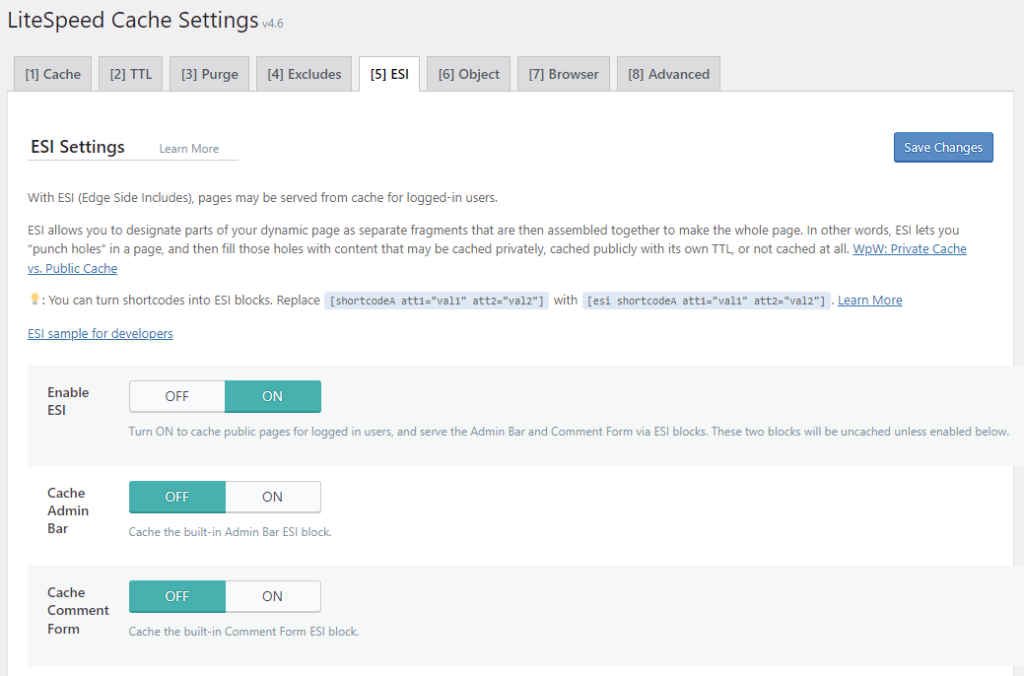
    Navigate to WP Admin > LiteSpeed Cache > Cache> ESI. Set Enable ESI to ON.

    This creates the ESI blocks listed above. The blocks will be uncached, unless you enable caching for them via the Cache Admin Bar and Cache Comment Form settings.

    Creating new Widget ESI Blocks

    If you are using Classic Widgets, you can turn any widget into an ESI block. (Please note that at this time, ESI is only available for classic widgets, and not for the new block-style widgets.)

    ESI Classic Widgets with LiteSpeed Cache

    Navigate to WP Admin > Appearance > Widgets and select the widget that you want to turn into an ESI block.

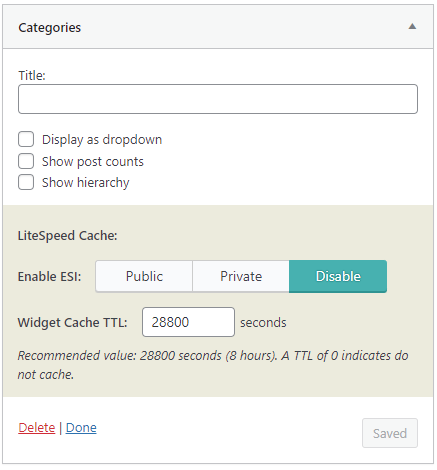
    Within the widget settings area, you will see a shaded box entitled “LiteSpeed Cache.” By default a widget is not considered an ESI block (unless it is Recent Posts or Recent Comments, as mentioned above). If you want the widget to be treated differently than the pages on which it appears, there are a few possible configurations:

    Private widget

    LSCWP will store the contents in private cache, with different copies for each user by IP/session ID. (Examples: a list of recently viewed posts, or a personalized greeting.)

    • Set Enable ESI to Private.
    • Set Widget Cache TTL to a value appropriate for the contents of the widget.

    Public widget

    LSCWP will store the contents in public cache, with each user seeing the exact same thing. (Examples: a list of recent posts, or a calendar of upcoming events).

    • Set Enable ESI to Public.
    • Set Widget Cache TTL to a value appropriate for the contents of the widget.

    Uncached widget

    LSCWP will not cache the contents at all, and WordPress will dynamically-generate the widget each time it displays on the page.

    • Set Enable ESI to either Public or Private (it makes no difference, as long as it’s not Disable)
    • Set Widget Cache TTL to 0.

    ESI and Third Party Plugins

    Our ESI implementation supports a few other blocks that belong to third-party plugins. For instance, we consider the WooCommerce shopping cart to be a private ESI block.

    As we mentioned earlier, with ESI enabled, your site pages are now considered publicly-cacheable, because we are able to punch holes for the occasional non-public content. This is true for all native WordPress pages, and for all WooCommerce pages. It is not, however, true with bbPress.

    A bbPress page contains so many areas of private data, that it’s actually much more efficient to consider the entire page to be private. So, that’s what we’ve done. LSCache considers all bbPress pages to be private.

    If one of your favorite plugins warrants special consideration, we encourage you to get in touch with us via the WordPress plugin support forum and tell us about it.

    Or try turning third party shortcodes into ESI blocks.

    P.S. Want to know more technical details about ESI? Check out the official specs.


    This content was last verified and updated in April of 2023. If you find an inaccuracy, please let us know! In the meantime, see our documentation site for the most up-to-date information.

    Have some of your own ideas for future WordPress Wednesday topics? Leave us a comment!

    Don’t forget to meet us back here next week for the next installment. In the meantime, here are a few other things you can do:

  • Cache Makes the World Go Round

    Cache Makes the World Go Round

    First, we would like to thank each and every one of you for trying out LiteSpeed Cache for WordPress. We’re proud to see that there are 30,000+ active WordPress sites running LiteSpeed Cache. There was an enormous effort to make this plugin the easiest and most efficient caching solution for both WordPress users and hosts. Our latest release of 1.0.14.1 includes some exciting User Interface changes that hopefully simplify things for the administrator/user.

    (more…)