Tag: magento monday

LiteSpeed’s Magento Monday series shares tips and tutorials related to the LiteMage extension for Magento.

LiteMage is integrated directly into LiteSpeed Web Server, shortening your server stack and eliminating overhead. Punch holes for private content on publicly-cached pages with LiteMage’s top-of-the-line ESI implementation. LiteMage combines superior Magento performance with painless setup.

  • MM: Cache Warmup for Large Stores

    MM: Cache Warmup for Large Stores

    Magento Monday: LiteMage Cache Warmup for Large Stores

    Welcome to another installment of Magento Monday!
    Today’s Topic: LiteMage Cache Warmup for Large Stores

    Disclaimer: The information contained in this post is accurate for LiteMage v1.3.7 [release log] and Magento 1.x. If you are using a newer version of the extension, some details may have changed. Please refer to our wiki for the latest!

    LiteMage for Magento 1.x is equipped with a crawler function. The crawler travels its way throughout the backend, refreshing pages in the cache. The purpose is to keep the cache as fresh as possible while minimizing visitor exposure to uncached content.

    Our wiki instructions for setting up the LiteMage crawler are detailed and extensive, and if you’ve never enabled your site’s crawler before, we recommend you start there. If you own a large store, you may find the crawler’s duration to be problematic, so today we’re going to discuss how to configure the crawler for stores with many thousands of products.

    What works for small-to-medium sized stores may not work for larger stores. If you have thousands of pages for the crawler to traverse, you may need to adjust the crawler’s settings to make it less intrusive into your store’s daily operation.

    How Long Does Your Crawler Take?

    Before you can begin to determine the optimal configuration for your store’s crawler, you will need to know how long it actually takes to complete.

    LiteMage Cache Warmup for Large Stores: LiteMage Crawler Warmup Status

    You can find that out, along with other useful crawler statistics, in the LiteMage Crawler Warm-up Status section. From the Magento Admin Panel, navigate to System > Cache Management. It should be at the bottom of that page.

    An Example Scenario

    • Shop configuration: A book shop with 15 thousand products
    • Public Cache TTL (Time to Live): 86400 (24 hours)
    • Crawler Warmup Interval: 57600 (16 hours)
    • Crawler Duration: 8 hours

    Fifteen thousand product pages are set to expire in the cache after 24 hours, so every 16 hours the crawler begins refreshing the pages. This process takes about 8 hours to complete, and consumes enough resources to slow the site down considerably.

    Crawling the site takes 8 hours, and it runs every 16 hours. Essentially half of the time that this store is up, it is experiencing crawler-induced lag.

    This is not ideal. However, you don’t want to give up the warm cache, so what can you do?

    A Possible Solution

    LiteMage Cache Warmup for Large Stores: Crowded Bookshelves

    LiteMage’s crawler function is flexible, and with a few adjustments, you can tune it to work well for your store.

    The first thing to consider is the TTL. How often do your products change? If it’s less frequently than “every day,” you don’t need a TTL of 24 hours. How about a week? If it’s reasonable to assume that your products are not likely to change within seven days, you can set your TTL to 604800 seconds (1 week).

    Once your TTL is changed, you can adjust your warmup interval. We have a handy rule-of-thumb for that:

    Warmup Interval <= Public Cache TTL – 2 X Warmup Duration

    Let’s say the TTL is set to 604800 (7 days).

    We know our warmup duration is about 8 hours, or ⅓ day.

    The Warmup Interval we choose should be less than or equal to 7 days minus 2 times ⅓ day

    In other words, the Warmup interval should be less than 6 ⅓ days.

    Let’s set the Warmup Interval to 6 days (or 518400 seconds). This means that instead of your system slowing down every day for 8 hours, it will slow down every six days for 8 hours. That’s a big improvement.

    You can also enable the delta crawler. The delta crawler will allow you to confidently set a one-week TTL, knowing that if a product changes during that time, it will be recrawled within 5 minutes.

    In Conclusion

    As you can see, with the LiteMage crawler, you have options. If your products are fairly static, you might even choose to set a one month TTL, or longer!

    If you have any questions about this, leave a comment. We’ll be happy to help!

    P.S. Perhaps your large store could benefit from our ADC solution. Check out LiteSpeed Web ADC for details.

    —

    Have some of your own ideas for future Magento Monday topics? Leave us a comment!

    If you enjoyed this, here are a few other things you can do:

  • Magento Monday: LiteMage, CDNs, and Tokens

    Magento Monday: LiteMage, CDNs, and Tokens

    Welcome to the first installment of Magento Monday! We’ve enjoyed bringing you WordPress Wednesday every week, and so we thought it would be fun to also share some helpful Magento and LiteMage tips here sometimes.

    Let’s kick off this series by talking about Content Delivery Networks, how the custom CDN cache rules you have defined may be breaking your Magento 1.x store, and what you can do to fix the problem.

    Note: This particular issue is only a Magento 1 issue. It does not apply to Magento 2.

    It’s all about the Tokens

    Magento 1.x uses a session variable called form_key as a CSRF token to prevent CSRF injection. The form_key value is stored in the user session and is unique for every user. When a shopper adds a new product to the cart, or a new item to compare, Magento looks for the form_key token in the dynamically-generated HTML, and uses it in the validation process.

    If there is no caching solution enabled at all, then this process works. It’s slow and painful, but it works.

    If LiteMage is caching the dynamic pages, then this process also works. LiteMage is smart enough to know that it must use ESI to “hole-punch” the correct unique form_key token value for each user into the generated HTML, so that it may be used for validation.

    If a CDN is caching the dynamic pages, then this process falls apart. Content Delivery Networks are not smart enough for hole-punching. They cache only one version of the page, which means they save only one form_key token for every shopper to share. This can’t possibly work, and validation is broken.

    We recommend that you turn off all caching of dynamic pages in your CDN. CDNs are great for static content, like CSS, JavaScript, and image files, so by all means, leave that type of caching enabled, but let LiteMage handle the dynamic page-caching duties.

    Diagnosing and Fixing the Problem

    How can you tell whether your page is being served from CDN cache or LiteMage Cache? Take a look at the Response Headers.

    What you want to see is something like this:

    
    X-LiteSpeed-Cache: hit,litemage


    This shows that LiteMage is in control of caching the page.

    If you see headers like the following:

    
    cache-control:public, max-ago=14400
    cf-cache-status: HIT


    then the CDN (in this case Cloudflare) is doing the caching.

    Here’s how to stop that from happening:

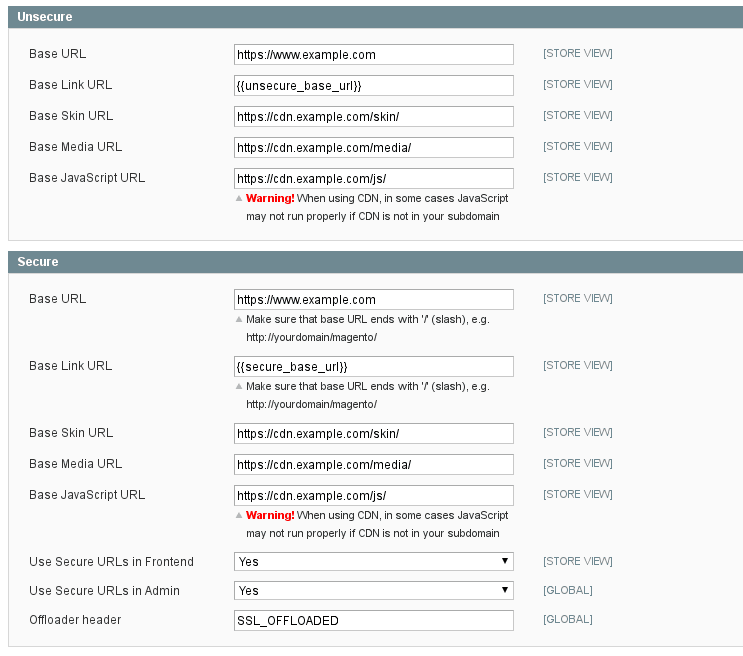
    From the Magento admin area, navigate to System > Configuration > General > Web and open the Unsecure and Secure sections.

    While it may be easier to just set Base URL to the CDN’s address, and let the CDN sort out what content should be served from where, doing so is highly inefficient and will slow down your site. Why send a request to the CDN only to have it bounced back to your own site for fulfillment?

    Setting it up properly in this section ensures that requests are routed to the proper locations right from the start, with no time wasted with unnecessary travel back-and-forth.

    Set the Base URL to your site’s address, not the CDN’s.

    The Skin, Media, and JavaScript URLs refer to static content, and those may point to your CDN.

    A note about the Unsecure section: Technically, you can use http:// in these fields, but with LiteSpeed’s emphasis on HTTP/2 and QUIC, you have the ability to use https:// everywhere. These days security is a big deal, so why wouldn’t you use it?

    So, Why Don’t CDN Cache Rules Work?

    If you know about Magento 1.x’s session cookies (frontend for HTTP and frontend_cid for HTTPS), you may have tried to use them to configure the CDN’s cache rules as follows: if there is no session cookie, it means the user hasn’t started shopping yet, and the page can be cached by the CDN. If there is a session cookie, then the request must be sent to the Magento backend.

    It’s a clever idea, but unfortunately it doesn’t work, and this is why:

    The form key is irrelevant while the user is simply browsing, and so it seems fine to serve the page from CDN cache. However, as soon as they try to act (add an item to the cart, or to compare), the form key becomes important. And because of the fact that they are performing that first action from the cached page, they will be looking at the cached form_key value instead of a form key that’s been generated specifically for them. As a result, the action will fail.

    If the user reloads the page, the CDN recognizes that they now have a session key, and so their request hits the backend, the correct form key is generated, and they are able to shop normally.

    The problem works itself out on the second attempt, but the damage to user experience has already been done. Some shoppers will reload and keep going, but others will leave after the first error. Can you afford to lose those customers?

    Even if the session cookie idea had worked, it’s hard to see what would be gained from having the CDN handle the caching of that page. LiteMage, which was built specifically for Magento, can manage your shop’s cache in a much more efficient way than a Content Delivery Network can. As we’ve already seen, LiteMage can punch holes for private content, making it possible to store a single copy of the page in public cache, and then serve it with the personalized information in the punched holes.

    With the CDN in charge, users who are actively shopping cannot benefit from caching, but with LiteMage, they can.

    Additionally, LiteMage can take advantage of tag-based purging, making sure that all of the necessary pages (and only the necessary pages) are purged when a product is updated.

    If you are running LiteMage, it’s best to let LiteMage handle all of the page-caching that it was built to handle. Your Content Delivery Network can easily deal with the rest.

    —

    Have some of your own ideas for future Magento Monday topics? Leave us a comment!

    If you enjoyed this, here are a few other things you can do: