Tag: control panels

  • Platform Showcase: Managed LSWS and OLS with SPanel

    Platform Showcase: Managed LSWS and OLS with SPanel

    Managed LiteSpeed Web Server with SPanel

    Our friends at SPanel asked if they could tell our readers a little bit about their control panel, and about managed LiteSpeed Web Server with SPanel. So, without further ado, here is the SPanel team. -LC

    What is SPanel?

    SPanel is a multifunctional web hosting platform that simplifies server management to a level where anyone can operate their environment even without previous technical experience.

    SPanel developers focus strongly on their fully managed LiteSpeed Web Server and OpenLiteSpeed solutions. They cater to business-oriented site and app owners. You can choose a plan where all technical tasks will be handled by a professional support team.

    The solution consists of two essential parts: The Admin Interface and the User Interface.
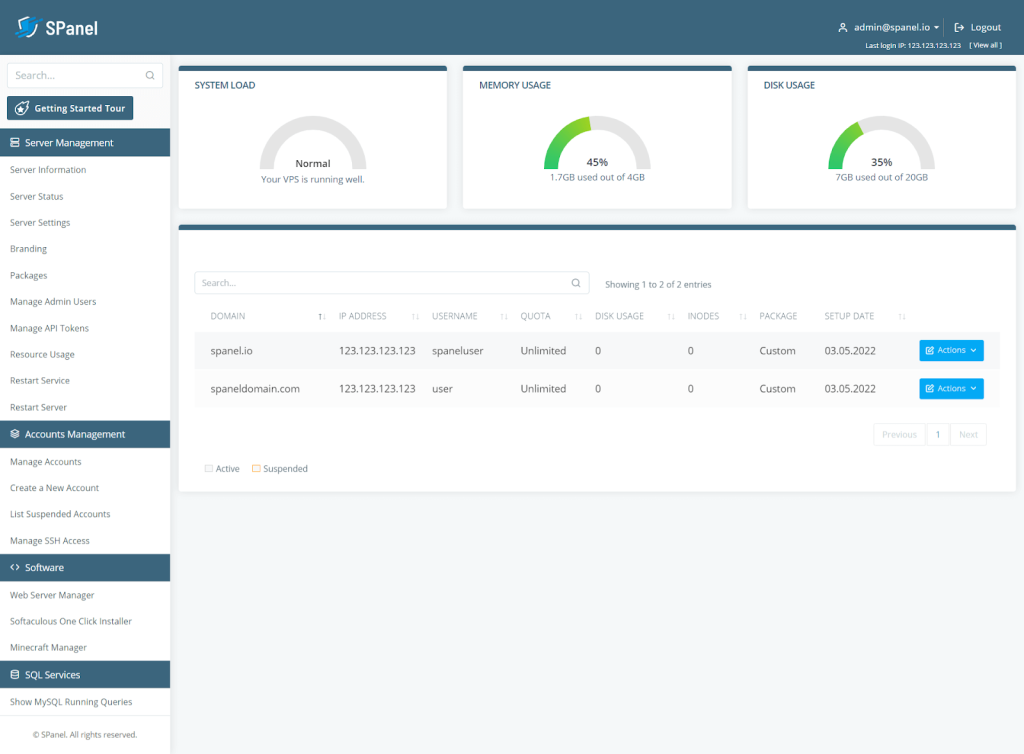
    SPanel LiteSpeed Web Server admin interface

    The Admin Interface is for managing the server and all associated accounts. It allows you to create, modify, and delete accounts, monitor your connectivity and running processes, restart the machine, and more.
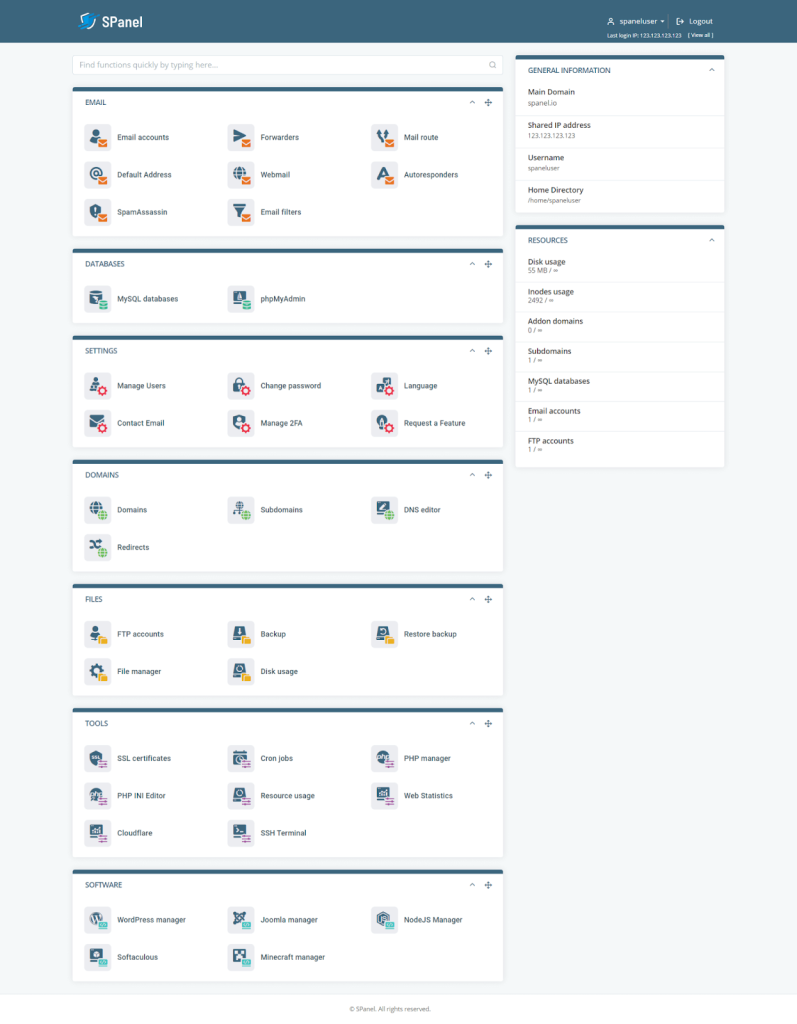
    SPanel LiteSpeed Web Server user interface

    The User Interface is responsible for managing individual accounts and services. It has an intuitive graphic interface that helps you deal with domain names, emails, site files, databases, SSL certificates, and more.

    SPanel integrates with all popular web hosting solutions. Using its powerful API, you can pair the platform with LiteSpeed, OpenLiteSpeed, Nginx, WHMCS, Softaculous – basically the full package of services to start any type of online project.

    For a complete list of features, check out the SPanel.io website or take a look at this introductory video:

    How to Install LiteSpeed Web Server or OpenLiteSpeed in SPanel

    Switching your service to LiteSpeed Web Server or OpenLiteSpeed is effortless in SPanel. The process involves literally just three clicks:

    IMAGE

    1. Log in to your SPanel Admin Area.
    2. Choose the Web Server Manager option under Software in the left-side menu.
    3. Choose LiteSpeed or OpenLiteSpeed on the next screen.
    4. Activate by clicking the blue button at the bottom of the page.

    That is all there is to it – quick and seamless integration that requires no technical expertise.

    SPanel Benefits

    cPanel still holds the lion’s share of the market for web hosting solutions, but alternatives like SPanel, Plesk, and InterWorx are certainly gaining traction

    In fact, there are numerous reasons why SPanel, in particular, has been getting so much attention. Here are a few of the most notable:

    • Fully Managed Service: SPanel might be extremely user-friendly, but many website owners still prefer to focus on their business instead of dealing with technicalities. For them, the developers offer a fully managed service where their support team takes care of all configurations, updates, monitoring, maintenance, and technical issues.
    • SShield: one of the things only SPanel can offer is SShield, an AI-powered security monitoring system. The tool has proven to be a beast when it comes to cybersecurity, recognizing over 99.98% of all known malware and spam. Whenever SShield detects suspicious activities in your web traffic, it proactively sends a notification, so you have enough time to react.
    • SWordPress Manager: another unique SPanel integration, targeted for WordPress users. If you are looking to simplify your day-to-day operations with the most popular CMS, you can install WP, take advantage of automatic updates, change admin password, and many more. The Security Lock feature allows you to restrict editing access to chosen folders and directories, protecting WordPress installation from any outside breaches.
    • Joomla Manager: similar to SWordPress Manager, SPanel packs a solution for all the Joomla fans. The Joomla Manager is integrated by default in SPanel, helping users with a one-click installation, password change, and site cloning.
    • Feature Requests by Users: the thing that most separates SPanel from similar platforms is the involvement of the entire community. The control panel receives regular updates, and most new feature implementations come directly from user suggestions. There is a Feature Requests forum on the official website. You can suggest a new feature or vote on other people’s ideas. The SPanel engineers gather all popular requests and put them on the to-do list, ensuring they see the light of day in future updates.

    Final Takes

    SPanel can be a highly reliable alternative to the market leaders in hosting management solutions. The platform is lightweight, highly secure, and extremely versatile. The managed plans are ideal for website owners who have a strong business focus. They take the weight off of the webmaster’s shoulders. And the licensing model, lets you take full advantage of SPanel with any host.

    Our thanks to SPanel for sharing their story! Does your business provide a tool that enhances the LiteSpeed experience? If you would like to share your story with our readers, find me (@Lisa at Litespeed) on our Slack workspace, and we can discuss it. –LC


  • WpW: Autodiscovery, LSCache and the Command Line

    WpW: Autodiscovery, LSCache and the Command Line

    Welcome to another installment of WordPress Wednesday!

    Our topics in this series so far, have been mainly aimed at site owners, but today it’s your turn, hosting providers! Today we are going to talk about Autodiscovery through our command-line interface (CLI) script.

    What do I mean by this?

    Shared hosting providers love our WHM plugin’s web cache manager. It allows for autodiscovery of clients’ new WordPress installations and mass enabling of LiteSpeed Cache for all accounts. As more and more accounts are added, more and more hosts have requested to automate this via a CLI script.

    So, since LiteSpeed Web Server v 5.1.14, cPanel users who have the WHM plugin installed have had access to a nifty script that can be run from the command line. This script will automatically discover all of the WordPress installations on the server, and optionally enable LiteSpeed Cache for WordPress for each installation. It can be run by the cron as well, so that you can auto-discover and auto-enable on a schedule.

    Why would you want to do this?

    We’ve discussed before a few of the benefits to having your WordPress installation running our LSCache plugin. Now imagine you are providing hosting to dozens, hundreds, maybe even thousands of WordPress sites. Wouldn’t you want each of those sites to be using as few resources as possible, to keep everything running quickly and smoothly? Enabling LSCache on all of your clients’ sites allows you to host more sites on the same equipment you already own – no extra investment in hardware.

    As a busy hosting provider, you don’t have time to manually enable plugins on each and every site. That’s where the CLI comes in.

    With the CLI, you can auto-discover new WordPress installations and auto-enable the LSCache plugin, all without leaving the comfort of your simple command prompt. What a time saver! You can make it even less labor-intensive by hooking it into the cron. Every night at 3am, while you sleep, LiteSpeed Cache could be quietly enabled in all of the previous day’s new WordPress sites. Sweet dreams!

    How does it work?

    First, make sure you’re using cPanel and the WHM plugin.

    Then, locate the script at /usr/local/lsws/admin/misc/lscmctl, and you’re good to go.

    The CLI takes a command and a few possible parameters like so:

    ./lscmctl [-php path/to/php] command [flag/parameter]
    

    You can pass in the location of your preferred PHP binary, if necessary, via the -php flag, where path/to/php is, you guessed it, the path to your PHP executable.

    Let’s look at the commands you can use.

    Scan (Autodiscover)

    You can scan for all WordPress installations (and optionally enable the LSCache plugin) through the appropriately-named scan command.

    This command creates a lsc_manager_data file under the .../lsws/admin/lscdata directory, which contains information on all of the installations that are discovered.

    There are two options you can use with the scan command:

    • -n only discovers installations that are new since the last scan
    • -e enables the LSCache plugin on all discovered installations after scanning is complete

    Examples

    Discover all installations:

    ./lscmctl scan
    

    Discover new installations only:

    ./lscmctl scan -n
    

    Discover new installations and enable LSCache on them:

    ./lscmctl scan -n -e
    

    Notes

    When a site is discovered, the user’s home directory and the site’s document root are remembered. If a scan for new installations only (scan -n) is then run, it ignores this home directory/document root combination because it has already been discovered.

    This is usually not a problem, but there is one situation where it could be: Say a user, who already has one or more WP sites, installs a new one under an existing document root. That new site will not be found, because that home directory and document root were already previously discovered.

    For this reason, it’s recommended that you run a full scan once in a while, to catch these fringe cases that may have slipped through the cracks of a scan -n.

    Additionally, please keep in mind that autodiscovery only works two levels deep. So, it will find installations in path/doc-root, or path/doc-root/subdir, but not in path/doc-root/subdir/subdir.

    Enable

    The enable command is used to turn on the LSCache plugin on all discovered WordPress installations without running a new scan first.

    There is currently one option you can use with the enable command:

    • -m stands for “mass” and indicates that you want to enable to whole lot at once

    Example

    Enable LSCWP for all previously-discovered WordPress installations:

    ./lscmctl enable -m
    

    Notes

    When running the enable -m command, there are two situations where LSCache may fail to be enabled on a particular site:

    1. The site has opted out of LSCache. The WHM plugin provides the ability to “flag” a particular site so that it is skipped during a mass enable.
    2. The site has been auto-flagged to be skipped. This is usually caused by the detection of another cache plugin, but can sometimes also be triggered by an unspecified error with WordPress.

    Hands-Off Autodiscovery and Enabling

    Now that you know how all of this works, you’re probably thinking, “I don’t want to have to run this every single day by hand.” Well, you’re in luck. You can have the cron take care of the whole thing.

    Let’s say you want to do autodiscovery of new installations once-a-day, and you want to enable LSCWP for each of those newly-discovered installations.

    That’s a ./lscmctl scan -n -e command, which can be easily added to the cron.

    Enter crontab -e at the command-line prompt, and add the following line to the file:

    00 03 * * * /usr/local/lsws/admin/misc/lscmctl scan -n -e
    

    The 00 and 03 represent minute 00 and hour 03 (aka 3am). If you prefer a different time of day, you would change those numbers. If you’re unfamiliar with crontab syntax, you might want to take a look at this post, where we discussed it some detail.

    What if you’re not a cPanel user?

    It’s true that we have started with cPanel, but our goal is to make the CLI script available for users of all of our control panel plugins, including Plesk. So stay tuned, if this is you!

    So, hosting providers, what do you think?

    You can use the command-line interface to easily keep LiteSpeed Cache enabled on all of your clients’ WordPress sites, including brand new installations. Even better, you can hook this process into the cron so that the entire thing is nicely-automated.

    Be sure to leave a comment on this post, or contact us for support, if you have any questions about what the CLI script can do to speed up both your users’ sites and your own administrative tasks!

    [2019 update: there are additional commands beyond what are mentioned here. Please visit our wiki to learn what else you can do with the CLI script.]

    Have some of your own ideas for future WordPress Wednesday topics? Leave us a comment!

    Don’t forget to meet us back here next week for the next installment. In the meantime, here are a few other things you can do:

  • Benchmarks: LiteSpeed vs. Apache with cPanel + WordPress

    Benchmarks: LiteSpeed vs. Apache with cPanel + WordPress

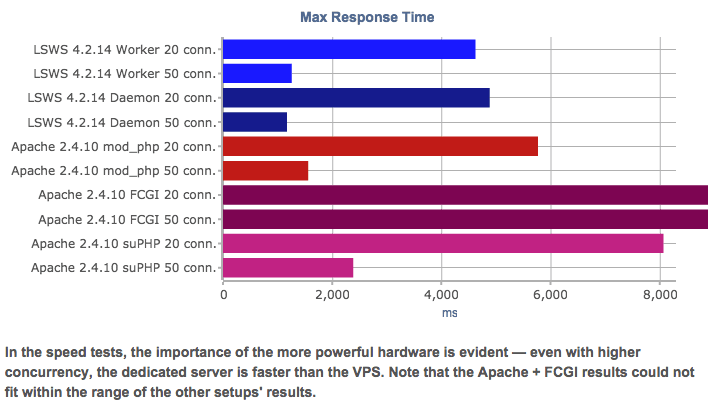
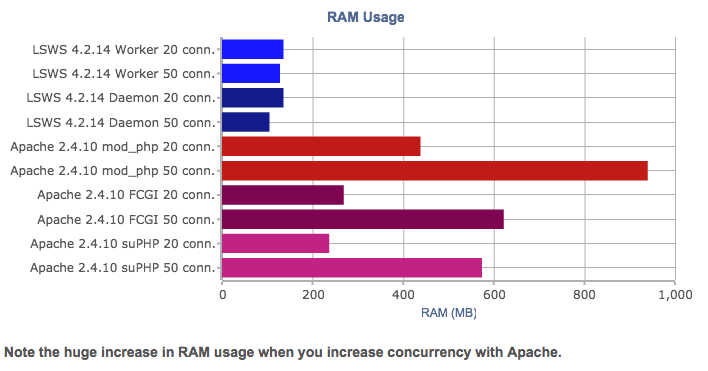
    cPBenchRAMThese benchmarks from cPanel Conference 2014 demonstrate RAM usage and server load differences for LiteSpeed Web Server vs. Apache. (more…)

  • Plesk Extension Update: Default PHP Build Supports All Major Web Applications

    Plesk Extension Update: Default PHP Build Supports All Major Web Applications

    sp-lockup-ppp-2013-11Our newest release of the LiteSpeed Plesk Extension leverages our updated LiteSpeed PHP Repository to offer CentOS users a default PHP build that supports all major web applications. (more…)

  • DirectAdmin Integrates LiteSpeed Web Server into CustomBuild 2.0!

    DirectAdmin Integrates LiteSpeed Web Server into CustomBuild 2.0!

    DA_LSWS

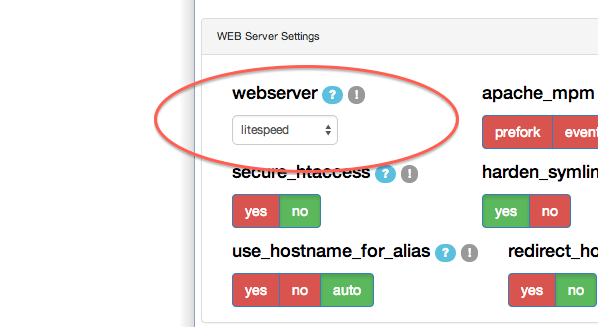
    DirectAdmin prides itself on being a super lightweight control panel, so it makes sense for them to integrate with the world’s premier lightweight Apache-replacement. (more…)

  • Official cPanel Support for LiteSpeed Web Server!

    Official cPanel Support for LiteSpeed Web Server!

    cPanel supports LiteSpeed

    You requested it. We delivered. cPanel and LiteSpeed are announcing official support for LiteSpeed Web Server users through cPanel’s ticket system. (more…)

  • LiteSpeed’s Plesk Extension Now Available in Plesk Extensions Catalog

    LiteSpeed’s Plesk Extension Now Available in Plesk Extensions Catalog

    LiteSpeed Extension on Plesk Catalog

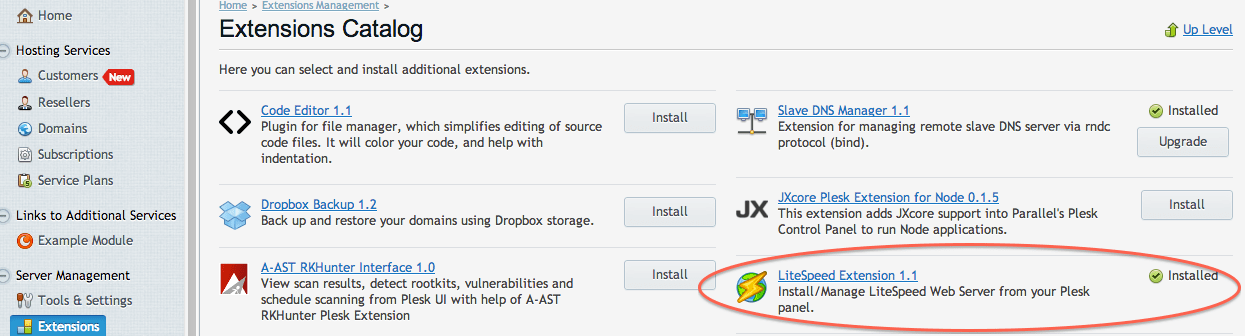
    Plesk users can now find LiteSpeed’s Plesk Extension in the official Plesk Extensions catalog. (more…)

  • Easy Just Got Easier: Announcing the Release of the Plesk LSWS Extension

    Easy Just Got Easier: Announcing the Release of the Plesk LSWS Extension

    plesk_lsws_pluginOur new extension for Parallels’ Plesk panel makes it exceedingly easy for Plesk users to try LiteSpeed Web Server. (more…)

  • Setting Up Multiple PHP Versions

    Setting Up Multiple PHP Versions

    Here at LiteSpeed, we are in the midst of a major overhaul of our documentation. It’s a lot of hard work — like carving granite with tweezers — but we don’t want to make you wait till it’s finished to get some of the benefits. So, on the blog, we will be sharing tips about how you can make LSWS run better for you. Today’s post is an overview of setting up multiple PHP versions when you use a control panel (though it will work if you don’t use a control panel as well). (more…)