Category: Troubleshooting

Sometimes things don’t work the way they are supposed to. Having trouble with your LiteSpeed product? Get some troubleshooting tips and tricks here for LiteSpeed Web Server, LiteSpeed Web ADC, the various LiteSpeed Cache plugins and more! We’ll show you some things you can do to pinpoint and fix the problem.

  • WpW: Where to Go for LiteSpeed Cache Help

    WpW: Where to Go for LiteSpeed Cache Help

    WordPress Wednesday: Where to go for LiteSpeed Cache Help

    Welcome to another installment of WordPress Wednesday!
    Today’s topic is: Where to go for LiteSpeed Cache Help

    Someday you may need assistance with your LSCache for WordPress installation. Don’t worry, we are here to help!

    Where to go

    We have a few different support channels available, so it can be hard to know which one is appropriate.

    Wiki

    The first thing you should do when you have a problem is drop by our wiki. In the LSCWP section, we have defined every setting, described every function, and covered some common troubleshooting questions as well. There’s a lot of information there, and it’s likely you will find what you need, especially if your issue is a common one.

    Forums

    Although we do have LiteSpeed forums, we prefer to handle the WordPress cache support on the WordPress site. visit the official WordPress LSCache plugin forum to ask any questions you can’t solve from the wiki.
    Where to go for LiteSpeed Cache Help: Park Here sign

    While on the forum, take a look at other users’ questions. Maybe one of them has had your issue and was able to solve it. If you don’t find the answer on the forum, you can post a question yourself. It may be answered by a community member or by LiteSpeed staff.

    Ticket

    We strongly suggest that you try the wiki and the WP forum before you open a ticket.

    If you’ve exhausted the other options, or your question requires you to share information that you consider sensitive, our secure Ticket System is at your service. LiteSpeed customers may access the WHMCS ticket system directly through their customer login. If it’s your hosting provider that is our customer, you won’t have an account. You can send a message to bug at litespeedtech.com instead. Both methods end up in the same place for us.

    Premium Support

    We now offer a few paid support options for the more complicated issues. You can get all of the details about the tiers and conditions of premium support on our wiki. As a general rule of thumb, if we have to log in to your system to troubleshoot and diagnose the problem, then it’s a candidate for paid support.

    Don’t worry. If we find a bug in our code while investigating your issue, the fee is refunded.

    What to send us

    If you take the time to include a few of the following things in your support inquiry, we can assist you faster:

    • Link to your site: it’s helpful for us to try and see the reported behavior for ourselves.
    • Screenshots, if applicable
    • Report Number: This can give us a lot of very useful information. Navigate to LiteSpeed Cache > Report, press the Send to LiteSpeed button, make note of the “Report Number”, and then include the number with your inquiry so we can look it up.

    If your problem is tricky, it might be helpful to have a look at your debug log:

    1. If there is no Debug Log option in the LiteSpeed Cache menu, then you will need to enable logging. Navigate to LiteSpeed Cache > Settings > Debug and set Debug Log to ON, or Admin IP Only.
    2. Do what you must to reproduce the error.
    3. Navigate to LiteSpeed Cache > Debug Log
    4. Copy the most recent or relevant lines from the log and include them with your inquiry.
    5. Turn the debug log off, if you no longer need it.

    We enthusiastically support all of our software, so if you are struggling with LiteSpeed Cache for WordPress, please give us an opportunity to help you!

    Have some of your own ideas for future WordPress Wednesday topics? Leave us a comment!

    Don’t forget to meet us back here next week for the next installment. In the meantime, here are a few other things you can do:

  • WpW: Troubleshooting LSCache Optimization

    WpW: Troubleshooting LSCache Optimization

    WordPress Wednesday: Troubleshooting LSCache Optimization

    Welcome to another installment of WordPress Wednesday!
    Today’s topic is: Troubleshooting LSCache Optimization

    Disclaimer: The information contained in this post is accurate for LSCWP v1.8.1 [release log]. If you are using a newer version of the plugin, some details may have changed. Please refer to our wiki for the latest!

    So, you enabled optimization features in LiteSpeed Cache for WordPress, and your site display turned wonky. It’s a common problem, but it’s probably not, strictly speaking, an issue with the LSCache plugin. Instead, it’s more likely to be an issue with a single CSS or JavaScript file that doesn’t want to play nicely with Minification or Combination.

    Because these file anomalies are outside of the scope of LSCache’s free support, we would like to share this troubleshooting guide today to help you find that problematic file yourself and exclude it from optimization.

    (NOTE: If you really don’t want to do the detective work yourself you can hire us to do it for you.)

    Verify it’s an Optimization Issue

    Verify it's an optimization issue

    Before getting into the nitty gritty, let’s make sure that it really is an optimization issue. Turn off all optimization features, purge the cache, and check your site, like so:

    1. Turn off optimization. From the WordPress Dashboard, navigate to LiteSpeed Cache > Settings > Optimize and set all of the following to OFF: CSS Minify, CSS Combine, CSS HTTP/2 Push, JS Minify, JS Combine, JS HTTP/2 Push.
    2. Purge the cache. Navigate to LiteSpeed Cache > Manage > Purge and press the Purge All button.
    3. Check your site. Reload the page. Does it still look bad?

    It still looks bad

    If it’s still not displaying correctly, then the problem is not with LSCache’s optimization features.

    What happens if you turn of LSCache completely? Does the site look fine? If so, then some other feature of LSCache is interfering with your site. Visit our forum, and let us know what’s happening.

    If the site is still messed-up even after turning off LSCache, then the issue is related to something else on your site and we, unfortunately, can’t help. It’s probably a good time to contact your hosting provider.

    It looks good now

    Congratulations, you have confirmed that the issue lies somewhere in the optimization features. Now you have two options:

    1. Leave those optimization options turned off for good. This is an easy solution, and if you choose to do this, your site can still benefit greatly from caching even without optimization enabled. Remember, you don’t have to use combine and minify to use LSCache!
    2. Turn those options back on, do some troubleshooting to find the problematic file, and exclude that file from optimization. If you want to go this route, grab a cup of coffee, make yourself comfortable, and let’s get started!

    Troubleshooting LSCache Optimization

    Identify Whether it’s a CSS or JavaScript Issue

    The first step in finding the problematic file is determining whether we are looking at a JavaScript issue or a CSS issue.

    Let’s check JavaScript first:

    1. Re-enable the JS-related optimization functions, and leave the CSS functions disabled.
    2. Purge the cache again.
    3. View the page. How does it look?
    4. If it’s messy, then one of your JS files is problematic. Jump ahead to the next section.
    5. If it’s fine, then your JS files are also fine.

    If JavaScript wasn’t the culprit, then it’s probably CSS. Let’s make sure.

    1. Disable the JS-related optimization functions, and re-enable the CSS functions.
    2. Purge the cache again.
    3. View the page. How does it look?
    4. It should be messy, indicating one of your CSS files is problematic.

    Now that you know whether it’s CSS or JS, you’ll need to find the specific file that is causing the problem.

    Find and Exclude the Problematic File(s)

    For the purposes of these instructions, let’s assume you have a CSS file causing trouble. If, in fact, your issue is with JavaScript, you can still follow these same steps. Just imagine that the instructions say “JS” everywhere that they say “CSS.”

    In order to find the file that is at fault, first we need to get a list of all possible CSS (or JS) files. Once that is done, we will exclude the entire list of files from optimization, and then reintroduce them one-by-one until we’ve found our culprit.

    Get a List

    Get a List of CSS Files

    Using the browser’s Developer Tool, visit the Network tab, and click CSS to view only the CSS files. Reload the page. You should see a list of all of the CSS files in use by that page, listed in the Name column. Exclude everything on this list from optimization.

    You can exclude files by full URL or by partial path.

    If you need to see the full path of any one CSS file, click on the name of that file, and click Headers. You will find the full location of the selected file listed as Request URL.

    Test the List

    Test the List of CSS Files

    1. Enable all of the optimization functions you wish to use.
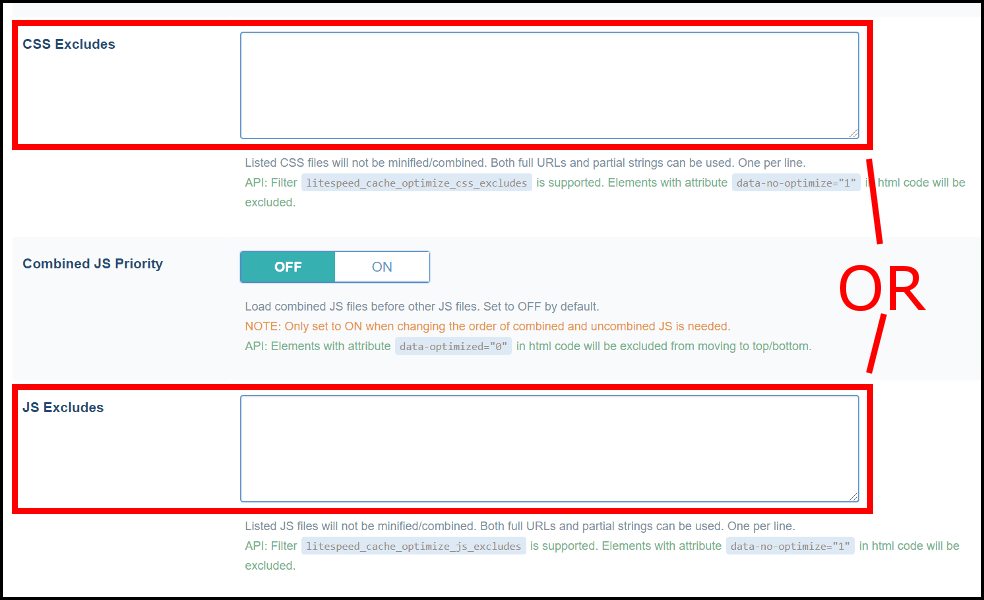
    2. Exclude all of the CSS files from optimization: Navigate to LiteSpeed Cache > Settings > Tuning and enter the files from your list, one-per-line, in the CSS Excludes box.
    3. Purge the cache and check the site. It should be displaying correctly.
    4. Remove one of the CSS files from the exclude list, and purge the cache.
    5. Check the site.
      1. If it still looks ok, then that file you just removed was not the problematic file.
      2. If the site looks broken, then you know you have found a problematic CSS file. Put it back in the box and leave it there.
    6. If there are more unchecked files, repeat from Step 4.

    At the end of this process your work should be done! Your site should look good, all of the optimization functions you wish to use should be enabled, and you should have one or more problematic CSS or JS files sitting the in the CSS Excludes or JS Excludes box and eliminated from future optimization. Success!

    Are any of these steps unclear? Have something you’d like to add? Leave a comment! If you’d like to see another example for how to troubleshoot optimization issues, see our wiki.

    Have some of your own ideas for future WordPress Wednesday topics? Leave us a comment!

    Don’t forget to meet us back here next week for the next installment. In the meantime, here are a few other things you can do:

  • Diagnosing Performance Issues: Using strace with PHP

    Diagnosing Performance Issues: Using strace with PHP

    Problem Scenario

    Home page is exhibiting slow load times (40 to 50 seconds).
    Server logs log/stderr and log/system do not indicate unusual behavior.

    (more…)

  • LiteSpeed Web Server Troubleshooting: 503 Errors and PHP

    LiteSpeed Web Server Troubleshooting: 503 Errors and PHP

    That won't work!

    We recently added a wiki to guide users through troubleshooting 503 errors.

    (more…)

  • Trouble Shooting: “PECL Install Doesn’t Work”

    Trouble Shooting: “PECL Install Doesn’t Work”

    Some users prefer to mount their /tmp directory as noexec for security reasons, but we’ve seen that this can cause a problem for PECL installs. Pointing the PECL temp_dir to a new path gets around this problem. (more…)

  • We Update Constantly (or Why Our Build Numbers Are Only Three Digits)

    We Update Constantly (or Why Our Build Numbers Are Only Three Digits)

    Often times, when you have a problem with LSWS, one of our staff will suggest that you update to the latest version of the web server. “But I am using the latest version,” you say. “No,” the staff member says, “we updated it yesterday.”

    This is something we get asked about quite often: Why don’t we add another digit to distinguish between builds whenever we update LSWS? The reason is that we update it so often — and for so many configuration-specific bugs — that for you, the user, to try to keep up with these updates is an exercise in futility. (more…)

  • PHP Troubleshooting: Too Many Sessions Causes Bottleneck

    PHP Troubleshooting: Too Many Sessions Causes Bottleneck

    A client came to us with server loads of 200-400 during peak times. (He has a 64 core 32 GB server and a 4-CPU LSWS license.) Detailed observation revealed that PHP processes were eating up his processing power. But why? What were they doing? Taking out the trash. (more…)

  • Change php.ini under PHP suEXEC Daemon Mode? Not Possible!

    Change php.ini under PHP suEXEC Daemon Mode? Not Possible!

    We’re happy to announce the release of LSWS 4.2.1, both to address an issue with php.ini location, but also to bump up PHP performance through streamlining PHP process launch. (more…)

  • Troubleshooting for High Load php-Driven Site

    Troubleshooting for High Load php-Driven Site

    Hello, everyone,

    Time pasts so fast, it has been over 2 years since last blog post. (more…)